Check cables, BIOS settings, drivers, thermal throttling, and PCIe lane allocation first.
I’ve worked on dozens of builds and serviced NVMe drives for clients, so I know why an NVMe SSD might not show full speed and how to fix it. This guide walks you through clear, practical steps to diagnose and fix the problem. You’ll learn the common causes, step-by-step fixes, testing methods, and advanced tweaks so you can get full NVMe performance on desktops and laptops. Read on to get fast, reliable results for how to fix nvme ssd not showing full speed.

Common causes of NVMe SSD not showing full speed
Understanding the cause makes the fix much easier. Here are the usual reasons an NVMe drive runs slow.
- Wrong slot or shared lanes. Some M.2 slots share PCIe lanes with GPUs or SATA ports, cutting speed.
- BIOS settings. Legacy mode, PCIe set to Gen2, or NVMe disabled lowers throughput.
- Thermal throttling. NVMe drives get hot and cut speed to protect themselves.
- Drivers and firmware. Old NVMe drivers or outdated SSD firmware reduce performance.
- Power management. Aggressive power-saving can throttle performance.
- Hardware limits. Older motherboards or CPUs may not support full PCIe Gen3/Gen4 speeds.
- Bad installation or cooling. Improper standoffs, poor contact with heatsink, or case airflow issues hurt speed.
Each cause maps to specific fixes below. If you want to fix how to fix nvme ssd not showing full speed, treat each of these areas one by one.
Step-by-step fixes: how to fix nvme ssd not showing full speed
Follow these steps in order. Test after each change to see if speed improves.
- Verify the physical slot and lane allocation
- Check your motherboard manual to find the M.2 slot that supports full PCIe lanes.
- Move the drive to the top M.2 slot tied to the CPU for max speed.
- If a GPU or other device shares lanes, temporarily remove it for testing.
- Update BIOS and enable correct settings
- Update the motherboard BIOS to the latest stable version.
- Set storage mode to AHCI/PCIe (not legacy SATA) and ensure NVMe support is on.
- Set PCIe link speed to Gen3 or Gen4 where supported.
- Update drivers and SSD firmware
- Install the latest NVMe driver from the motherboard vendor or OS-managed driver.
- Use your SSD vendor’s firmware tool to check and apply updates.
- Reboot after updates and re-run speed tests.
- Address thermal throttling
- Add or improve an M.2 heatsink. Place drive under direct airflow.
- Avoid stacking drives or placing the SSD where GPU exhaust hits it.
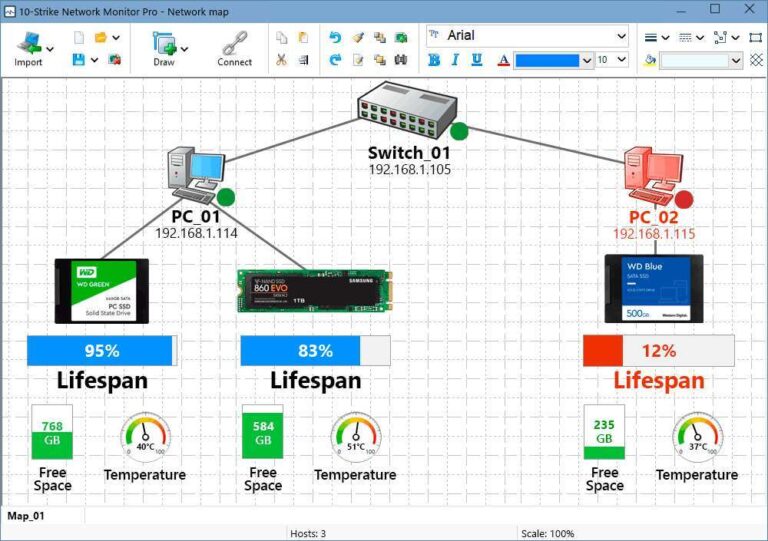
- Monitor temperatures with a tool. If temps exceed manufacturer thresholds, add cooling.
- Adjust power and OS settings
- On Windows, set high-performance power plan and disable link-state power management for PCIe.
- On laptops, set performance mode and prevent CPU or device idle states that throttle IO.
- Check NVMe power settings in Device Manager or vendor tools.
- Check cabling and adaptors
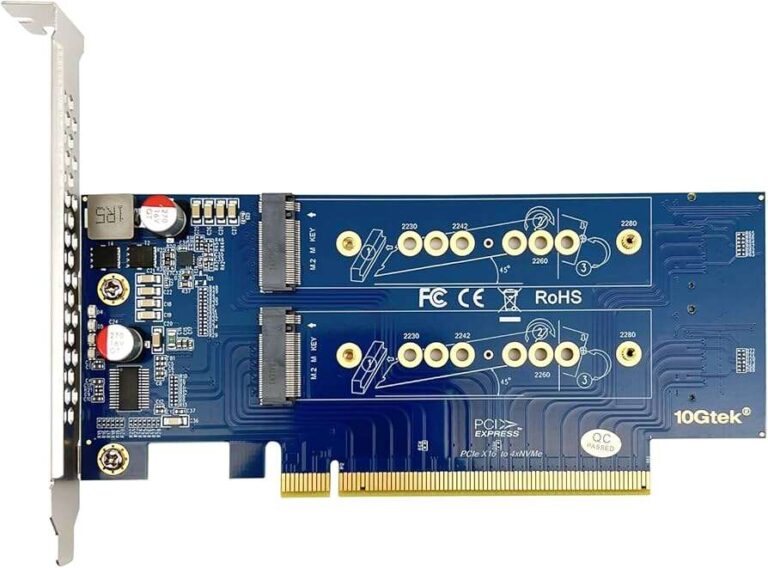
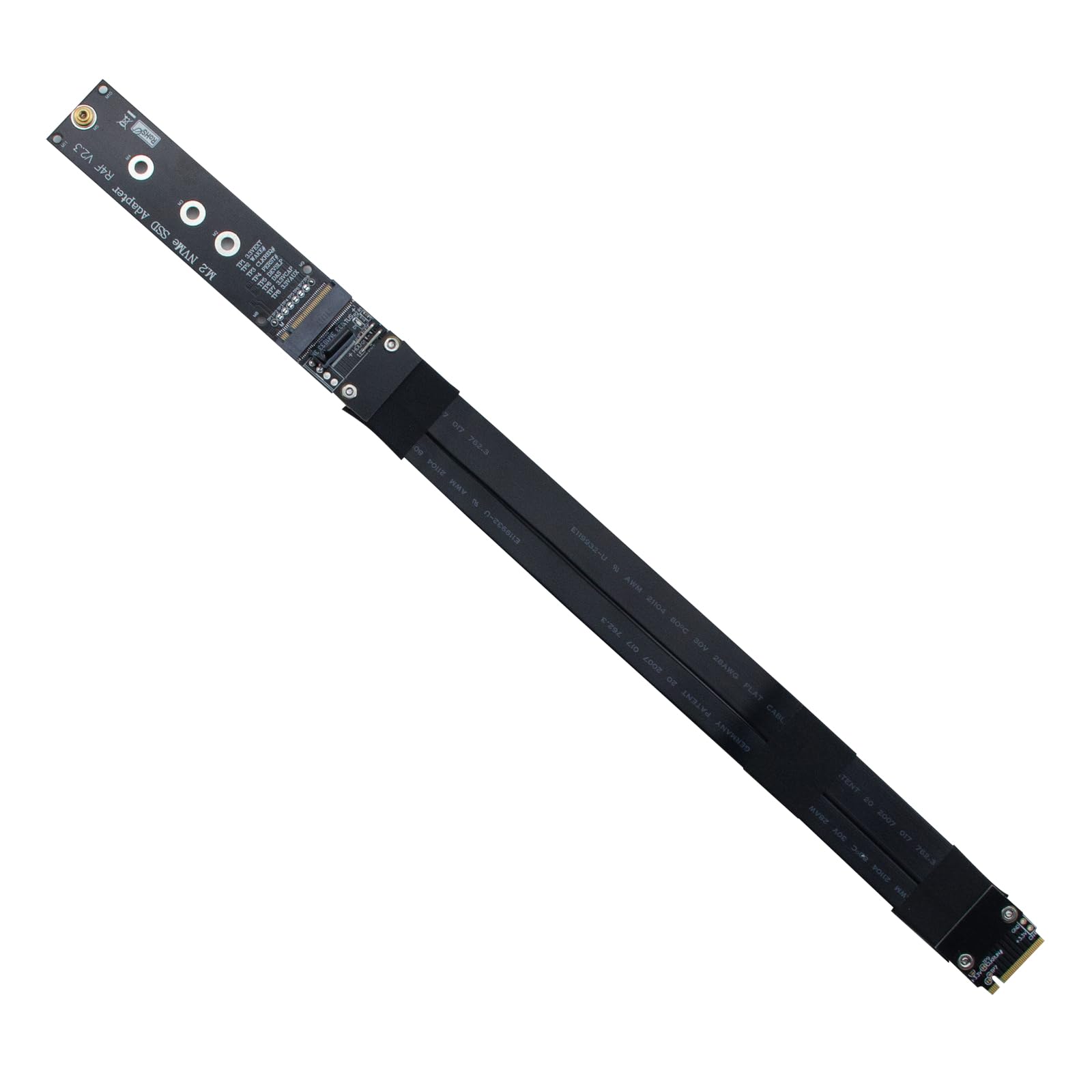
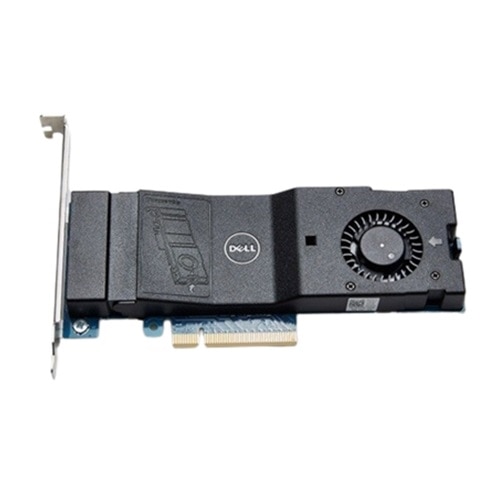
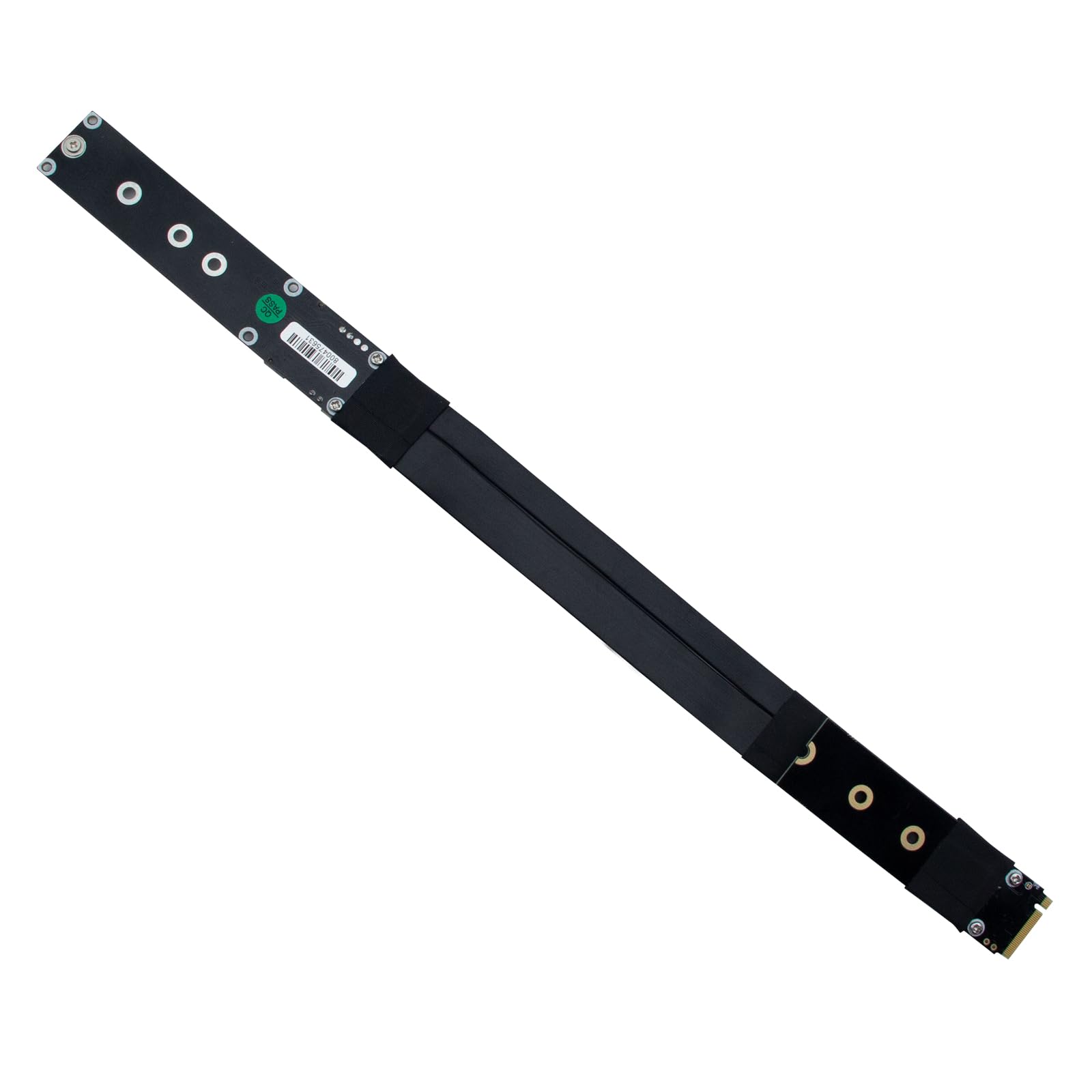
- Avoid cheap M.2 to PCIe adapters that don’t support full lanes. Use a certified adapter.
- If using U.2 adapters or enclosures, confirm they are PCIe 3.0/4.0 compliant and use correct cables.
- Test with another system
- Install the drive in a second compatible machine to isolate motherboard or OS issues.
- If it reaches full speed elsewhere, focus fixes on the original PC.
- Reformat and check partition alignment
- Backup data and run a secure format if suspecting file system issues.
- Ensure partitions are aligned and use an appropriate block size for your workload.
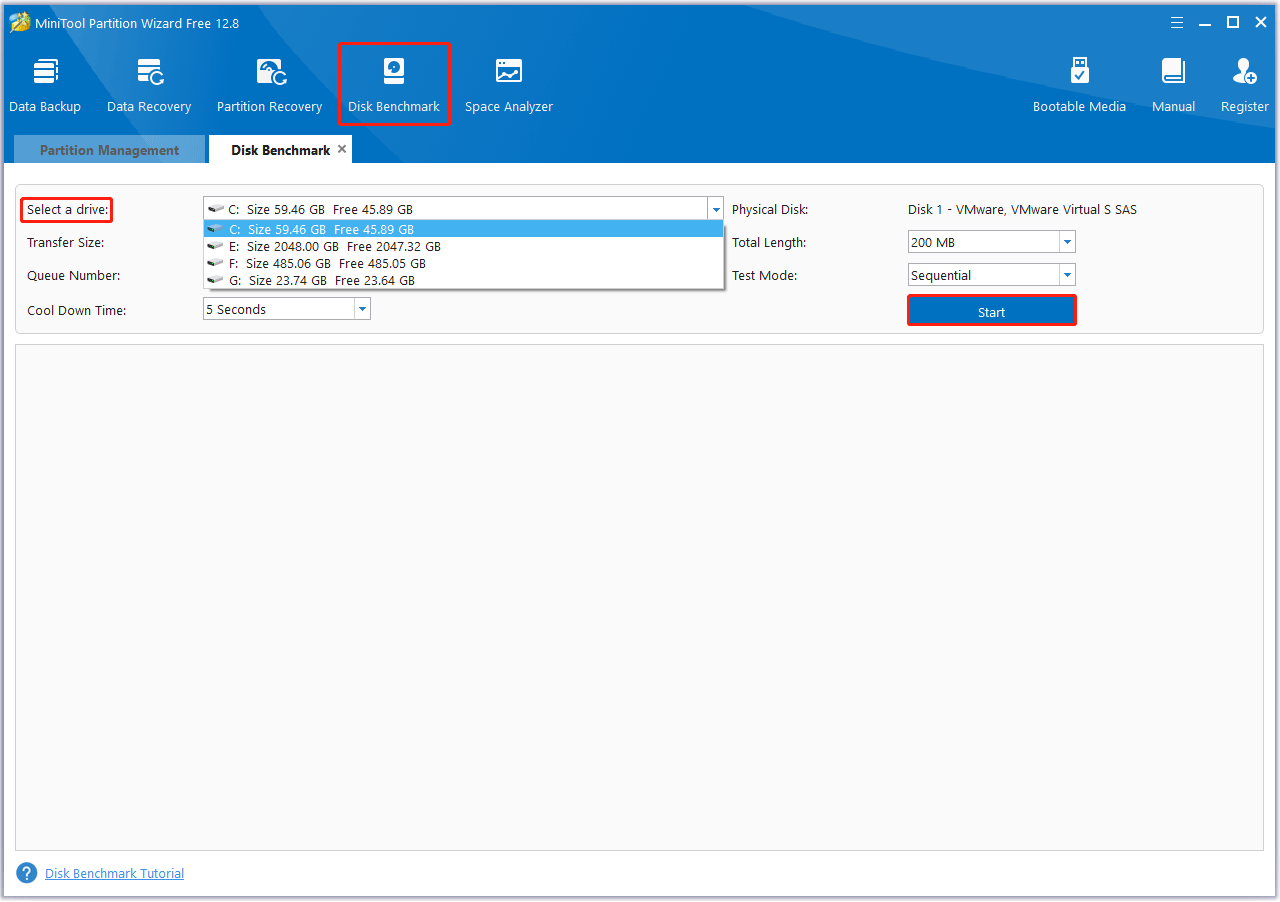
After each step, run a benchmark to measure improvement. This ordered approach fixes most cases of how to fix nvme ssd not showing full speed.
How to test and benchmark your NVMe SSD
Use simple tools and known patterns to test real speed. Run these tests in a controlled way.
- Use reputable tools. Run sequential and random reads/writes with modern benchmark tools.
- Close background apps. Ensure nothing else is using the drive during tests.
- Run multiple passes. A single test can mislead; run 3–5 passes and average results.
- Test different file sizes. Small random I/O shows latency; large sequential I/O shows throughput.
- Monitor temps while testing. Thermal throttling often appears during long sequential runs.
Common expected numbers:
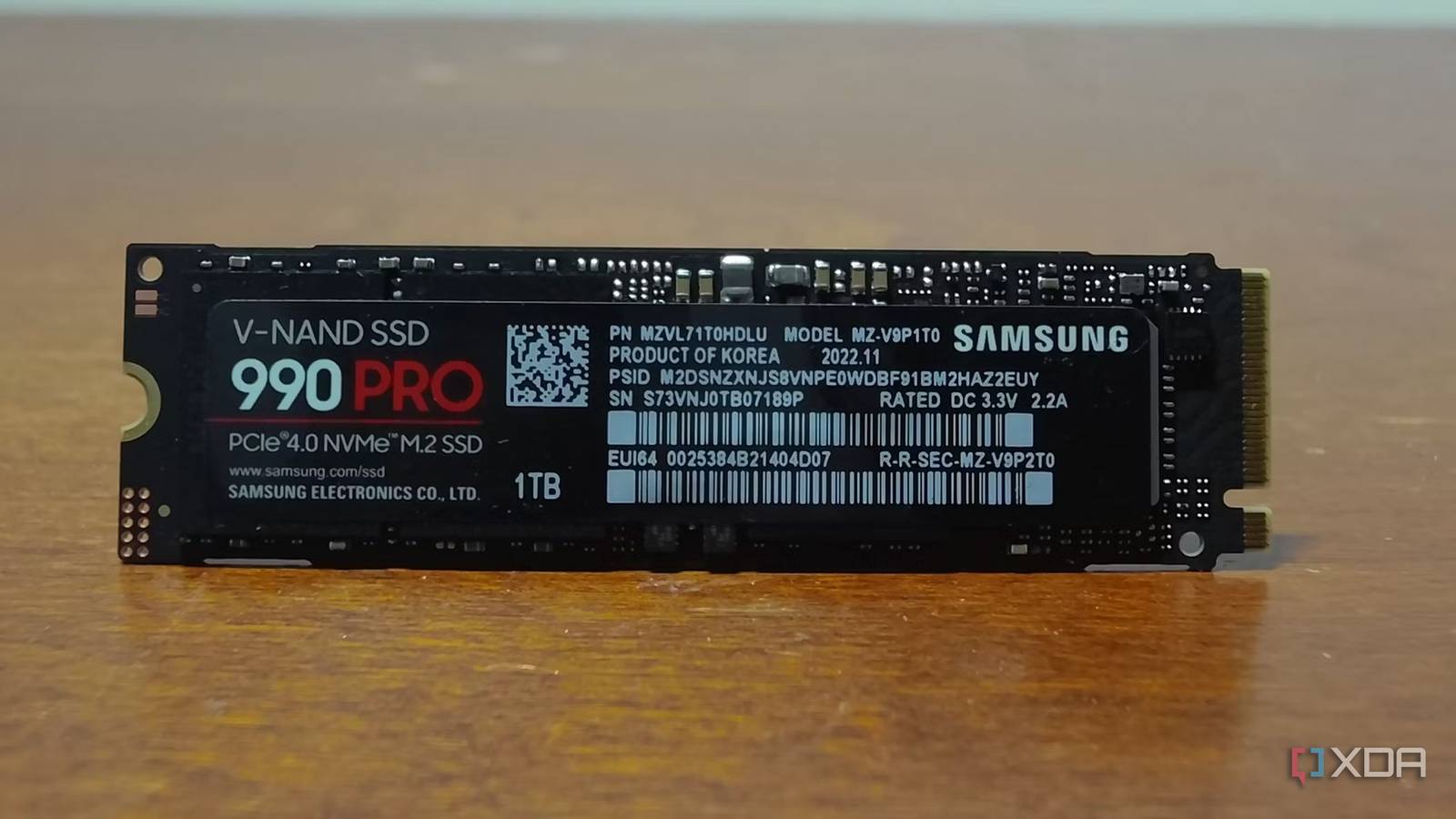
- PCIe Gen3 x4 NVMe: around 3,000–3,500 MB/s sequential reads on modern drives.
- PCIe Gen4 x4 NVMe: up to 7,000 MB/s or more on Gen4 drives.
If numbers fall well below specs after the checks above, revisit lane allocation, BIOS, and drivers. Good testing gives confidence when you fix how to fix nvme ssd not showing full speed.
Advanced tweaks and troubleshooting
If primary fixes do not help, try these advanced options.
- Disable CPU power-saving features temporarily. Some CPUs downclock PCIe lanes under power limits.
- Tune NVMe scheduler on Linux. Choose noop or mq-deadline for certain workloads.
- Use firmware vendor tools to reset SMART or run diagnostics.
- Check BIOS advanced options like Above 4G decoding, Resizable BAR, or bifurcation—some can affect lane behavior.
- Replace the motherboard’s M.2 heatsink with a thicker, thermally conductive option.
Personal note: I once fixed a persistent 30% speed loss on a workstation by moving the NVMe to the CPU-linked M.2 slot. The drive hit spec speeds immediately. That lesson: slot placement matters as much as firmware. These practical tips help you refine how to fix nvme ssd not showing full speed.
Simple maintenance and habits to keep NVMe fast
Small steps avoid future slowdowns.
- Keep firmware and drivers updated on a regular schedule.
- Use active airflow over the M.2 area inside the case.
- Avoid long, continuous large writes without cooling breaks.
- Monitor temperatures and SMART values monthly.
- Use vendor utilities for health checks and performance tuning.
I’ve helped clients prevent repeat slowdowns with a simple checklist that takes minutes. Adopt these habits to keep your NVMe at peak speed and reduce the need to re-learn how to fix nvme ssd not showing full speed.
People also ask
Why is my NVMe SSD slower than advertised?
Your NVMe may be in a slot with fewer PCIe lanes, set to Gen2 in BIOS, or thermal throttling. Update BIOS, drivers, and check lane allocation to confirm.
Can a GPU reduce NVMe speed?
Yes. Some motherboards share lanes between M.2 slots and GPUs. Moving the NVMe to a CPU-backed slot or changing GPU slot can restore speed.
Will a heatsink really help NVMe speed?
Yes. A heatsink or better airflow prevents thermal throttling, allowing sustained top throughput during long transfers.
Does Windows power plan affect NVMe speed?
Yes. Power-saving modes can lower PCIe link speeds or device idle behavior. Use a high-performance plan for best results.
Should I update NVMe firmware?
Yes. Firmware updates fix bugs and improve performance. Follow vendor instructions and back up data before updating.
Frequently Asked Questions of how to fix nvme ssd not showing full speed
What is the first thing to check when an NVMe is slow?
Check the M.2 slot and lane sharing in your motherboard manual, and ensure the drive is in the slot that supports full PCIe lanes.
How do I know if the NVMe is thermal throttling?
Monitor temperature during a long sequential benchmark. If speeds drop as temperature rises, the drive is likely throttling.
Can a BIOS update fix NVMe speed issues?
Yes. BIOS updates can enable better lane handling, fix compatibility issues, and add NVMe feature support that restores speed.
Is replacing the M.2 adapter helpful?
If the adapter doesn’t support full x4 lanes or PCIe version, replacing it with a certified adapter can restore full speed.
Do I need special cables for external NVMe enclosures?
Yes. Ensure the enclosure and cable support the correct USB protocol or Thunderbolt bandwidth; otherwise you will see a huge speed drop.
How long does it take to fix NVMe speed problems?
Basic fixes like moving the drive or updating drivers take 10–30 minutes. More complex troubleshooting can take several hours depending on tests.
Will OS reinstall help NVMe performance?
Reinstalling can help if software or driver conflicts are the issue, but don’t reinstall before testing slots, BIOS, and firmware.
Conclusion
You can fix most NVMe speed issues by checking slot placement, updating BIOS and firmware, improving cooling, and tuning power settings. Start with the basics, test after each change, and use vendor tools for firmware and diagnostics. Take action now: move the drive to the right slot, update firmware, and run a benchmark to see gains firsthand. If this guide helped, try these steps on your system, bookmark the article, or leave a comment with your issue so I can help further.

Everett Ashford is a tech reviewer at mytechgrid.com specializing in SSDs, cameras, TVs, earbuds, headphones, and other consumer electronics. He provides honest, data-driven reviews based on hands-on testing and real-world performance analysis. Everett simplifies complex tech details to help readers make smart, confident buying decisions.