Formatting an external SSD erases its contents, so back up your files and choose the right file system first.
Learning how to format external SSD storage is simple when you match the file system to your devices and use the correct steps. This guide explains safe methods for Windows, Mac, and Linux, along with common errors, security limits, and practical tips from real-world drive use.
What formatting an external SSD does
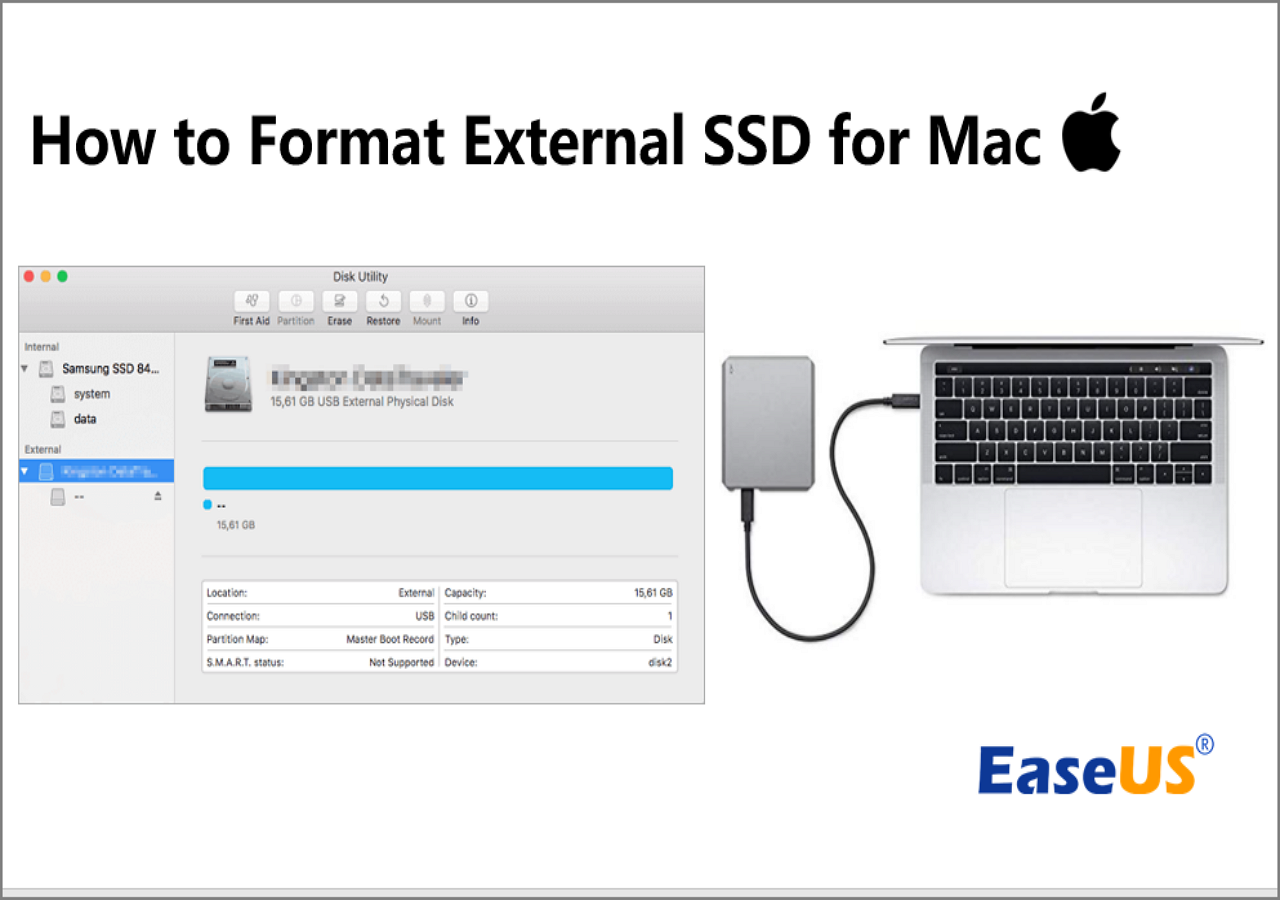
Formatting prepares an external SSD for storing files. It creates a file system, such as exFAT, NTFS, APFS, or ext4, so your computer knows how to save, find, and manage data on the drive.


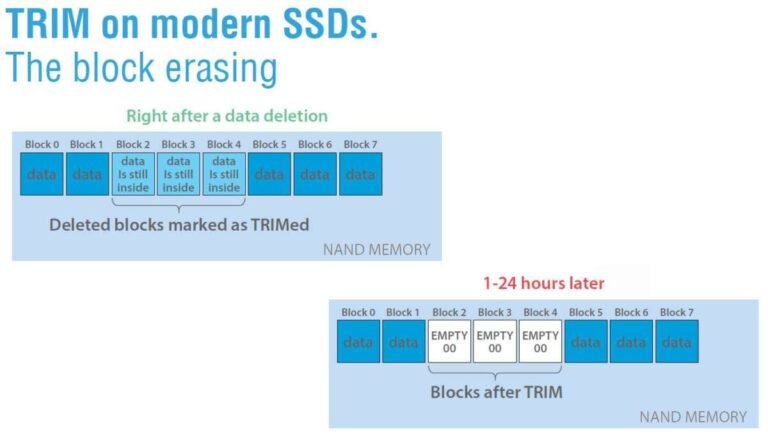
Formatting usually removes the file directory. A quick format may leave some old data recoverable until new files overwrite it. For that reason, formatting is not the same as securely erasing an SSD.
Before you format an external SSD, remember these points:
- Formatting can delete every file on the selected drive.
- The process does not usually affect your computer’s internal drive.
- The chosen file system controls device compatibility.
- A drive may need to be mounted or assigned a drive letter before use.
- Some formatting tools also let you change the partition layout.
Think of the file system as a language. Your Windows PC, Mac, game console, and smart TV may not all speak the same language. Choosing the right one helps the external SSD work across your devices.

Back up your data before formatting
The most important step in learning how to format external SSD storage is making a backup. Formatting the wrong disk can remove important photos, documents, videos, or work files within seconds.
Open the drive and check its contents. Do not rely only on the drive name. A volume called “Backup” may not be the drive you think it is, especially when several USB drives are connected.


Use at least one of these backup methods:
- Copy important files to another external drive.
- Upload files to trusted cloud storage.
- Move essential work to your computer temporarily.
- Create a second copy of irreplaceable photos and videos.
After copying the files, open several of them from the backup. Check photos, documents, and videos at random. This simple test confirms that the backup is usable rather than merely present.
In my own drive setup, the most avoidable mistake was starting a format before checking hidden folders. Some backup tools store important data in folders that are not obvious in File Explorer or Finder. I now disconnect every other external drive before formatting.

Choose the best file system
Choosing the file system is the most important decision when you format an external SSD. The best option depends on which devices will access the drive.
exFAT
exFAT is usually the best choice for an external SSD used with both Windows and macOS. It supports large files and works well with modern computers, cameras, and many gaming devices.
Choose exFAT when:
- You move the SSD between Windows and Mac.
- You store video files larger than 4 GB.
- You want a simple, widely supported format.
- You do not need advanced Windows or Mac permissions.
exFAT has fewer journaling and recovery features than NTFS or APFS. Always eject the drive properly because sudden removal can damage the file directory.
NTFS
NTFS is the standard file system for Windows. It supports file permissions, large files, journaling, and many Windows security features.
Choose NTFS when:
- The drive will mainly stay with Windows computers.
- You need Windows file permissions.
- You use Windows backup or system tools.
- You want strong native Windows support.
macOS can usually read NTFS but may not write to it without extra software. This makes NTFS less convenient for a drive shared between Windows and Mac.
APFS
APFS is designed by Apple for macOS. It works well with Mac computers and supports features such as encryption, snapshots, and space sharing.
Choose APFS when:
- You use the SSD only with modern Macs.
- You want strong macOS integration.
- You plan to use the drive for a Mac backup or Mac-focused workflow.
- You need Apple file system features.
APFS is not a good general choice for a drive that must work natively with Windows. Windows does not provide built-in APFS support in the same way macOS does.
FAT32
FAT32 works with many older devices, including some game consoles, cameras, and media players. However, it has a single-file size limit of about 4 GB.


Choose FAT32 only when an older device requires it. It is usually a poor choice for modern video files because one file cannot exceed the 4 GB limit.
ext4
ext4 is common on Linux systems. It is reliable and supports Linux permissions and features, but Windows and macOS do not normally provide full built-in support.
Choose ext4 when:
- The SSD will stay with Linux computers.
- You need Linux file permissions.
- You use the drive for Linux backups or server work.
File system comparison
| File system | Best use | Windows | macOS | Large files |
|---|---|---|---|---|
| exFAT | Windows and Mac sharing | Read/write | Read/write | Yes |
| NTFS | Windows-only use | Read/write | Usually read-only | Yes |
| APFS | Mac-only use | Limited or unsupported | Read/write | Yes |
| FAT32 | Older devices | Read/write | Read/write | No, 4 GB limit |
| ext4 | Linux-only use | Extra software needed | Extra software needed | Yes |
For most people, exFAT is the practical answer when learning how to format external SSD storage for mixed-device use. Use NTFS for Windows-only storage and APFS for Mac-only storage.

How to format an external SSD in Windows 11 or Windows 10
Windows gives you several ways to format an external SSD. File Explorer is simple, while Disk Management gives you better control over partitions and drive letters.
Format an external SSD with File Explorer
- Connect the external SSD to your Windows PC.
- Wait for Windows to detect it.
- Open File Explorer.
- Select This PC.
- Right-click the external SSD.
- Choose Format.
- Select a file system.
- Keep the allocation unit size at Default unless you have a specific reason to change it.
- Enter a volume label, such as “Portable SSD.”
- Select Quick Format.
- Check the drive letter and capacity carefully.
- Select Start, then confirm the warning.
Use exFAT for Windows and Mac compatibility. Use NTFS when the drive will remain with Windows systems.
A quick format usually finishes fast because it creates a new file system structure without checking every part of the drive. It does not safely erase sensitive information.
Format an external SSD with Disk Management
Disk Management helps when File Explorer cannot format the drive or when the SSD has multiple partitions.
- Right-click the Start button.
- Select Disk Management.
- Find the external SSD by checking its capacity.
- Right-click the correct volume.
- Select Delete Volume if you want to remove the existing partition.
- Right-click the unallocated space.
- Select New Simple Volume.
- Follow the wizard.
- Choose a drive letter.
- Select the desired file system.
- Complete the format.
Be extremely careful with Disk Management. The window lists internal system drives too. Formatting or deleting the wrong volume can make Windows unusable.
If the SSD appears as “Not Initialized,” right-click the disk label and choose Initialize Disk. GPT is generally the better choice for modern Windows systems and large drives. MBR may be needed for some older devices.
Format an external SSD with Windows Terminal
Advanced users can use DiskPart. This method is powerful and risky because it works directly with disk numbers.
- Open Windows Terminal or Command Prompt as an administrator.
- Type
diskpartand press Enter. - Type
list disk. - Identify the external SSD by its capacity.
- Type
select disk X, replacing X with the correct disk number. - Type
cleanonly after checking the disk number twice. - Create a new partition.
- Format it as exFAT or NTFS.
- Assign a drive letter.
- Type
exit.
Never use the clean command until you are completely certain that the selected disk is the external SSD. This command removes the partition information and can cause major data loss.
How to format an external SSD on a Mac
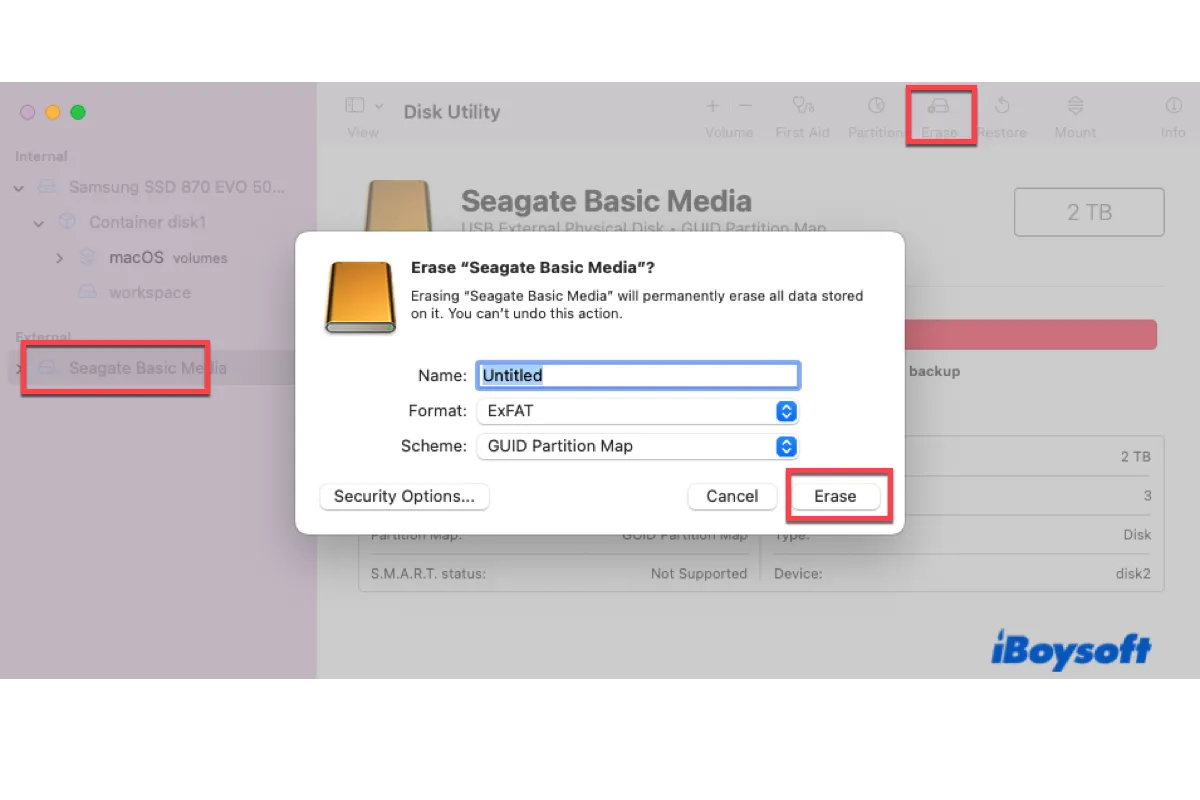
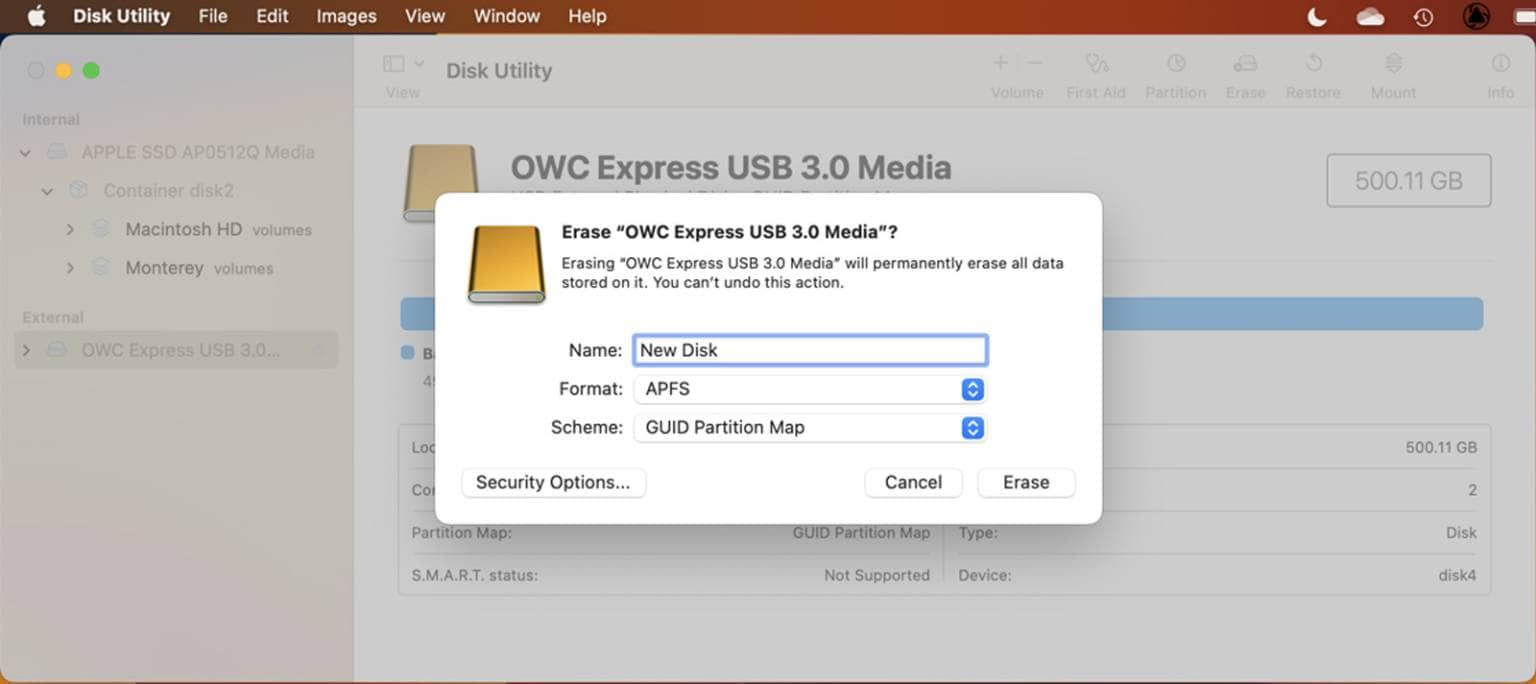
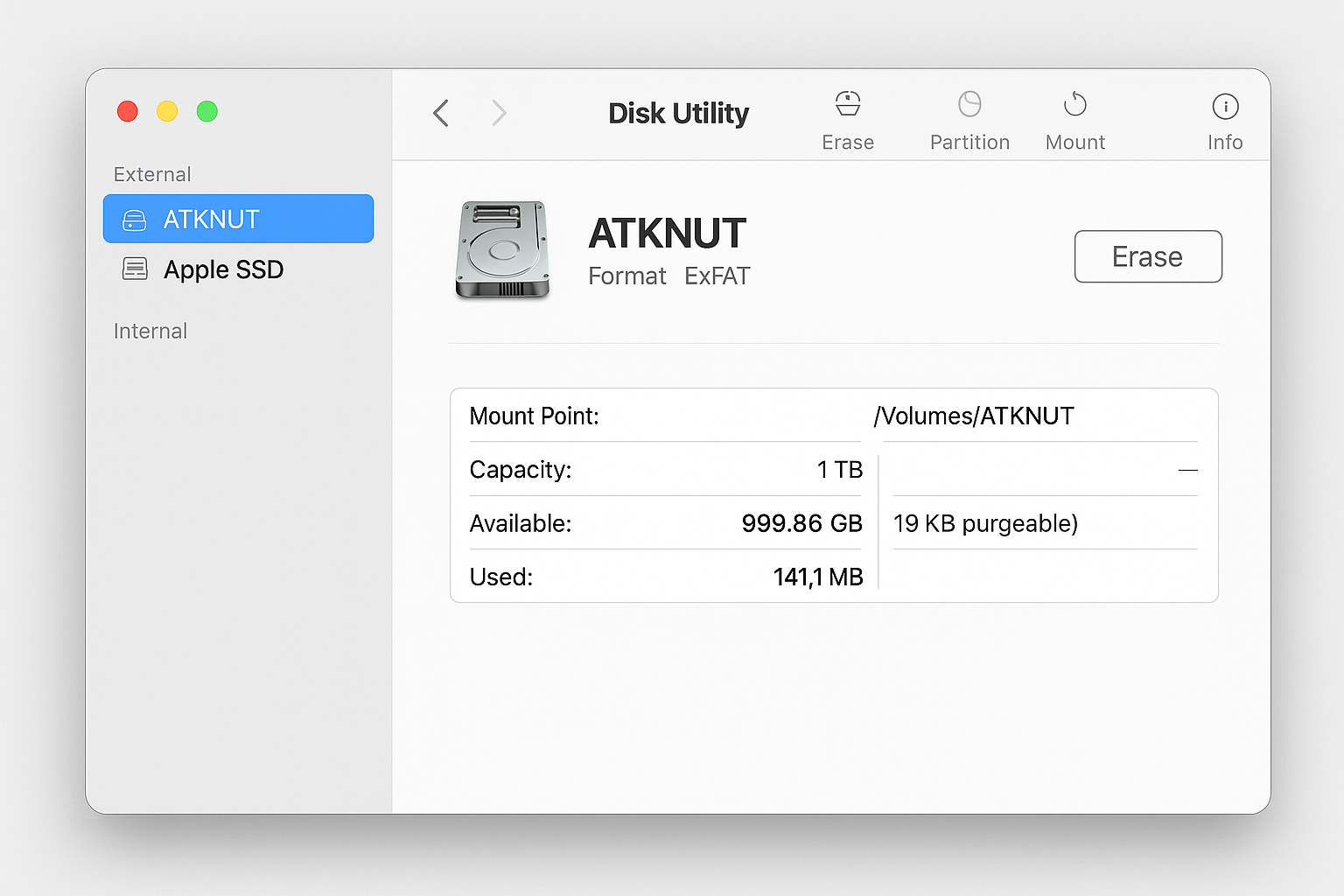
macOS uses Disk Utility to format and partition external storage. The tool is built into every modern Mac.


Format an external SSD with Disk Utility
- Connect the external SSD to your Mac.
- Open Applications.
- Open Utilities.
- Launch Disk Utility.
- Select View, then Show All Devices.
- Choose the physical external SSD in the left sidebar.
- Select Erase.
- Enter a name for the drive.
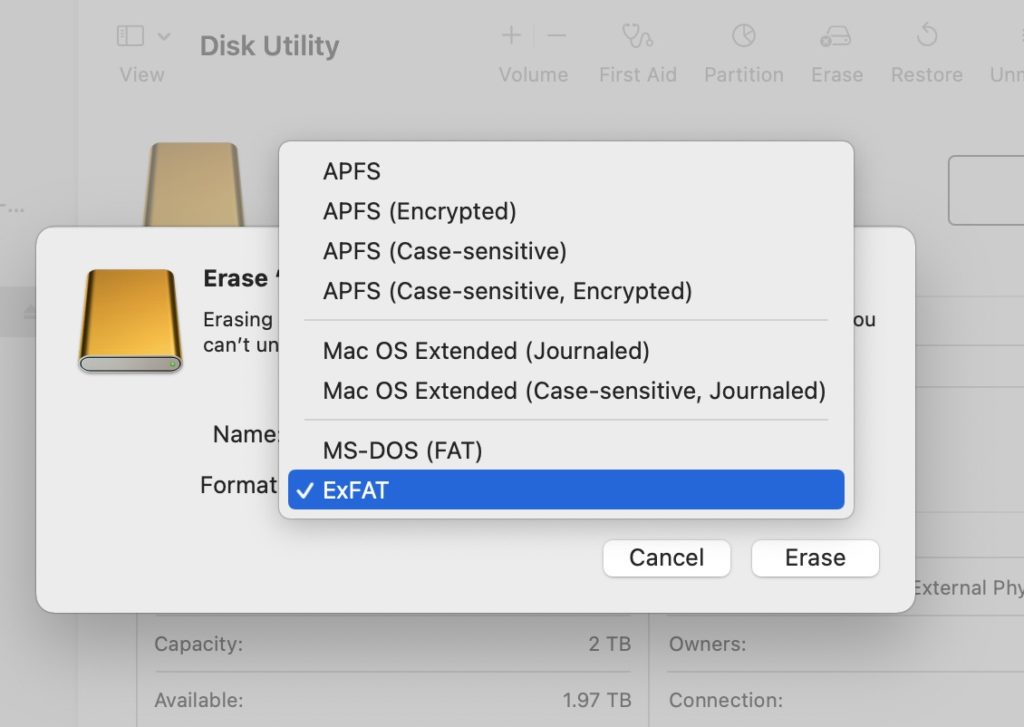
- Select a format.
- Choose a scheme.
- Select Erase.
- Select Done when the process finishes.
Choose these common combinations:
- APFS with GUID Partition Map for a Mac-only SSD.
- exFAT with GUID Partition Map for use with Mac and Windows.
- Mac OS Extended with GUID Partition Map for older Mac systems or special compatibility needs.
Selecting the physical drive instead of only the volume lets you change the partition scheme. This can matter when the SSD was previously used with Windows, a game console, or another operating system.
What to do if the Mac does not show the SSD
If the external SSD does not appear in Finder, open Disk Utility. It may appear there but remain unmounted.
Try these steps:
- Check the USB cable.
- Try another USB port.
- Connect the SSD directly instead of through a hub.
- Select the drive in Disk Utility and choose Mount.
- Run First Aid before formatting.
- Test the SSD on another computer.
Some USB-C hubs do not provide enough power or may have connection problems. A direct connection often solves issues that look like drive failure.

How to format an external SSD in Linux
Linux users can format an external SSD with a graphical tool or the command line. The exact tool depends on the distribution, but GNOME Disks and KDE Partition Manager are common choices.
Format an external SSD with GNOME Disks
- Connect the SSD.
- Open the Disks application.
- Select the external SSD by checking its capacity.
- Select the volume.
- Choose the gear icon.
- Select Format Partition.
- Choose a file system.
- Enter a volume name.
- Confirm the format.
- Mount the new volume.
Use exFAT if you need to share the SSD with Windows and macOS. Use ext4 for Linux-only use.
Format an external SSD with the command line
Linux commands can format a partition with tools such as mkfs. The exact command depends on the file system and partition name.
A safe process is:
- Use
lsblkto identify the external SSD. - Confirm the size and model.
- Unmount the target partition.
- Create or change the partition as needed.
- Run the correct file system command.
- Mount the new partition.
- Check the result with
lsblkor the file manager.
Do not copy a command from the internet without checking the device path. Linux may name an external drive /dev/sdb, /dev/sdc, or something else. The name can change each time you connect drives.
How to format an external SSD for a specific device
Computers are not the only devices that use external SSDs. Cameras, game consoles, televisions, routers, and car systems may have their own requirements.
Check the device manual before formatting. Some devices support only FAT32 or exFAT. Others require a special folder structure that the device creates during its own format process.
For a gaming console, formatting through the console is often safer than formatting on a computer. The console may create the correct partition layout and reserve space for system data.


For a smart TV or camera, test a small drive first. A device may recognize a USB flash drive but reject an external SSD because of power, partition, or file system limits.
If the device cannot see the formatted SSD, check:
- The file system.
- The partition scheme.
- The maximum supported storage size.
- The USB port standard.
- The device’s power limit.
- Whether the device requires its own format tool.
Quick format versus full format
A quick format creates a new file system structure in a short time. It is useful when the SSD is healthy and you have already backed up the data.
A full format takes longer and may scan the storage for errors. On modern SSDs, repeatedly writing across the entire drive is not usually the best way to test health or erase private data.
Use a quick format when:
- You are changing the drive for normal use.
- The SSD worked correctly before formatting.
- You have a complete backup.
- You do not need secure data removal.
Use a deeper erase or secure erase process when:
- You are selling the SSD.
- The drive stored private or business data.
- Your organization requires a documented disposal method.
- You need to remove access to old files.
Formatting alone may not prevent data recovery. SSDs use flash memory, controllers, wear leveling, and spare cells. These features make ordinary overwrite methods less predictable than they are on older hard disk drives.
For sensitive data, encryption is a better habit from the start. Full-disk encryption reduces the risk that old files can be read if the SSD is lost or retired. Follow the instructions for your operating system and SSD manufacturer.
Partition scheme: GPT or MBR
A partition scheme describes how the drive organizes partitions. The two common choices are GPT and MBR.
GPT is the modern standard. It supports large drives, works well with UEFI systems, and is usually the right choice for new computers.
MBR is older and has wider support on some legacy devices. It may be useful when an older computer, television, or game system cannot read GPT.
Choose GPT when:
- You use a modern Windows PC or Mac.
- The SSD is larger than 2 TB.
- You want current system support.
- The drive is for general computer use.
Choose MBR only when a specific older device requires it. If you are unsure, check the device manual before creating the partition.
The partition scheme and file system are different settings. GPT or MBR defines the disk layout, while exFAT, NTFS, APFS, or ext4 defines how files are stored.
Common external SSD formatting problems
The SSD is not detected
Try another cable and port first. Some cables provide charging power but do not support data transfer.
Then check Disk Management on Windows or Disk Utility on Mac. If the drive appears there, the issue may involve mounting, partitioning, or the drive letter rather than a complete hardware failure.
The format option is unavailable
The volume may be locked, mounted, read-only, or damaged. On Windows, Disk Management may help. On macOS, select the physical device in Disk Utility and choose Show All Devices.
Never force a format before checking whether important data remains on the drive.
The SSD becomes read-only
A read-only state can result from file system damage, permission settings, a failing controller, or an adapter problem. Test a different cable and computer before assuming the SSD is defective.
Copy important files immediately if the drive still opens. A drive that suddenly becomes read-only may be warning you about a hardware problem.
The SSD is slower after formatting
Formatting does not normally make a healthy SSD permanently slow. Slow performance may come from a poor USB cable, a low-speed port, a hub, thermal throttling, a nearly full drive, or a counterfeit product.
Many portable SSDs perform best on USB 3.2 or USB-C connections. The connector shape alone does not guarantee high speed.
The SSD keeps disconnecting
Check the cable, port, power management, and enclosure. Some external enclosures overheat during large file transfers and disconnect to protect the hardware.
Avoid moving the drive during use. Although SSDs have no spinning platters, the USB connector and circuit board can still suffer from physical stress.
Practical tips for safe SSD use
Formatting is only one part of managing external storage. A few habits can protect your files and extend the useful life of the drive.
- Eject the SSD before unplugging it.
- Keep a second copy of important files.
- Label the drive with its purpose and file system.
- Leave some free space for normal operation.
- Update the operating system and SSD firmware when appropriate.
- Avoid cheap, unverified cables and enclosures.
- Do not format a drive while files are still being copied.
- Test the drive after formatting with a few sample files.
- Keep the SSD away from extreme heat and moisture.
- Encrypt sensitive files before storing them.
A full drive is like an overfilled suitcase. It may still close, but it becomes harder to manage and leaves no room for normal movement. Keeping free space can help maintain smoother performance, especially during large transfers.
If the SSD is used for backups, follow a schedule. A backup that happens once but never runs again is not a reliable backup system.
How to format external SSD storage without losing data
You cannot safely format a drive and keep its existing files unless those files are copied elsewhere first. Some tools can resize partitions without formatting them, but this is different from creating a new file system.
To protect your data:
- Identify the SSD by name, capacity, and model.
- Open the drive and review its folders.
- Copy important files to a separate location.
- Open several backed-up files.
- Disconnect other external drives.
- Format the correct SSD.
- Copy the files back only after the new format works.
If you already formatted the wrong drive, stop using it immediately. Do not copy new files to it, because new data may overwrite recoverable information. A professional data recovery service may be able to help, but recovery is never guaranteed and can be expensive.
Frequently Asked Questions About How to Format External SSD
What is the best format for an external SSD?
exFAT is usually the best format for an SSD shared between Windows and Mac. Choose NTFS for Windows-only use, APFS for Mac-only use, and ext4 for Linux-only use.
Does formatting an external SSD erase everything?
Formatting removes the file system information and normally makes existing files inaccessible. A quick format may not overwrite every old data block, so it should not be treated as a secure erase.
Should I use exFAT or NTFS for an external SSD?
Use exFAT when you need native read and write access on both Windows and Mac. Use NTFS when the SSD will mainly work with Windows and you need Windows-specific features.
Can I format an external SSD without a computer?
Some game consoles, cameras, and other devices can format external storage themselves. However, the device may use a special format or partition layout, so check its instructions first.
Why does my Mac read the SSD but not write to it?
The SSD may be formatted as NTFS, which macOS can often read but cannot write to without additional software. Reformatting it as exFAT gives both Windows and Mac full read and write access, but formatting deletes existing data.
Is quick format safe for an SSD?
Quick format is suitable for a healthy SSD when you have a backup and only need a new file system. It does not securely erase old data and should not be used as a privacy method when selling or disposing of the drive.
Should I choose GPT or MBR for an external SSD?
GPT is usually the best choice for modern computers and drives larger than 2 TB. Choose MBR only when an older device specifically requires it.
Conclusion
Knowing how to format external SSD storage helps you avoid compatibility problems, accidental data loss, and poor performance. Back up your files, identify the correct drive, choose the right file system, and use the built-in tool for Windows, macOS, or Linux.
For mixed Windows and Mac use, exFAT is often the easiest option. Use NTFS, APFS, or ext4 when your SSD will stay within one operating system. Take a few careful minutes before formatting, then test the drive with sample files afterward.
When you are ready, apply these steps to your SSD and share your experience or questions in the comments.

Everett Ashford is a tech reviewer at mytechgrid.com specializing in SSDs, cameras, TVs, earbuds, headphones, and other consumer electronics. He provides honest, data-driven reviews based on hands-on testing and real-world performance analysis. Everett simplifies complex tech details to help readers make smart, confident buying decisions.