A PCI Express SSD uses PCIe lanes to move data faster than older SATA-based solid-state drives.
If you are upgrading a computer, the term PCI Express SSD can sound more complex than it is. In simple terms, it is a fast storage drive that connects through the same high-speed pathway used by graphics cards and other modern hardware. This guide explains how a PCI Express SSD works, how it compares with SATA and NVMe drives, and how to choose the right model for your system.

What Is a PCI Express SSD?
A PCI Express SSD is a solid-state drive that uses the PCI Express interface to transfer data between the drive and the computer. PCI Express is often shortened to PCIe, and it is the high-speed connection used by many internal computer components.
Traditional SATA SSDs use the Serial ATA interface. SATA was designed years ago for hard drives and optical drives. It remains useful, but it limits modern SSD performance. A PCI Express SSD connects more directly to the computer’s high-speed data bus, which allows much faster transfers and lower delay.
Think of the connection like a road:
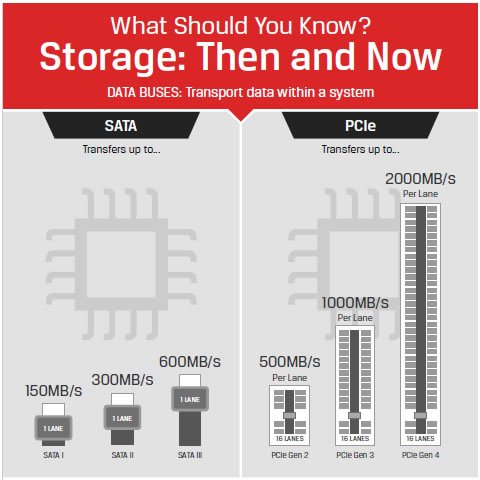
• SATA is a two-lane road with a fixed speed limit.
• PCIe is a larger highway with several lanes.
• A newer PCIe generation can also raise the speed of each lane.
This design helps a PCI Express SSD load large files, games, applications, and operating system data more quickly. It also improves response time during tasks that involve many small files.
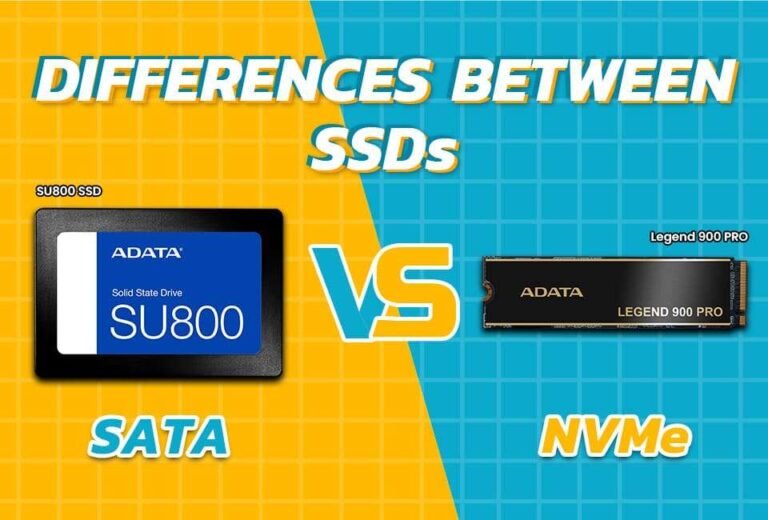
Most modern PCI Express SSDs use the NVMe protocol. NVMe was created specifically for flash storage and works more efficiently than the older AHCI protocol used by many SATA drives. However, PCIe and NVMe are not the same thing. PCIe describes the connection, while NVMe describes the storage communication protocol.
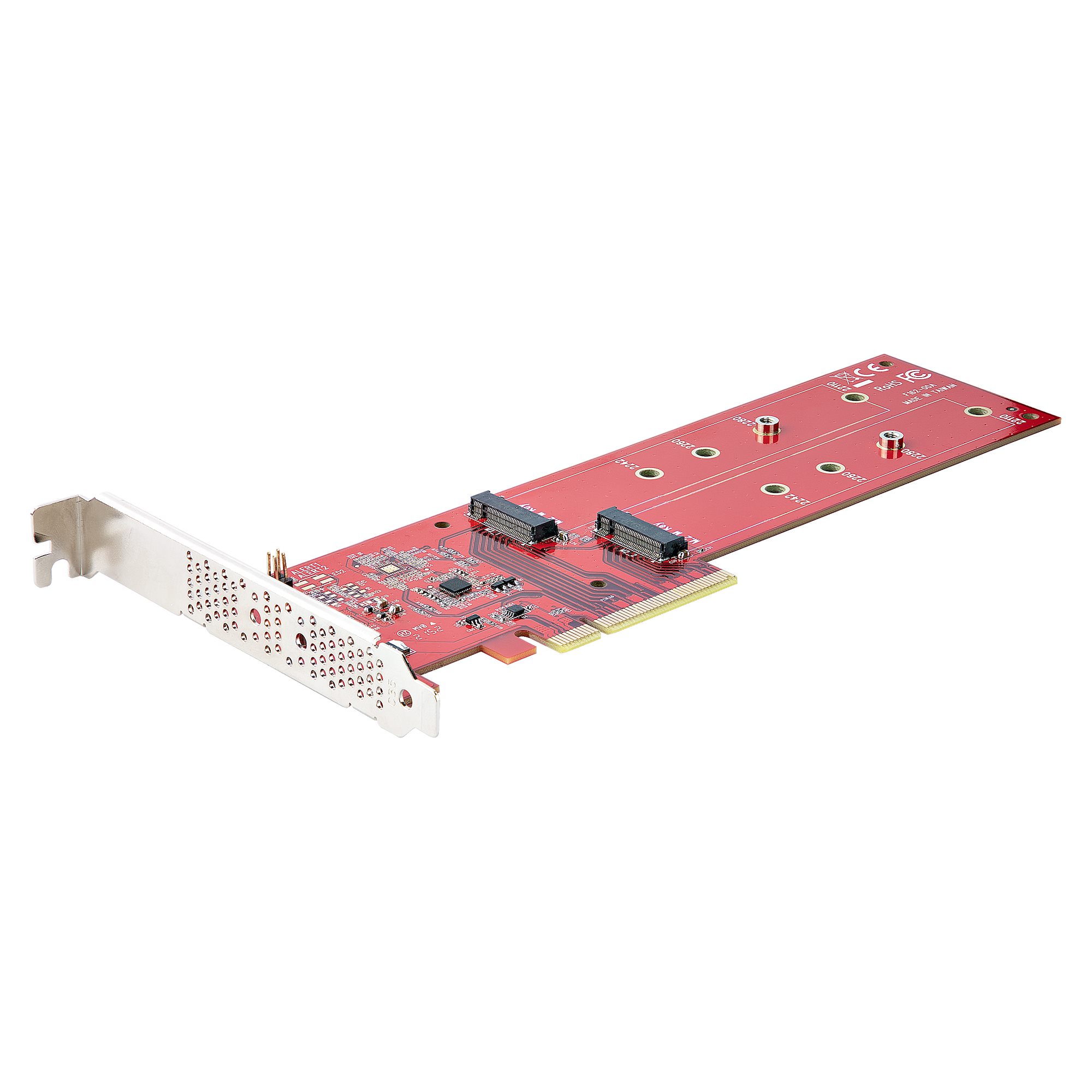
How Does a PCI Express SSD Work?
A PCI Express SSD stores data in NAND flash memory. NAND flash keeps information even when the computer is turned off. Unlike a hard disk drive, it has no spinning platters or moving read heads.
When the computer requests a file, the SSD controller finds the required data in its flash memory. It then sends that data through PCIe lanes to the processor or memory system.
A typical PCI Express SSD includes these main parts:
• NAND flash memory stores your files, programs, and operating system.
• The controller manages reading, writing, error correction, and data organization.
• DRAM or a host memory buffer may help map data locations and improve response time.
• Firmware controls how the drive handles wear, errors, power, and performance.
• The PCIe interface connects the drive to the motherboard.
NVMe allows the drive to handle many commands at once. This matters when a computer runs several programs, loads game assets, or handles large work files. A SATA SSD is already much faster than a hard drive, but a PCI Express SSD can manage a larger workload with less waiting.
The exact speed depends on the PCIe generation, lane count, controller, NAND type, cooling, and workload. A drive may advertise a very high sequential speed, but everyday tasks may not reach that number.
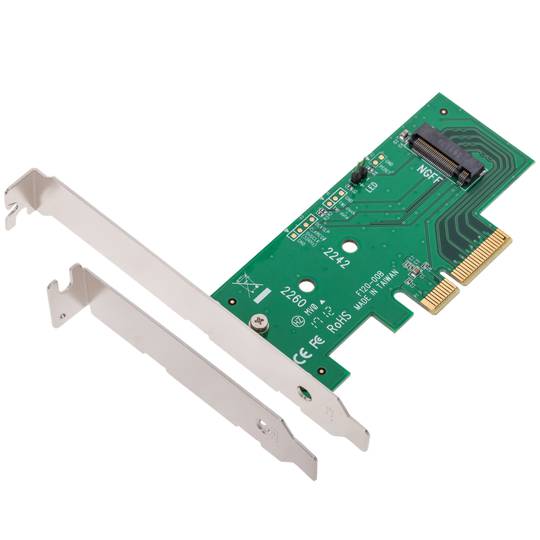
PCIe Generations and Lane Counts Explained
PCI Express has developed through several generations. Each new generation increases the data rate available on each lane.
Common PCIe SSD generations include:
• PCIe 3.0 provides enough speed for most office work, gaming, and general home use.
• PCIe 4.0 can offer roughly twice the raw bandwidth of PCIe 3.0.
• PCIe 5.0 can offer roughly twice the raw bandwidth of PCIe 4.0, but it often creates more heat.
• PCIe 6.0 is aimed mainly at data centers and specialized systems. It is not yet common in regular consumer computers.
A PCIe SSD may use one, two, or four lanes. Consumer M.2 NVMe drives commonly use four lanes, shown as PCIe x4. More lanes provide more bandwidth, but the motherboard, processor, and drive must all support the connection.
For example, a PCIe 4.0 x4 SSD can use four PCIe 4.0 lanes. A PCIe 4.0 drive installed in a PCIe 3.0 system will usually operate at PCIe 3.0 speeds. It will not create extra bandwidth that the older system does not support.
Backward compatibility is helpful, but it can confuse buyers. Always check the motherboard manual or laptop specifications before purchasing a PCI Express SSD.
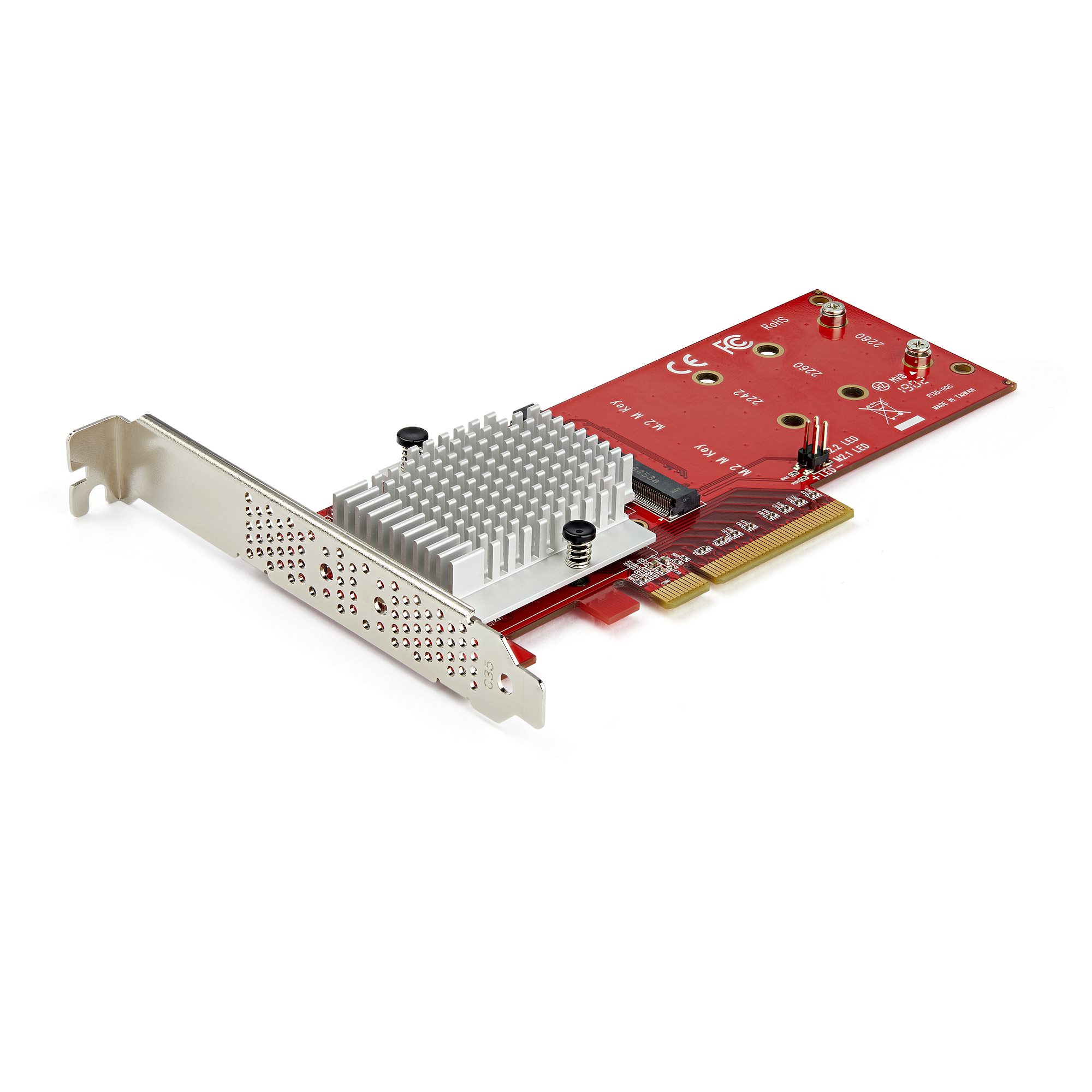
PCI Express SSD vs. SATA SSD
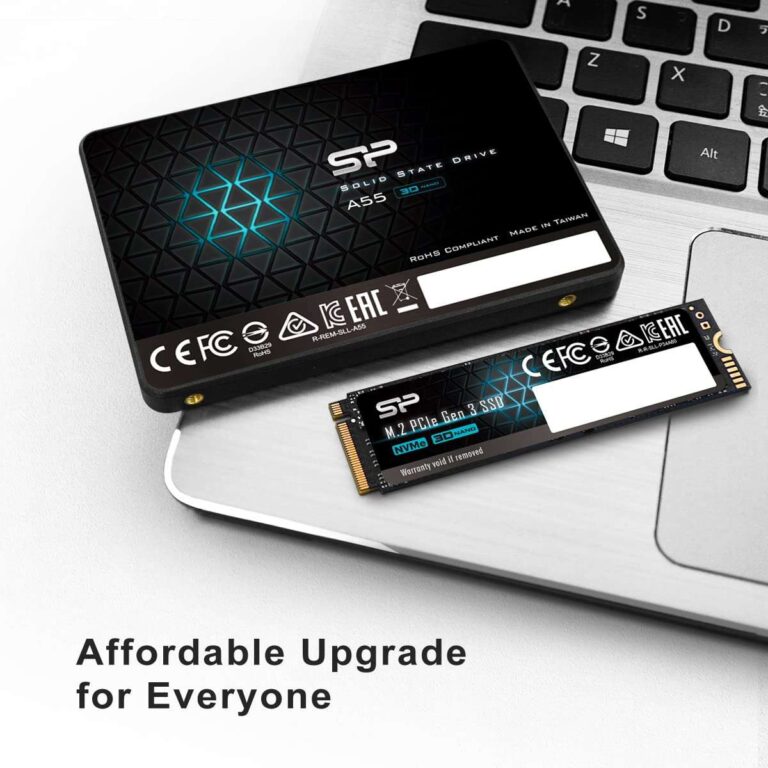
The main difference between a PCI Express SSD and a SATA SSD is the interface. A SATA SSD communicates through the SATA bus, while a PCI Express SSD communicates through PCIe lanes.
Here is a simple comparison:
| Feature | SATA SSD | PCI Express SSD |
|---|---|---|
| Common connection | SATA cable or SATA M.2 | M.2, add-in card, or U.2 |
| Common protocol | AHCI | NVMe |
| Maximum practical speed | Around 500 to 600 MB/s | Several thousand MB/s |
| Latency | Low | Usually lower |
| Installation | May need data and power cables | M.2 drives usually need one slot |
| Heat output | Usually lower | Can be higher |
| Best use | Basic upgrades and older PCs | New PCs, gaming, editing, and heavy workloads |
A PCI Express SSD is not always a better choice for every person. If you mainly browse the web, write documents, and stream video, a SATA SSD may already feel very fast. The difference becomes clearer when you move large files, edit high-resolution video, compile software, run virtual machines, or load large games.
One common mistake is expecting a PCI Express SSD to make every task several times faster. It can reduce storage delays, but it cannot fix a slow processor, limited memory, poor software, or a weak internet connection.
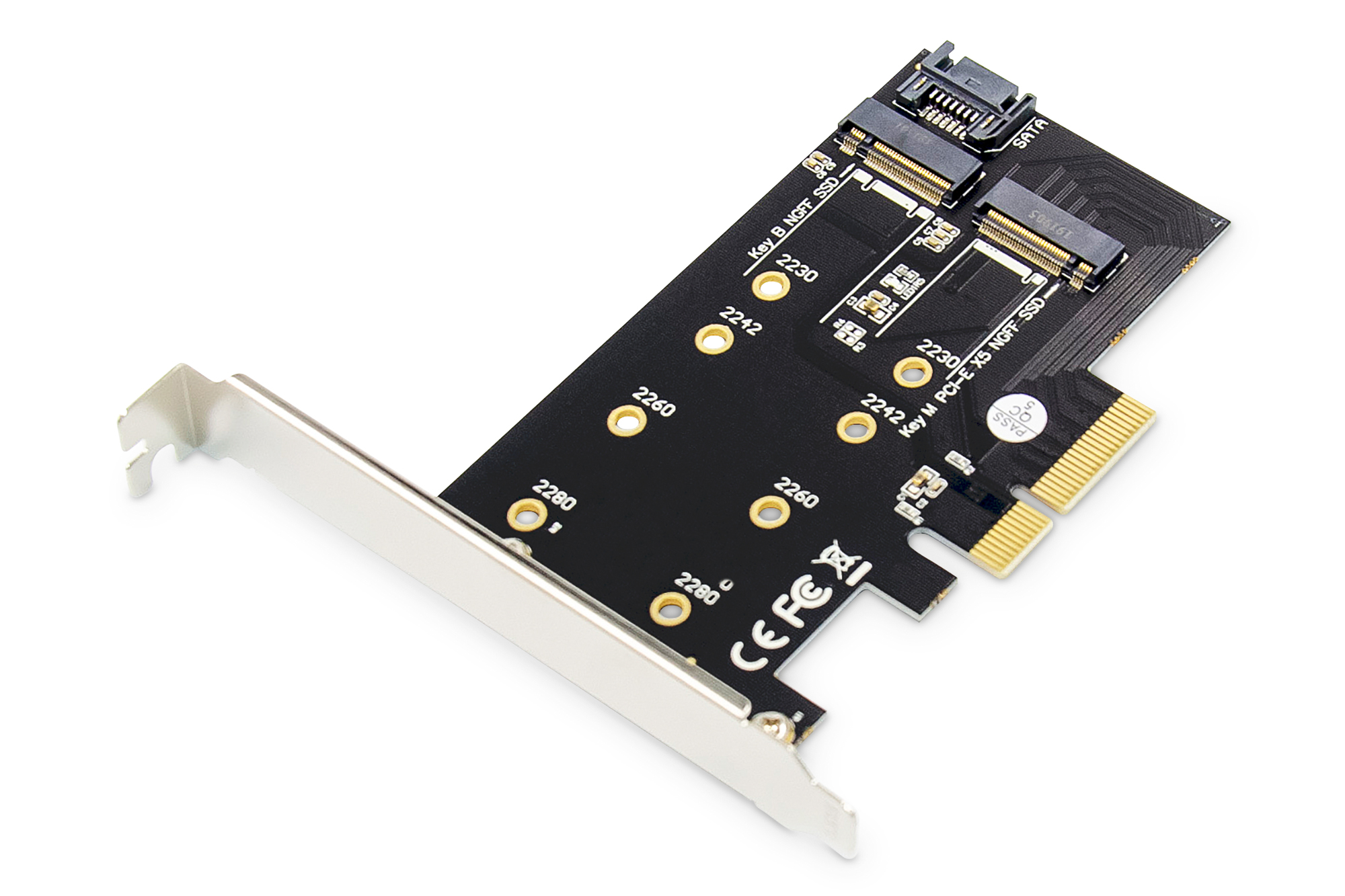
PCIe SSD Form Factors and Connectors
A PCI Express SSD can come in several physical designs. The form factor affects installation and compatibility.
M.2 PCIe SSD
M.2 is the most common shape for modern consumer NVMe drives. It is a small circuit board that lies flat on the motherboard. Many M.2 PCI Express SSDs use the 2280 size, which means they are 22 millimeters wide and 80 millimeters long.
M.2 drives are convenient because they usually do not need separate data or power cables. Still, an M.2 slot is not automatically an NVMe slot. Some M.2 slots support SATA only, while others support PCIe, SATA, or both.
PCIe add-in card SSD
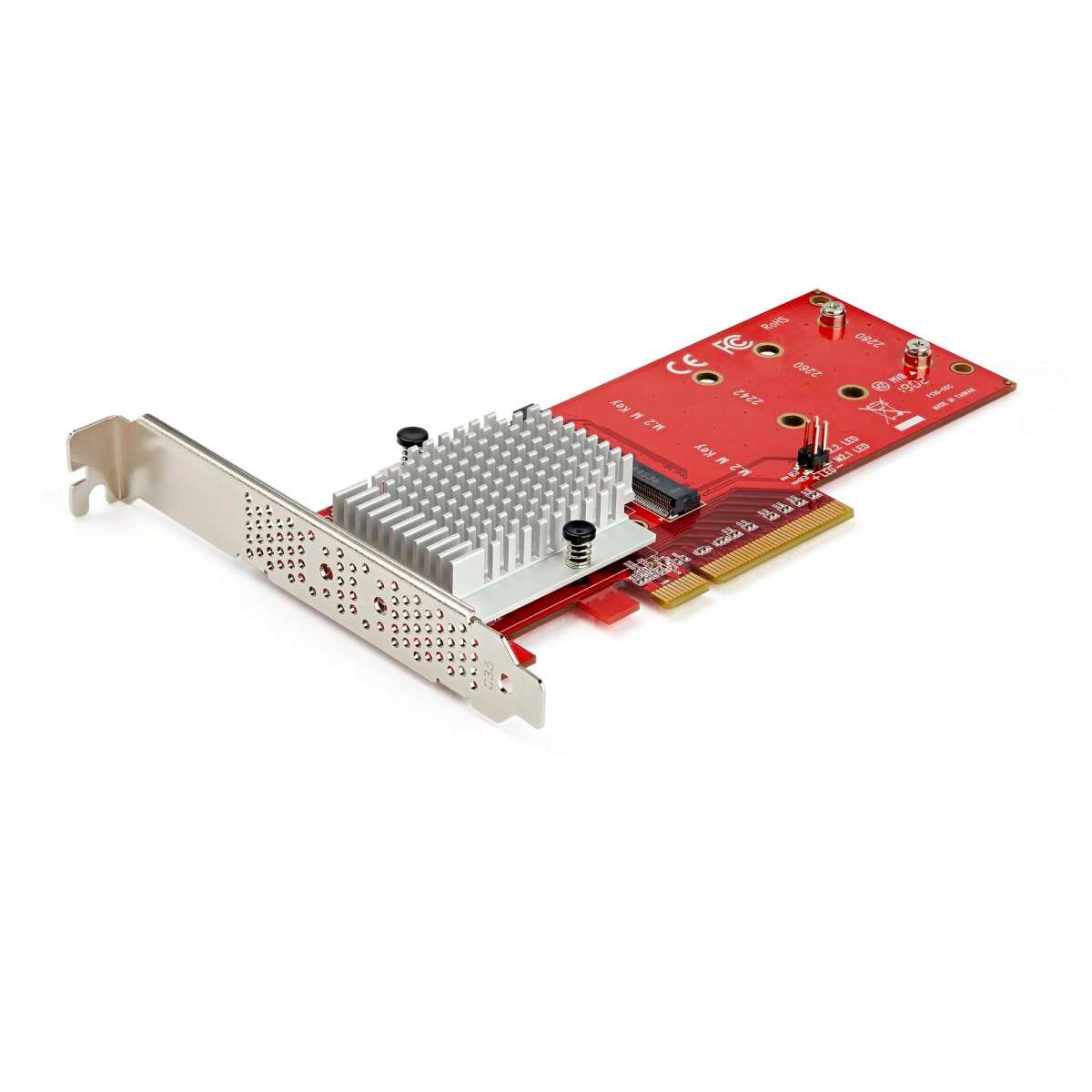
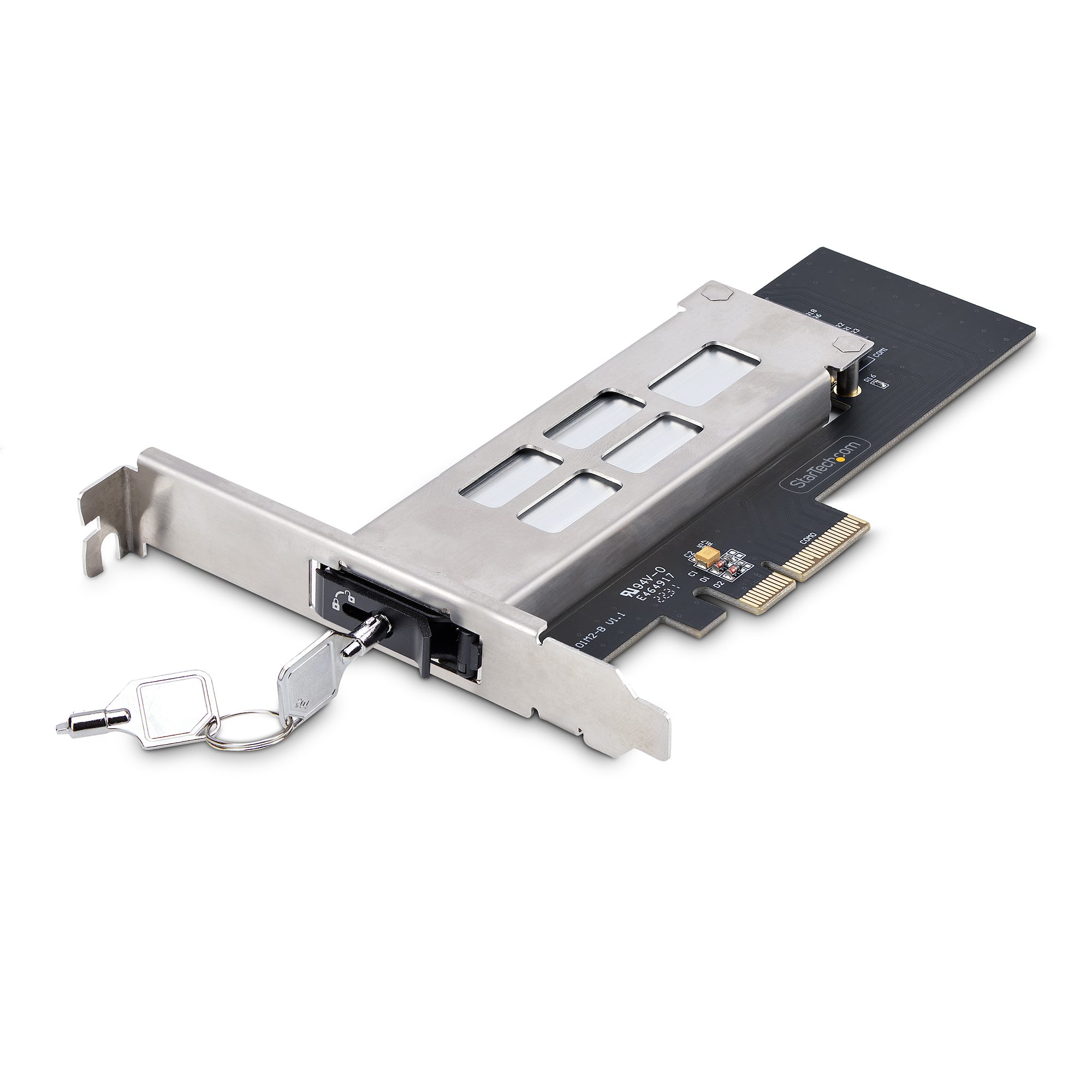
An add-in card SSD fits into a full-size PCIe slot, much like a graphics card. This design can provide strong cooling and may work well in desktop computers without an M.2 slot.
The drive may use a PCIe x4, x8, or x16 physical connector. The actual number of lanes used depends on the design.
U.2 and enterprise drives
U.2 drives are more common in workstations and servers. They often use a 2.5-inch enclosure and connect through a dedicated cable. Enterprise PCI Express SSDs may also use EDSFF formats designed for high-density data center systems.
For most home users, an M.2 PCI Express SSD is the simplest option. For a server or professional workstation, factors such as hot swapping, endurance, power loss protection, and serviceability may matter more than size.

Benefits of a PCI Express SSD
A PCI Express SSD offers several important benefits over older storage technologies.
Faster file transfers
PCIe SSDs can move large files much faster than SATA SSDs when the system and workload support their full speed. This helps with video projects, disk images, large software builds, and frequent backups.
Lower access delay
The drive can find and deliver data with very little delay. This can make the operating system feel more responsive, especially when many programs access storage at the same time.
Better multitasking
NVMe is designed to manage many commands and queues. This helps a PCI Express SSD perform well during demanding workloads with multiple simultaneous operations.
Faster game loading
A PCI Express SSD can reduce game loading times. Newer game technologies may also use fast storage to stream game assets while you play. The improvement depends on the game, processor, graphics card, and software support.
Compact installation
An M.2 PCI Express SSD takes up little space. It can be a strong choice for thin laptops, small desktops, and systems with limited cable room.
Improved professional workflows
Video editors, photographers, engineers, developers, and researchers often work with large files or demanding applications. For these users, a PCI Express SSD can save time across repeated reads and writes.
The largest benefits appear in storage-heavy tasks. For basic web browsing, the difference between a good SATA SSD and a good PCI Express SSD may be modest.
Limitations and Possible Drawbacks
A PCI Express SSD is fast, but it is not perfect. Understanding its limits can help you avoid an expensive or disappointing upgrade.
• Higher-end models can cost more than SATA SSDs with the same capacity.
• PCIe 4.0 and PCIe 5.0 drives can run hot during long transfers.
• Some drives reduce speed after their cache fills.
• A PCIe 5.0 drive may offer little real-world value for a basic office computer.
• Older motherboards may not support booting from an NVMe drive.
• Laptop M.2 slots can have size, key, or thermal restrictions.
• Very fast drives may use more power than entry-level models.
Drive temperature matters. When an SSD becomes too hot, its controller may reduce speed to protect the hardware. This process is called thermal throttling. A motherboard heatsink or a suitable aftermarket heatsink can help, but poor airflow can still limit performance.
Write endurance also matters. SSD endurance is often shown as TBW, or terabytes written. A higher TBW rating generally indicates that the drive is designed to handle more total writing, although it does not guarantee a specific lifespan. For normal home use, a reputable drive with a suitable warranty is often enough.
How to Choose the Right PCI Express SSD
Choosing the best PCI Express SSD starts with your system and your workload. Do not choose only by the largest speed number on the product box.
Follow these steps:
- Check the motherboard or laptop manual.
Confirm the M.2 slot supports PCIe NVMe. Look for supported generations, lane counts, drive lengths, and boot support.
- Select a suitable capacity.
A 1 TB drive is a practical starting point for many users. A 2 TB model is useful for large game libraries, video work, and professional applications. Avoid filling any SSD completely because very low free space can reduce performance.
- Match the PCIe generation to your system.
A PCIe 4.0 drive is a good fit for many current computers. A PCIe 5.0 drive makes more sense when your system supports it and your workload can benefit from very high sequential performance.
- Review real-world tests.
Look at random performance, sustained writes, temperature, power use, and performance after the cache fills. These details often matter more than the top sequential speed.
- Check endurance and warranty terms.
Compare the TBW rating, warranty length, and support policy. Also check whether the warranty has a maximum written-data limit.
- Consider cooling.
If the drive will handle video editing, large databases, or frequent file transfers, use an M.2 heatsink or a model with a suitable built-in cooler.
- Plan your data migration.
Back up important files before cloning your old drive. A clean operating system installation may provide the best result, but cloning is often faster and easier.
In hands-on upgrades, the most common mistake is buying a fast drive without checking the slot. A drive can be excellent on paper and still run at reduced speed, fail to fit, or lack boot support in a particular computer.
Installing and Maintaining a PCI Express SSD
Before installation, shut down the computer, unplug it, and follow the manufacturer’s safety instructions. Touch a grounded metal surface before handling the drive to reduce static risk.
For an M.2 PCI Express SSD:
-
Locate the correct M.2 slot.
-
Remove the small retaining screw if one is installed.
-
Insert the drive at a slight angle.
-
Press it down gently.
-
Secure it with the retaining screw.
-
Reinstall the motherboard heatsink if provided.
Do not force the drive into the slot. The connector key must line up correctly. If the computer does not detect the drive, check the BIOS or UEFI settings, confirm that the slot is enabled, and install the correct storage driver or motherboard firmware when needed.
For long-term care:
• Keep the operating system and SSD firmware updated.
• Maintain regular backups.
• Leave free space on the drive.
• Keep the computer cool and well ventilated.
• Avoid unnecessary drive-wiping utilities.
• Use the manufacturer’s health tool to check temperature and estimated condition.
Firmware updates can improve compatibility or fix bugs, but update only after reading the instructions. Interrupting a firmware update can create serious problems.
PCI Express SSD Performance: What the Numbers Mean
SSD specifications can look impressive, but each number describes a different type of work.
Sequential read and write speeds measure large, continuous transfers. These numbers matter when copying large videos, disk images, or other big files.
Random read and write performance measures smaller, scattered operations. This better reflects many operating system and application tasks. Input/output operations per second, or IOPS, is commonly used for this measurement.
Latency measures how long the drive takes to respond. Lower latency can improve responsiveness, but the complete system also matters.
A drive may advertise 7,000 MB/s sequential reads, yet a normal office task may not approach that level. The operating system, application, processor, memory, file size, and workload all affect the result.
This is why independent tests are useful. Look for reviews that measure:
• Short and long file transfers
• Random performance
• Performance after the cache fills
• Temperature under load
• Power consumption
• Results with different queue depths
A PCI Express SSD with balanced performance, good firmware, and strong endurance may be a better purchase than the fastest model available.
Common Problems and Troubleshooting Tips
A PCI Express SSD may not work as expected for several reasons. Most problems are related to compatibility, settings, or heat.
The drive is not detected
Check whether the M.2 slot supports PCIe NVMe. Some slots support only SATA M.2 drives. Also check BIOS or UEFI storage settings and make sure the drive is seated correctly.
The drive is detected but cannot boot
The system may need a UEFI boot mode and a compatible operating system installation. Older computers may require a BIOS update to boot from an NVMe drive.
Performance is lower than expected
Confirm the PCIe generation and lane count. Check drive temperature, available free space, and whether the test uses sequential or random workloads. A PCIe 4.0 SSD in a PCIe 3.0 slot will not reach PCIe 4.0 speeds.
Performance drops during large transfers
This may happen when the drive’s write cache fills or when thermal throttling begins. Better airflow, a heatsink, more free space, or a drive with stronger sustained write performance may help.
The system becomes unstable
Update the motherboard firmware, SSD firmware, and chipset drivers. If the issue continues, check for overheating, faulty memory, power problems, or a defective drive. Keep a backup before troubleshooting.
Frequently Asked Questions About PCI Express SSDs
Is a PCI Express SSD the same as an NVMe SSD?
No. PCI Express describes the connection between the drive and the computer, while NVMe describes the communication protocol. Most modern NVMe SSDs use PCIe, which is why the terms are often used together.
Is a PCI Express SSD faster than a SATA SSD?
Usually, yes. A PCI Express SSD can provide much higher bandwidth and lower latency than a SATA SSD, especially during large transfers and demanding workloads.
Can I install a PCI Express SSD in any M.2 slot?
No. M.2 is only a physical form factor. An M.2 slot may support SATA, PCIe, NVMe, or a combination, so check the motherboard or laptop manual first.
Will a PCIe 4.0 SSD work in a PCIe 3.0 computer?
In many cases, yes. It will normally operate at the older PCIe 3.0 speed, provided the slot and system support the drive’s required interface and boot features.
Does a PCI Express SSD improve gaming?
It can reduce game loading times and help with asset streaming, but the improvement varies by game and system. It will not directly increase graphics frame rates in most situations.
Does a PCI Express SSD need a heatsink?
Not always. Light workloads may work well without one, but a heatsink can help maintain speed during long transfers, especially with PCIe 4.0 and PCIe 5.0 models.
How long does a PCI Express SSD last?
Its lifespan depends on flash type, workload, capacity, firmware, and write volume. Check the drive’s TBW rating and warranty, and keep reliable backups because no storage device is risk-free.
Conclusion
A PCI Express SSD is a modern solid-state drive that uses PCIe lanes to deliver high bandwidth, low latency, and strong multitasking performance. Most consumer models use the NVMe protocol and come in a compact M.2 form factor.
The best choice depends on your motherboard, PCIe generation, workload, capacity needs, cooling, endurance rating, and budget. Check compatibility before buying, and do not judge a drive by sequential speed alone.
If you are ready to upgrade, compare real-world tests and warranty details, then back up your data before installation. Explore more storage guides or share your PCI Express SSD experience in the comments.

Everett Ashford is a tech reviewer at mytechgrid.com specializing in SSDs, cameras, TVs, earbuds, headphones, and other consumer electronics. He provides honest, data-driven reviews based on hands-on testing and real-world performance analysis. Everett simplifies complex tech details to help readers make smart, confident buying decisions.