Most Roku TVs stay on when you disable power timers, check remote settings, and fix heat or power problems.
If your Roku TV keeps turning off, the cause is often a simple setting rather than a serious fault. Sleep timers, automatic power-saving tools, HDMI devices, weak power connections, overheating, and remote control issues can all make the screen go dark.
I have seen this problem appear after a software update, a new soundbar setup, and even a loose wall plug. This guide explains how to keep Roku TV from turning off with clear steps that work across most Roku TV brands, including TCL, Hisense, onn., Philips, and Westinghouse. Menu names may vary slightly by model and Roku OS version.


Why does a Roku TV keep turning off?
A Roku TV can turn off for several reasons. The most common cause is an automatic power feature that detects inactivity. Roku TVs also use power-saving settings to reduce energy use when no one is watching.
Other common causes include:
• An active sleep timer
• Roku TV automatic power savings
• Bandwidth Saver stopping playback
• HDMI-CEC commands from a soundbar, game console, or streaming device
• A weak wall outlet or damaged power cord
• A blocked vent or hot internal parts
• A stuck remote button
• Outdated Roku software
• A failing power board or other hardware part
A TV that turns off after the same amount of time may have a timer enabled. A TV that turns off at random may have a power, heat, remote, network, or hardware problem.

Turn off Roku TV sleep timers
A sleep timer is designed to turn the TV off after a set period. This is useful at bedtime, but it can be confusing when you do not remember enabling it.


To check the sleep timer:
- Press the Home button on your Roku remote.
- Open Settings.
- Select System.
- Choose Time.
- Select Sleep timer.
- Set the timer to Off.
Some Roku TV models place the sleep timer under Settings, System, or Power. You may also find it by pressing the Star button while watching a program and looking for a sleep timer option.
If your Roku remote has a sleep button, press it several times until the screen shows Off. Avoid pressing it by mistake when the remote is under a pillow or between sofa cushions.
Turning off the sleep timer is one of the fastest ways to learn how to keep Roku TV from turning off. Test the TV for at least an hour after changing this setting.

Disable automatic power-saving settings
Roku TVs may turn off after a period of inactivity. This feature helps lower energy use, but it can interrupt long pauses, music playback, or content that does not send regular activity signals.
Try these steps:
- Press Home on the Roku remote.
- Open Settings.
- Select System.
- Choose Power.
- Open Auto power savings.
- Turn off any option that powers down the TV automatically.
Depending on the model, you may see options such as:
• Reduce power after 15 minutes
• Turn off after four hours
• Power saving
• Auto power savings
disable the option that matches your problem. Some models may not let you disable every power-saving function. In that case, choose the longest available time.
The four-hour setting is easy to miss. Your Roku TV may work normally all evening, then switch off after several hours. That behavior usually points to the built-in inactivity limit rather than a broken television.

Check Bandwidth Saver and streaming inactivity
Bandwidth Saver does not always turn off the TV directly. Instead, it can stop streaming when Roku detects that no one is using the remote. The TV may then enter an inactive state and power down later.
To check this setting:
- Press Home.
- Go to Settings.
- Select Network.
- Choose Bandwidth saver.
- Select Off.
Roku may show a message asking whether you are still watching after several hours. If no one responds, the stream stops. This setting is useful for reducing data use, especially with limited internet plans, but it may not suit background TV viewing.


If the TV turns off while playing a long playlist, news channel, music video, or fireplace video, check Bandwidth Saver first. Also confirm that the source app itself does not have an inactivity rule.

Inspect the remote control
A remote can cause unexpected shutdowns if the Power button is stuck. This can happen when the remote is dropped, squeezed, or exposed to dirt or moisture.
Remove the batteries from the Roku remote for 10 to 15 minutes. Then use the TV’s physical power button or the Roku mobile app. If the TV stays on without the remote batteries, the remote may be the cause.
Try these simple checks:
• Press the Power button several times to release it.
• Clean around the button with a dry, soft cloth.
• Replace both batteries with fresh batteries.
• Remove other remotes from the area during testing.
• Check whether a universal remote is sending power commands.
A remote fault is easy to overlook. In one common setup, the TV was not failing at all. A universal remote had a worn button that sent repeated power signals.
If you use the Roku mobile app, close it on other phones and tablets while testing. A family member may be controlling the TV without realizing it.

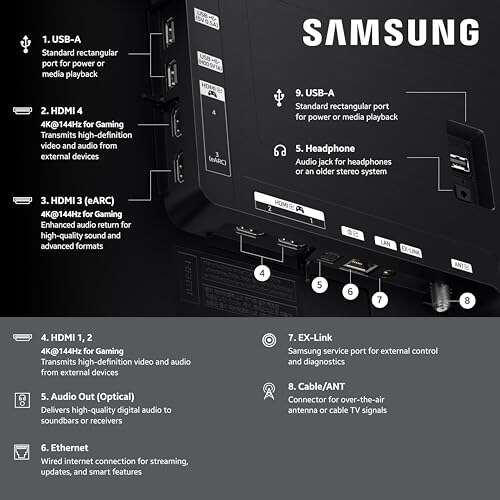
Disconnect HDMI devices and test HDMI-CEC
HDMI-CEC lets connected devices control one another. Roku may call this feature 1-touch play. A soundbar, Blu-ray player, cable box, or game console can send a power command through the HDMI cable.
To test this:
- Turn off the TV.
- Unplug all HDMI devices.
- Disconnect each HDMI cable from the TV.
- Turn the Roku TV back on.
- Watch it for several hours.
If the TV stops turning off, reconnect devices one at a time. This identifies the device causing the command.
You can also check the HDMI control setting:
- Open Settings.
- Select System.
- Choose Control other devices.
- Turn off 1-touch play or HDMI-CEC if available.
The exact menu label can vary. Disabling HDMI-CEC may stop automatic input switching and power control, but it can also remove useful features. If your soundbar powers on with the TV, test the setup before deciding whether to leave this option disabled.


Check the wall outlet and power cable
An unstable power connection can make a Roku TV shut off without warning. The screen may go black, and the TV may restart or show the Roku logo when power returns.
Check the following:
• Push the power cable firmly into the TV.
• Plug the TV directly into a wall outlet.
• Avoid testing with an overloaded power strip.
• Try a different outlet in another room.
• Inspect the cord for cuts, bends, or loose connections.
• Check whether other devices lose power at the same time.
Do not use a damaged cable. If the TV uses a detachable power cord, test it with a matching, approved replacement. Never force a connector into the port.
If the TV turns off when a refrigerator, heater, or air conditioner starts, the circuit may be overloaded or unstable. An electrician should inspect repeated electrical issues. Do not open the TV to test internal voltage unless you are trained to work safely with electronics.

Prevent overheating
Heat can cause a TV to shut down as a safety measure. Roku TVs need open space around their vents so air can move through the cabinet.
Use these steps:
- Turn off the TV and unplug it.
- Let it cool for at least 20 minutes.
- Move objects away from the vents.
- Leave space behind and around the TV.
- Remove dust from the vents with a soft, dry brush or low-suction vacuum.
- Turn the TV back on and monitor it.
Do not place the TV inside a tight cabinet unless the cabinet has strong airflow. Avoid covering the back with fabric or placing a heat-producing device directly below it.
Overheating often follows a pattern. The TV works when cold, then turns off after 30 minutes or a few hours. If the case feels unusually hot or the problem appears during warm weather, improve ventilation before trying more complex fixes.

Restart the Roku TV
A restart clears temporary software errors without deleting your apps or settings. It is different from simply pressing the power button, because many TVs remain in standby mode when turned off.
To restart the TV:
- Press Home.
- Open Settings.
- Select System.
- Choose Power.
- Select System restart.
- Choose Restart.
If your model does not show a Power menu, choose Settings, System, and System restart.
You can also unplug the TV from the wall for 60 seconds. Plug it back in and turn it on. This power cycle can reset a temporary control or startup problem.


Restarting is a basic step, but it often helps. Think of it as clearing a cluttered desk before looking for a missing paper. It does not repair failed hardware, but it removes many short-term software glitches.
Update Roku software and installed apps
Old software can cause power, playback, and HDMI problems. Roku normally updates itself, but it is worth checking manually when the TV keeps turning off.
Follow these steps:
- Press Home.
- Open Settings.
- Select System.
- Choose Software update.
- Select Check now.
Install any available update, then restart the TV. Keep the TV connected to the internet during the process.
You should also update or remove an app if the problem happens only in one service. For example, if the TV turns off only while using one streaming app, the app may be crashing or stopping playback. Remove the app, restart the TV, and reinstall it from the Roku Channel Store.
Do not unplug the TV during a software update. Interrupting an update can create new problems.
Check whether one app causes the shutdown
A Roku TV that turns off in every app may have a power, heat, or system issue. A TV that turns off only in one app may have an app-specific problem.
Test the TV with:
• A free Roku channel
• A different streaming service
• The built-in antenna input
• The Home screen
• A connected game console
• A live program and an on-demand program
Write down what happens and when it happens. Note the app, time, temperature, input, and whether the TV restarts or stays off.
This simple test creates a useful pattern. For example, if Netflix works for three hours but a cable box turns the TV off after 15 minutes, the cable box or HDMI connection deserves attention. If every source fails after the same period, power settings or hardware become more likely.
Reset network settings when streaming stops
A weak or unstable internet connection can stop playback. It usually does not directly turn off the TV, but it can trigger inactivity rules or app errors.
To reconnect the network:
- Open Settings.
- Select Network.
- Choose Set up connection.
- Select Wireless or Wired.
- Pick your network.
- Enter the Wi-Fi password.
You can also restart your router. Unplug it for about 60 seconds, reconnect it, and wait until the internet returns.
Keep the router away from large metal objects and thick walls when possible. A wired Ethernet connection may provide a steadier link on Roku TV models that include an Ethernet port.
If only streaming stops but the TV remains powered, focus on the network. If the entire screen shuts down, continue checking power, timers, heat, and HDMI control.
Use a factory reset only as a last resort
A factory reset removes personal settings, apps, accounts, and network information. Use it only after the simpler steps fail.
Before resetting, make sure you know:
• Your Roku account email and password
• Your Wi-Fi password
• The streaming service login details
• Any antenna or picture settings you want to restore
To reset the TV:
- Open Settings.
- Select System.
- Choose Advanced system settings.
- Select Factory reset.
- Choose Factory reset everything.
- Follow the instructions on the screen.
Some models include a physical reset button. Pressing it for the required amount of time can start the reset, but the exact method varies by model.
A factory reset may fix damaged settings or software conflicts. It will not repair a failing power board, bad backlight, overheating component, or damaged cable. If the TV continues turning off after a clean reset, hardware service is the more likely answer.
Know when the problem needs repair
You may need professional help if the TV still turns off after you disable timers, remove HDMI devices, test another outlet, improve airflow, restart the system, and install updates.
Contact the manufacturer or a qualified technician if:
• The TV clicks repeatedly before shutting off.
• The power light blinks in an unusual pattern.
• The TV restarts in a loop.
• The picture disappears but sound continues.
• The TV smells hot or shows burn marks.
• The screen flashes before power loss.
• The TV turns off in every input after a factory reset.
• The power cable and outlet test normally.
Do not remove the back cover. A television can hold dangerous electrical charge even after it is unplugged.
Check the warranty before paying for repair. Have the model number, serial number, software version, and a short description of the failure ready. A short video of the TV shutting down can also help support staff identify the problem.
A practical testing plan
If you want a fast and organized way to learn how to keep Roku TV from turning off, use this order:
- Turn off the sleep timer.
- Disable Auto power savings.
- Turn off Bandwidth Saver.
- Remove the remote batteries.
- Unplug all HDMI devices.
- Test a different wall outlet.
- Improve ventilation.
- Restart the TV.
- Check for Roku software updates.
- Test different apps and inputs.
- Reset the network if streaming stops.
- Perform a factory reset only when needed.
Change one thing at a time. If you change six settings at once, you may fix the issue but never learn what caused it.
This method also saves time when you contact support. Instead of saying, “My TV keeps turning off,” you can explain that it shuts down after 40 minutes, with all HDMI devices removed, in every app, on two outlets. Clear details lead to better advice.
Frequently Asked Questions
Why does my Roku TV turn off after four hours?
Many Roku TVs include an automatic power-saving feature that turns the TV off after a long period of inactivity. Go to Settings, System, Power, and Auto power savings, then disable or extend the related option if your model allows it.
How do I stop my Roku TV from turning off when I pause it?
Turn off Auto power savings and check the Sleep timer. Also review Bandwidth Saver, because Roku may stop streaming when it thinks nobody is watching.
Can HDMI devices turn off my Roku TV?
Yes. HDMI-CEC or Roku 1-touch play allows connected devices to send control commands. Disconnect HDMI devices to test the cause, then disable 1-touch play under System settings if needed.
Why does my Roku TV turn off but come back on later?
A loose power connection, overheating, software error, or unstable outlet can cause this pattern. Test another outlet, improve ventilation, restart the TV, and check whether the Roku logo appears after the shutdown.
Does a Roku TV turn off because of weak Wi-Fi?
Weak Wi-Fi usually stops or buffers a stream rather than cutting power to the TV. However, stopped playback can activate inactivity features, so check both the network and power settings.
Will a factory reset stop my Roku TV from turning off?
A factory reset can fix damaged settings or software conflicts, but it cannot repair failed hardware. Try timers, power connections, ventilation, HDMI devices, updates, and a restart before resetting.
How can I keep Roku TV from turning off while using it as background music?
Disable Sleep timer, Auto power savings, and Bandwidth Saver when available. Some models still enforce a power limit, so your TV may not support unlimited background playback.
Conclusion
Learning how to keep Roku TV from turning off starts with the simple fixes: disable sleep timers, review Auto power savings, check Bandwidth Saver, inspect the remote, and disconnect HDMI devices. Then test the outlet, improve airflow, restart the TV, and install software updates.
Change one setting at a time and watch for a clear pattern. If the TV still shuts down in every app and input after a factory reset, stop troubleshooting inside the menu and seek warranty or professional repair.
Try the steps today, note what changes, and share your results or model number in the comments so others can find the right fix faster.

Everett Ashford is a tech reviewer at mytechgrid.com specializing in SSDs, cameras, TVs, earbuds, headphones, and other consumer electronics. He provides honest, data-driven reviews based on hands-on testing and real-world performance analysis. Everett simplifies complex tech details to help readers make smart, confident buying decisions.