To make audio sound like it is coming from headphones, use binaural or spatial audio processing. Start with a stereo track, place each sound to the left or right, add a small amount of delay and EQ, and check the result with headphones. In the United States, you can do this with free tools such as Audacity or with a digital audio workstation (DAW) such as Reaper, Logic Pro, Pro Tools, or Ableton Live.
The best method depends on your goal. If you want speakers to sound more like headphones, you need to reduce room effects and control speaker crosstalk. If you want a recording to feel as if sounds are inside or around the listener’s head, you need binaural processing.
This guide covers both cases, with simple steps, limits, and safe listening advice.


What “headphone sound” means
“Headphone sound” can mean two different things:
-
A close, left-and-right stereo image
Each ear hears a separate channel. This can make music or effects feel wide and direct. -
A three-dimensional binaural image
Sounds seem to come from the front, side, back, above, or below. This effect uses timing, volume, and frequency changes that copy how the human head and ears hear sound.
Headphones make this effect easier because the left ear cup mainly feeds the left ear, and the right ear cup mainly feeds the right ear. Speakers do not work this way. Sound from the left speaker also reaches the right ear, and sound from the right speaker reaches the left ear.
That speaker overlap is called acoustic crosstalk. It can weaken a hard-panned or binaural effect.
Stereo, binaural, and spatial audio
These terms are related, but they are not the same:


- Stereo: Two audio channels, usually left and right.
- Panning: Moving a sound between the left and right channels.
- Binaural audio: Audio designed to create a three-dimensional effect over headphones.
- Spatial audio: A broad term for audio that places sounds in a virtual space. It may use binaural filters, object-based mixing, or surround formats.
- HRTF: A head-related transfer function. It describes how the head, ears, and body change sound based on where it comes from.
A normal stereo mix can sound wide on headphones. It does not automatically become binaural.
The easiest method: use stereo panning and light processing
For a quick result, use a stereo track and adjust the position of each sound. This works well for music, podcasts with sound design, games, and short video projects.
Step 1: Start with a clean stereo track
Use an uncompressed or high-quality source when possible. WAV and AIFF files preserve more detail during editing. A high-quality MP3 or AAC file can also work, but repeated processing may add artifacts.
Import the track into your DAW or audio editor. Audacity supports stereo tracks, panning, equalization, delay, and plug-ins. Its official manual explains these tools and their controls.
Step 2: Pan sounds left and right
Panning changes the level sent to each channel.
Try these starting points:
| Sound type | Starting pan | Why |
|---|---|---|
| Main voice | Center | Keeps speech clear |
| background texture | 10–30% left or right | Adds width without distraction |
| Short effect | 40–70% left or right | Creates a clear side image |
| Special movement effect | Full left to full right | Creates strong motion |
Use full left or full right with care. Hard panning can sound unnatural on some systems, and it may make a mix feel empty in the center.
Step 3: Add a short delay to one side
A small delay can make a sound feel wider. This is often called a Haas effect or precedence effect.
Create a duplicate of the sound. Pan one copy left and the other right. Delay one copy by about 5 to 20 milliseconds. Keep the delayed copy quieter than the main copy.
Use short delays with caution:
- Delays below about 10 milliseconds may create width without a clear echo.
- Longer delays can sound like a discrete echo.
- Some delays create phase problems when the audio is played in mono.
The exact result depends on the sound, room, headphones, and playback device. Do not treat these values as a fixed rule.
Step 4: Use EQ to create distance and direction
Equalization can support the illusion, but EQ alone cannot create a true location.
For a sound that should feel close:
- Keep the midrange clear.
- Avoid excessive bass.
- Preserve enough high-frequency detail for definition.
For a sound that should feel farther away:
- Reduce some high-frequency content.
- Lower the level.
- Add a small amount of room reverb.
Do not make large EQ cuts at first. Small changes are easier to judge and less likely to damage the sound.


Step 5: Add a small amount of reverb
A dry sound can feel trapped inside the listener’s head. A short room reverb can make it feel as if it exists in a space.
Start with:
- A short decay
- Low wet level
- Little or no strong early reflection
- A high-frequency roll-off in the reverb
Too much reverb will blur speech and reduce the headphone effect. The aim is a sense of space, not a large hall.
How to create a true binaural effect
For a stronger three-dimensional effect, use a binaural panner or an HRTF plug-in. These tools process audio differently for the left and right ears.
An HRTF filter may change:
- Time of arrival
- Loudness at each ear
- High-frequency content
- Reflections caused by the outer ear
- Small phase differences
Together, these changes help the brain judge direction.
Step 1: Choose a binaural or spatial plug-in
Look for a tool that can place sound around the listener. Common features include:
- Left-right positioning
- Front-back positioning
- Height control
- Distance control
- Room or reflection settings
- Head tracking, when supported
Examples include binaural panners built into some DAWs and spatial audio plug-ins based on HRTF processing. Check the plug-in manual for the supported operating system, DAW format, and export settings.
The plug-in name matters less than the controls and the final listening test. A tool that offers only left-right panning is not a complete three-dimensional system.
Step 2: Place the sound in front first
Front placement is often easier to judge than rear placement. Put the sound slightly left or right of center, then move it forward.
Listen for a stable image. If the sound jumps between the front and the side, lower the effect or reduce the distance change.
Step 3: Add distance with level and high-frequency changes
A distant sound is usually quieter and less bright than a nearby sound. Many spatial plug-ins model this automatically.
If you adjust it by hand:
- Lower the volume slightly.
- Reduce some high-frequency energy.
- Add a small amount of room sound.
- Keep the direct sound audible.
Do not remove too much treble. A dark sound can feel muffled rather than distant.


Step 4: Test front, side, and rear positions
Move one sound to several points:
- Center front
- Left front
- Right front
- Left side
- Right side
- Behind the listener
The rear position may be less reliable. HRTFs differ from person to person, so a filter that works well for one listener may produce a weak rear image for another.
This is a normal limitation, not necessarily a software failure.
Step 5: Render and test on several headphones
Test the result with at least two listening devices if possible. Check:
- Closed-back headphones
- Open-back headphones
- Earbuds
- A phone or laptop speaker
- A mono playback setting
A binaural mix should be judged mainly on headphones. It may lose width on speakers because of acoustic crosstalk.

How to make speakers sound more like headphones
If your goal is to make speaker playback sound like headphone playback, the task is harder. You can improve the effect, but ordinary stereo speakers cannot fully copy the isolation of headphones.
Use nearfield placement
Place the speakers close to the listener and point them toward the listening position. This reduces the influence of the room.
A typical desktop setup uses:
- One speaker on the left
- One speaker on the right
- The listener centered between them
- The speakers aimed toward the ears
- Equal distance from each speaker to the listener
This creates a stable stereo triangle.
Reduce room reflections
Bare walls, desks, windows, and floors reflect sound. These reflections can weaken precise imaging.
Helpful changes include:
- Move speakers away from corners.
- Keep the left and right sides similar.
- Add soft furnishings or acoustic treatment.
- Keep the desk surface from creating a strong reflection.
- Avoid placing one speaker near a wall while the other sits in open space.
Do not cover a room with random foam and expect full correction. Room treatment works best when it addresses a known reflection or bass problem.
Use crosstalk cancellation carefully
Some systems use crosstalk cancellation. They send an inverted signal to reduce the sound that crosses from one speaker to the opposite ear.
This can create a more headphone-like image, but it has strict limits:


- The listener must stay in a small sweet spot.
- Speaker distance and angle matter.
- Head movement can reduce the effect.
- The room can change the result.
- Incorrect setup may cause tonal changes or weak bass.
Crosstalk cancellation is most useful for a fixed listening position. It is less useful for a room where several people move around.
Avoid simply boosting the treble
Headphones may sound brighter or more direct than speakers, but adding treble does not recreate headphone separation. It can make the audio harsh and increase listening fatigue.
Change placement, room reflections, and stereo balance before using strong EQ.

A practical workflow in Audacity
Audacity can create a basic headphone-like effect without advanced spatial software.
Basic stereo widening workflow
- Import the audio.
- Duplicate the track.
- Pan one copy left and the other right.
- Lower both copies until the sound is not too loud.
- Delay one copy by a few milliseconds.
- Add a gentle EQ change to the delayed copy.
- Add a small amount of stereo reverb.
- Export a test file.
- Listen on headphones and in mono.
Keep the delay short. If the sound becomes hollow, metallic, or thin, reduce the delay or remove it.
Simple movement effect
To make a sound seem to move around the listener:
- Split the sound into a separate track.
- Automate the pan from left to right.
- Change the volume slightly during the movement.
- Add a short reverb that stays centered.
- Keep the main voice or important content near the center.
Fast movement can cause clicks or distract the listener. Use smooth automation rather than sudden jumps.
Better results with a binaural plug-in
For front, back, and height placement, use a plug-in made for binaural or spatial positioning. Load the sound into the plug-in, place it in the virtual field, and render a stereo file.
Before exporting, check whether the plug-in uses:
- A specific HRTF profile
- Stereo or multichannel output
- Head tracking
- A room simulation
- Real-time processing only
Some spatial formats require special delivery systems. A plain stereo file is the most widely compatible option, but it may not preserve every feature of an object-based mix.
Troubleshooting: why the effect may not work
A weak result usually comes from setup, phase, or expectation.
| Symptom | Likely cause | What to try |
|---|---|---|
| The sound is wide but not around you | Stereo panning only | Use an HRTF or binaural panner |
| The sound feels hollow | Phase cancellation | Shorten the delay and check mono |
| The rear image is unclear | HRTF mismatch | Try another HRTF or reduce rear placement |
| The mix sounds harsh | Too much high-frequency EQ | Use smaller EQ changes |
| The effect disappears on speakers | Acoustic crosstalk | Judge binaural audio on headphones |
| Speech loses focus | Too much reverb or width | Keep the voice centered and reduce wet level |
| The effect works only in one spot | Crosstalk cancellation | Recheck speaker position and listening angle |
| The file sounds different after export | Codec or channel issue | Check stereo channels and export settings |
Check phase in mono
Mono checking is essential. If the sound becomes much quieter, hollow, or strange in mono, the left and right channels may be canceling each other.
A wide effect can rely on phase differences. That is not always a problem, but strong cancellation can hurt compatibility with:
- Phones
- Smart speakers
- Public address systems
- Social media players
- Broadcast systems
Check the left and right channels
A swapped channel can make a sound appear on the wrong side. Label tracks clearly and test with a left-right identification file or a simple voice prompt.
Lower the effect before changing the plug-in
Many spatial effects sound impressive when they are strong but become tiring over time. Lower the wet mix, shorten the reverb, or reduce the width before adding more processing.
Headphones, earbuds, and speakers: what changes?
The same audio can produce different results on different devices.
Closed-back headphones
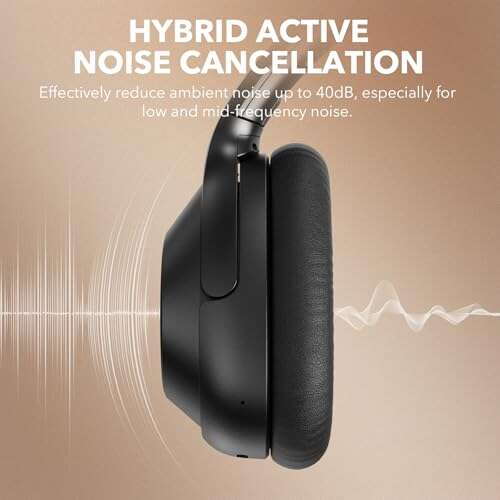
Closed-back headphones often give a strong left-right image and block outside noise. They can make hard panning feel very close to the ears.
Open-back headphones
Open-back headphones may feel more airy. They often let in room sound, so the image may seem less isolated.
Earbuds
Earbuds fit differently for each person. The seal affects bass, and the position of the earbud changes how high frequencies reach the ear.
Speakers
Speakers create natural room interaction, but they also introduce crosstalk. A binaural mix made for headphones may sound narrow, uneven, or oddly colored through speakers.
For a project that will play on many devices, make the main content work in normal stereo first. Then add spatial detail without making the mix depend on it.
How loud should the audio be?
Keep the level comfortable. Loudness does not make a spatial effect more accurate.
The National Institute for Occupational Safety and Health and the World Health Organization both provide hearing-related guidance that supports limiting loud exposure. The risk depends on both sound level and listening time.
Use these practical habits:
- Start at a low volume.
- Raise it only enough to hear detail.
- Take breaks during long editing sessions.
- Stop if you hear ringing, pain, or muffled hearing.
- Do not use loud test tones for long periods.
A good effect should work at a moderate level. If it only sounds impressive when loud, revise the mix.
Common mistakes to avoid
Mistaking stereo width for 3D placement
Panning left and right creates width. It does not reliably place a sound behind or above the listener.
Using too much delay
Long delays can produce a clear echo or comb filtering. Start with a short delay and increase it only when the sound remains natural.
Adding too much reverb
Reverb can suggest a room, but too much reverb hides detail. This is especially harmful for speech.
Ignoring mono compatibility
A mix that sounds wide in stereo may collapse in mono. Always check both.
Mixing only on one pair of headphones
Headphones vary in frequency balance, fit, and stereo separation. Use more than one device when the project matters.
Expecting one HRTF to fit everyone
HRTF filters are based on a model or measurement. Ear shape, head size, and listening position affect the result. Some people hear a strong front-back effect, while others hear mainly left-right movement.
Making the effect the main attraction
Spatial sound should support the content. If the listener notices the processing before the voice, music, or story, reduce the effect.
Quick decision guide
Use this guide to choose a method:
| Your goal | Best starting method | Main limitation |
|---|---|---|
| Make a track wider on headphones | Stereo panning | Not true 3D |
| Move a sound from left to right | Pan automation | Limited front-back depth |
| Place sound in front or behind | Binaural or HRTF plug-in | Results vary by listener |
| Make desktop speakers feel more direct | Nearfield placement and room control | Speakers still create crosstalk |
| Create a fixed-seat headphone-like speaker effect | Crosstalk cancellation | Small listening sweet spot |
| Make a mix work everywhere | Normal stereo with moderate width | Less dramatic spatial effect |
The safest workflow is to create a clear stereo mix first. Add binaural processing to selected sounds, then test the result on headphones, speakers, and mono playback.
Frequently asked questions
Can I make any audio sound like it is inside my head?
You can make many sounds feel close with panning, EQ, and binaural processing. The result depends on the listener, the headphones, and the source recording. A true inside-the-head effect is not guaranteed for every person.
Can I create this effect with a phone?
Yes. A phone can play a stereo or binaural file, but its built-in speaker usually cannot reproduce the same left-right separation as headphones. Use headphones or earbuds for the most reliable test.
Is binaural audio the same as surround sound?
No. Binaural audio usually creates a headphone-focused stereo file. Surround sound may use several speakers or a multichannel format. Some systems convert surround or object audio into binaural output.
Why does the effect sound good on headphones but bad on speakers?
Speakers send sound from both channels to both ears. This acoustic crosstalk changes the timing and level differences that create the binaural image. Use a speaker-friendly stereo mix or a system designed for crosstalk cancellation.
Which free software can I use?
Audacity can handle panning, delay, EQ, reverb, and basic stereo editing. For advanced front-back and height placement, you may need a DAW plug-in that supports binaural or HRTF processing.
Final takeaway
To make audio sound like it is coming from headphones, begin with stereo panning and careful level control. Add short delay, gentle EQ, and light reverb for width. For a real three-dimensional effect, use a binaural or HRTF plug-in and test the result on headphones.
If your target is speaker playback, focus first on speaker placement, room reflections, and crosstalk. Keep the effect moderate, check mono compatibility, and protect your hearing by working at a comfortable volume.

Everett Ashford is a tech reviewer at mytechgrid.com specializing in SSDs, cameras, TVs, earbuds, headphones, and other consumer electronics. He provides honest, data-driven reviews based on hands-on testing and real-world performance analysis. Everett simplifies complex tech details to help readers make smart, confident buying decisions.