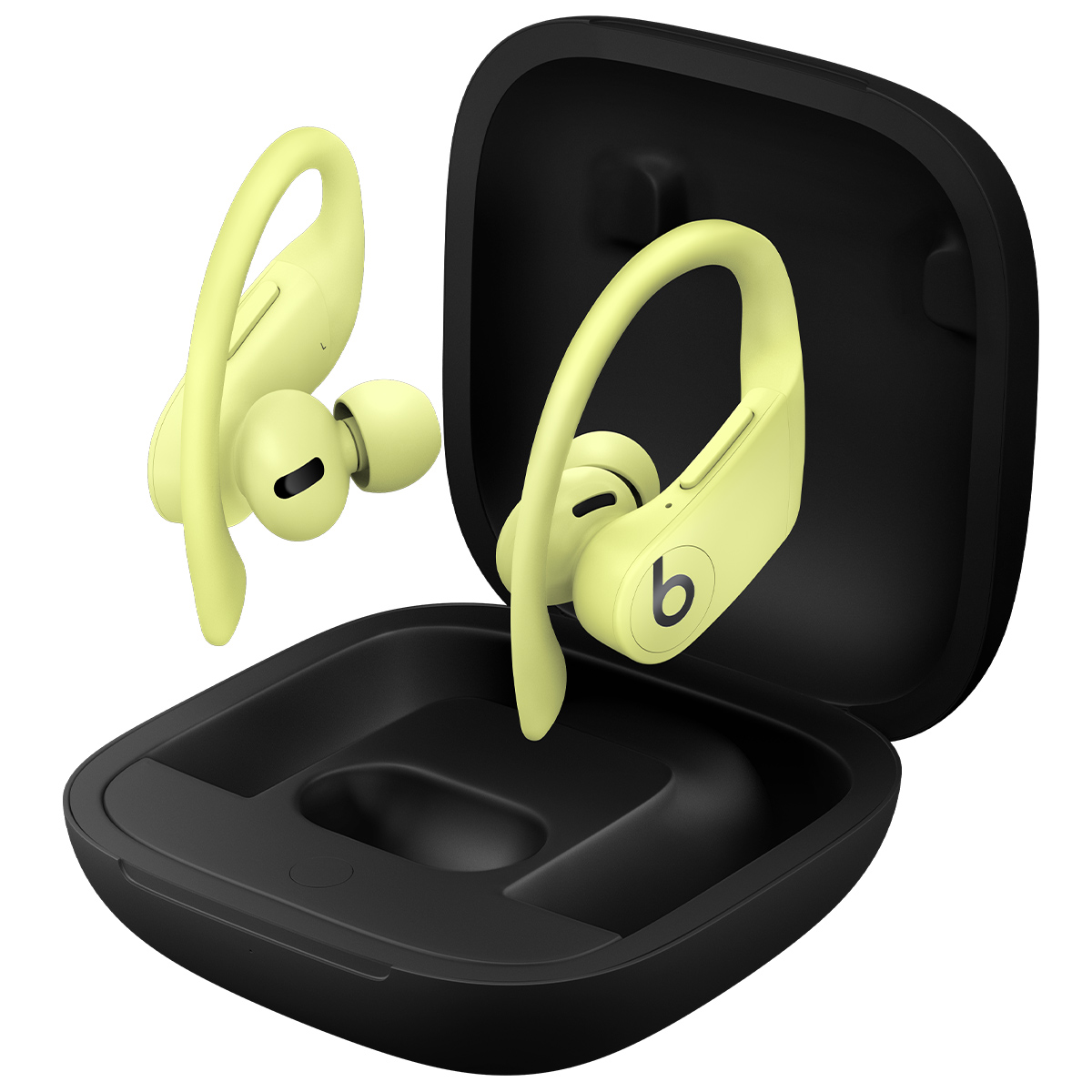
Hold both Beats Pro earbuds near your device and enable Bluetooth to pair them quickly.
I’ve paired dozens of earbuds across phones, tablets, and laptops. This guide on how to pair Beats Pro earbuds walks you through each device, common snags, fixes, and expert tips. Read on to pair your Beats Pro earbuds fast and keep them working smoothly.

Why pairing your Beats Pro earbuds correctly matters
Pairing sets the link between your audio and your device. Good pairing gives stable sound, low lag, and reliable calls. Poor pairing can cause dropouts, one ear not working, or wrong audio routing. I’ll show simple steps to avoid those problems and get the best performance from your Beats Pro earbuds.
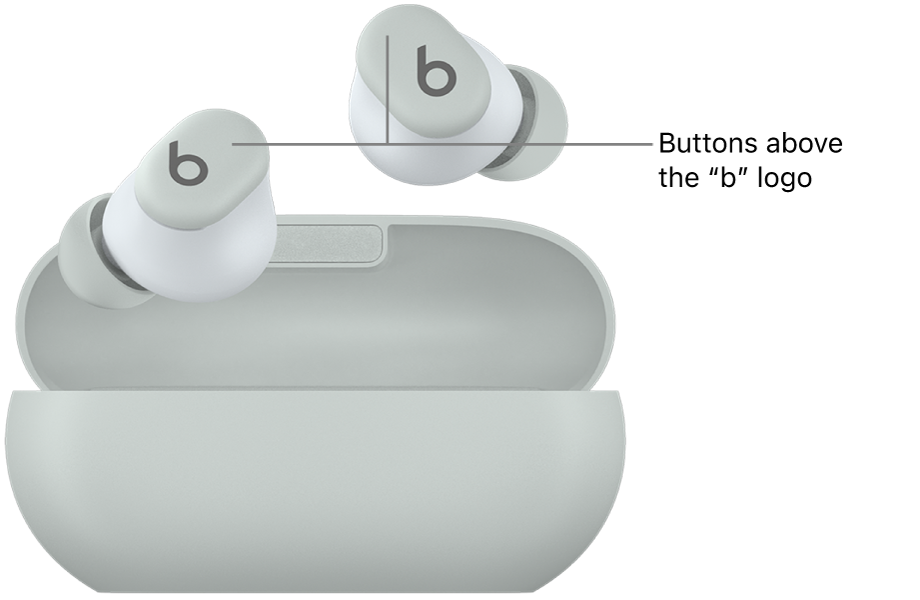
Before you begin: quick checklist
- Charge both earbuds and the case to at least 50 percent. Low battery can block pairing.
- Turn off other nearby Bluetooth devices to reduce interference. Crowded Bluetooth can confuse pairing.
- Update your device OS if it’s very old. New software often fixes Bluetooth bugs.
- Reset the Beats Pro if they were paired with many devices before. Reset clears pairing clutter.
- Have the Beats app or Bluetooth settings open on your device. That speeds the process.

How to pair Beats Pro earbuds with an iPhone or iPad
- Open Settings > Bluetooth on your iPhone or iPad and stay on that screen.
- With the earbuds in the case, open the case lid near the iPhone. The iPhone should detect the Beats Pro automatically.
- If a prompt appears, tap Connect and follow any onscreen steps. Pairing completes within seconds.
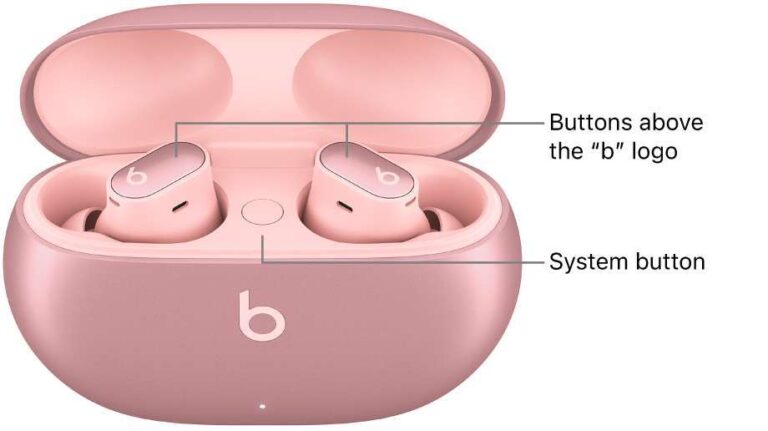
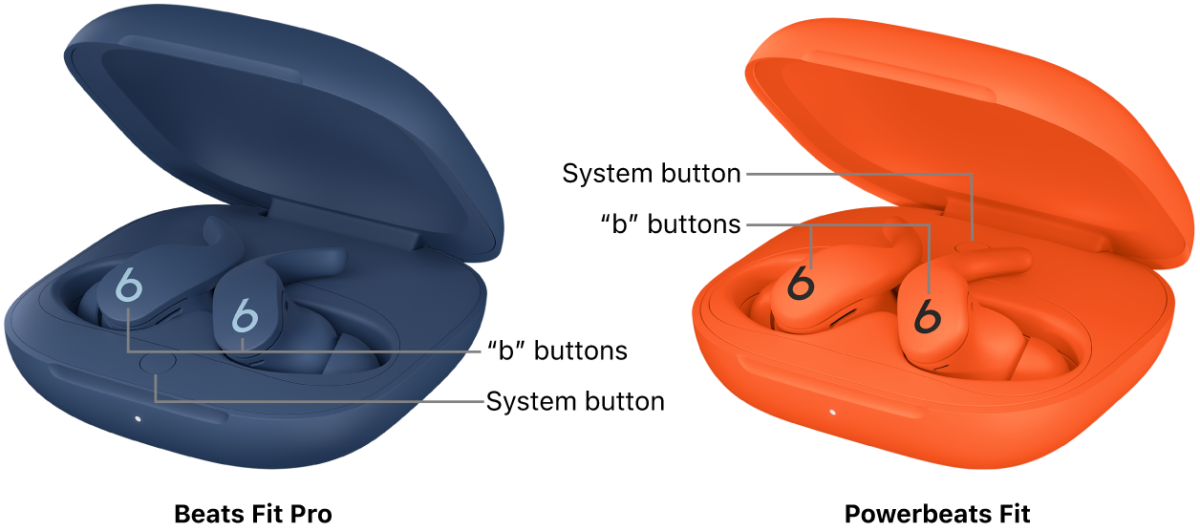
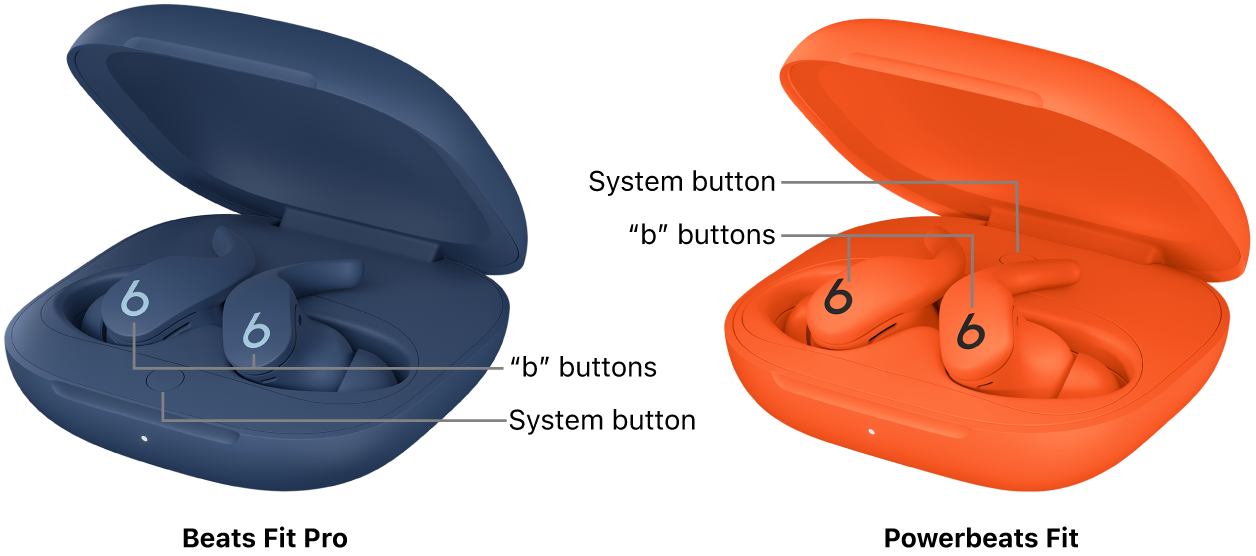
- If the earbuds don’t appear, press and hold the system button on the case until the LED flashes. Then check Bluetooth again.
- Once paired, test audio and the microphone. Use a quick voice memo or video to confirm mic quality.
Tips:
- Keep the device and earbuds within 3 feet for the first pairing.
- If you use iCloud device syncing, your Beats Pro may pair across your Apple devices automatically after initial pairing.
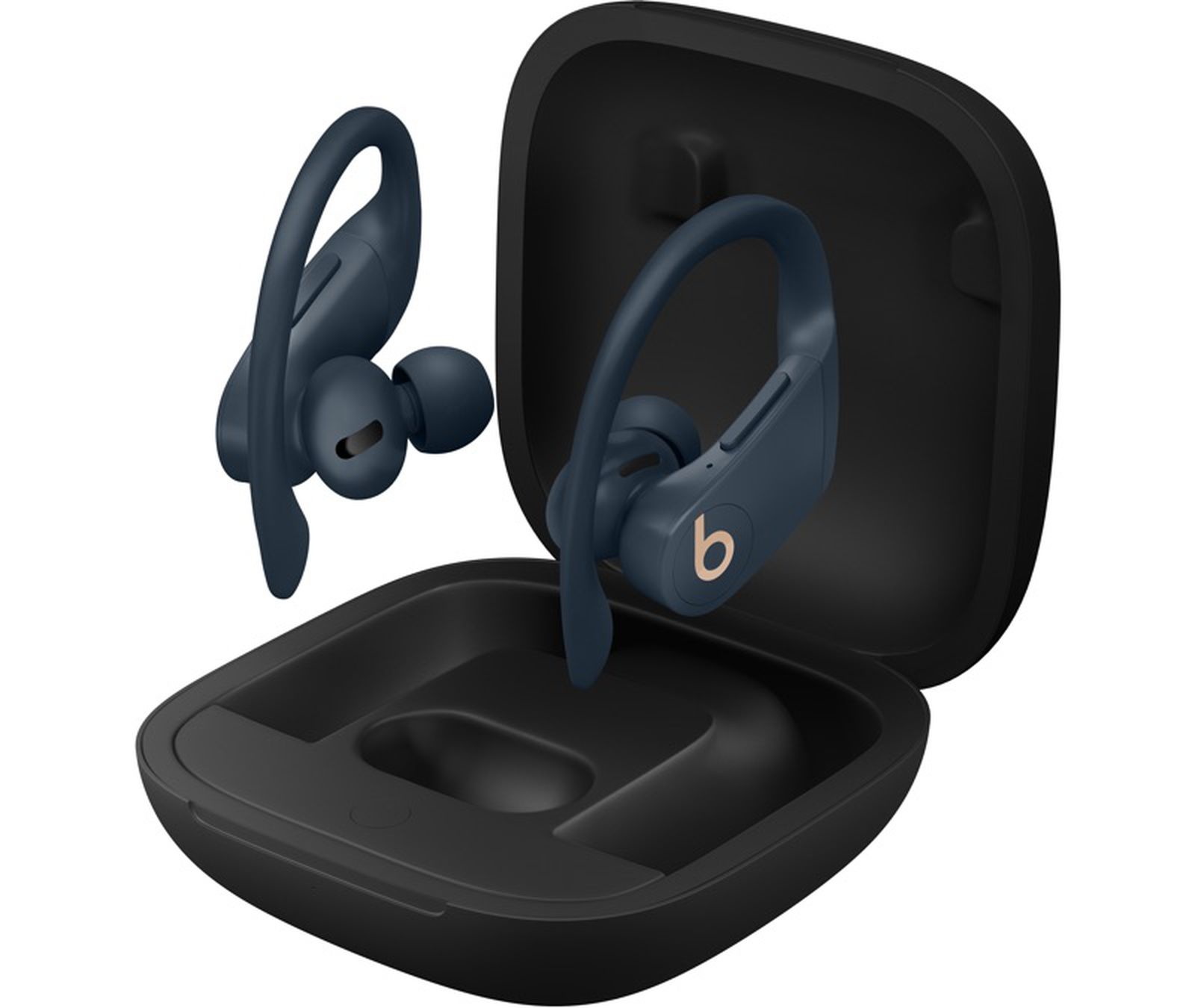
How to pair Beats Pro earbuds with Android devices
- Open Settings > Connected devices or Bluetooth and turn Bluetooth on.
- Press and hold the system button on the Beats Pro case until the LED blinks to place them in pairing mode.
- On Android, select Beats Pro from the list of available devices. Tap to connect.
- If Android asks for permission to access contacts or media, allow only what you want. Permissions affect calls and media control.
- Test playback in a music app and make a quick call to ensure the mic works.
Notes:
- Some Android models require scanning for new devices. Tap “Pair new device” if needed.
- The Beats app on Android can offer firmware updates and settings for your Beats Pro earbuds.

How to pair Beats Pro earbuds with a Mac or Windows PC
Mac:
- Open System Settings > Bluetooth on your Mac.
- Place the Beats Pro in pairing mode by holding the system button until the LED flashes.
- Select Beats Pro in the Bluetooth list and click Connect.
- Confirm audio input/output in Sound settings if audio does not route correctly.
Windows PC:
- Open Settings > Bluetooth & devices and turn Bluetooth on.
- Click Add device > Bluetooth.
- Put Beats Pro in pairing mode and choose them from the list.
- Set the Beats Pro as the default audio device in Sound settings for both playback and recording.
Quick tip:
- For gaming or video calls, choose the headset mode only if you need the mic. Some PC drivers drop audio quality in headset mode.
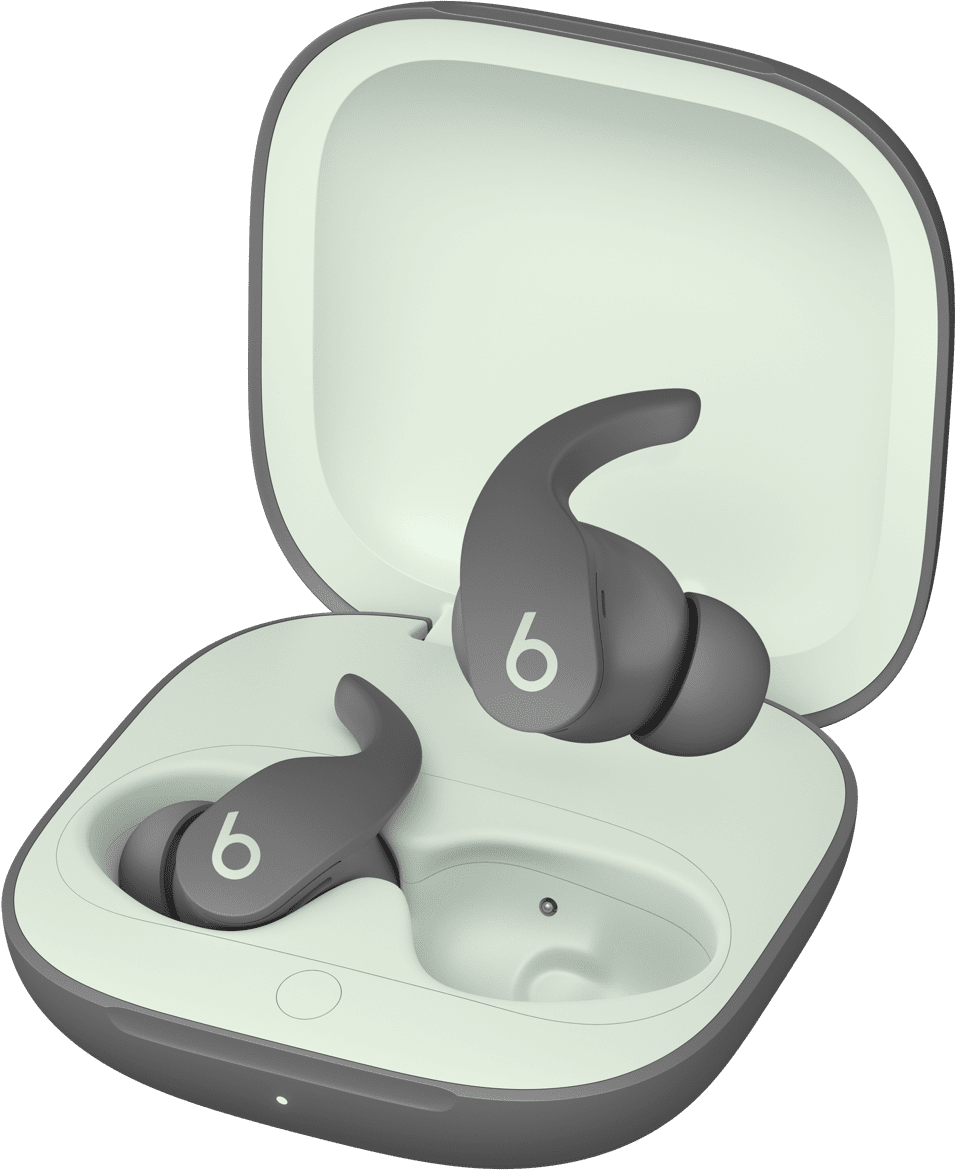
Troubleshooting common pairing issues
- Earbud not appearing
- Make sure the case LED is blinking. If not, charge and try again. Reset the earbuds if needed.
- Only one earbud connects
- Place both earbuds back in the case, close the lid, wait 10 seconds, then re-open and pair again. A reset often fixes one-sided audio.
- Frequent dropouts
- Move away from Wi-Fi routers or microwaves. Turn off other Bluetooth devices. Re-pair the earbuds.
- Poor microphone quality on calls
- Ensure the earbuds are selected as the call device. Update firmware. Try moving the microphone closer to your mouth.
- Can’t pair with new device
- Forget the Beats Pro on old devices. Reset the earbuds and start fresh.
Reset steps (general):
- Put earbuds in case. Hold the system button for about 15 seconds until the LED flashes amber or white as per model. This clears stored pairings.

Advanced tips, settings, and personalization
- Firmware updates
- Keep firmware updated via the Beats app or your device. Updates improve stability and add features.
- Automatic device switching
- With Apple devices, Beats Pro can switch between iPhone, iPad, and Mac if all use the same iCloud account. Disable if it causes interruptions.
- Noise control and EQ
- Use the app to tune EQ and toggle noise control if your model supports it. Custom EQ improves music balance.
- Battery optimization
- Turn off auto-play or features that wake the earbuds frequently to save battery. Store them in the case when not in use.
- Multiple device pairing
- Beats Pro remembers several devices. To prioritize one device, disconnect others or forget them in Bluetooth settings.
Personal experience and mistakes I made pairing Beats Pro earbuds
I once tried pairing with low battery and hit a timeout. Lesson learned: charge first.
Another time I paired in a crowded cafe and saw the wrong device name. Moving to a quiet spot fixed it.
I also learned that resetting often solves weird issues. Don’t fear the reset. It clears old pairings and gives a clean start.
Frequently Asked Questions of how to pair beats pro earbuds
How long does initial pairing take?
Initial pairing usually takes under 30 seconds. If it takes longer, put the earbuds in pairing mode and try again.
Why won’t my device find the Beats Pro?
Your device may have Bluetooth off, low battery on the earbuds, or too many nearby signals. Charge the earbuds, turn on Bluetooth, and reduce interference.
Can Beats Pro pair to two devices at once?
Beats Pro can remember many devices but typically connect to one device at a time. Use device switching features on Apple devices for smooth switching.
How do I reset my Beats Pro earbuds for pairing?
Place both earbuds in the case and hold the system button for about 15 seconds until the LED flashes. This clears saved pairings and resets Bluetooth.
Do I need the Beats app to pair Beats Pro earbuds?
No. You can pair via Bluetooth settings on any device. The Beats app is helpful for firmware updates and extra settings but isn’t required for pairing.
Conclusion
You now have clear, actionable steps for how to pair Beats Pro earbuds with phones, tablets, and computers. Start by charging, use pairing mode, and keep devices close for the first connection. If issues appear, reset and update firmware. Try these tips and enjoy stable sound and calls. If this guide helped, leave a comment, subscribe for more tips, or share your pairing story below.

Jamie Lee is a seasoned tech analyst and writer at MyTechGrid.com, known for making the rapidly evolving world of technology accessible to all. Jamie’s work focuses on emerging technologies, product deep-dives, and industry trends—translating complex concepts into engaging, easy-to-understand content. When not researching the latest breakthroughs, Jamie enjoys exploring new tools, testing gadgets, and helping readers navigate the digital world with confidence.