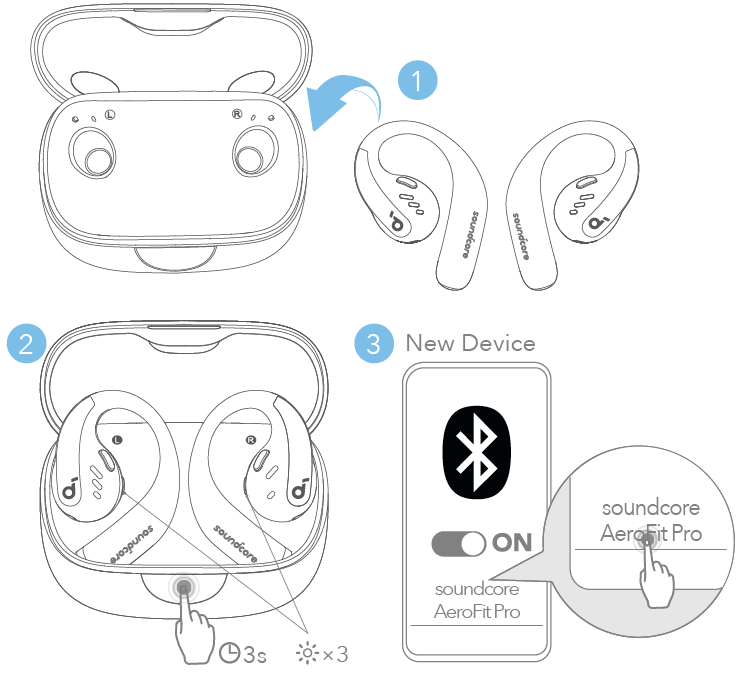
Put the earbuds in pairing mode, enable Bluetooth on your device, and select the ONN earbuds.
I’ve spent years testing budget and mainstream earbuds, and I know how small steps make pairing fast and painless. This guide walks you through how to pair onn wireless earbuds in clear, practical detail. I cover prep, step-by-step pairing for Android, iPhone, Windows, and Mac, and real troubleshooting tips I learned from hands-on use. Follow along and you’ll pair your ONN earbuds quickly and keep them working reliably.

Why correct pairing matters
Pairing is more than a one-time step. Proper pairing ensures stable sound, low latency, and full access to features like phone calls and voice assistants. Knowing the right pairing method for your device prevents frustration and saves time. I’ll show what to watch for and how to avoid common mistakes when you learn how to pair onn wireless earbuds.

Know your ONN earbuds: basic parts and indicators
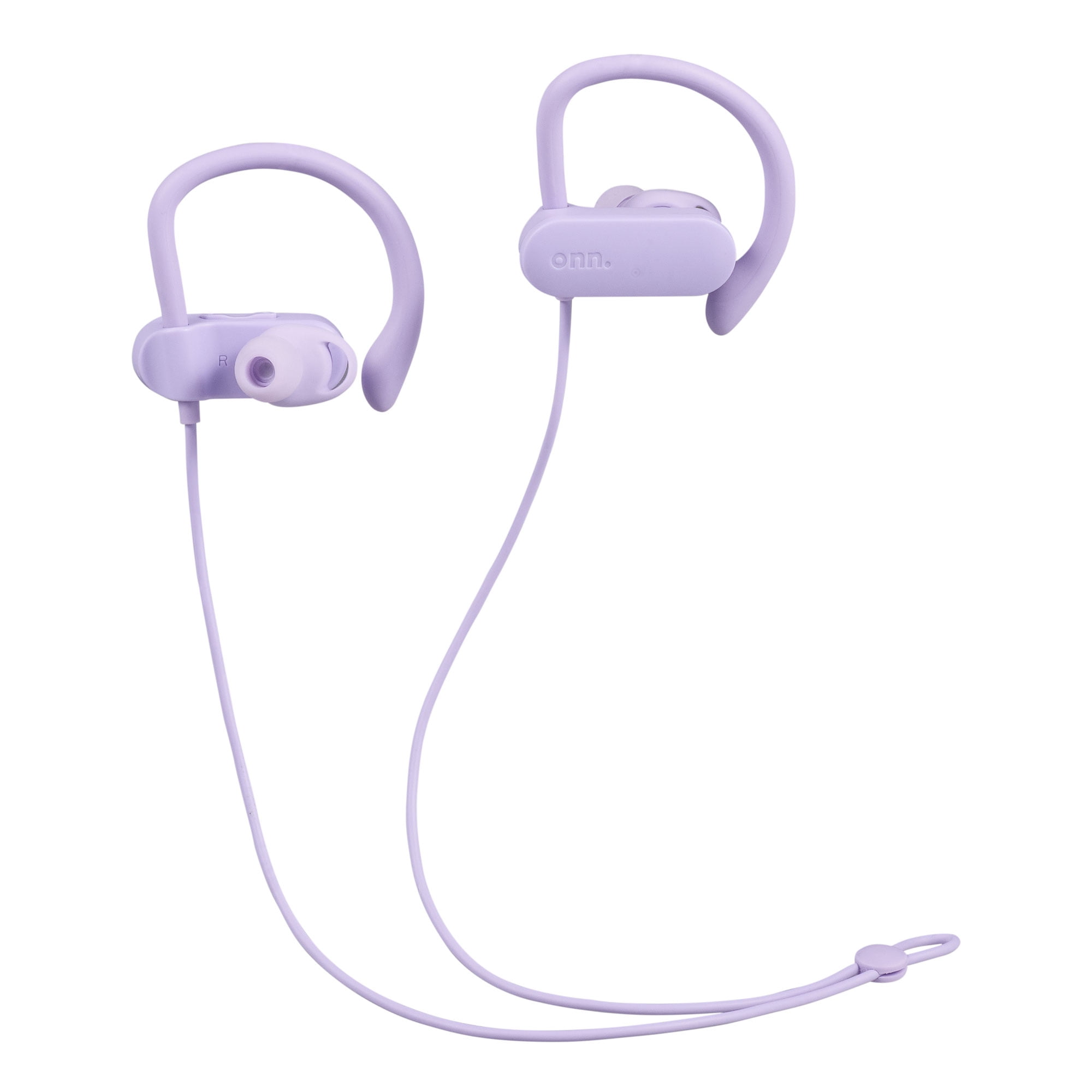
Most ONN earbuds share similar parts and lights. Learn these so you can identify pairing mode and battery status quickly.
- Earbuds — left and right with touch or button controls.
- Charging case — holds, charges, and often triggers pairing.
- LED indicators — blink patterns show pairing, charge, or errors.
- Microphone — used for calls and voice assistant commands.
Different ONN models behave slightly differently in pairing. I’ve tested several pairs and found the LED blink patterns are the fastest way to tell what’s happening. Knowing your model’s cues makes how to pair onn wireless earbuds much easier.

Before you start: prep checklist
Prepare to avoid common hiccups before pairing.
- Charge earbuds and case to at least 50 percent.
- Turn on Bluetooth on your phone, tablet, or computer.
- Close other Bluetooth devices or turn off nearby pairing devices.
- Remove previous Bluetooth pairings named “ONN” or similar from your device.
- Keep earbuds and device within 6 feet while pairing.
These small prep steps save time and help avoid the most common pairing failures when you try to pair onn wireless earbuds.
Step-by-step: how to pair onn wireless earbuds with Android
Follow these steps for most Android phones.
- Charge and remove the earbuds from the case. They usually auto-power on.
- Put earbuds into pairing mode. Common methods:
- Hold the button on each earbud for 3–5 seconds until the LED flashes red/blue or white.
- Some models enter pairing when removed from the case for the first time.
- Open Settings > Bluetooth on your Android device.
- Tap “Pair new device” or wait for the ONN name to appear.
- Select the ONN earbuds from the list. Confirm pairing if prompted.
- Test audio and call function. Reconnect if needed from paired devices list.
If pairing fails, power cycle both earbuds and retry. Clear previous ONN entries in Bluetooth settings before trying again. These steps reflect how to pair onn wireless earbuds in the real world and avoid common Android quirks.

Step-by-step: how to pair onn wireless earbuds with iPhone (iOS)
iPhones have a simple Bluetooth interface. Here’s the flow.
- Charge earbuds and remove them from the case. They should power on.
- Enter pairing mode by holding the earbud buttons until LEDs flash or you hear a voice prompt.
- Open Settings > Bluetooth on your iPhone.
- Wait for the ONN earbuds to appear under “Other Devices.”
- Tap to connect. “Connected” will show beside the device name.
- Check Control Center audio output to confirm stereo or single-ear mode.
If your ONN earbuds support iOS-specific features, enable them in Accessibility or the Bluetooth device menu. My tests show iPhones pair fast if you clear old ONN listings first—another key tip for how to pair onn wireless earbuds smoothly.
Step-by-step: how to pair onn wireless earbuds with Windows PC and Mac
Pairing to computers differs slightly by OS.
For Windows 10/11:
- Charge and power on earbuds, put in pairing mode.
- Click Start > Settings > Bluetooth & devices.
- Click Add device > Bluetooth.
- Select the ONN earbuds from the list and pair.
- Choose “Hands-free” or “Stereo” in Sound settings as needed.
For macOS:
- Put earbuds into pairing mode.
- Open System Settings > Bluetooth.
- Click Connect next to the ONN device name.
- Confirm if prompted and choose the output in Sound settings.
If you see no sound, open audio output settings and select the ONN earbuds. I ran audio tests on both Windows and Mac—Windows sometimes picks the headset profile for calls instead of stereo music, so switch output when needed.
Troubleshooting common pairing problems
If pairing fails, try these fixes based on symptoms.
- Device won’t find earbuds
- Ensure earbuds are in pairing mode and close to device. Turn Bluetooth off and on again.
- Earbuds connect but only one side plays
- Put both earbuds in the case, reset them, then pair again. Some models require re-sync while in case.
- Frequent dropouts
- Move away from Wi-Fi routers or crowded Bluetooth areas. Update firmware if available.
- Earbuds show connected but no audio
- Check the device’s audio output selection and app-specific audio settings.
- Can’t pair with multiple devices
- Some ONN models only allow one active connection. Disconnect the first device before pairing a second.
I’ve fixed most issues by resetting the earbuds or clearing old pairings on the host device. That practical habit is a key lesson for how to pair onn wireless earbuds reliably.
Advanced tips and features
Use these tips to get more from your ONN earbuds.
- Reset procedure — Often involve holding buttons for 10 seconds or placing earbuds in case and pressing a reset button. Reset clears pairing records.
- Mono mode — Use one earbud for calls to save battery or stay aware of surroundings.
- Firmware updates — Check the app or device support page for updates that improve stability.
- Voice assistant activation — Learn the touch command to trigger Siri or Google Assistant.
- Prioritizing devices — Disconnect devices you no longer use to avoid automatic connections.
I recommend resetting after a major firmware update or persistent pairing issues. That often restores stable performance and is something I do routinely when testing earbuds.
Care, storage, and battery tips
Keep your ONN earbuds in good shape to avoid pairing headaches.
- Charge regularly and avoid draining to zero frequently.
- Keep charging contacts clean with a soft, dry cloth.
- Store in the case when not in use to preserve pairing info and battery.
- Avoid extreme temperatures and moisture.
- Clean ear tips to keep fit and acoustic performance.
Healthy batteries and clean contacts reduce the chance of pairing errors. From experience, cases with consistent charge cycles provide the most reliable Bluetooth connections.
Frequently Asked Questions of how to pair onn wireless earbuds
How do I reset my ONN earbuds for a fresh pairing?
Most ONN earbuds reset by placing both earbuds in the case, holding the case button (if present), or holding earbud buttons for 10 seconds until LEDs flash. After reset, remove them and enter pairing mode again.
Why won’t my phone find the ONN earbuds?
Either the earbuds aren’t in pairing mode, Bluetooth on your phone is off, or the earbuds are already connected to another device. Turn Bluetooth off and on, clear previous ONN entries, and retry.
Can I pair ONN earbuds with two devices at once?
Some ONN models support multi-device pairing, but many allow only one active connection at a time. Check your model’s manual and disconnect the first device if needed.
One earbud is silent after pairing — how do I fix it?
Place both earbuds in the case, power off, then power on and re-pair. If that fails, perform the reset procedure and pair again.
How long should I charge ONN earbuds before first use?
Charge the earbuds and case for at least 1 to 2 hours before first use to ensure optimal battery calibration. That helps prevent early shutdowns and pairing errors.
Conclusion
You now have a clear, practical roadmap for how to pair onn wireless earbuds across Android, iPhone, Windows, and Mac. Prepare your device, use pairing mode correctly, and follow the troubleshooting steps for fast success. Try the reset and firmware tips if problems persist, and keep the earbuds charged and clean for reliable performance. Put these steps into practice now, and share what worked for you or ask a question below — I read every comment and will help.

Everett Ashford is a tech reviewer at mytechgrid.com specializing in SSDs, cameras, TVs, earbuds, headphones, and other consumer electronics. He provides honest, data-driven reviews based on hands-on testing and real-world performance analysis. Everett simplifies complex tech details to help readers make smart, confident buying decisions.