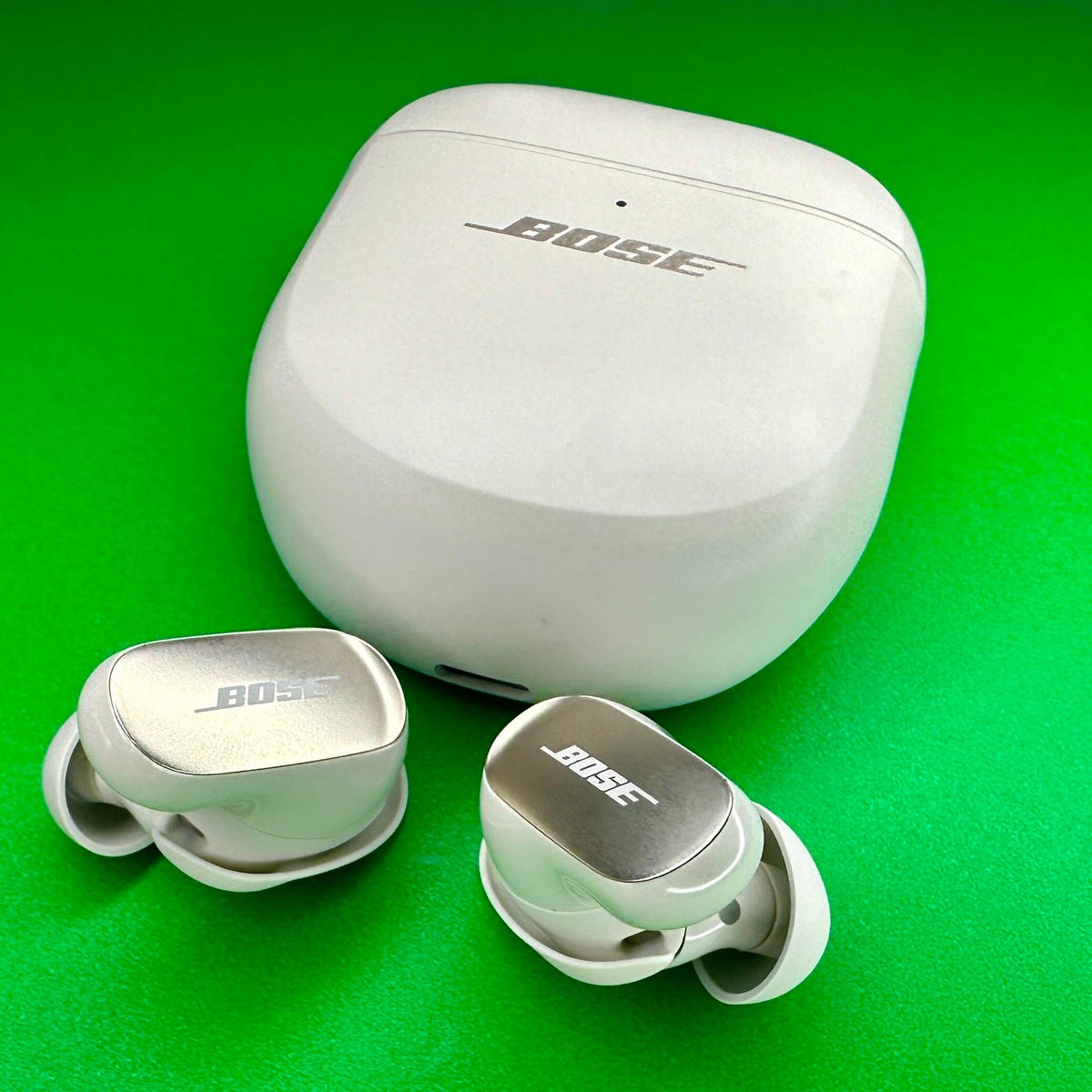
Reset Bose QuietComfort Ultra earbuds using a quick factory reset via the Bose app.
I’ve spent years troubleshooting earbuds and audio gear, and I’ll walk you through how to reset Bose QuietComfort Ultra earbuds step by step. This guide covers soft resets, full factory resets, resetting the charging case, and troubleshooting tips, all written simply and clearly so you can fix connection, sound, or pairing issues fast.
Why reset your earbuds?
Resetting can clear pairing errors, restore sound settings, and fix odd behaviors. A reset often resolves issues like one earbud not connecting, ANC (active noise canceling) glitches, or Bluetooth pairing failures. Knowing how to reset Bose QuietComfort Ultra earbuds saves time and avoids needless replacement.

Types of reset and when to use each
There are two common reset types you should know.
- Soft reset: A quick power cycle that reconnects Bluetooth and clears minor bugs.
- Factory reset: Returns earbuds to original settings and deletes paired devices.
Use a soft reset first. Use a factory reset if problems persist or if you plan to pair the earbuds with a new device. Learning how to reset Bose QuietComfort Ultra earbuds properly helps protect your settings and personal profiles.
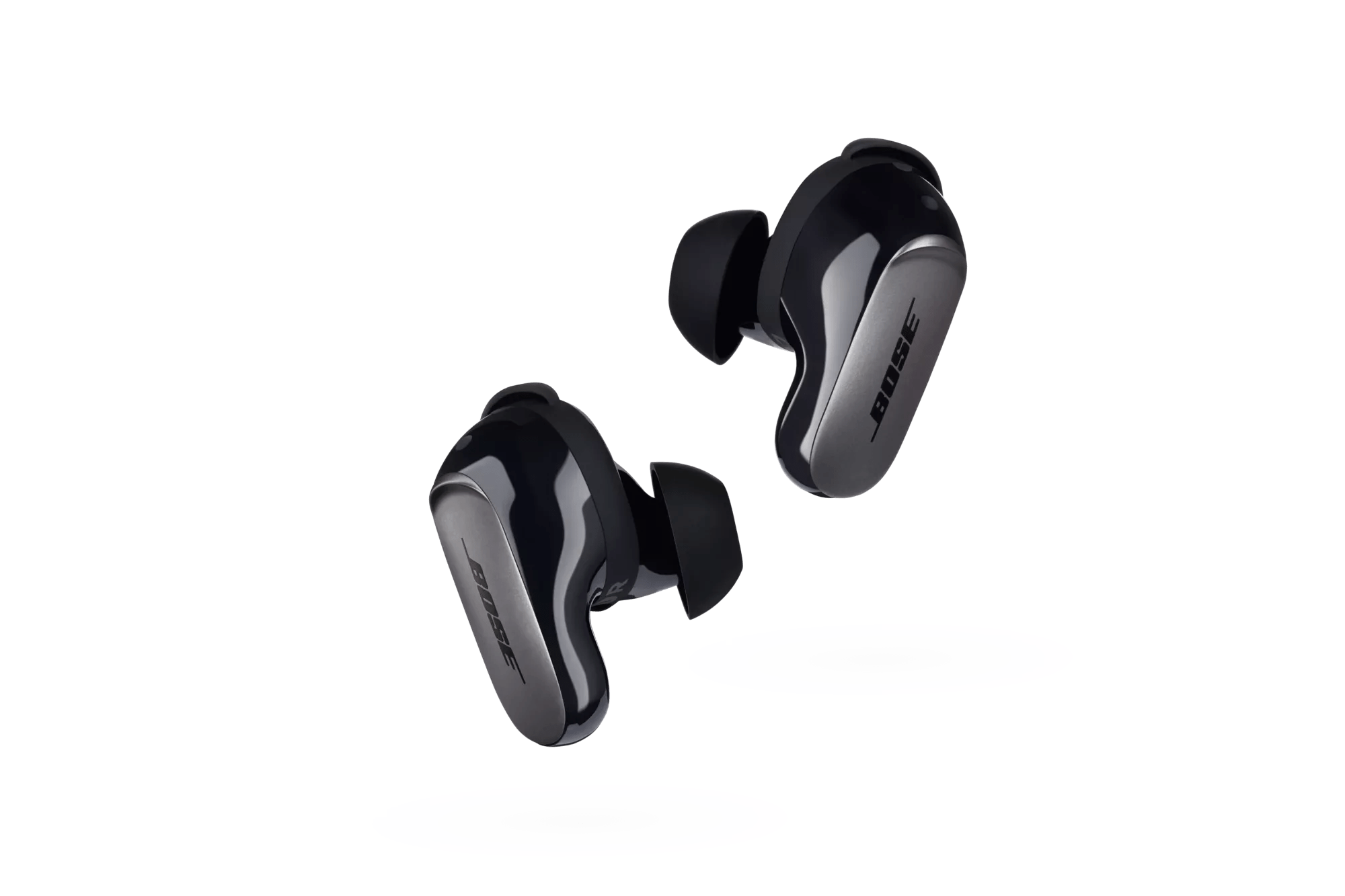
How to reset Bose QuietComfort Ultra earbuds — quick soft reset
A soft reset is safe and fast. Follow these steps when audio or Bluetooth hiccups appear.
- Put both earbuds in the case and close the lid.
- Wait 15 seconds, then open the lid and take the earbuds out.
- If they don’t reconnect automatically, turn Bluetooth off and on on your phone, then select the earbuds again.
A soft reset usually reconnects the earbuds and clears minor faults. If it does not, try the factory reset below to fully refresh firmware and settings.

How to reset Bose QuietComfort Ultra earbuds — factory reset (full reset)
A factory reset removes all pairings and returns defaults. Use this when other steps fail.
- Place both earbuds in the charging case and leave the lid open.
- Press and hold the case button (or follow the specific button sequence on the earbuds) for about 10–15 seconds until the LED indicates reset. The LED may blink or change color.
- Close the lid for 30 seconds, then open it and re-pair the earbuds with your device via Bluetooth or the Bose app.
Always check the LED patterns when you reset. If you’re unsure about the button sequence, consult the in-ear controls or the Bose app. Re-pairing may require you to remove the old device entry from your phone’s Bluetooth list before attempting to connect.
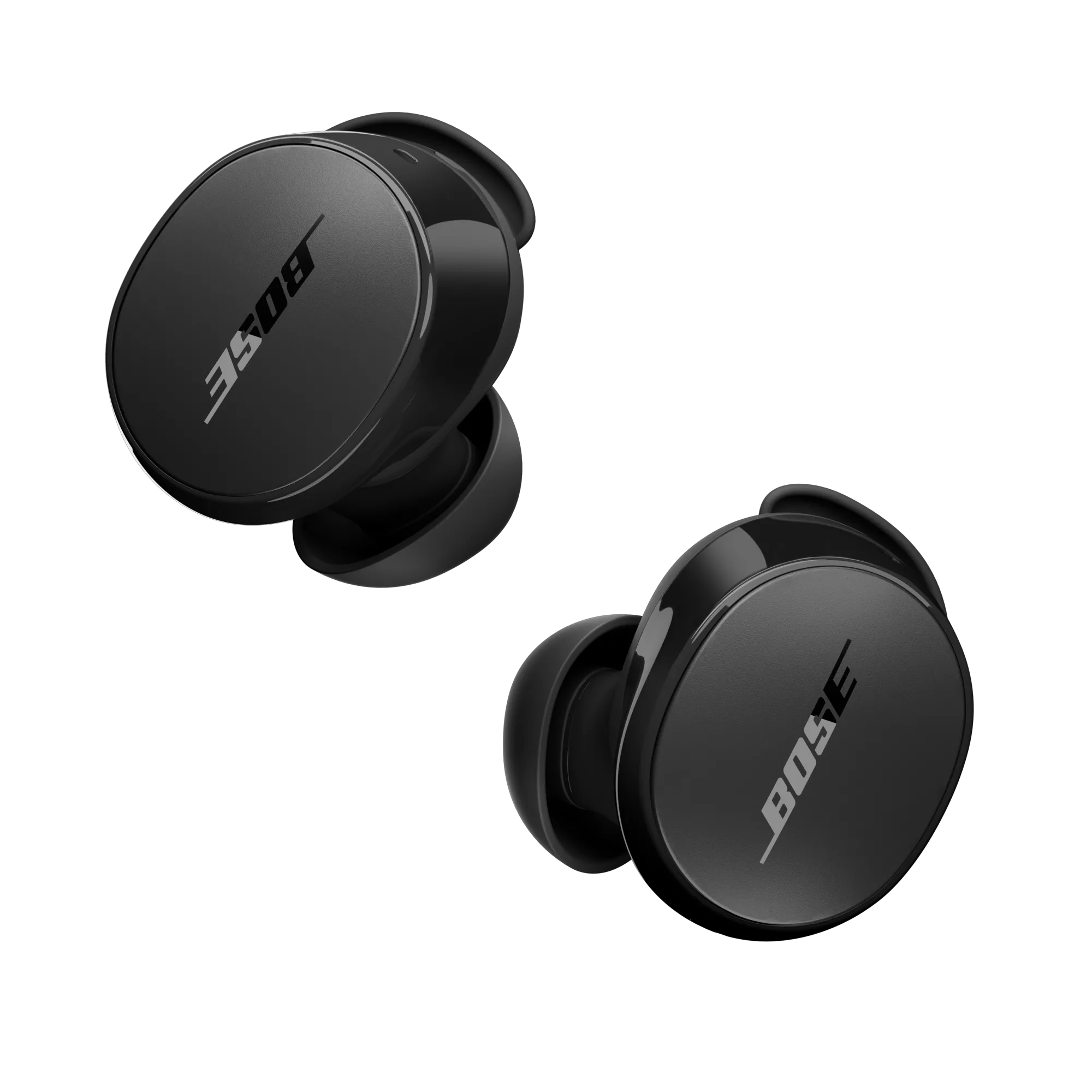
Resetting the charging case and firmware considerations
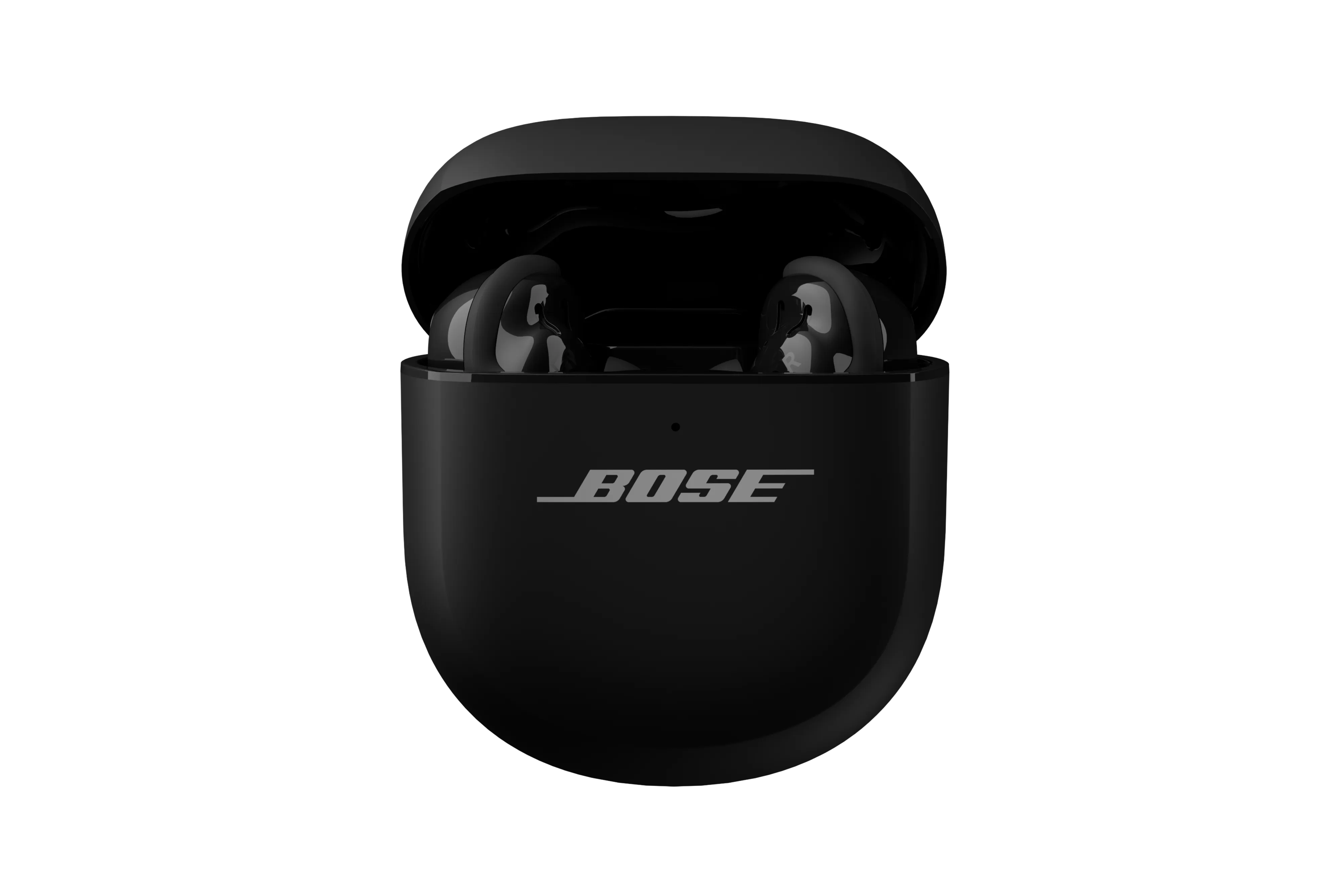
If the case is unresponsive, reset the case too. This can help charging or firmware update issues.
- Remove earbuds from the case.
- Plug the case into a power source using the supplied USB-C cable.
- Press and hold the case button for 10–15 seconds while plugged in until the LED changes.
After resetting, open the case and place the earbuds back inside. Check the Bose app for firmware updates. Firmware updates often fix bugs, so install any available updates after you reset.

Troubleshooting after you reset
If problems persist, try these checks.
- Check battery level: Low battery can prevent pairing or cause dropouts.
- Reboot your phone or device: A fresh device restart helps Bluetooth handshake.
- Forget and re-add: Remove the earbuds from your device’s Bluetooth list and re-add them.
If audio is unbalanced after reset, clean the earbud contacts and tips. Dirt or debris can affect sensors and charging. These steps will handle most issues once you know how to reset Bose QuietComfort Ultra earbuds.
Tips from my experience and mistakes to avoid
I’ve reset earbuds many times. Here’s what I learned.
- Always charge both earbuds before a factory reset. Low power can interrupt the process.
- Don’t rush pairing. Wait 10–20 seconds after a reset before searching for the device.
- Keep the Bose app installed for guided resets and firmware installs.
One mistake I made early on was skipping the “forget device” step on the phone. That caused repeated pairing errors. If you follow these simple habits, you’ll avoid most reset headaches when you reset Bose QuietComfort Ultra earbuds.

When to contact support and warranty limits
If resets and firmware updates don’t help, contact Bose support. Document the steps you tried, firmware versions, and symptoms. If the earbuds are under warranty, a repair or replacement may apply.
Know the limits: resets won’t fix physical damage or battery degradation. A reset restores software only. If battery life is poor after resets, the battery may be aging and require service.

Frequently Asked Questions of how to reset bose quietcomfort ultra earbuds
How long does a factory reset take?
A factory reset typically takes less than a minute, plus any time needed to re-pair devices. Firmware updates after reset can add several minutes.
Will resetting delete my saved equalizer or preferences?
Yes. A factory reset removes custom settings and paired devices. Soft resets do not delete personalization.
Do I need the Bose app to reset the earbuds?
No. You can execute soft and factory resets with the earbuds and case alone. The Bose app simplifies firmware updates and guided steps.
My earbuds won’t reset. What should I try next?
Charge the case and earbuds fully, then retry the reset steps. If that fails, reboot your phone and remove old Bluetooth entries before retrying.
Will resetting fix sound or connection dropouts?
Resetting often fixes sound and connection issues caused by software errors. If hardware or battery faults exist, a reset may not help.
Conclusion
Resetting your Bose QuietComfort Ultra earbuds is a reliable first step for fixing pairing, sound, and ANC issues. Start with a soft reset, move to a factory reset if needed, and reset the case when charging or firmware problems appear. Keep your firmware up to date and follow simple pairing habits to avoid repeated resets. Try the steps now, and leave a note about your results or questions so others can learn from your experience.

Everett Ashford is a tech reviewer at mytechgrid.com specializing in SSDs, cameras, TVs, earbuds, headphones, and other consumer electronics. He provides honest, data-driven reviews based on hands-on testing and real-world performance analysis. Everett simplifies complex tech details to help readers make smart, confident buying decisions.