Pair your Bose earbuds with your iPad by turning on Bluetooth, putting the earbuds in pairing mode, and selecting them in Settings > Bluetooth.
I’ve paired dozens of earbuds with iPads while helping friends and testing gear for work. In this guide I’ll show you exactly how to connect Bose earbuds to iPad step by step, how to fix the most common problems, and tips that save time. I’ll use clear, practical steps and real-world tips so you can get sound fast and keep it working.

Preparing your iPad and Bose earbuds
Start by checking a few basics. Make sure your iPad is charged and running a recent iOS version. Turn on Bluetooth in Settings so the iPad can see new devices. Check the battery level on your Bose earbuds; low battery can block pairing or drop connections.
Follow the steps below to prepare both devices:
- Confirm iPad Bluetooth is on: Settings > Bluetooth and toggle on.
- Update iPad software: Settings > General > Software Update.
- Charge earbuds for at least 10–15 minutes if they are new or dead.
- Close other Bluetooth devices or move away from active connections.
These prep steps make it easier when you learn how to connect Bose earbuds to iPad. Small prep avoids most headaches.

Step-by-step: how to connect bose earbuds to ipad
Follow these simple steps to pair most Bose earbuds with an iPad. Exact button presses vary by model, but the flow is the same.
- Turn on Bluetooth on iPad
- Open Settings on your iPad.
- Tap Bluetooth and switch it on.
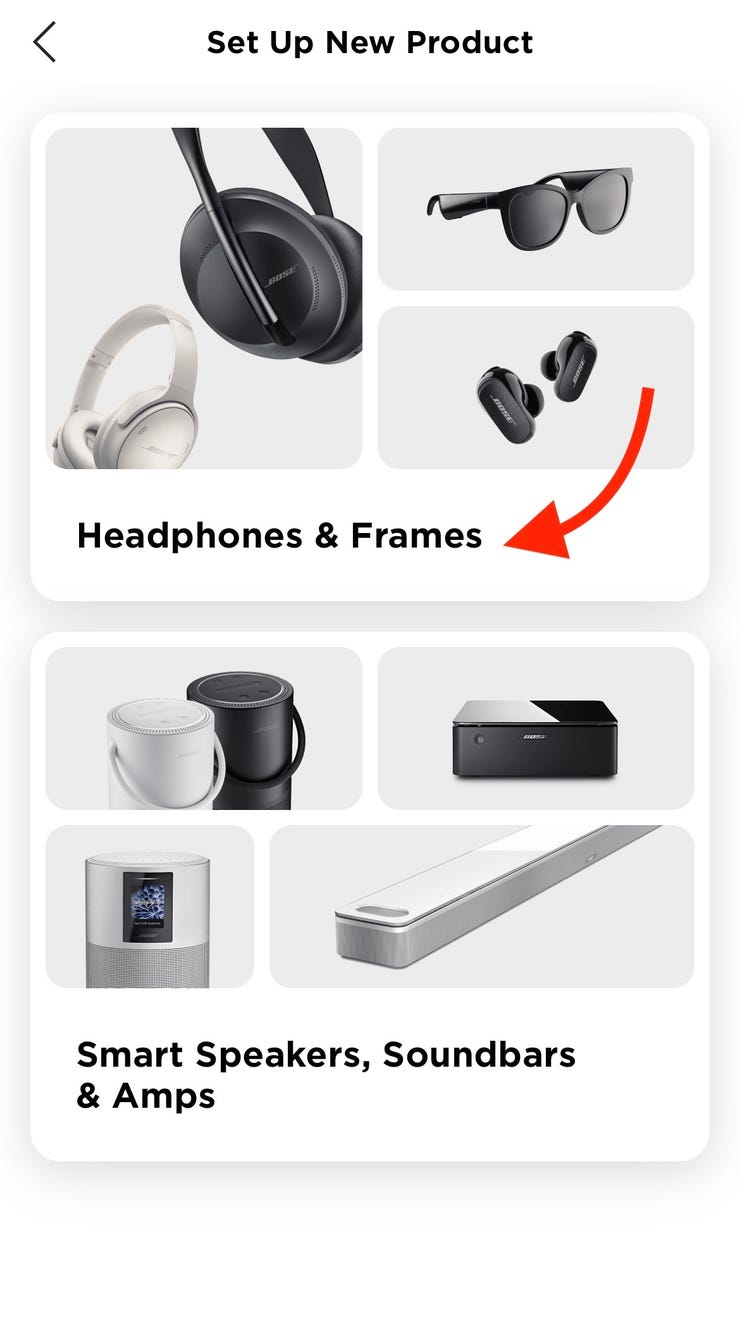
- Put your Bose earbuds into pairing mode
- Power on the earbuds, then press and hold the power or Bluetooth button until a light flashes blue or you hear a voice prompt saying “ready to pair.”
- For some models, open the case with earbuds inside to trigger pairing mode.
- Select the earbuds on the iPad
- In Settings > Bluetooth, look under Other Devices for your Bose earbuds name.
- Tap the device name to connect. Wait until it shows Connected.
- Confirm audio and test
- Play a song or video to verify audio.
- Use the iPad volume or the earbuds’ touch controls to adjust sound.
If you must repeat the process, turn Bluetooth off then on again on the iPad and restart the earbuds. These core steps cover most situations when you want to know how to connect Bose earbuds to iPad.
Troubleshooting common pairing issues when connecting Bose earbuds to iPad
If pairing fails, try these fast fixes. I use these every time an earbuds connection gets flaky.
Common problems and fixes:
- Earbuds not found
- Turn the earbuds fully off and on. Put them back into pairing mode. Make sure the LED indicates pairing.
- Move the iPad within a few feet and remove obstacles or other Bluetooth devices nearby.
- Earbuds show but won't connect
- Forget the earbuds on the iPad: Settings > Bluetooth > tap the "i" next to the device > Forget This Device. Then pair again.
- Reboot the iPad and try again.
- Frequent audio dropouts
* Ensure no strong Wi‑Fi or microwave interference. Try toggling Airplane Mode on then off.- Update firmware for earbuds if an update is available through the Bose app or support tools.
- One earbud not playing
- Place both earbuds in the case and re-pair to the iPad. Some models require re-syncing the pair.
If a reset is needed, consult the model manual for the reset sequence. A reset often clears stubborn pairing errors. These steps will help you reconnect and keep listening when you need to know how to connect Bose earbuds to iPad.
Advanced tips and features when using Bose earbuds with iPad
Once paired, you can fine-tune the experience. These tips come from real testing and everyday use.
Useful features and tips:
- Multiple device switching
- If your earbuds were paired to another phone, disconnect that phone or turn off its Bluetooth before connecting to the iPad.
- Some Bose models support multipoint. Check the manual for instructions to connect to two devices at once.
- Firmware and app support
- Use the Bose Music or Bose Connect app (if supported) to update firmware and access EQ settings.
- Improve call quality
- Move closer to the iPad and hold the iPad microphone nearer during calls.
- Close background apps that use audio or location services.
- Battery management
- Check battery status on the iPad Bluetooth screen or in the Batteries widget.
- Store earbuds in the case when not in use to preserve battery.
- Accessibility and audio routing
- Check Settings > Accessibility > Touch > Call Audio Routing if calls route incorrectly.
- Use the Control Center audio card to switch outputs quickly.
These tips make your everyday use of Bose earbuds with an iPad smoother. They reflect things I learned while testing audio gear and helping friends pair devices.

Quick PAA-style questions (short answers)
What should I do if my iPad won't see my Bose earbuds?
- Put the earbuds in pairing mode and toggle Bluetooth on the iPad off and on. Move devices closer together and remove other Bluetooth devices.
How do I reset my Bose earbuds for pairing?
- The reset method varies by model. Typically, hold the power or Bluetooth button for 10–15 seconds until lights blink. Check the manual if unsure.
Can I use Bose earbuds with AirPlay on iPad?
- Bose earbuds use Bluetooth, not AirPlay. Play audio normally via Bluetooth; AirPlay is for Wi‑Fi speakers and Apple devices.
Do Bose earbuds support spatial audio on iPad?
- Spatial audio is an Apple feature mainly for AirPods. Some Bose models may offer immersive modes, but they do not support Apple spatial audio the same way AirPods do.
Will firmware updates improve pairing stability?
- Yes. Firmware updates often fix Bluetooth bugs and improve reliability. Use the Bose app or support tools to update.
These short answers help clear quick doubts when you want to know how to connect Bose earbuds to iPad.

Frequently Asked Questions of how to connect bose earbuds to ipad
How do I put my Bose earbuds into pairing mode?
Most Bose earbuds enter pairing mode by pressing and holding the power or Bluetooth button until an LED flashes blue or a voice prompt indicates pairing. If unsure, consult the quick start guide for your model.
Why won’t my iPad find my Bose earbuds?
If your iPad can’t find the earbuds, ensure Bluetooth is on, the earbuds are in pairing mode, and both devices are close together. Turn off other Bluetooth devices and retry.
How do I forget and re-pair my Bose earbuds on iPad?
Open Settings > Bluetooth, tap the "i" next to the earbuds, choose Forget This Device, then put the earbuds into pairing mode and reconnect from the Other Devices list.
Can I connect Bose earbuds to multiple devices at once with my iPad?
Some Bose models support multipoint pairing to stay connected to two devices. Check your model’s specs; otherwise disconnect one device before pairing the iPad.
What if sound comes from both iPad speakers and earbuds?
Open Control Center and tap the audio output tile to select Bose earbuds. Also check Settings > Bluetooth that the earbuds show as Connected for audio.
How do I update Bose earbuds firmware from my iPad?
Install the Bose Music or Bose Connect app (if supported) on the iPad, open the app, and follow the prompts to update firmware. Keep earbuds charged during the update.
My earbuds connect but audio quality is bad. What should I do?
Move closer to the iPad, close apps using Bluetooth, and try toggling Bluetooth. Updating firmware and restarting both devices can also help.
Conclusion
You now have clear, practical steps to connect Bose earbuds to iPad, plus fixes and tips that save time. Try the pairing steps, then use the troubleshooting checklist if you hit a snag. If one method fails, a reset and firmware update usually do the trick.
Take action: pair your earbuds now and test audio. If you found this helpful, share your experience or ask a question below so I can help you further.

Everett Ashford is a tech reviewer at mytechgrid.com specializing in SSDs, cameras, TVs, earbuds, headphones, and other consumer electronics. He provides honest, data-driven reviews based on hands-on testing and real-world performance analysis. Everett simplifies complex tech details to help readers make smart, confident buying decisions.