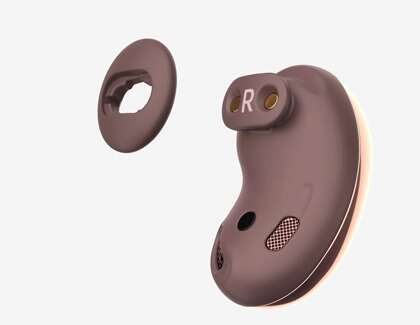
To reset TWS V5.3 earbuds, forget them from Bluetooth, place both buds in the case, and hold their touch controls.
Learning how to reset TWS V5.3 earbuds is usually simple, but the exact touch pattern can vary by brand. TWS V5.3 describes a Bluetooth standard, not one single earbud model, so this guide covers the reset method that works for many generic V5.3 earbuds while explaining what to do when the normal steps fail.

What Does Resetting TWS V5.3 Earbuds Do?
A reset returns the earbuds to their basic factory pairing state. It clears saved Bluetooth connections, removes old pairing data, and helps the earbuds create a fresh connection with your phone, tablet, or computer.
You may need to reset TWS V5.3 earbuds when:
• Only one earbud produces sound
• The earbuds connect but do not play audio
• One earbud connects to a different device
• The earbuds keep disconnecting
• The left and right earbuds stop syncing
• Your phone shows two separate earbud names
• The touch controls respond poorly
• The earbuds refuse to enter pairing mode
Bluetooth 5.3 can improve power use, connection control, and wireless performance. However, Bluetooth version 5.3 does not guarantee that every TWS earbud uses the same reset command. The case design, touch controls, and firmware determine the actual process.
Think of a reset like clearing a cluttered desk. Your earbuds can then start a clean conversation with your device instead of relying on old connection records.

How to Reset TWS V5.3 Earbuds: Standard Method
This is the most common reset process for generic TWS V5.3 earbuds. Keep both earbuds and the charging case nearby before you begin.
- Charge the earbuds and case
Place both earbuds in the charging case. Make sure the case has enough power to complete the reset. A low battery can interrupt the process.
- Remove the old Bluetooth connection
Open your phone’s Bluetooth settings. Find the earbud name, such as “TWS V5.3,” “TWS,” “M10,” or a brand name. Tap the settings icon beside it, then choose Forget, Remove, or Unpair.
- Turn off Bluetooth on your phone
Switch Bluetooth off for about 10 seconds. This stops the phone from reconnecting during the reset.
- Remove both earbuds from the case
Take out the left and right earbuds at the same time. If they turn on by themselves, continue to the next step.
- Turn both earbuds off
Press and hold the touch area or physical button on each earbud for about five seconds. Release when the lights turn off or the earbuds announce that they are powered off.
- Enter reset mode
Press and hold both earbuds for 10 to 15 seconds. On many models, the lights flash red and blue, flash white several times, or turn off and on again. These signals show that the old pairing record has been cleared.
- Return the earbuds to the case
Place both earbuds in the charging case. Close the lid for about 10 seconds. This allows the charging contacts and internal controller to settle.
- Start pairing again
Open the case and remove both earbuds together. Wait several seconds. The earbuds should pair with each other first, then one Bluetooth name should appear on your phone.
- Turn Bluetooth back on
Enable Bluetooth on your phone. Select the single earbud name and tap Pair or Connect.
The key part of learning how to reset TWS V5.3 earbuds is removing the old Bluetooth record before starting again. If you skip that step, your phone may keep using the same faulty connection data.

Alternative Reset Methods for Generic TWS Earbuds
Some TWS V5.3 earbuds use a different reset command. If the standard method does not work, try these options one at a time.
Reset method using the charging case
This method works on some earbuds with a case button.
-
Place both earbuds inside the case.
-
Leave the lid open.
-
Press and hold the case button for 10 to 15 seconds.
-
Watch for rapid flashing lights.
-
Close the lid, wait 10 seconds, and open it again.
-
Remove both earbuds and pair them with your phone.
Reset method using five taps
Some touch-control models reset after a rapid tap sequence.
-
Remove both earbuds from the case.
-
Tap the touch panel on each earbud five times.
-
Place both earbuds back in the case.
-
Remove them together.
-
Forget the old Bluetooth name and pair again.
The five-tap command is not universal. Use it only if the product manual or seller confirms it. Repeated tapping can activate play, voice control, or call functions instead of resetting the earbuds.
Reset method using a long press
Other models require a longer touch press.
-
Remove both earbuds from the case.
-
Press and hold both touch panels for 15 to 20 seconds.
-
Release after the lights flash or the earbuds announce a reset.
-
Put them back in the case.
-
Remove them together and search for them again in Bluetooth settings.
When I troubleshoot this type of earbud issue, I avoid trying several tap patterns at once. One method at a time makes it easier to tell which command worked and prevents accidental changes.
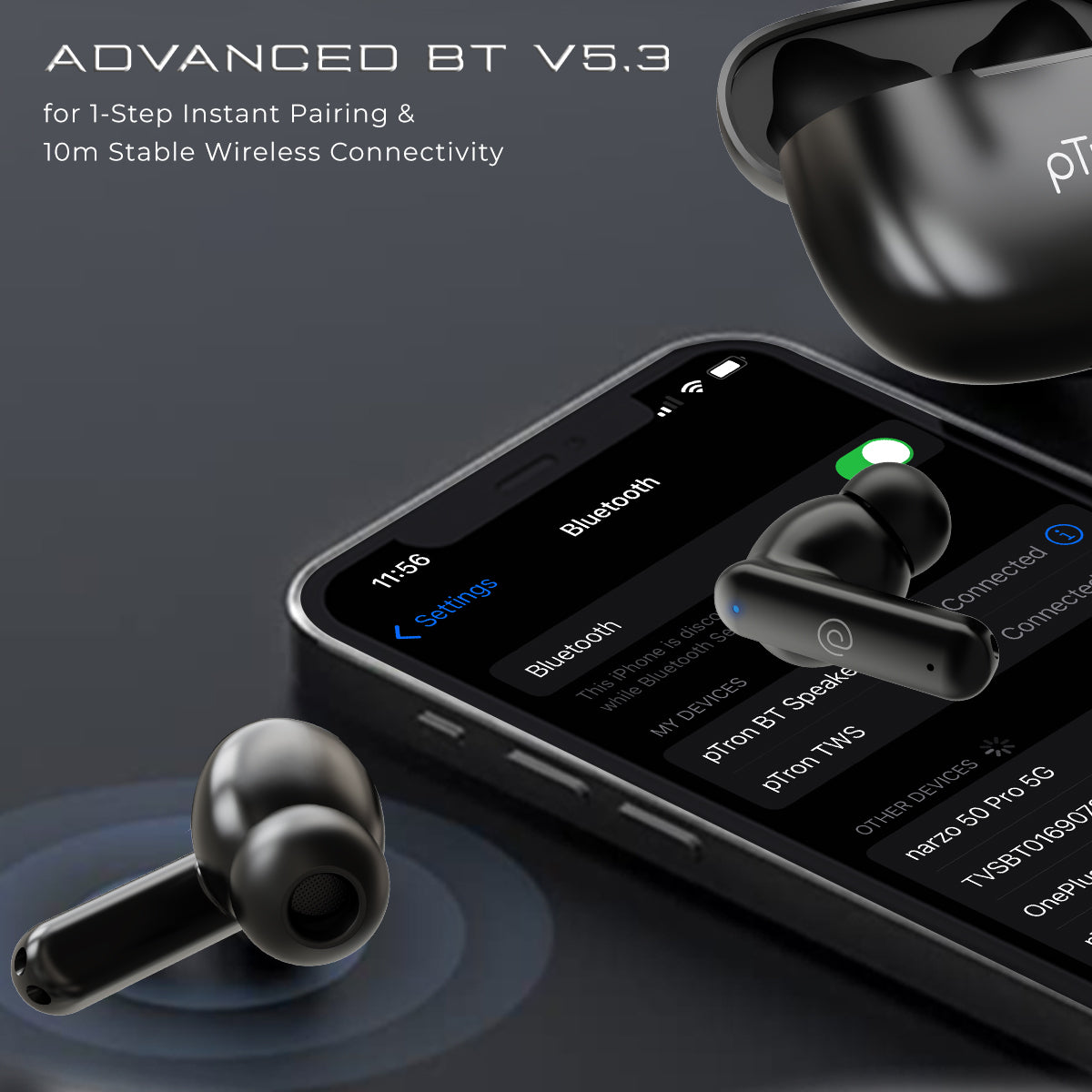
How to Reset TWS V5.3 Earbuds When Only One Side Works
One-sided audio is one of the most common reasons people search for how to reset TWS V5.3 earbuds. Usually, the two earbuds have lost their internal connection, even though one still connects to the phone.
Try this full re-sync process:
-
Remove the earbud name from every nearby device.
-
Turn off Bluetooth on phones, tablets, laptops, and smart TVs.
-
Take both earbuds out of the case.
-
Turn both earbuds off manually.
-
Press and hold both touch controls for 10 to 15 seconds.
-
Place both earbuds in the case.
-
Wait at least 10 seconds.