To install another SSD, check compatibility, mount the drive, connect it safely, then initialize and format it.
Learning how to install another SSD can give your computer more space, faster game loading, and a cleaner way to organize files. The process is simple once you identify the right drive type, check your motherboard or laptop, and follow safe setup steps. This guide explains how to install another SSD in a desktop or laptop, how to set it up in Windows or macOS, and which common mistakes to avoid.
What to check before installing another SSD
Before learning how to install another SSD, confirm that your computer supports the drive you plan to buy. SSDs come in several forms, and they are not all interchangeable.
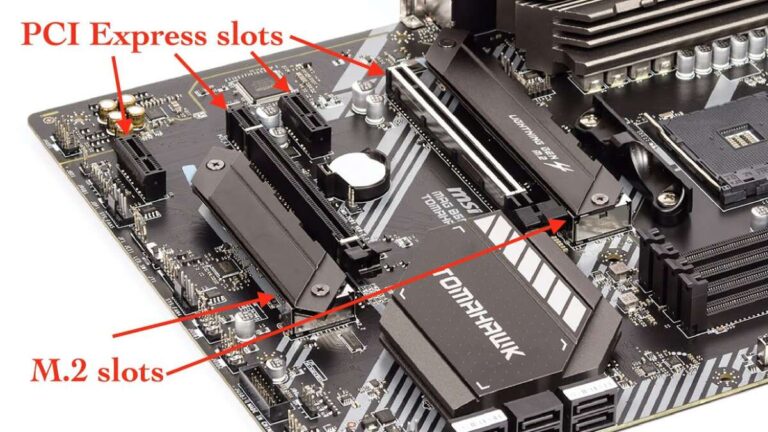
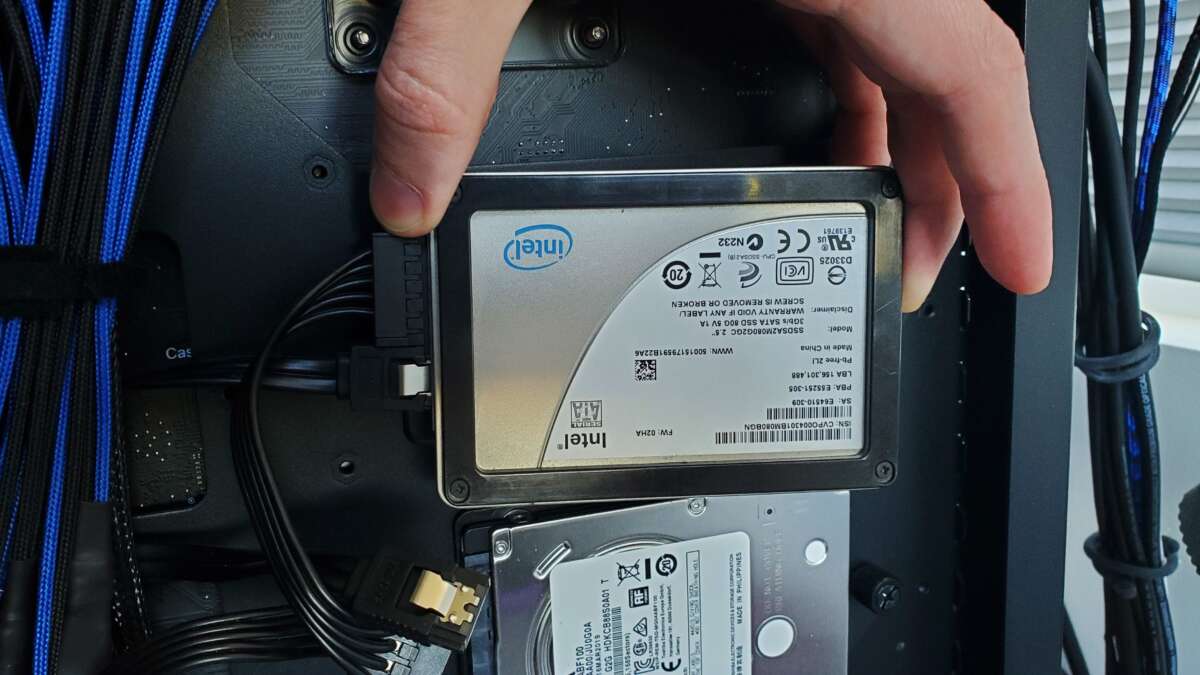
The two most common types are 2.5-inch SATA SSDs and M.2 SSDs. A 2.5-inch SATA SSD uses a data cable and a power cable. An M.2 SSD is a small circuit board that usually plugs directly into the motherboard.
Check these points first:
• Drive type: Confirm whether you need a 2.5-inch SATA SSD, an M.2 SATA SSD, or an M.2 NVMe SSD.
• Available slot: Look for an open M.2 slot or an unused SATA port.
• Interface support: An M.2 slot may support SATA, NVMe, or both. The shape alone does not tell you everything.
• Physical space: A desktop case may need a 2.5-inch drive tray or mounting bracket.
• Capacity: Choose enough space for your games, videos, apps, or work files.
• Operating system: Windows, macOS, and Linux use slightly different setup tools.
• Firmware support: Very old computers may not support newer NVMe drives as boot drives.
An NVMe SSD usually connects through PCIe and can be much faster than a SATA SSD. However, that speed may not matter for basic web use. A SATA SSD can still feel very fast for normal apps and file storage.
I once helped diagnose a PC that had an M.2 drive installed in a slot that supported only SATA. The drive fit perfectly but never appeared in the system. Checking the motherboard manual first would have prevented the confusion.
:max_bytes(150000):strip_icc()/1a-91c37fe06a894ea0a15911e905c1892e.jpg)
Tools and safety steps
You do not need many tools to learn how to install another SSD. Most desktop installations require a Phillips screwdriver, the SSD, and the correct cables or mounting hardware.
Prepare these items:
• The new SSD
• A Phillips screwdriver
• A SATA data cable, if you are installing a 2.5-inch SATA SSD
• An available SATA power connector from the power supply
• An M.2 screw, if your motherboard does not already include one
• A 2.5-inch mounting bracket, if your case lacks a drive tray
• A flashlight for tight spaces
Back up important files before opening the computer. Installing a new storage drive should not erase your existing data, but mistakes can happen. A backup gives you a safety net if you disconnect the wrong drive or change the wrong setting.
Shut down the computer fully. Unplug the power cable, switch off the power supply if it has a switch, and hold the computer’s power button for a few seconds. This helps remove leftover electrical charge.
Touch the metal part of the computer case before handling components. You can also use an anti-static wrist strap. Avoid working on carpet, and hold the SSD by its edges rather than touching the contacts.
For laptops, check the service manual before removing the bottom cover. Some laptops have a removable drive bay, while others have only one M.2 slot. Opening the case may also affect your warranty, so check the manufacturer’s terms first.

How to install another SSD in a desktop
The desktop process depends on whether you have a SATA SSD or an M.2 SSD. Both options are manageable for beginners when you work slowly.
Installing a 2.5-inch SATA SSD
Follow these steps to learn how to install another SSD with a SATA connection:
-
Shut down the computer and disconnect all cables.
-
Remove the side panel from the computer case.
-
Find an open 2.5-inch drive mount or install a compatible mounting bracket.
-
Secure the SSD with the included screws. Do not overtighten them.
-
Connect one end of the SATA data cable to the SSD.
-
Connect the other end to an open SATA port on the motherboard.
-
Connect a SATA power cable from the power supply to the SSD.
-
Check that both cables sit firmly in place.
-
Replace the case panel and reconnect the computer.
SATA cables fit in only one direction. Never force a connector. If it does not slide in easily, turn it around and check the port.
Some motherboards disable certain SATA ports when an M.2 drive is installed. This is common because the M.2 slot and SATA ports may share bandwidth. Your motherboard manual will list any shared ports.
Installing an M.2 SSD
To learn how to install another SSD with an M.2 slot, follow these steps:
-
Locate the M.2 slot on the motherboard.
-
Check the printed label or manual to confirm that it supports your SSD type.
-
Remove the small M.2 screw from the standoff.
-
Hold the SSD by its edges and line up the notch with the slot.
-
Insert the drive at a slight angle, usually about 20 to 30 degrees.
-
Press the drive down gently until it rests on the standoff.
-
Secure it with the M.2 screw.
-
Install the motherboard’s heatsink or thermal cover if one is provided.
An M.2 SSD does not need a separate data or power cable. The motherboard supplies power through the slot.
Do not press straight down on an M.2 drive before inserting it. The connector should enter at an angle first. Forcing it flat can damage the slot or the drive.

How to install another SSD in a laptop
Laptop upgrades need more care because space is limited. Before learning how to install another SSD in a laptop, check the exact model number and service guide.
Some laptops support a second 2.5-inch SATA drive. Others support a second M.2 drive. Many thin laptops have one storage slot, which means you must replace the old drive rather than add another one.
Use this general process:
-
Shut down the laptop completely.
-
Disconnect the charger and any removable battery.
-
Remove the bottom cover using the correct screwdriver.