To scan for channels on a Vizio TV, connect an antenna, select TV input, then run Auto Channel Scan.
Scanning for channels on a Vizio TV is simple once the antenna and input settings are correct. The exact menu names can vary by model, but the process usually takes only a few minutes. This guide explains how to scan for channels on Vizio TV models, fix common scan problems, and get the clearest over-the-air signal.
What You Need Before Scanning for Channels on a Vizio TV
Before you start scanning for channels on a Vizio TV, check that your equipment is ready. Your television must have a working antenna connected to its coaxial antenna port. The port is often labeled “DTV/TV,” “Antenna,” or “RF.”


You do not need Wi-Fi or a cable subscription to scan for free over-the-air channels. However, you do need a digital antenna that can receive local broadcasts in your area.
Check these items first:
• Connect the antenna cable firmly to the TV’s antenna port.
• Place the antenna near a window or on an outside wall if possible.
• Remove loose cable splitters during the first scan.
• Turn on the TV and let it load fully.


• Keep the Vizio remote nearby.
A loose coaxial cable can make a full channel scan return zero results. I have seen this happen many times, especially when a cable looks connected but is not fully tightened. Treat the connection like a garden hose: if it is not sealed, the signal will leak.

How to Scan for Channels on Vizio TV
The most common method uses the TV menu. These steps work on many Vizio Smart TV and older Vizio models, although the wording may differ slightly.
-
Press the Menu button on your Vizio remote.
-
Open the TV, Tuner, Channels, or Channel menu.
-
Find the option named Tuner Mode, Input Source, or Signal Type.
-
Select Antenna or Air.
-
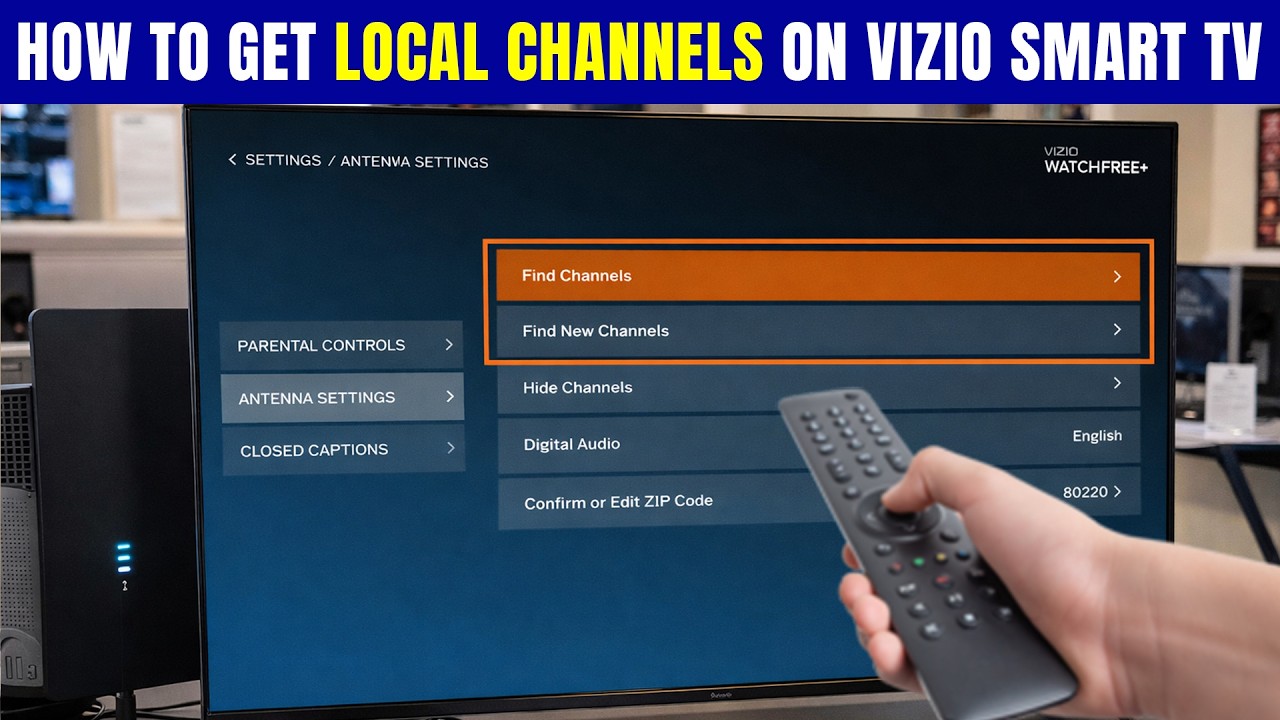
Choose Auto Channel Scan, Auto Search, or Find Channels.
-
Select Start Scan, Scan, or OK.
-
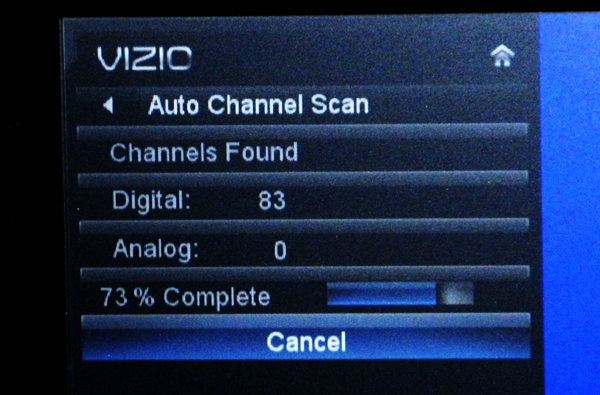
Wait until the scan reaches 100 percent.
-
Press Exit when the scan is complete.
The television will search for digital broadcast signals and save the channels it finds. The process may take between two and 15 minutes, depending on the model and signal conditions.
If your Vizio TV shows Cable and Antenna options, choose Antenna when you use a local broadcast antenna. Selecting Cable can cause the TV to search with the wrong channel plan.
This is the main process for how to scan for channels on Vizio TV. If your menu looks different, search for words such as “Channel Scan,” “Auto Program,” “Digital Scan,” or “TV Tuner.”


How to Scan for Channels on Older Vizio TVs
Older Vizio TVs may use a different menu layout. The scan option is often under the Input or TV settings area rather than a modern Smart TV menu.
Try these steps:
-
Press Menu on the remote.
-
Select TV Settings or Setup.
-
Open the Tuner or Channel menu.
-
Set Tuner Mode to Antenna.
-
Select Auto Channel Search or Auto Program.
-
Choose Digital, Air, or Both if the TV asks what to scan.
-
Wait for the scan to finish.
Some older televisions show separate scan choices for analog and digital channels. If you are using a current antenna in the United States, choose digital channels or both when available.
A factory reset is usually not needed just to scan for channels on Vizio TV. Resetting the TV can remove picture settings, app data, and other preferences. Try the normal channel scan first.

How to Scan for Channels on Vizio TV Without a Remote
Scanning for channels on a Vizio TV is harder without a remote, but there are still a few options. Many Vizio televisions have physical buttons on the side, bottom, or back.
You may be able to use the buttons to open the menu and move through the settings. The exact controls vary. Some models use one button for power and volume, while others have a small control pad.


Other options include:
• Use the Vizio mobile app if your TV and phone support remote control features.
• Use a compatible universal remote.
• Borrow a Vizio remote from another compatible television.
• Buy an inexpensive replacement remote.
A phone app may not work if the television is not connected to Wi-Fi or if the app does not support your specific model. A universal remote is often the most reliable choice for completing a channel scan.
How to Rescan Channels on Vizio TV
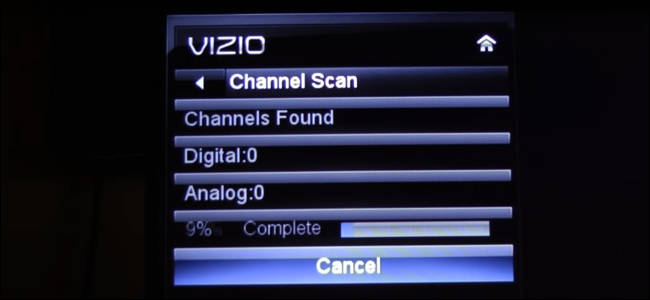
You should rescan channels on Vizio TV whenever your local stations change broadcast frequencies or when you move the antenna. Broadcasters sometimes adjust their transmission settings, and a previous scan may no longer show every available station.
To rescan channels:
-
Open the TV or Channel menu.
-
Confirm that Tuner Mode is set to Antenna.
-
Select Auto Channel Scan.
-
Start the scan again.
-
Wait for the scan to finish before changing the channel.
A new scan replaces or updates the channel list. It does not improve a weak signal by itself. If the antenna cannot receive a station clearly, the TV cannot save a stable version of that channel.


For the best results, rescan after making a major antenna position change. Scanning after every small movement is not necessary, but it can help during setup.

What to Do If Vizio TV Finds No Channels
If your Vizio TV finds no channels, do not assume the television is broken. In most cases, the issue comes from the antenna, cable, input setting, or signal location.
Work through these checks:
• Confirm that the antenna cable is connected to the correct port.
• Set the tuner to Antenna or Air, not Cable.
• Try a different coaxial cable.
• Move the antenna near a window.
• Keep the antenna away from large metal objects.
• Remove splitters, adapters, and signal amplifiers for testing.
• Restart the TV and run the scan again.
• Check whether local stations are available in your area.
Buildings, hills, trees, and distance from broadcast towers can affect reception. Indoor antennas may work well in one room but fail in another. Even moving an antenna a few feet can change the result.
One mistake I often see is placing the antenna behind the TV. The television and nearby metal parts can block or weaken the signal. Place the antenna high and in an open area when possible.

What to Do If Vizio TV Finds Only Some Channels
A partial scan usually means the antenna receives some stations but not others. Different channels may come from different broadcast towers, so one station can be clear while another disappears.
Try these improvements:
• Move the antenna higher.
• Point it toward the strongest group of local towers.
• Test a window facing a different direction.
• Use a longer coaxial cable to move the antenna.
• Remove nearby electronic devices.
• Run Auto Channel Scan again after moving the antenna.
You can use a local broadcast coverage tool to learn where stations transmit from. This helps you aim a directional antenna more accurately. Keep in mind that coverage estimates are not guarantees. Your building, terrain, weather, and antenna quality still matter.
If the TV finds a channel but displays a blank screen, the station may have a temporary broadcast issue. Wait a few minutes and test again before changing every setting.
How to Improve Vizio TV Antenna Reception
Good antenna placement is often more important than buying the most expensive antenna. Start with simple changes before purchasing new equipment.
Use these practical tips:
• Place the antenna as high as possible.
• Keep it near a window or exterior wall.
• Avoid placing it inside a cabinet.
• Keep it away from routers, soundbars, and other electronics.
• Use a short, high-quality coaxial cable when possible.
• Avoid unnecessary splitters.
• Rescan channels after repositioning the antenna.
An amplified antenna may help when the cable run is long or the signal is weak. However, an amplifier cannot create a missing signal. In areas with strong signals, too much amplification may cause interference.
If you live far from broadcast towers, an outdoor antenna may work better than a small indoor model. Apartment residents may have fewer placement options, so testing several locations is often the best approach.

How to Watch Scanned Channels on a Vizio TV
After you scan for channels on Vizio TV, press the Channel Up or Channel Down button to move through the saved stations. You can also enter a channel number if your remote has number buttons.
Some Vizio models show digital channels with a decimal format, such as 5.1 or 7.2. The number before the decimal identifies the main station. The number after the decimal identifies a digital subchannel.
For example:
• 5.1 may be the main network station.
• 5.2 may show classic programs or local news.
• 5.3 may offer a separate free channel.
The available subchannels depend on your local broadcasters. They may change over time, so a new scan can restore channels that were recently added.
If you use a cable box, streaming device, or game console, press the Input button and select the correct source. Antenna channels usually appear under TV, Antenna, or DTV input.
Antenna Channels Versus Cable Channels
Antenna and cable use different signal systems. Choosing the wrong tuner mode is one of the main reasons people cannot scan for channels on Vizio TV.
An antenna receives free local broadcasts from nearby transmission towers. Cable service comes through a provider’s coaxial network and may require a subscription, cable box, or cable card.
Choose Antenna or Air when:
• You connect an indoor or outdoor antenna.
• You want free local broadcast channels.
• You do not use a cable provider.
Choose Cable when:
• A cable company connects directly to the television.
• Your provider gives you a cable channel lineup.
• Your cable setup does not use a separate cable box.
If your cable provider uses a box, the television may not need to scan channels at all. In that case, select the HDMI input connected to the cable box.
Common Mistakes When Scanning for Channels on Vizio TV
Small setup mistakes can prevent a successful scan. Avoid these common problems:
• Choosing Cable instead of Antenna.
• Starting the scan before connecting the antenna.
• Using the wrong input source.
• Stopping the scan before it reaches 100 percent.
• Placing the antenna behind furniture or the TV.
• Expecting an antenna to receive every cable channel.
• Running a scan while the antenna is in a poor location.
• Assuming a signal amplifier fixes every reception problem.
Another common mistake is scanning once and never scanning again. If a local station changes its broadcast frequency, your Vizio TV may need a fresh channel scan to find it.
The best approach is patient and methodical. Change one thing at a time, then scan again. This makes it easier to identify what actually improves reception.
When to Reset or Contact Vizio Support
A reset should be a last step, not the first solution. If the television cannot open the tuner menu, repeatedly freezes during a scan, or fails to save channels after several attempts, a reset may help.
Before resetting the TV, write down your important settings. A reset may remove:
• Saved Wi-Fi details.
• Installed apps.
• Picture settings.
• Custom audio settings.
• Saved channel information.
You should also check the TV model number before contacting support. The model number is usually on the back of the TV, in the system information menu, or on the original packaging.
If other devices work with the same antenna but the Vizio TV does not, the TV tuner may need service. If no device receives a signal, the antenna, cable, or local reception is more likely the cause.
Frequently Asked Questions About How to Scan for Channels on Vizio TV
How do I scan for channels on Vizio TV with an antenna?
Connect the antenna to the TV’s antenna port, open the Channel or Tuner menu, select Antenna or Air, and choose Auto Channel Scan. Wait until the scan finishes before testing the saved channels.
Why is my Vizio TV not finding any channels?
The tuner may be set to Cable instead of Antenna, or the antenna may have a weak connection. Check the cable, move the antenna to a higher location, select Antenna mode, and scan again.
How often should I scan for channels on Vizio TV?
Scan whenever you install a new antenna, move the antenna, or learn that local stations have changed their broadcast settings. A monthly scan is not required unless you are troubleshooting reception.
Can I scan for channels on Vizio TV without cable service?
Yes. You can scan free local broadcast channels with a compatible antenna. You do not need cable service or an internet connection for over-the-air channels.
Why does my Vizio TV show channels like 4.1 and 4.2?
These are digital subchannels. The main station uses the number before the decimal, while the number after the decimal identifies a separate broadcast stream.
Will scanning for channels delete my streaming apps?
No. A normal channel scan updates the TV tuner’s channel list. It does not usually remove apps, Wi-Fi settings, or streaming accounts.
Conclusion
Scanning for channels on Vizio TV usually takes only a few steps: connect the antenna, choose Antenna or Air, open the channel settings, and run Auto Channel Scan. If the TV finds few or no channels, focus on antenna placement, cable connections, and the correct tuner mode.
A strong signal starts with a clear path and a secure connection. Try the steps above, rescan after moving the antenna, and check your local broadcast coverage when needed. If this guide helped, explore more TV setup tips and share it with someone who is trying to find local channels.

Everett Ashford is a tech reviewer at mytechgrid.com specializing in SSDs, cameras, TVs, earbuds, headphones, and other consumer electronics. He provides honest, data-driven reviews based on hands-on testing and real-world performance analysis. Everett simplifies complex tech details to help readers make smart, confident buying decisions.