To set up your TV on an Xfinity remote, pair the remote, enter your TV brand, and test the power and volume buttons.
Learning how to set up TV on Xfinity remote is easier when you first identify your remote model. XR15, XR16, XR11, and older remotes use different buttons, but the process follows the same basic path: connect the remote, program the TV, and confirm that the key controls work. This guide explains each method, common TV codes, fixes for failed setup, and tips that make the process less frustrating.

Before you set up your TV on Xfinity remote
Before starting, check a few simple things. A small preparation step can prevent most setup problems.
• Turn on the TV manually.
• Make sure the Xfinity cable box or streaming box is connected and working.
• Install fresh batteries in the remote.
• Point the remote toward the TV during setup.
• Remove objects that block the TV’s infrared sensor.
• Find the remote model number. It may appear inside the battery compartment or on the back of the remote.
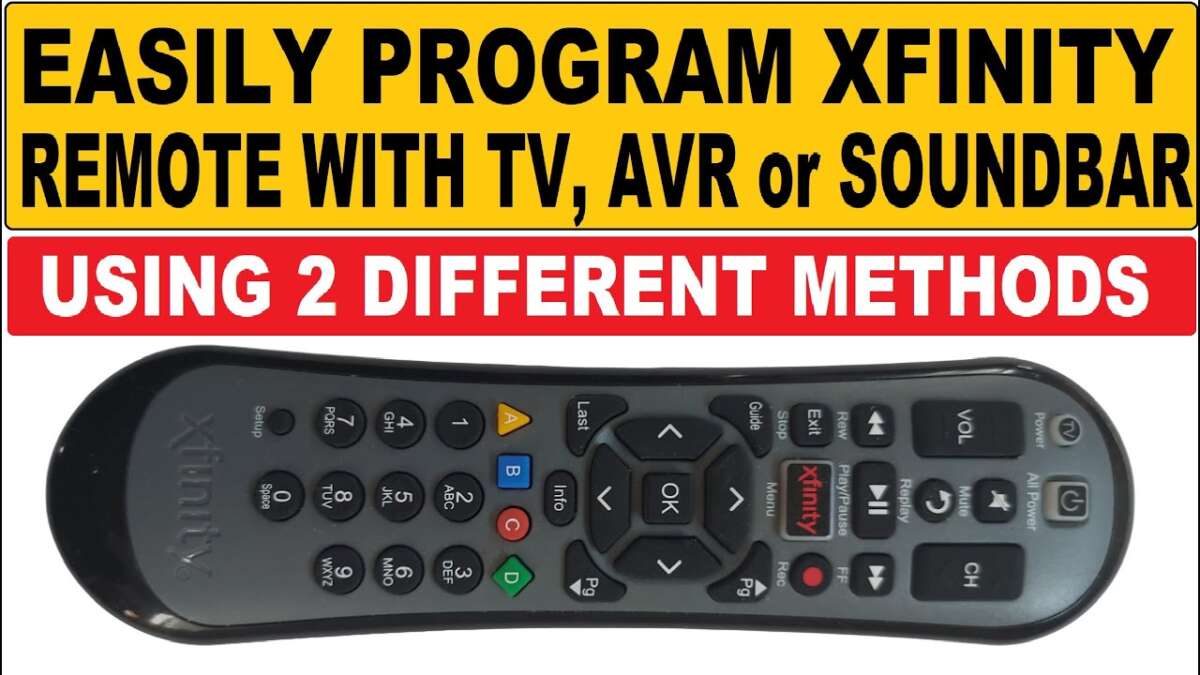
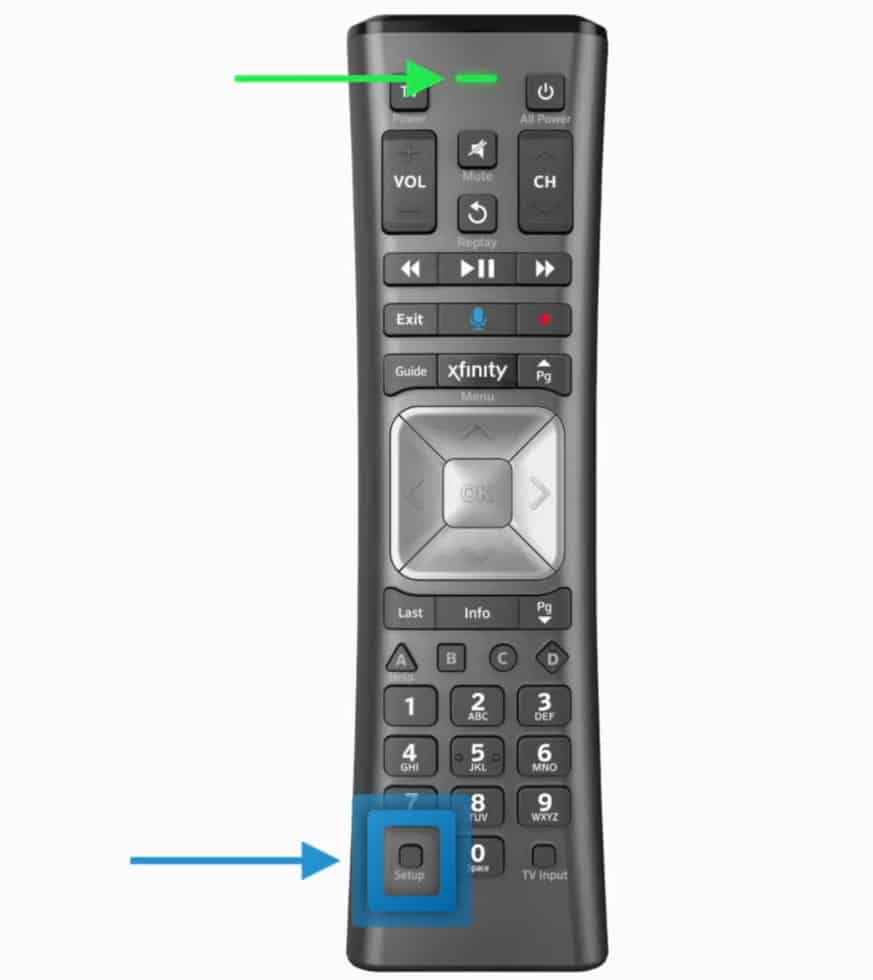
The most common Xfinity remotes are the XR15, XR16, XR11, and older models with a dedicated Setup button. The XR15 often has an A button and a D button. The XR16 is small and usually has a microphone button. The XR11 often includes a Setup button near the bottom.
It is also important to understand the difference between pairing and programming. Pairing connects the remote to the Xfinity box. Programming sets the remote to control your TV’s power, volume, mute, and input functions.

How to set up TV on Xfinity remote with voice guidance
Many newer Xfinity remotes can use voice commands to guide you through setup. This is often the fastest method because the remote can identify the correct TV brand and show prompts on the screen.
Use voice control
- Turn on your TV and Xfinity box.
- Press the Microphone button on the remote.
- Say, “Program remote.”
- Follow the instructions shown on the TV.
- Test the volume, mute, and power buttons.
You may also say, “Pair remote,” if the remote is not connected to the Xfinity box. The exact voice prompt can vary by remote software and device. If the command does not work, use the manual method below.
Voice setup works best when the remote already communicates with the Xfinity box. If nothing appears on the screen, hold the remote close to the box and try pairing it first.

How to set up TV on Xfinity remote using the XR15
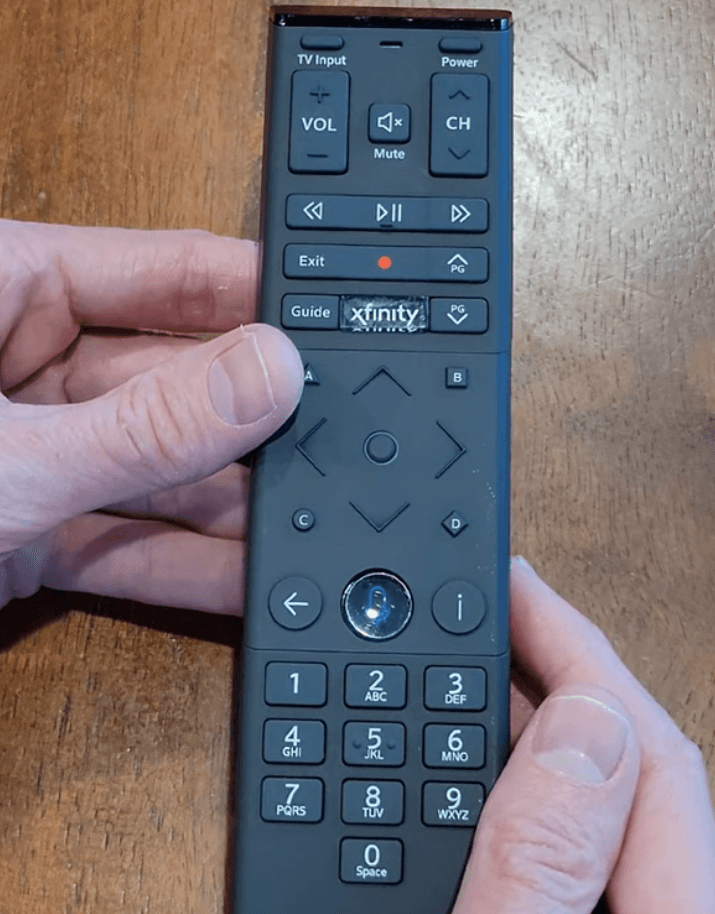
The XR15 is one of the most common Xfinity remotes. It usually has a large circular navigation pad, a microphone button, and A and D buttons near the top.
Program the TV with the XR15
- Turn on the TV.
- Press and hold the A and D buttons together.
- Keep holding them for about three seconds.
- Release both buttons when the status light changes.
- Enter 9-9-1.
- Press the Channel Up button repeatedly until the TV turns off.
- Press the Power button to test the TV.
- Press the A button to save the code.
The Channel Up button searches through compatible codes. It may take several presses, so point the remote at the TV and wait briefly between each press.
If the TV turns off but the remote does not control the volume, press the Volume Up and Volume Down buttons. Some televisions use a different code for volume or mute. Repeat the setup and continue searching until the main functions respond correctly.
A common mistake is pressing the A button too early. Press it only after the TV responds to the Power button. Otherwise, the remote may save an incorrect code.
How to set up TV on Xfinity remote using the XR11
The XR11 remote usually has a dedicated Setup button. This makes the process slightly different from the XR15 method.
Program the TV with the XR11
- Turn on the TV.
- Press and hold the Setup button.
- Release it when the indicator light changes color.
- Enter 9-9-1.
- Press the Channel Up button slowly.
- Stop when the TV turns off.
- Press the Setup button to save the code.
- Turn the TV back on and test the controls.
The XR11 may need several attempts before it finds the right code. Press Channel Up one time, wait a moment, and watch the TV. If you press too fast, you may skip the correct code.
If your remote has no Setup button, do not use the XR11 steps. Try the XR15 method with A and D, or use the voice setup option.

How to set up TV on Xfinity remote using the XR16
The XR16 is a compact remote that is often supplied with newer Xfinity streaming devices. It may not have a traditional number pad or Setup button.
Pair the XR16 with the Xfinity box
- Turn on the TV and Xfinity device.
- Point the XR16 toward the box.
- Press and hold the Info and Home buttons together.
- Continue holding them for about three seconds.
- Follow the pairing instructions on the screen.
On some versions, the pairing process may use different button prompts. Watch the TV screen closely and follow the displayed instructions.
Program TV controls on the XR16
After pairing the XR16 with the Xfinity box, use voice control if available.
- Press the Microphone button.
- Say, “Program remote.”
- Select the TV brand when prompted.
- Test the Power and Volume buttons.
- Follow any additional on-screen instructions.
The XR16 relies more heavily on on-screen guidance than older remotes. If the TV does not respond, replace the batteries and repeat the pairing process.
How to set up TV on Xfinity remote with a TV code
Some users prefer entering a code instead of searching through codes one at a time. This can be faster when you know the correct code for your TV brand and model.
Find the correct TV code
Use Xfinity’s official remote code lookup tool. Select your remote model, choose the TV manufacturer, and review the listed codes. A brand can have several codes because different television models use different signal formats.
Keep the following details nearby:
• TV brand
• TV model number
• Xfinity remote model
• Remote control type
Enter the code
the exact button sequence depends on the remote.
For many older remotes:
- Turn on the TV.
- Press and hold Setup.
- Enter the four-digit TV code.
- Press Power.
- Test Volume and Mute.
For newer remotes:
- Start the programming process.
- Select the TV brand on the screen.
- Enter the suggested code if requested.
- Test the remote.
- Save the setup when prompted.
If one code fails, try the next code listed for the same brand. Do not assume that the first code is the only option.
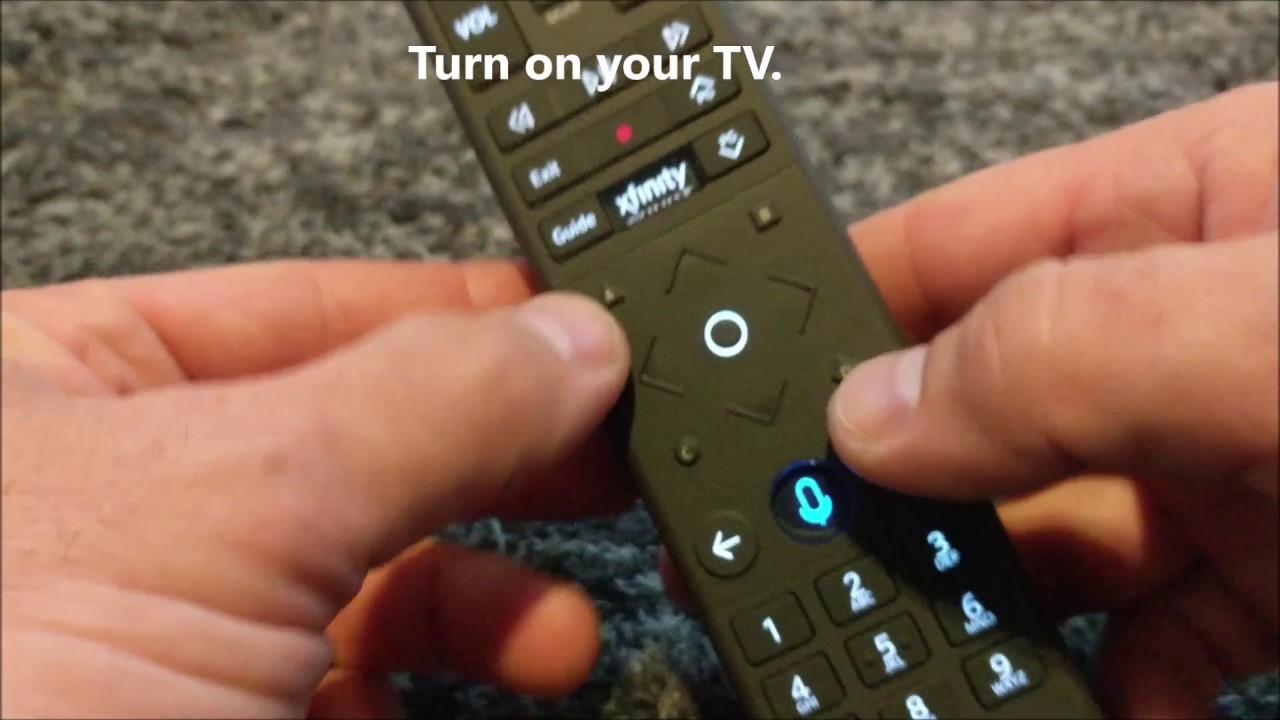
How to pair an Xfinity remote with the cable box
Programming the TV is only part of learning how to set up TV on Xfinity remote. The remote may also need to pair with the Xfinity box so that it can control menus, channels, recordings, and voice search.
Pair a newer remote
- Turn on the TV and Xfinity box.
- Hold the pairing buttons shown in the remote’s instructions.
- Wait for the status light to change.
- Enter the code displayed on the TV if requested.
- Confirm the pairing.
For many newer models, the screen guides you through the process. The exact buttons can differ between XR15, XR16, and other models.
Check the pairing
Press the Xfinity or Home button. If the menu opens, the remote is likely paired with the box. Then press Volume and Power to confirm that the TV is programmed as well.
A remote can control the box but fail to control the TV. That usually means pairing is complete, but TV programming is not. Run the TV setup again instead of pairing the box repeatedly.

What to do when the Xfinity remote will not control the TV
When learning how to set up TV on Xfinity remote, most failures come from weak batteries, the wrong remote method, or an incorrect code. Use this troubleshooting order.
Replace the batteries
Weak batteries can let the remote send some commands but not others. Install a fresh pair and check whether the indicator light responds.
Restart the setup
Cancel the current process and begin again. Press each button clearly and wait for the remote light or TV screen to respond.
Try another code
A code may turn the TV off but fail to control volume. Search for another code from the same brand.
Check the input setting
The TV may be working but showing the wrong input. Press the Input or Source button and select the HDMI port used by the Xfinity box.
Move closer to the TV
During setup, keep the remote within a few feet of the TV. Make sure your hand does not cover the top of the remote.
Reset the remote
Some Xfinity remotes can be reset by holding specific buttons, but the reset sequence varies by model. Check the instructions for your exact remote before using a reset. A reset removes saved programming, so use it only after simpler steps fail.
In practical troubleshooting, one lesson stands out: do not replace the remote too quickly. Many “dead” remotes only need new batteries or the correct programming sequence.
Common mistakes to avoid
Small errors can make the setup process seem harder than it is.
• Using XR15 instructions on an XR16 remote
• Holding buttons for too long or not long enough
• Pressing Channel Up too quickly during code search
• Saving the code before testing Power
• Pairing the remote with the box but skipping TV programming
• Blocking the TV’s infrared sensor
• Using a code for a similar but different TV brand
• Forgetting to select the correct HDMI input
The best approach is to identify the remote first. The remote model determines the button sequence, while the TV model determines the code.
How to control more than the TV
Once you know how to set up TV on Xfinity remote, you may want to control other devices. Some Xfinity remotes can operate soundbars, audio receivers, and other compatible equipment.
The process is similar:
- Identify the device brand.
- Open the remote programming menu.
- Select the device type.
- Enter or search for the correct code.
- Test Power, Volume, and Mute.
A soundbar can create a common problem. If the remote controls the TV volume but not the soundbar, the audio device may need separate programming. You may also need to change the TV’s audio output settings.
Not every device supports every remote function. For example, a remote may control volume and power but not advanced menu options. This is a compatibility limit, not always a setup error.
Tips for a smoother Xfinity remote setup
Use these tips to make how to set up TV on Xfinity remote quick and reliable.
• Keep the TV manual nearby if you need the model number.
• Write down the working code for future use.
• Use fresh batteries before starting.
• Complete setup with the TV and box in their normal positions.
• Test Power, Volume, Mute, Input, and channel controls.
• Keep the remote’s sensor area clean.
• Avoid pressing multiple buttons at once unless the instructions require it.
• Use the official Xfinity remote lookup tool for the latest code information.
Remote behavior can vary by television brand, software version, and Xfinity device. If a button works differently from the instructions, check the on-screen prompts for your equipment.
Frequently asked questions
How do I set up my Xfinity remote to control my TV?
Turn on the TV, start the programming process for your remote model, and follow the code search or on-screen instructions. Test Power, Volume, and Mute before saving the setup.
What is the code for my TV on an Xfinity remote?
TV codes vary by brand and model. Use the official Xfinity remote code lookup tool and select your exact remote and television brand.
Why does my Xfinity remote control the box but not the TV?
The remote may be paired with the Xfinity box but not programmed for the TV. Run the TV programming process and test the Power and Volume buttons.
How do I program an Xfinity XR15 remote?
Press and hold A and D for about three seconds, enter 9-9-1, and press Channel Up until the TV turns off. Press Power to test, then press A to save the code.
How do I program an older Xfinity remote with a Setup button?
Turn on the TV, hold Setup until the light changes, enter 9-9-1, and press Channel Up until the TV turns off. Press Setup to save the code, then test the remote.
Can an Xfinity remote control a soundbar?
Many Xfinity remotes can control compatible soundbars and audio receivers. Program the soundbar separately and test its Power, Volume, and Mute functions.
What should I do if the remote setup still fails?
Replace the batteries, confirm the remote model, try another code, and check the TV input. If the problem continues, use Xfinity support or the device-specific troubleshooting instructions.
Conclusion
Knowing how to set up TV on Xfinity remote starts with identifying the remote model and separating box pairing from TV programming. Use voice setup when available, follow the correct XR15, XR16, or XR11 steps, and test every important button before finishing.
Most setup problems are simple to fix with fresh batteries, a slower code search, or the correct TV code. Try the method that matches your remote, save the working code, and explore Xfinity’s official support tools for more device-specific help.

Everett Ashford is a tech reviewer at mytechgrid.com specializing in SSDs, cameras, TVs, earbuds, headphones, and other consumer electronics. He provides honest, data-driven reviews based on hands-on testing and real-world performance analysis. Everett simplifies complex tech details to help readers make smart, confident buying decisions.