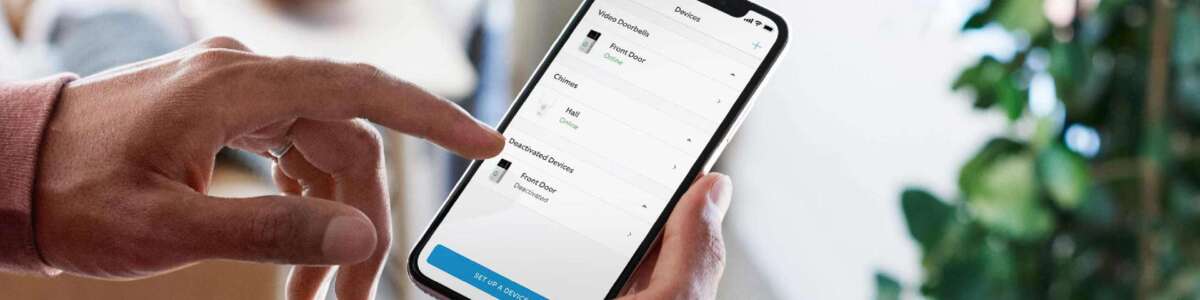
Add them as a Shared User in the Ring app using their email address.
I have managed home security systems and tested Ring devices for years. This guide shows exactly how to share your Ring camera with someone safely and clearly. Read on for step-by-step instructions, privacy tips, troubleshooting, and real-world advice so you can grant access with confidence.
How sharing works and why it matters
Sharing a camera means giving another person access to live view, motion alerts, and recorded events. Knowing how to share your Ring camera with someone reduces friction when you need help, house-sitting, or family access. Shared access keeps your account details private while letting others see feed and alerts, which is why understanding roles and limits is important.

Quick answers people often want
What happens after you add a Shared User? They get app access to the device you share.
Can a Shared User change account settings? Shared Users cannot change your account owner settings.
Will the person need a Ring account? Yes, each Shared User must have a Ring account to accept access.
Prerequisites before you share
Make sure you meet a few basics first. You need the Ring app installed and updated on your phone. The person you want to share with must have an email address and be able to create a Ring account.
Essential checks before sharing
- Confirm your device firmware and app are up to date to avoid errors.
- Ensure your home Wi-Fi and Ring device are online and stable.
- Decide what level of access you want to give and for how long.
Step-by-step: Share your Ring camera using the Ring app
Sharing inside the Ring app is the most common method. The exact menu names change slightly by app version. These steps cover the general flow so you can follow along easily.
- Open the Ring app and sign in.
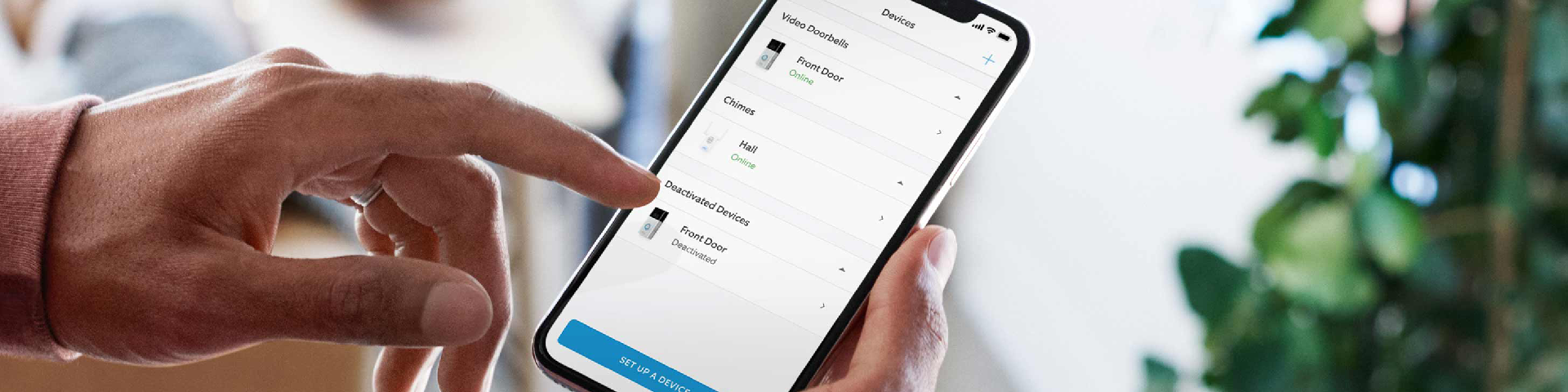
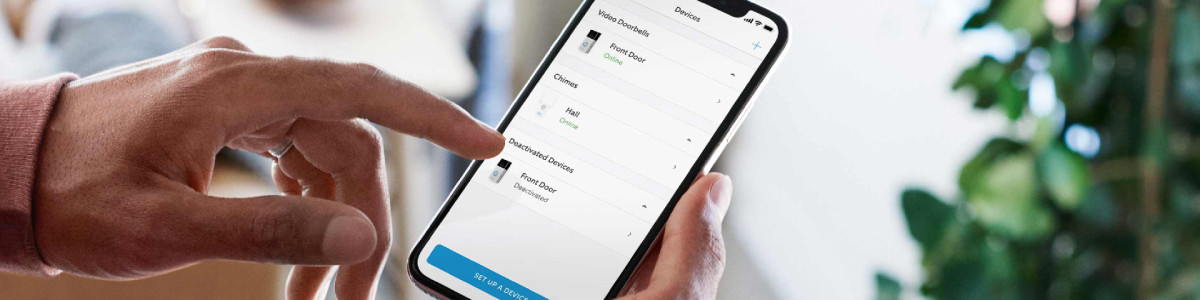
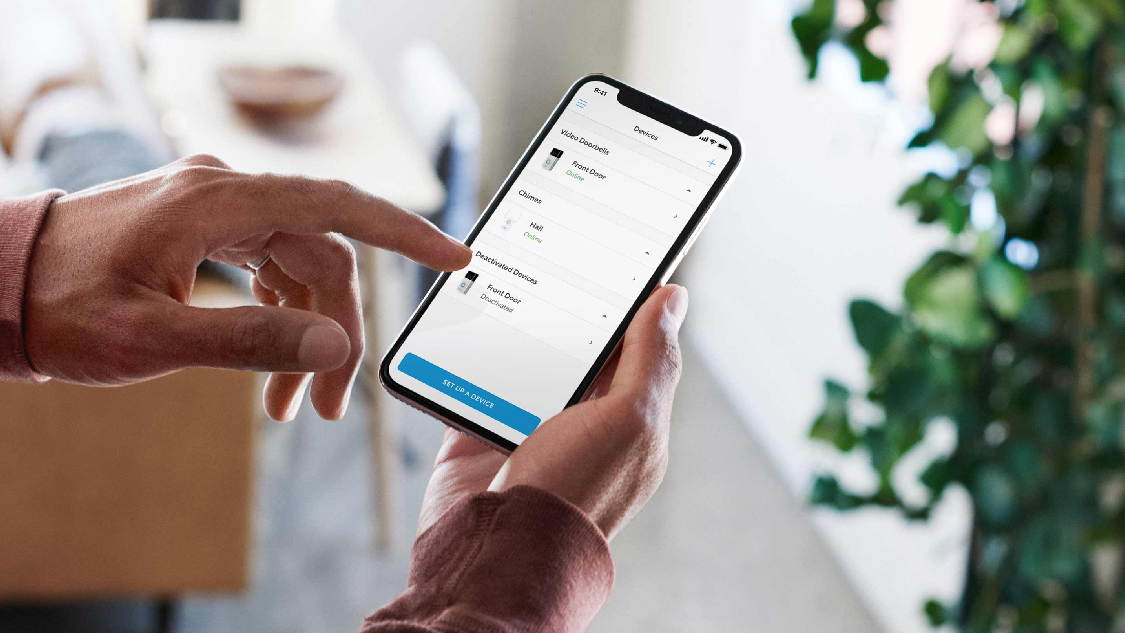
- Tap Devices and select the camera you want to share.
- Open Device Settings, then find Shared Users.
- Tap Add User and enter the other person’s email address.
- Send the invite and wait for them to accept it in their Ring app.
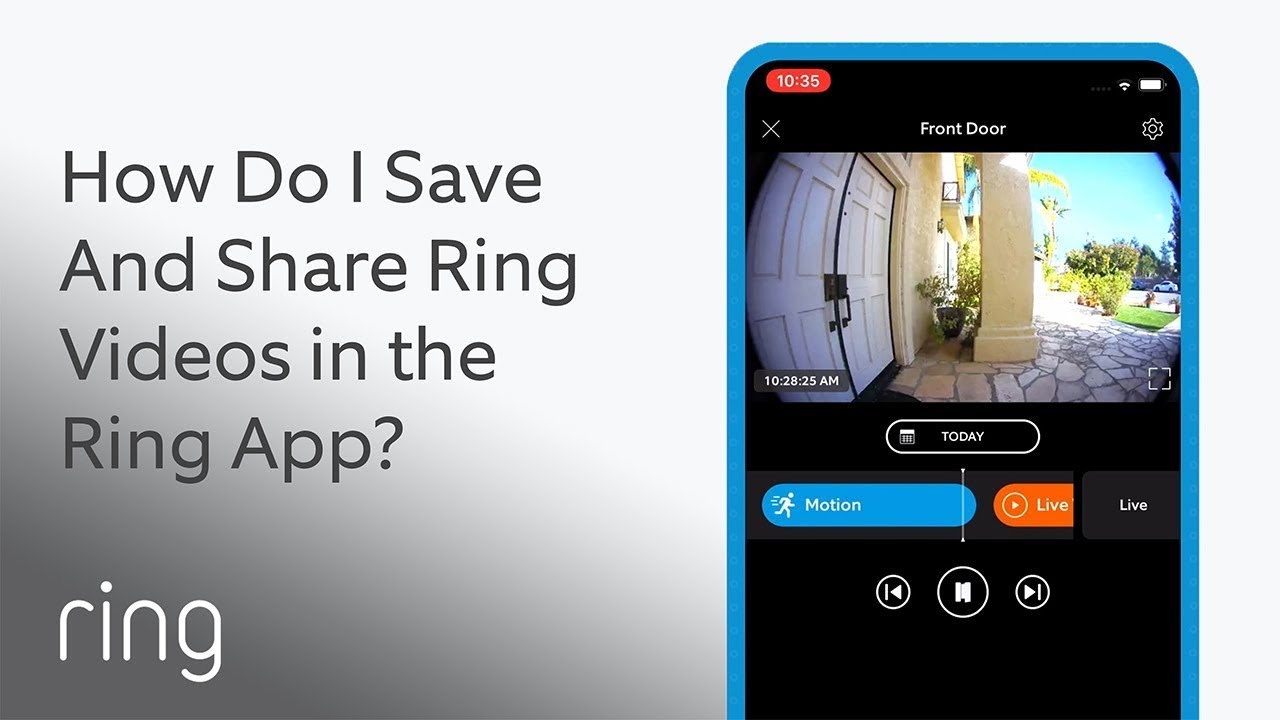
After they accept, they will see live view, receive alerts, and can view event history for that device. If the person already has Ring accounts, invite the email linked to their Ring account to speed acceptance.

Alternatives and temporary access options
There is no formal "temporary" share feature in many Ring plans, but you can work around this. Create a separate account for temporary users or remove Shared Users when access is no longer needed. Communicate clearly and revoke access after the agreed time.
Workarounds for temporary access
- Create a guest Ring account, share the device, then delete the guest account later.
- Use a trusted person’s account only when needed and remove it afterward.
- Change your Ring account password and re-add trusted users when necessary for high security.
Permissions, limits, and what Shared Users can do
Understanding permissions prevents surprises. Shared Users can view live feeds, receive motion alerts, and watch recorded events for the shared device. They cannot change your subscription, device settings that affect the account owner, or remove devices from the account.
Common limits to note
- Shared Users cannot see all devices unless you explicitly share them.
- Account-level settings remain with the owner only.
- Shared Users cannot access video history if your subscription does not include recording storage.

Privacy and security best practices
Security matters when you share camera access. Use strong passwords and enable two-factor authentication on your account. Only share with people you trust and remove access as soon as it is no longer needed.
Practical security tips
- Turn on two-factor authentication for your Ring account for added protection.
- Review Shared Users regularly and revoke access if you notice anything odd.
- Avoid sharing account passwords; use the Ring Shared User feature instead.
Troubleshooting common sharing problems
If the invite doesn’t arrive, check email spelling and spam folders first. Make sure both parties are on the latest Ring app version and that devices are online. If invites fail repeatedly, sign out and back in, or contact Ring support.
Quick fixes I use
- Re-send the invite after confirming the correct email address.
- Have the recipient create a Ring account before accepting the invite.
- Restart the app or the device if the Shared Users screen does not update.
Real-world examples and personal experience
I once shared a front-door camera with a neighbor during a three-week trip. I added them as a Shared User and asked them to notify me on unusual events. After returning, I removed their access and updated the account password. That simple routine kept my home monitored and my credentials safe.
Lessons I learned
- Communicate expectations when you share your Ring camera with someone.
- Test access before relying on someone to perform tasks like accepting packages.
- Keep a short list of trusted Shared Users and clean it up regularly.

When not to share: limitations and concerns
There are times you should not share camera access. Avoid sharing if you suspect tension, legal risks, or misuse of footage. Be mindful of local laws about recording in shared or public spaces.
Things to keep in mind
- Sharing does not remove your responsibility for privacy laws in your area.
- Camera placement matters; avoid pointing at neighbors’ windows or private areas.
- If unsure, consult local guidelines or a legal professional.
Frequently Asked Questions of how to share your ring camera with someone
How do I add someone to view my Ring camera?
Open the Ring app, select the device, go to Shared Users, and add their email. They must accept the invite in their Ring account to get access.
Can I share only live view and not recorded videos?
Sharing generally grants both live view and event access if storage is enabled. To limit history access, manage subscriptions or share for only short windows and then revoke access.
Will a Shared User be able to change my camera settings?
No. Shared Users can view and receive alerts but cannot change your account-level settings or remove devices.
How do I remove someone I shared my Ring camera with?
Open the device in the Ring app, go to Shared Users, find the person, and remove them. They will lose access immediately after removal.
What if the invite email does not arrive?
Check the email address, spam folder, and app version. Ask the recipient to create a Ring account first and then resend the invite.
Can multiple people access one Ring camera?
Yes, you can add several Shared Users to the same device. Each user must accept the invite and have a Ring account.
Is it safe to share my Ring camera with a neighbor or relative?
Yes, if you trust them and follow security best practices. Use strong passwords, two-factor authentication, and remove access when no longer needed.
Conclusion
Sharing access is a simple way to keep others connected to your home security. Use the Ring app Shared Users feature to grant controlled access, follow best practices for privacy, and remove access when it’s no longer needed. Try sharing with one trusted person first, test the access, and then expand as needed — and leave a comment or subscribe for more smart-home guides.

Everett Ashford is a tech reviewer at mytechgrid.com specializing in SSDs, cameras, TVs, earbuds, headphones, and other consumer electronics. He provides honest, data-driven reviews based on hands-on testing and real-world performance analysis. Everett simplifies complex tech details to help readers make smart, confident buying decisions.