Most often it means a battery, network, or error issue that needs a quick check.
I’ve worked with home security gear for years, and when a Blink camera starts flashing red it’s usually trying to tell you something important. This guide explains why is my blink camera flashing red, walks you through clear troubleshooting steps, and gives tips to prevent the problem. Read on and you’ll learn how to diagnose the cause, fix it fast, and avoid repeat alerts.

Why is my Blink camera flashing red: a quick overview
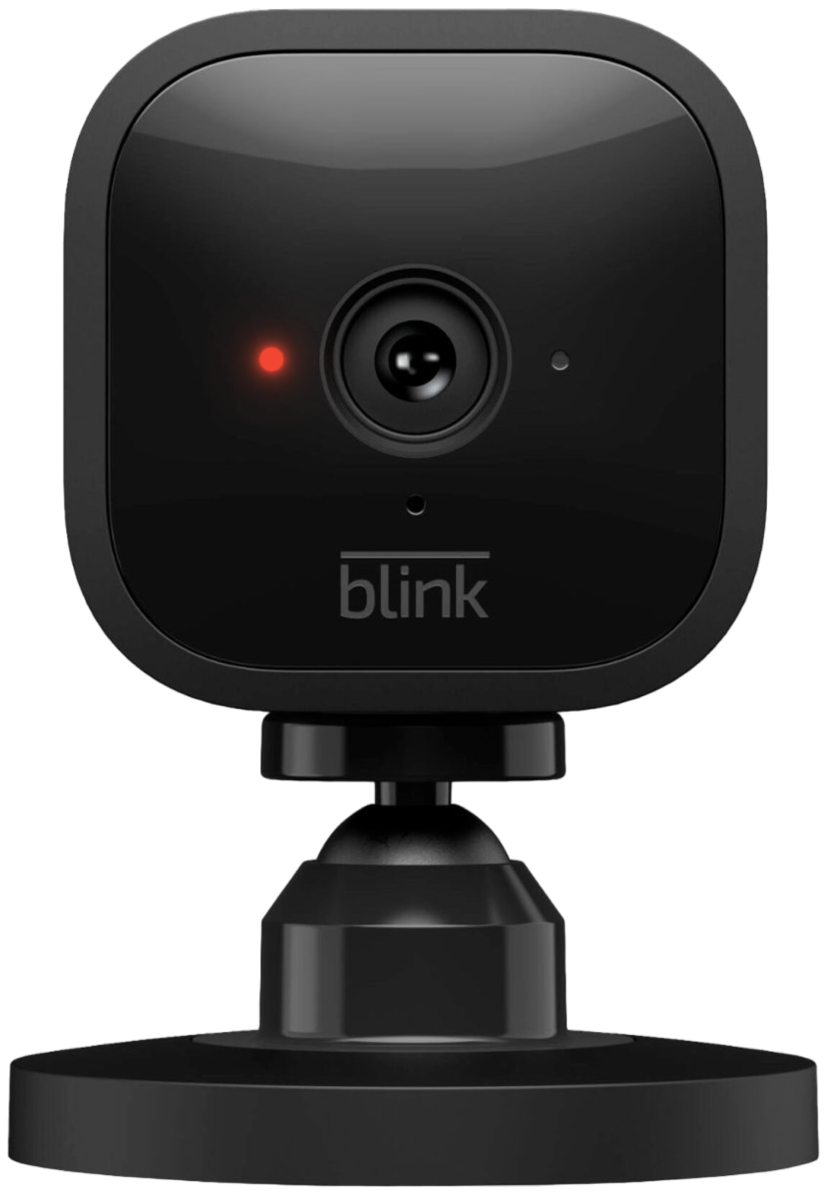
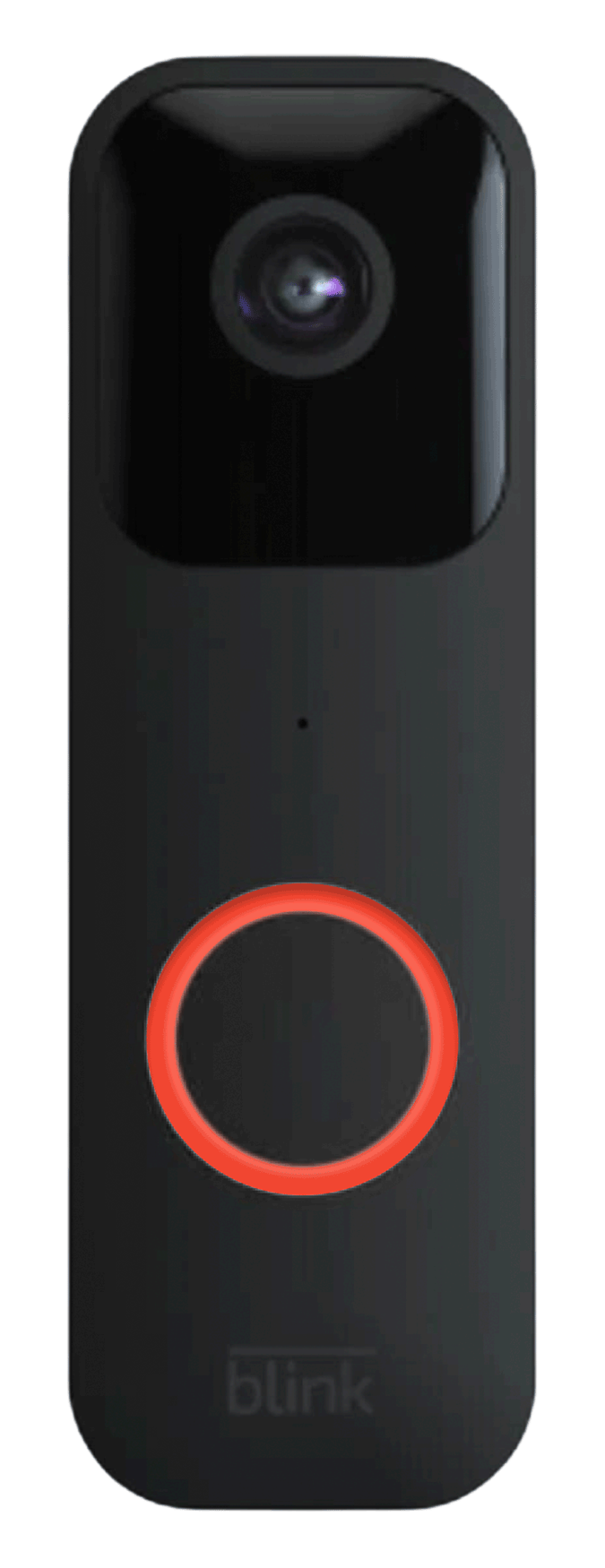
A red flashing light on a Blink camera is a status indicator. It can mean low battery, setup or pairing mode, network problems, firmware updates, or device errors. Knowing the pattern and context helps narrow the cause quickly.
Common red light patterns and their likely meanings:
- Rapid blinking while trying to pair usually means setup mode.
- Slow, steady blinking often points to a low battery or charging issue.
- Alternating or unusual blinks can show firmware or network errors.
I’ll explain each cause, give step-by-step fixes, and share real-life examples so you can resolve this fast. Understanding why is my blink camera flashing red will save you time and frustration.

Common causes of a red flashing light on Blink cameras
Below are the typical reasons your Blink camera may be flashing red. Each cause is short to read and easy to test.
Battery problems
- Batteries low or drained will trigger a red flash.
- Old or poor-quality batteries can drop charge fast in cold weather.
Setup or pairing mode
- If the camera is new or reset, it flashes red during pairing.
- The camera will stop once the app links it to your account.
Network and sync issues
- Weak Wi‑Fi or lost connection can prompt red blinking.
- A problem with the Sync Module shows similar behavior.
Firmware updates or reboots
- During firmware update cycles the LED may flash red.
- Interrupted updates or reboot loops can leave the camera stuck.
Hardware or internal errors
- Sensor faults, damage, or a failing board can cause error flashing.
- Physical damage from water or drops increases risk.
Motion or recording indicator
- On some Blink models, red can mean recording or motion detection.
- Check your model’s manual to confirm the exact meaning.
Knowing these causes helps you pick the right fix. Ask yourself: did anything change recently with batteries, placement, or the app?

How to troubleshoot when your Blink camera is flashing red
Work through these steps in order. They are simple and often fix the issue within minutes.
- Check the exact light pattern
- Note the speed and timing of the red flashes.
- Compare it to the app messages or manual for your model.
- Inspect and replace batteries
- Remove old batteries and test with fresh, high-quality lithium batteries.
- Use a multimeter if you have one, or try batteries known to work in another device.
- Power cycle and restart
- Remove batteries, wait 30 seconds, then reinsert them.
- If using a Sync Module, power cycle it too by unplugging for 30 seconds.
- Confirm Wi‑Fi and sync status
- Move the camera closer to the router or Sync Module.
- Check the Blink app for connection errors and re-add the camera if needed.
- Update firmware via app
- Open the Blink app and check for firmware updates.
- Start updates and ensure the device stays powered during the process.
- Reset the camera as a last resort
- Use the reset button to restore factory settings if other steps fail.
- Re-pair the camera to the app afterward.
- Test with a different spot or network
- Try the camera on another Wi‑Fi network or different location to isolate the issue.
Personal note: I once had a camera flash red after a power outage. A quick power cycle of the Sync Module and fresh batteries fixed it in under five minutes. The key is to stay systematic and patient.

Preventive tips to avoid red flashing in the future
Simple habits reduce the chance that your Blink camera will flash red. These tips use real-world practices I use when managing camera fleets.
Keep batteries fresh
- Replace batteries yearly or when the app warns low battery.
- Store spare batteries in a cool, dry place.
Maintain strong Wi‑Fi
- Place your router or Sync Module where signal is strong.
- Use a Wi‑Fi extender if your camera is far from the router.
Regular firmware checks
- Allow automatic updates or check monthly.
- Avoid interrupting an update once it starts.
Use quality mounts and weather protection
- Securely mount cameras to avoid drops.
- Ensure outdoor models have proper sealing from moisture.
Label and log devices
- Keep a simple log of battery changes and updates.
- Label cameras by location for faster troubleshooting.
These small steps cut down on false alerts and make troubleshooting faster when a red light does appear.

When to contact Blink support or replace the camera
If basic fixes fail, escalate with these signals and steps.
Signs you should contact support
- The camera still flashes red after full reset and fresh batteries.
- Firmware update fails repeatedly, or the device won’t pair.
- Physical damage, water intrusion, or a burning smell.
Prepare information for support
- Note the camera model, firmware version, and exact blink pattern.
- Have timestamps of failures and steps you already tried.
Replacement and warranty
- Check your purchase date and warranty status in the Blink app.
- If under warranty, Blink support can authorize repair or replacement.
If the camera is several years old and continues to fail after troubleshooting, replacement may be more cost-effective than repairs.

2–3 quick PAA-style questions
What does a fast red blink mean on a Blink camera?
- Fast red blinking usually indicates setup or pairing mode. Confirm in the app and finish the pairing process if needed.
Can low battery cause a red flashing light?
- Yes. Low or depleted batteries are a common cause of red flashes. Try fresh lithium batteries and check battery contacts.
Will firmware updates make my Blink camera flash red?
- Firmware updates can cause temporary red blinking. If it persists after the update, follow the restart and reset steps above.
Frequently Asked Questions of why is my blink camera flashing red
Why is my Blink camera flashing red even though the batteries are new?
New batteries can still be bad or poorly seated. Remove and reinsert them, test in another device, and check battery contacts for corrosion.
Does a red flash mean my Blink camera is recording?
On some Blink models, red indicates recording or motion detection. Check the app settings to confirm whether the LED corresponds to recording behavior.
How long should the red light flash during setup?
Setup red flashing usually lasts a few minutes while pairing. If it keeps blinking after ten minutes, restart the camera and the app and try again.
Can weather cause a Blink camera to flash red?
Extreme cold can drain batteries faster and trigger red flashes. Moisture or water intrusion can also cause error signals and inconsistent LED behavior.
Is the Sync Module related to a red flashing Blink camera?
Yes. If the Sync Module is offline or rebooting, cameras linked to it may flash red. Restarting the Sync Module often resolves the issue.
Should I perform a factory reset if my Blink camera keeps flashing red?
Try other steps first: new batteries, power cycle, move closer to Wi‑Fi. Use factory reset only after those attempts, since reset clears settings and requires re-pairing.
Conclusion
A red flashing Blink camera is a clear signal that something needs attention. Start with simple checks: note the blink pattern, replace batteries, power cycle, and verify Wi‑Fi. If those steps fail, update firmware, reset as needed, and contact support with details. Act quickly and systematically to reduce downtime and keep your home secure.
Try the steps above today. If one fix works, share which one helped you in the comments or subscribe for more smart camera tips.

Jamie Lee is a seasoned tech analyst and writer at MyTechGrid.com, known for making the rapidly evolving world of technology accessible to all. Jamie’s work focuses on emerging technologies, product deep-dives, and industry trends—translating complex concepts into engaging, easy-to-understand content. When not researching the latest breakthroughs, Jamie enjoys exploring new tools, testing gadgets, and helping readers navigate the digital world with confidence.