Disable headphone notifications from your device settings or headphone app in seconds.
I’ve spent years fixing small but annoying device interruptions, and I’ll show clear, tested steps on how to turn off headphone notification across phones, computers, and popular headphone apps. This guide explains why those alerts appear, exact step-by-step actions for Android, iPhone, Windows, macOS, and headphone apps, plus troubleshooting and real-world tips so you stop interruptions fast and keep audio working as expected.
Why headphone notifications appear and what they mean
Headphone notifications tell you when an accessory connects, a battery is low, or audio safety limits are hit.
Manufacturers and operating systems add them to protect hearing, manage connections, and surface firmware alerts.
Knowing the reason makes it easier to decide whether to turn off the notice or adjust the trigger instead.
How to turn off headphone notification on Android
Android handles notifications in multiple places, so try these steps in order.
- Turn off connection pop-ups
- Open Settings > Bluetooth.
- Tap the three dots or device details, then turn off "Show notifications" or "Media audio" if available.
- Open Settings > Sound & vibration.
- Turn off "System sounds" or disable "Dock/Unplug sounds."
- Disable headphone safety alerts
- Open Settings > Apps & notifications > See all apps.
- Find "Device Health Services" or "Headphone" service and turn off notifications.
- Use Do Not Disturb for meetings
- Open Settings > Notifications > Do Not Disturb.
- Allow priority exceptions for important calls, then enable DND when you need silence.
Tips
- If the alert comes from a headphone app, open the vendor app and disable notifications or firmware alerts there.
- Reboot after changes to ensure settings take effect.
How to turn off headphone notification on Android is often a two-step fix: stop the system sound and disable the specific notification source.

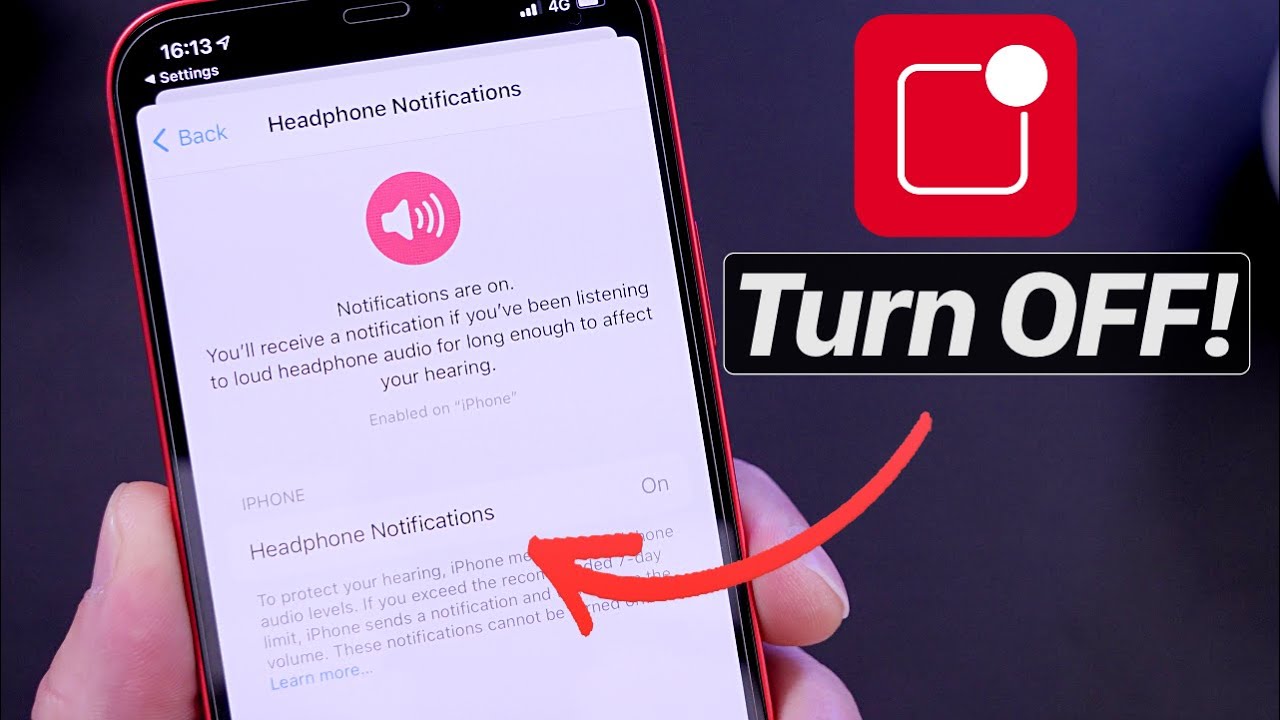
How to turn off headphone notification on iPhone
iPhone groups audio alerts under a few settings. Follow these steps.
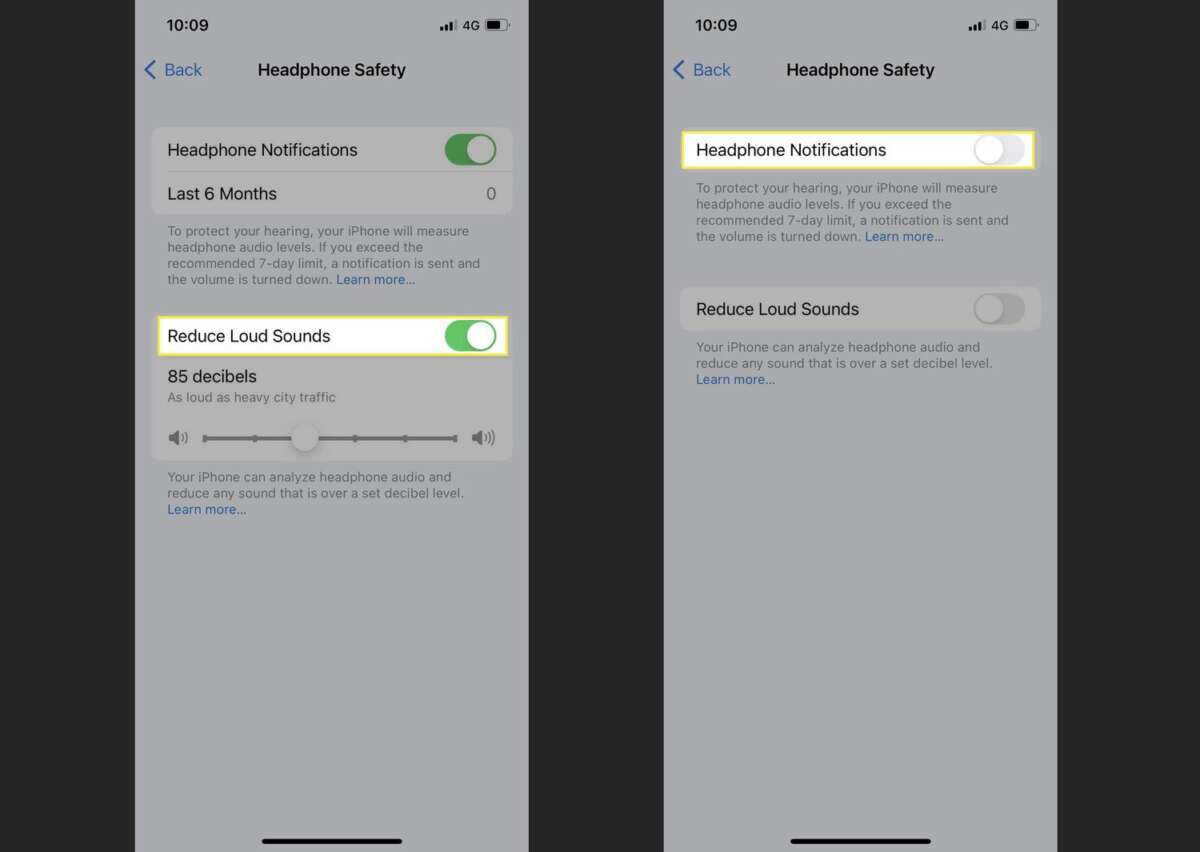
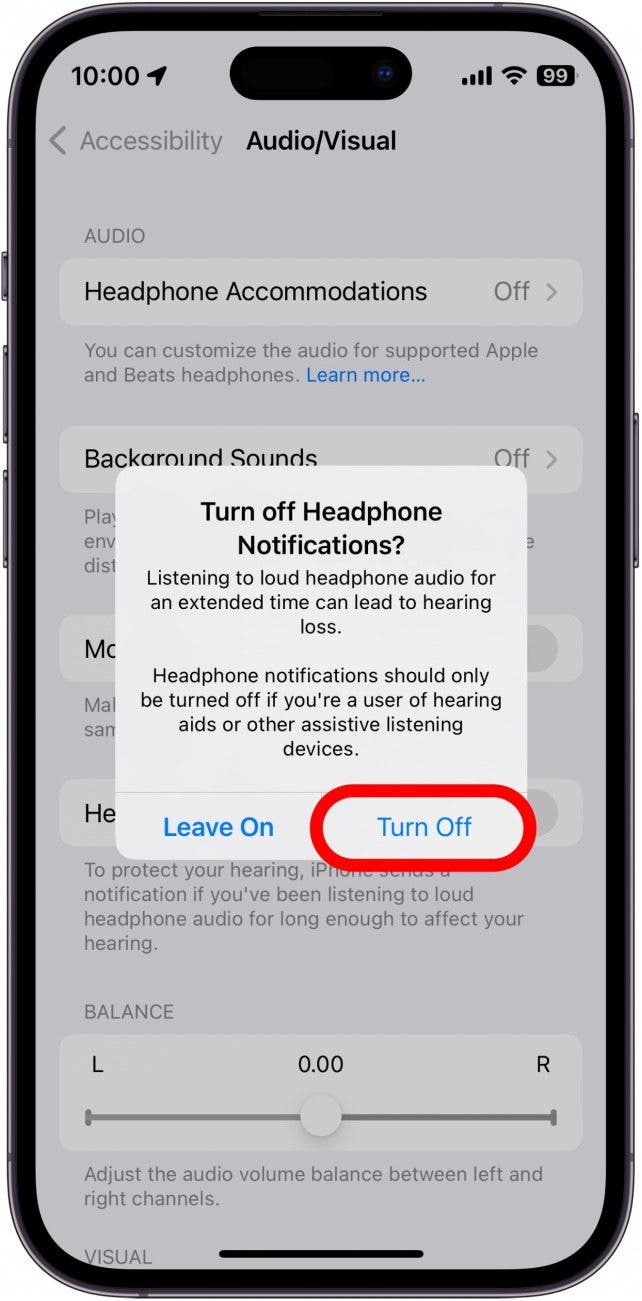
- Disable headphone safety notifications
- Open Settings > Sounds & Haptics > Headphone Safety.
- Turn off "Headphone Notifications" or "Reduce Loud Sounds" as desired.
- Stop connection pop-ups
- Open Settings > Bluetooth.
- Tap the i button next to the device and choose Forget This Device, then re-pair if you want the device silent.
- Turn off Siri announcements
- Open Settings > Siri & Search > Announce Notifications.
- Turn off Announce Notifications or set apps to not announce.
- Use Focus modes
- Open Settings > Focus.
- Create or enable a Focus to silence notifications during work or sleep.
On iPhone, how to turn off headphone notification usually lives in Sounds & Haptics and the specific Bluetooth device settings.
:max_bytes(150000):strip_icc()/A4-TurnOffHeadphoneSafetyoniPhone-annotated-219b44fd8a1d45c191bc900e91b55af9.jpg)
How to turn off headphone notification on Windows
Windows gives system and app-level notices. Try these steps.
- Mute device connect sounds
- Open Settings > System > Sound.
- Under Advanced sound options or Sound Control Panel, disable the "Device Connect" sound.
- Stop notification banners
- Open Settings > System > Notifications.
- Scroll to app list and turn off notifications for apps that send headphone alerts or turn off "Get notifications from apps and other senders."
- Disable vendor pop-ups
- Open the headphone or Bluetooth vendor app (if installed).
- In app settings, turn off update or battery alerts.
- Update or reinstall audio drivers
- Open Device Manager > Sound, video and game controllers.
- Update drivers or reinstall if notifications persist.
When learning how to turn off headphone notification on Windows, focus on sound events and app notification settings first.

How to turn off headphone notification on macOS
macOS notifications and sound effects are easy to control.
- Turn off connect sounds
- Open System Settings > Sound.
- Disable "Play sound effects" or uncheck connect/alert sounds if present.
- Manage notifications
- Open System Settings > Notifications.
- Find the Bluetooth or headphone app and toggle off Allow Notifications.
- Use Focus or Do Not Disturb
- Click Control Center > Focus and enable a mode to silence notifications during important times.
For many users, how to turn off headphone notification on macOS means disabling sound effects and limiting the headphone app’s notifications.

How to turn off headphone notification in headphone apps and brands
Many headphones use companion apps that trigger notices. Common fixes:
AirPods and Apple devices
- On iPhone, use Settings > Sounds & Haptics > Headphone Safety.
- For battery pop-ups, the only real control is to use Focus or forget device and re-pair.
Sony, Bose, and others
- Open the vendor app (Sony | Headphones Connect, Bose | Music).
- Go to Notifications or Firmware update settings and disable alerts.
Windows/macOS vendor apps
- Open the desktop app and find notification or update preferences.
- Turn off automatic update checks if you want fewer pop-ups.
Knowing how to turn off headphone notification inside the brand app often stops the most persistent alerts quickly.

Troubleshooting and prevention
If a notification returns after you disable it, try these checks.
- Re-pair the device. Sometimes a fresh connection clears stale settings.
- Update firmware and OS. Bugs can cause repeated alerts that updates fix.
- Check for duplicate apps. Two vendor apps or services can send the same notice.
- Reset network or Bluetooth settings if connections behave oddly.
- Use Focus modes when you need steady silence.
These routines helped me stop recurring alerts on a work headset and kept audio stable during meetings.

Personal experience and practical tips
I once had a headset announce connection every few minutes during remote meetings. Turning off system connect sounds and disabling firmware update notifications in the vendor app solved it.
My rule: disable intrusive alerts first, keep safety-related notices on if you value hearing protection. That balance prevented missed warnings while keeping the audio quiet when I needed it.
If you try changes, test by plugging and unplugging or reconnecting to confirm the fix.

Frequently Asked Questions of how to turn off headphone notification
How do I stop my phone from announcing headphone connection?
Open your phone’s Bluetooth settings and the headphones’ device page, then turn off notifications or forget and re-pair the device. Also disable system connect sounds in Sound settings.
Will turning off headphone notifications affect safety alerts?
Turning off notifications may silence loud-sound warnings. Keep headphone safety or volume-limiting features enabled if hearing protection matters to you.
Why do my headphones show firmware update alerts?
Vendor apps check the device and push update notices. Open the app and disable automatic update or notification settings to stop them.
Can I stop notifications only during meetings?
Yes. Enable Do Not Disturb or a Focus mode on your device to silence notifications while keeping other functions active.
My notifications return after updates — what should I do?
After an OS or firmware update, re-check notification settings in system settings and the vendor app. Keep settings consistent and test after updates.
Conclusion
You can stop headphone interruptions by targeting the right setting: system sounds, Bluetooth device options, or the headphone app. Start with the simple fixes—turn off connect sounds and disable vendor app alerts—then use Focus modes for temporary quiet. Try the steps that match your platform, test by reconnecting, and keep safety features enabled if you want hearing protection. Want fewer interruptions tomorrow? Apply one change now and leave a comment about what worked for you, or subscribe to get more clear, practical tech tips.

Jamie Lee is a seasoned tech analyst and writer at MyTechGrid.com, known for making the rapidly evolving world of technology accessible to all. Jamie’s work focuses on emerging technologies, product deep-dives, and industry trends—translating complex concepts into engaging, easy-to-understand content. When not researching the latest breakthroughs, Jamie enjoys exploring new tools, testing gadgets, and helping readers navigate the digital world with confidence.