You can make a non smart TV smart by adding a streaming device through its HDMI port.
Learning how to make a non smart TV smart is easier and cheaper than many people expect. A streaming stick, game console, set top box, or even a laptop can give an older television access to Netflix, YouTube, live TV, music, web content, and smart home features. This guide explains the best options, setup steps, costs, limits, and common mistakes so you can choose the right upgrade with confidence.
What Makes a Non Smart TV “Smart”?
A non smart TV does not connect to the internet or run streaming apps by itself. It usually shows content from devices connected through ports such as HDMI, USB, composite video, or VGA.
The simplest way to make a non smart TV smart is to add an external device that does the online work. The TV acts as the screen, while the new device supplies the apps, internet connection, menus, and remote control.
A smart upgrade can give your old TV access to:
- Streaming services such as Netflix, Hulu, Disney+, Max, and Prime Video
- Free video platforms such as YouTube
- Live TV apps and internet channels
- Music services and podcasts
- Screen mirroring from a phone, tablet, or computer
- Voice search and smart home controls
- Photos, games, and online videos
The TV does not become smart internally. Instead, the attached device makes it function like a smart TV. Think of it as giving an older car a modern navigation system. The car stays the same, but the new device adds useful features.

Check Your TV Before Buying Anything
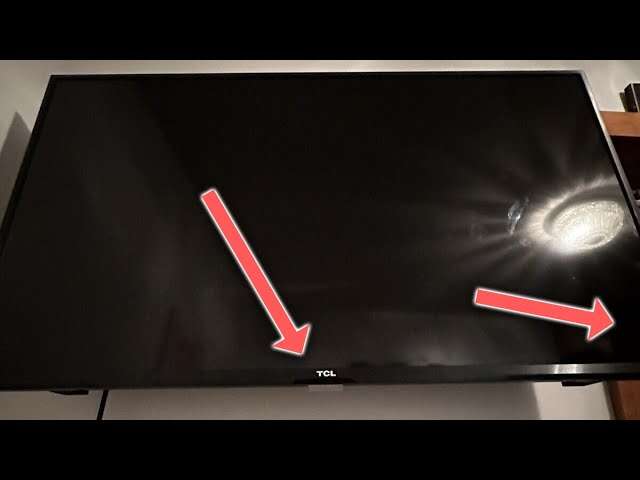
Before you buy a device, inspect the ports on the back or side of your television. This small check can prevent compatibility problems and wasted money.
Most modern streaming devices need an HDMI port. HDMI is a small, flat port that carries both high definition video and audio through one cable. Look for labels such as HDMI, HDMI 1, HDMI 2, or ARC.
Also check these details:
- The TV should power on and display a picture.
- The remote should let you change inputs.
- The TV should have an available HDMI port.
- Your home should have a reliable Wi-Fi connection.
- You should know whether the TV supports 720p, 1080p, or 4K.
- You should confirm that the TV has working speakers or an audio output.
If your TV has no HDMI port, do not assume it is useless. Older models may have red, white, and yellow composite ports. These ports can work with an HDMI-to-AV converter, although the picture will be less sharp.
A converter does not improve picture quality. It only changes the signal format so an older TV can understand it. Use a powered converter from a reputable brand, since very cheap models may create flickering, weak sound, or no picture at all.
Best Devices to Make a Non Smart TV Smart
Several devices can make a non smart TV smart. The best choice depends on your budget, preferred streaming services, internet speed, and comfort with technology.
Streaming sticks
Streaming sticks are small devices that plug into an HDMI port. They are often the easiest and least expensive option.
Common features include:
- Access to popular streaming apps
- A simple on screen menu
- Wi-Fi support
- Voice search
- A compact remote
- Automatic software updates
A streaming stick is a strong choice for a bedroom TV, guest room TV, or older living room set. It uses little space and usually takes only a few minutes to install.
Streaming boxes
Streaming boxes are larger than sticks but may offer stronger processors, more storage, and better connections. Some include Ethernet ports for a wired internet connection.
Choose a streaming box if you:
- Stream high quality 4K video
- Use many apps
- Want faster menus
- Need Ethernet
- Plan to play cloud games
- Want better support for surround sound
A box may cost more, but it can feel smoother on a large main TV.
Game consoles
PlayStation, Xbox, and some Nintendo systems can make a non smart TV smart. They support streaming apps, online video, music, and games in one device.
This option makes sense if you already own a console. Buying a game console only for streaming is usually more expensive than buying a streaming stick.
Blu ray players
Some Blu ray players include built in streaming apps. They can be useful if you still watch physical discs and want online video in the same device.
Check the software support before buying a used player. Older models may no longer receive updates, and some apps may stop working over time.
Computers and laptops
A laptop can connect to the TV with an HDMI cable. This lets you watch websites, downloaded videos, presentations, and nearly any service available in a web browser.
The main drawbacks are a less convenient interface and the need to keep the computer nearby. A wireless keyboard or mouse can make the setup easier.
Mobile phones and tablets
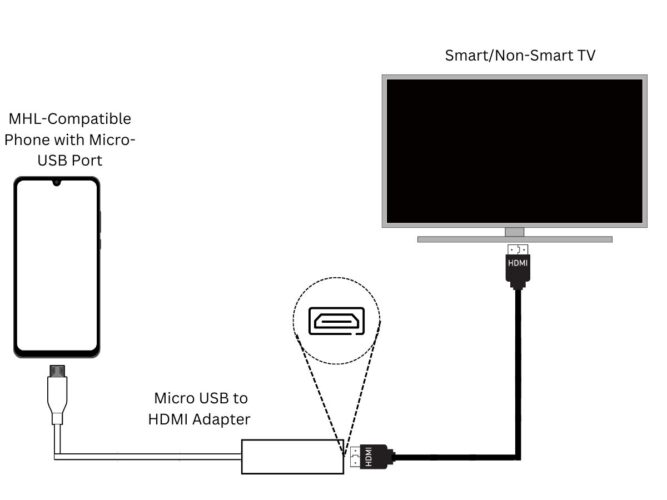
Many phones and tablets support screen mirroring or casting. You can send video from an app to a compatible receiver connected to the TV.
This works well for occasional use, but it is not always ideal as a permanent solution. Calls, notifications, battery limits, and changing app support can interrupt playback.

How to Make a Non Smart TV Smart With a Streaming Device
A streaming device is usually the most practical solution. Follow these steps carefully.
1. Connect the device
Plug the streaming stick or box into an available HDMI port on the TV. If the device includes an HDMI extension cable, use it when the TV’s design blocks the stick or weakens the Wi-Fi signal.
2. Connect the power cable
Use the included power adapter when possible. Some TVs have USB ports that can power a streaming stick, but those ports may not provide enough power.
If the device restarts, freezes, or shows a low power warning, connect it to a wall outlet instead. This is one of the most common setup mistakes.
3. Select the correct input
Turn on the TV and press the Input, Source, or TV/Video button on the remote. Select the HDMI number used by the streaming device.
For example, choose HDMI 1 if the device is connected to the port labeled HDMI 1. If you see a blank screen, check the power connection and try another HDMI port.
4. Pair the remote
Most devices guide you through pairing the remote. You may need to hold one or two buttons for a few seconds.
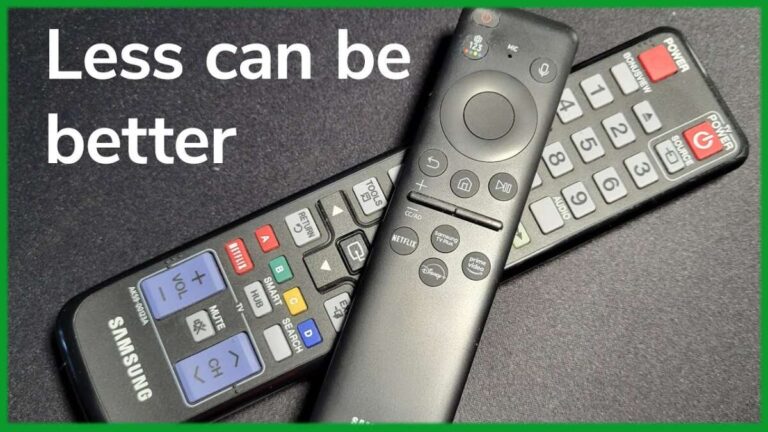
Some remotes can also control the TV’s power and volume. During setup, select the correct television brand so the remote can learn those functions.
5. Connect to Wi-Fi
Choose your home Wi-Fi network and enter the password. For smooth HD streaming, a stable connection matters more than having the highest advertised speed.
The Federal Communications Commission recommends checking actual broadband performance rather than relying only on an internet plan’s name. If the picture keeps buffering, move the router closer, use a wired connection, or reduce network traffic.
6. Sign in and install apps
Sign in with the account linked to the streaming platform. Then install only the apps you use.
Too many unused apps can clutter the home screen and consume storage. Keep your passwords private, and avoid entering payment details on unfamiliar services.
7. Update the device
Install available system and app updates. Updates often improve security, fix playback issues, and maintain compatibility with streaming platforms.
I have found that many “broken” setups were simply using an outdated app or an underpowered USB connection. Updating the device and using the original power adapter solved the issue in several cases.

How to Make a Non Smart TV Smart Without HDMI
If your television does not have HDMI, you still have a few choices. The right method depends on the ports available.
Use an HDMI-to-AV converter
An HDMI-to-AV converter changes the digital signal from a streaming device into an older analog signal. Connect the streaming device to the converter, then connect the converter to the TV’s red, white, and yellow inputs.
Keep these limits in mind:
- The picture may look soft.
- The maximum resolution is usually standard definition.
- Small text may be difficult to read.
- Some protected content may not work.
- Audio and video may not stay perfectly synchronized.
A converter is best for basic use on a small secondary TV. It is not the best choice for a large screen or high quality movie viewing.
Use a computer with the correct adapter
If the TV has a VGA input, a computer may connect through a VGA adapter. VGA carries video only, so you need a separate audio cable.
This method can work for presentations and websites, but it is less convenient than HDMI. It also depends on the computer’s output settings.
Replace the television
Sometimes a new TV is the better value. If you need an adapter, converter, new cables, and a separate audio solution, the total cost may approach that of an entry level smart TV.
Compare the full cost before deciding. Reusing an old TV is environmentally sensible, but reliability and ease of use matter too.
How to Improve Picture and Sound Quality
Making a non smart TV smart does not automatically improve its screen or speakers. The external device can only send the quality that the TV can display.
For a better experience:
- Set the streaming device to the TV’s native resolution.
- Use the correct HDMI input.
- Replace damaged cables.
- Turn off motion smoothing if movement looks unnatural.
- Use the TV’s movie or cinema picture mode.
- Keep the streaming device cool and uncovered.
- Connect external speakers or a soundbar if the TV sounds weak.
For older 720p or 1080p TVs, paying extra for a premium 4K streaming box may not provide a visible benefit. A faster device can still improve menus, but the screen itself will not become 4K.
If you use a soundbar, connect it to the TV’s optical audio output, HDMI ARC port, or the streaming device’s supported audio connection. Check both devices’ audio settings to prevent delayed sound.
A wired Ethernet connection can improve reliability. It is especially useful when the router is far away or several people use the network at the same time.
Benefits and Limitations of Making an Old TV Smart
Learning how to make a non smart TV smart can save money and reduce electronic waste. You can keep a television that still has a bright screen and good speakers instead of replacing the entire unit.
The main benefits include:
- Lower cost than buying a new television
- Easy access to streaming apps
- Flexible device choices
- Simple replacement if the streaming device fails
- Better control over privacy and app accounts
- Less electronic waste
There are also limits. An external device cannot repair a failing screen, weak speakers, broken HDMI port, or outdated display panel.
Other limitations may include:
- Older TVs may not support 4K or HDR.
- Some apps may require separate subscriptions.
- Wi-Fi problems can cause buffering.
- Devices may stop receiving updates after several years.
- Used streaming devices may have account or security issues.
- Converters can reduce picture quality.
Streaming platforms also change their supported devices and software. A device that works today may need replacement later. For that reason, avoid paying a high price for an old used model.

Common Mistakes to Avoid
The most common mistake is buying a device without checking the TV’s ports. Always confirm whether your television has HDMI before ordering a streaming stick.
Other mistakes include:
- Using a TV USB port that cannot supply enough power
- Choosing the wrong HDMI input
- Entering the wrong Wi-Fi password
- Placing the router too far away
- Buying a device that does not support your preferred apps
- Expecting a converter to create HD or 4K quality
- Leaving software updates disabled
- Buying a used device with unknown account access
- Forgetting to cancel free trials
- Placing a streaming stick behind a hot TV
When I troubleshoot these setups, I start with power, input selection, and Wi-Fi. Those three checks solve a surprising number of problems before any advanced steps are needed.
Also, be careful with unofficial streaming boxes that promise every paid channel for free. These products can expose your data to malware, provide unreliable streams, and violate copyright rules. Choose recognized brands and legitimate apps.
How Much Does It Cost to Make a Non Smart TV Smart?
The cost depends on the device and the condition of your television.
A basic streaming stick is often the least expensive option. A premium streaming box costs more but may offer faster performance, better picture quality, and wired internet. An HDMI-to-AV converter adds another cost if your TV lacks HDMI.
Your total budget may include:
- Streaming device
- HDMI or AV cable
- Power adapter
- Converter, if needed
- Soundbar or speakers
- Streaming subscriptions
- Stronger router or Wi-Fi extender
Do not focus only on the purchase price. A cheap device that freezes, lacks app support, or needs extra adapters may cost more over time.
For most people, a current streaming stick connected to HDMI offers the best balance of price, speed, and ease. If the TV has serious hardware problems, compare the total upgrade cost with a new television.
:max_bytes(150000):strip_icc()/hero-roku-homescreen1021-3ff0178804024f2b8acd8fc7bf1508bd.jpg)
Privacy and Security Tips
A smart TV setup connects your home screen to the internet, so basic security matters.
Use these simple habits:
- Create a strong, unique password for your streaming account.
- Turn on two factor authentication when available.
- Install system updates promptly.
- Download apps only from the device’s official store.
- Review privacy and voice assistant settings.
- Avoid unknown free streaming apps.
- Sign out before selling or giving away the device.
- Use a guest network for unfamiliar hardware.
Voice remotes can listen for a wake word, depending on the device and settings. Review the manufacturer’s privacy controls if this concerns you.
Parental controls can limit purchases, app access, and mature content. Set a purchase PIN if children use the remote.
Frequently Asked Questions About How to Make a Non Smart TV Smart
Can I make a non smart TV smart with Wi-Fi alone?
No. Wi-Fi connects devices to the internet, but a non smart TV usually cannot run streaming apps by itself. You need a streaming device, game console, computer, or another compatible source.
What is the easiest way to make a non smart TV smart?
Connect a current streaming stick to the TV’s HDMI port, plug it into power, select the correct input, and connect it to Wi-Fi. This method is usually simple, affordable, and easy to replace.
Can I make a non smart TV smart without HDMI?
Yes, but you may need an HDMI-to-AV converter if the TV only has red, white, and yellow inputs. The picture will usually be lower quality than HDMI, and some services may not work correctly.
Can I use my phone to make a non smart TV smart?
You can use screen mirroring or casting if you connect a compatible receiver to the TV. This works well for occasional viewing, but a dedicated streaming device is more convenient for daily use.
Do I need cable TV to stream on a non smart TV?
No. Streaming devices use the internet rather than a cable TV signal. You still need an internet plan and separate subscriptions for services that charge a monthly fee.
Why does my streaming device keep buffering?
Buffering usually comes from weak Wi-Fi, network congestion, an outdated app, or an underpowered device. Move the router closer, restart the network, update the software, or use Ethernet when possible.
Can an old TV play 4K video after I add a streaming device?
No. The streaming device may support 4K, but the television must also have a 4K display and compatible HDMI connection. On an older TV, the video will normally play at its supported resolution.
Conclusion
Making a non smart TV smart is usually as simple as connecting a streaming stick or box to HDMI, supplying power, joining Wi-Fi, and installing your favorite apps. TVs without HDMI can still work with an adapter, but they may offer lower picture quality and fewer features.
Start by checking your TV’s ports, screen resolution, and audio options. Then choose a reliable device that supports the services you use, protect your accounts, and keep the software updated. With the right setup, an older television can remain useful for years. Try the upgrade that fits your TV and budget, and share your experience or questions in the comments.

Everett Ashford is a tech reviewer at mytechgrid.com specializing in SSDs, cameras, TVs, earbuds, headphones, and other consumer electronics. He provides honest, data-driven reviews based on hands-on testing and real-world performance analysis. Everett simplifies complex tech details to help readers make smart, confident buying decisions.