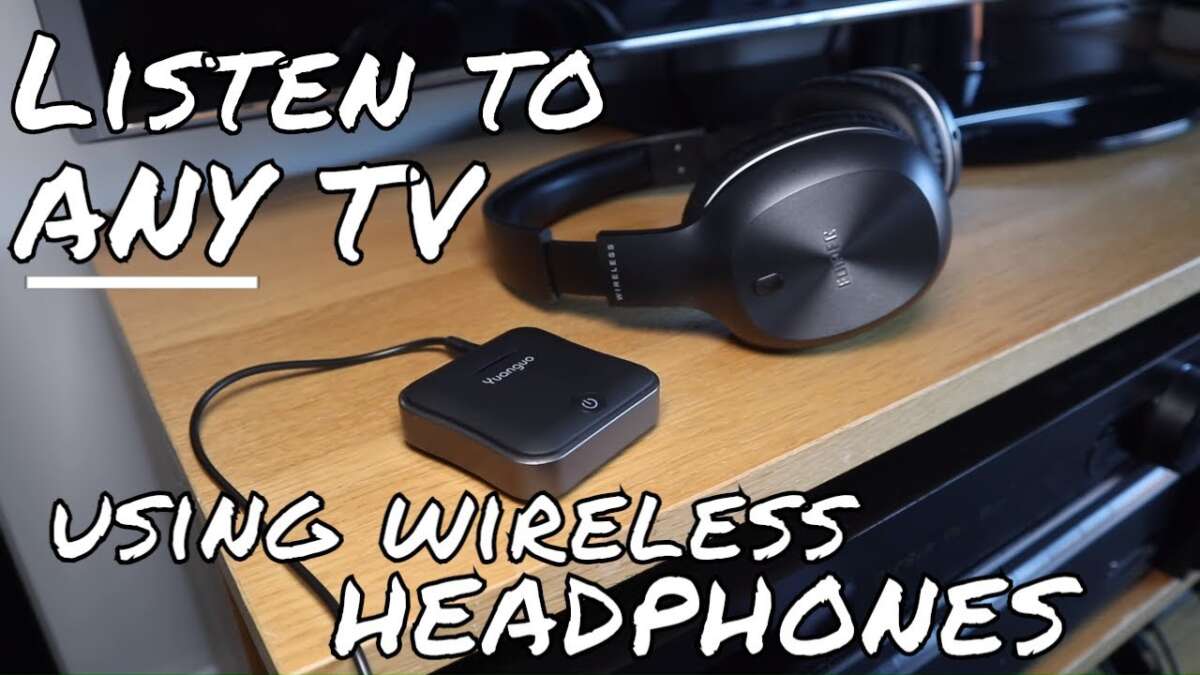
Use wired, TV’s Bluetooth, or a low-latency transmitter to pair headphones to your TV quickly.
I’ve helped dozens of friends and family set up TV audio for private listening, so I’ll walk you through clear, tested ways to learn how to listen to tv with headphones. This guide explains the simple choices, step-by-step setups, tips to avoid lag, and safety and quality trade-offs. Read on to get a reliable setup that fits your gear, budget, and hearing needs.
Why you might want to know how to listen to tv with headphones
Listening to TV with headphones keeps housemates happy and gives clearer sound for dialogue and detail. Learning how to listen to tv with headphones also helps if you are hearing-impaired, late-night viewer, or gamer. The right setup improves clarity and reduces distractions without disturbing others.

Types of headphones and how they affect listening
Choosing the right headphones matters when you learn how to listen to tv with headphones. Below are the common types and what they bring.
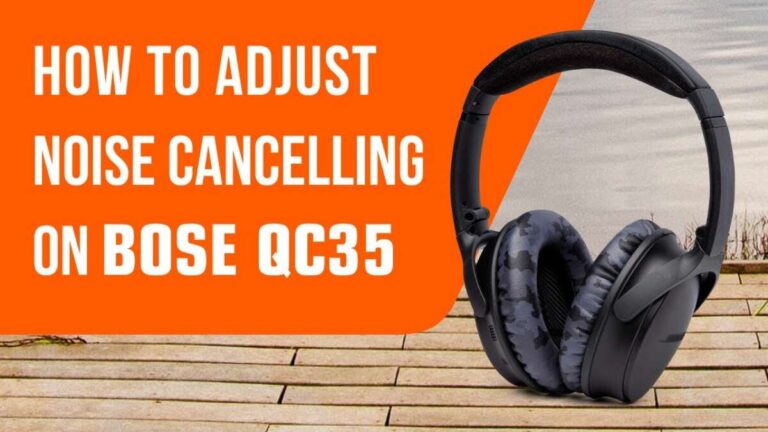
- Over-ear closed-back headphones
- Great isolation and fuller sound. Best for long viewing and better bass.
- On-ear headphones
- Smaller and lighter. Less isolation but more portable.
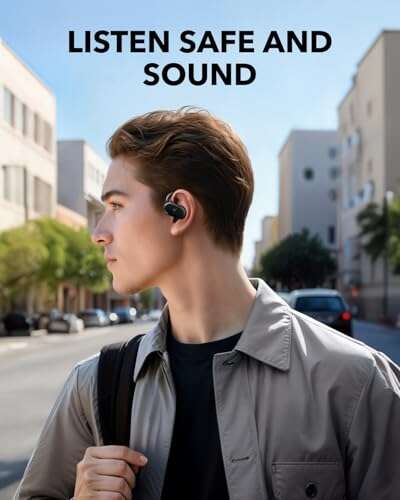
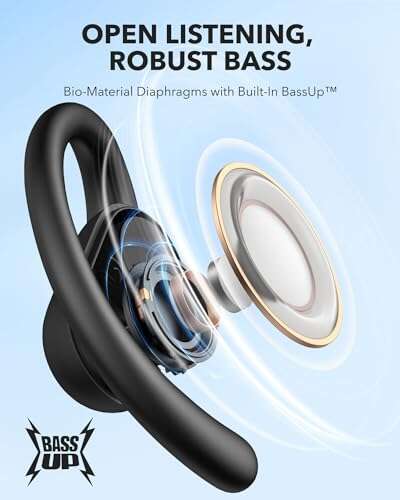
- In-ear monitors (earbuds)
- Very portable and quiet to others. Fit matters for sound quality.
- Wireless Bluetooth headphones
- Convenient but watch for delay with non-low-latency models.
- RF wireless TV headphones
- Low delay and long range. Need a transmitter base.
- Game headset with USB or optical
- Built for low-latency chat and game audio.
I prefer over-ear closed-back headphones for TV. They make dialogue clearer and feel comfortable for long shows. If you need mobility, modern low-latency Bluetooth earbuds work well.

How to connect headphones to TV — methods and steps
There are several ways to learn how to listen to tv with headphones. Pick the one that matches your TV and headphones.
1. Use the TV headphone jack
- Steps
- Plug headphones into the 3.5mm jack on the TV.
- Reduce TV speaker volume if needed.
- Notes
- Easiest method. Works with wired headphones only.
- Some TVs disable built-in speakers when a jack is used.
2. Pair Bluetooth headphones with a Bluetooth-capable TV
- Steps
- Turn on Bluetooth in TV settings.
- Put headphones in pairing mode and select them on TV.
- Notes
- Convenient and wireless.
- Watch for latency on older TVs; look for aptX Low Latency support.
3. Add an external Bluetooth transmitter
- Steps
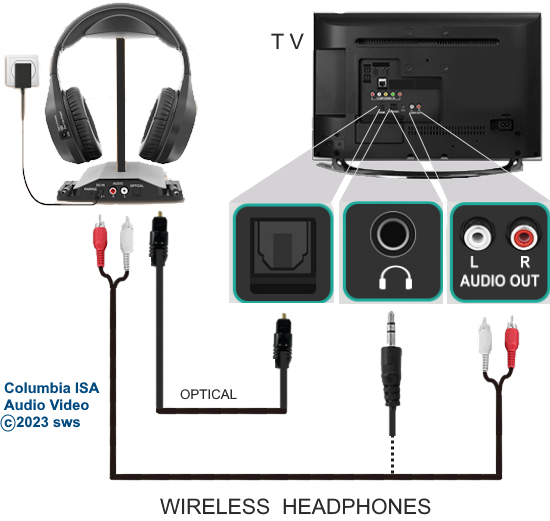
- Buy a low-latency Bluetooth transmitter (optical or RCA/3.5mm input).
- Connect transmitter to TV audio out.
- Pair headphones to the transmitter.
- Notes
- Works with non-Bluetooth TVs.
- Optical connection gives better digital audio quality.
4. Use a soundbar or AV receiver’s headphone or Bluetooth features
- Steps
- Connect TV to soundbar/receiver via HDMI ARC or optical.
- Use the soundbar/receiver’s headphone jack or Bluetooth to link headphones.
- Notes
- Good if you already own a sound system.
- Check device manual for headphone/Bluetooth pairing steps.
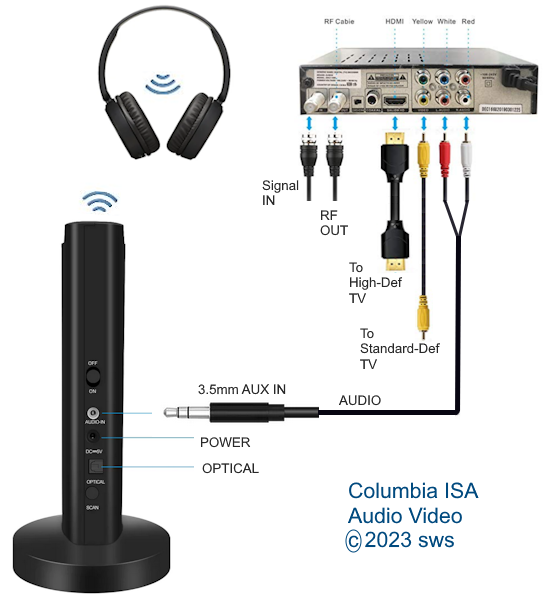
5. Use wireless RF headphones designed for TVs
- Steps
- Plug the RF base station into TV audio out.
- Turn on the base and headphones; they often connect automatically.
- Notes
- Designed for TV listening with minimal lag.
- Base station often charges the headset.
6. Use a mobile device app (TV apps with mobile audio)
- Steps
- Some smart TVs and streaming apps let you send audio to your phone.
- Connect phone to your headphones and enable the app’s private listening.
- Notes
- Useful when you have a smartphone and wireless earbuds.
- Latency and quality depend on app and network.
Each method has pros and cons. I usually recommend Bluetooth transmitter via optical out for best mix of quality and low latency.
Dealing with audio delay and lip-sync issues
When you learn how to listen to tv with headphones, delay can be frustrating. Here’s how to reduce it.
- Use low-latency codecs
- Choose devices supporting aptX Low Latency or AAC.
- Prefer wired where possible
- Wired connections have near-zero delay.
- Use direct digital connections
- Optical (Toslink) to a transmitter reduces processing lag.
- Adjust TV audio sync settings
- Many TVs let you manually shift audio timing.
- Update firmware
- TV and headphone firmware updates can improve sync.
I once used a cheap Bluetooth dongle and noticed a half-second delay. Switching to a low-latency transmitter fixed it instantly.

Volume, hearing safety, and comfort
Learning how to listen to tv with headphones should include protecting your hearing.
- Keep average volume moderate
- Follow the 60/60 rule: 60% volume for 60 minutes maximum.
- Use volume limit features
- Many devices let you cap maximum volume.
- Use dynamic range or night mode
- These modes reduce sudden loud sounds.
- Choose comfortable padding and fit
- Swap pads or use lighter models for long sessions.
I underestimated volume once during a long binge. My ears felt tired for a day. Now I set volume limits and take breaks.

Troubleshooting common issues
Problems happen. Here’s quick help when they do.
- No sound in headphones
- Check connections and TV audio output settings.
- Ensure headphones are paired and charged.
- Audio comes from TV and headphones at once
- Many TVs mute speakers when headphones connect. Check audio settings if both play.
- Poor sound quality
- Try wired mode or a better transmitter. Replace low-quality cables.
- Headphones keep disconnecting
- Move closer to the source. Update firmware and reduce wireless interference.
- Volume too low
- Check TV audio output level, headphone inline controls, and app volume.
If you still have trouble, consult the device manual or manufacturer support. Be ready to try different cables and ports.

Best setups by use case
I’ll list simple, practical setups based on common needs for how to listen to tv with headphones.
- Best for simplicity: Wired headphones into TV jack
- Low cost, instant connection.
- Best for wireless convenience: Bluetooth headphones with TV Bluetooth
- Easy pairing and mobility.
- Best for low-latency wireless: Optical to aptX Low Latency transmitter
- Great for movies and gaming.
- Best for shared households: RF wireless TV headphones
- Designed for long-range and comfort.
- Best for streaming apps: Mobile device private listening
- Works well with modern streaming services.
My home setup uses a soundbar with optical out to a Bluetooth low-latency transmitter. It balances sound and lag for nightly shows.
Personal tips and lessons from experience
I’ve set up TVs in small apartments and family homes. Here are lessons I learned.
- Test before you buy
- Try borrowing a transmitter or using store returns to confirm latency and fit.
- Label cables and ports
- It saves time when you upgrade or troubleshoot.
- Keep spare charging cables
- Wireless headsets die at the worst times.
- Think about guests
- Have a wired option or spare earbuds for visitors.
- Prioritize comfort over specs
- A comfy pair you wear for hours beats a marginally better-sounding tight set.
These small steps made setups smoother for me and reduced repeat support calls from family.
PAA-style questions
Q: Will Bluetooth headphones work with any TV?
A: Many modern smart TVs support Bluetooth, but some do not. If your TV lacks Bluetooth, use an external transmitter or soundbar.
Q: How do I avoid audio lag with wireless headphones?
A: Use a low-latency codec like aptX LL or a wired connection. Optical outputs plus a low-latency transmitter often solve lag.
Q: Can I listen to TV with two pairs of headphones?
A: Yes, some TVs and transmitters support dual connections, or use a splitter or transmitter that allows two pair pairing.
Frequently Asked Questions of how to listen to tv with headphones
Can I use wireless earbuds with my old TV?
Most old TVs lack Bluetooth. Use an external Bluetooth transmitter connected to the TV’s audio out to pair your earbuds.
Do I need a special transmitter to reduce lag?
A low-latency transmitter is highly recommended for video. It uses codecs and better connections to cut audio delay.
Will plugging in headphones mute the TV speakers?
Many TVs mute speakers when a headphone jack is used, but settings vary. Check the TV audio options if both play simultaneously.
Is optical or HDMI better for headphone audio?
Optical keeps a clean digital signal and works with many transmitters. HDMI ARC can carry different formats, but check compatibility with your transmitter or soundbar.
Are RF TV headsets better than Bluetooth?
RF headsets usually offer lower latency and longer range. Bluetooth is more universal and works well with modern low-latency models.
Conclusion
You now have clear, practical ways to learn how to listen to tv with headphones. Choose wired for zero lag, Bluetooth for convenience, or an RF/low-latency transmitter for the best wireless experience. Start by checking your TV’s audio outputs, pick the setup that fits your budget, and test for lag and comfort. Try one method, tweak settings, and protect your hearing with sensible volume limits. If this helped, try a setup today and leave a comment with your gear or questions — I’ll help troubleshoot.

Jamie Lee is a seasoned tech analyst and writer at MyTechGrid.com, known for making the rapidly evolving world of technology accessible to all. Jamie’s work focuses on emerging technologies, product deep-dives, and industry trends—translating complex concepts into engaging, easy-to-understand content. When not researching the latest breakthroughs, Jamie enjoys exploring new tools, testing gadgets, and helping readers navigate the digital world with confidence.