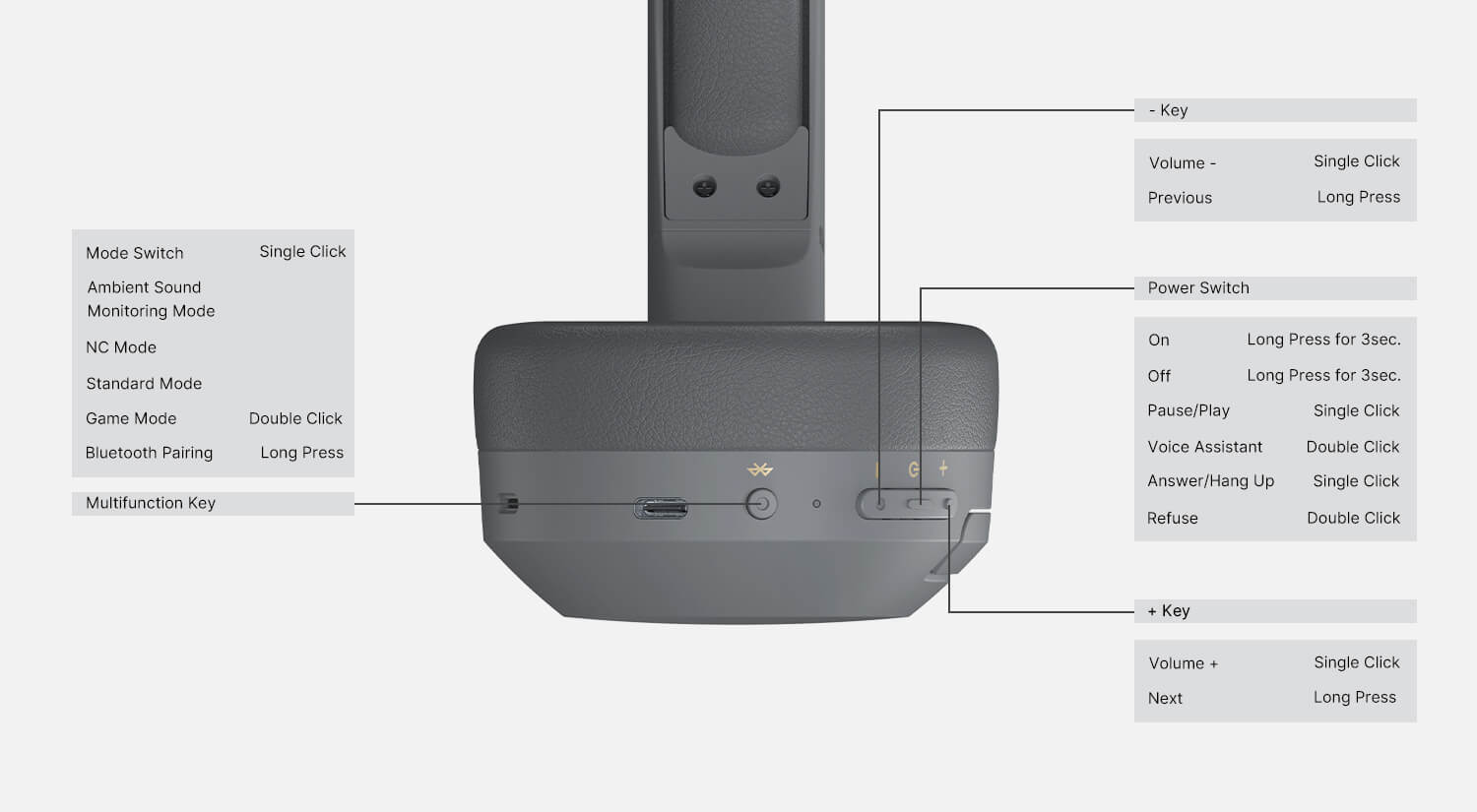
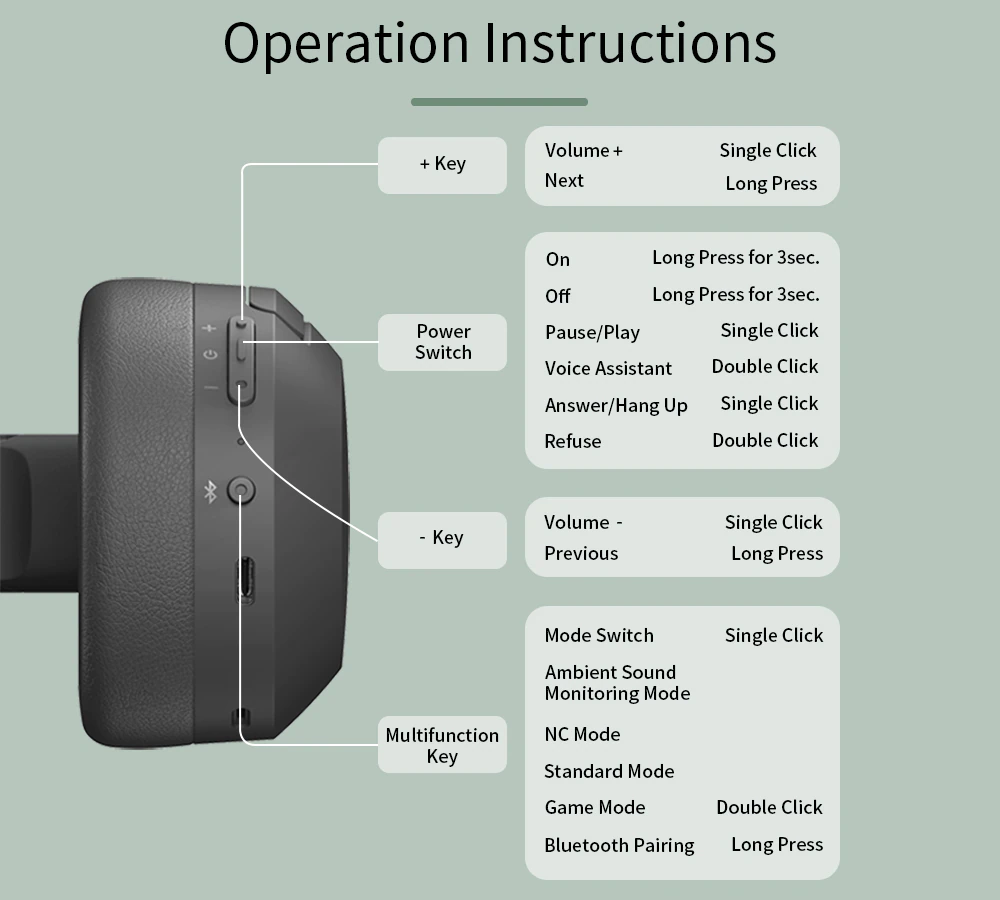
Hold the power and pairing buttons to enter Bluetooth pairing, then connect from your device.
I’ve helped dozens of people and tested many Edifier models, so I know how to pair Edifier headphones quickly and reliably. This guide walks through every step for phones, laptops, and TWS earbuds. You’ll get clear pairing steps, fixes for common problems, tips to boost connection quality, and real-world advice from hands-on experience. Read on to pair your Edifier headphones with confidence and keep them working smoothly.

How Bluetooth pairing works on Edifier headphones
Pairing links two Bluetooth devices so they can send audio securely. Edifier headphones use standard Bluetooth protocols, usually Bluetooth 4.x or 5.x. The phone or computer discovers the headset and exchanges a small authentication token. After that, devices automatically reconnect when in range.
Key things to know:
- Pairing mode makes headphones discoverable to other devices.
- Some Edifier TWS models use a left-right master/slave setup; pairing can differ slightly.
- Codecs (SBC, AAC, aptX) affect latency and sound quality, but not the act of pairing.
Understanding this helps when you troubleshoot. If pairing fails, the issue is usually device settings, low battery, or interference.
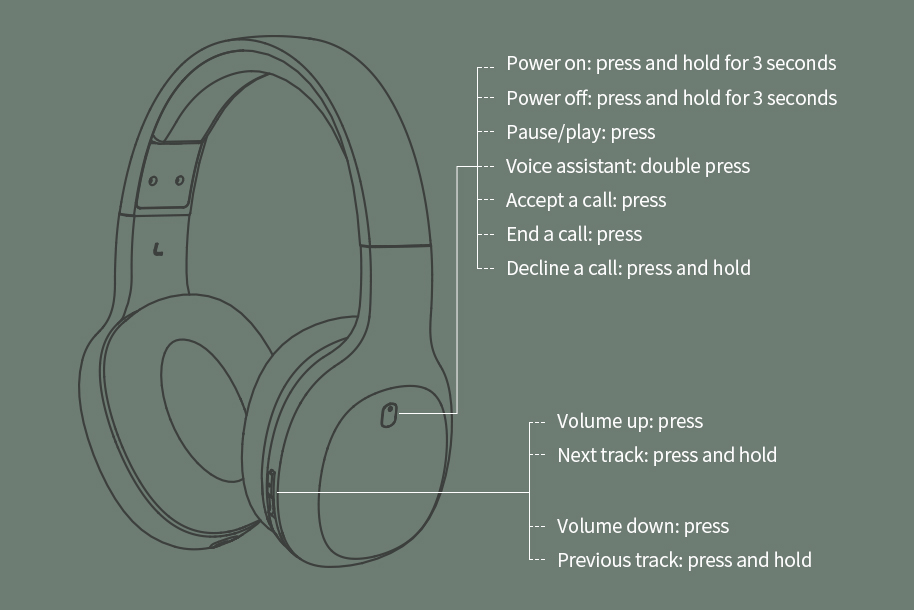
Step-by-step: How to pair Edifier headphones with phones and computers
Below are simple steps you can follow for most Edifier models. I repeat the phrase how to pair edifier headphones where it matters so you won’t miss the exact action.
General first-time pairing (over-ear or on-ear):
- Turn off the headphones.
- Press and hold the power button or dedicated pairing button for 5–8 seconds until you see a blinking LED or hear a voice prompt.
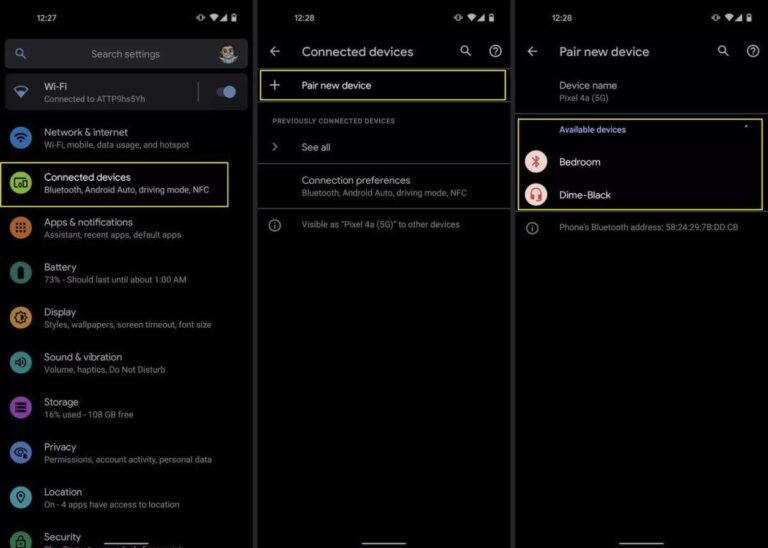
- Open Bluetooth settings on your phone or computer and scan for new devices.
- Select the Edifier device name shown (for example, "EDIFIER W820BT" or "TWS1 Pro").
- Confirm pairing if prompted. You’ll hear a confirmation tone or voice.
Pairing with an Android phone:
- Open Settings > Bluetooth.
- Turn on Bluetooth and tap the Edifier model when it appears.
- If you don’t see it, toggle Bluetooth off and on or restart the phone.
How to pair edifier headphones on Android: use the pairing button and choose the device in Bluetooth settings.
Pairing with an iPhone:
- Open Settings > Bluetooth.
- Make sure the phone is discoverable and tap the Edifier name when visible.
How to pair edifier headphones on iPhone: follow the same pairing flow; iOS handles codecs automatically.
Pairing with Windows 10/11:
- Turn on pairing mode on the headphones.
- Open Start > Settings > Bluetooth & devices > Add device.
- Choose Bluetooth and pick the Edifier name from the list.
How to pair edifier headphones on Windows: use Add device in Bluetooth settings and install drivers if prompted.
Pairing with macOS:
- Click the Bluetooth icon in the menu bar or open System Settings > Bluetooth.
- Put the headphones in pairing mode and click Connect next to the device name.
How to pair edifier headphones on Mac: allow macOS to pair and accept any prompts.
Pairing true wireless Edifier earbuds:
- Remove both buds from the case. They should power on.
- Hold the pairing button on the case (or touch both earbuds) for a few seconds.
- Wait for the LED cues. The left or right bud will show as the master.
- Find the earbuds in your device’s Bluetooth list and select them.
How to pair edifier headphones (TWS): ensure both buds are synced together before pairing to the phone.
If the device asks for a PIN, try 0000 or 1234. Most modern Edifier headphones do not need a PIN.

Common pairing problems and fixes
Pairing issues are common. Here are quick fixes I use when I help friends with how to pair edifier headphones.
Problem: Headphones won’t appear in Bluetooth list
- Make sure the headphones are in pairing mode. Hold the button longer.
- Turn Bluetooth off and on on your phone.
- Move away from other wireless devices to reduce interference.
Problem: Devices show “Paired” but no audio
- Check the audio output source on your phone or computer.
- On Windows, open Sound settings and select the Edifier device as output.
- Restart the app playing audio.
Problem: Frequent dropouts or unstable connection
- Ensure both devices have adequate battery.
- Keep phone and headphones within 30 feet and avoid walls.
- Update firmware if Edifier offers updates.
Reset and retry steps:
- Remove or forget the Edifier device in your phone’s Bluetooth settings.
- Turn off Bluetooth on both devices for 10 seconds.
- Restart the headphones into pairing mode and reconnect.
How to pair edifier headphones after a failed attempt: clear the device list, reset the headset, then pair again.
PAA-style question: Why won’t my Edifier headphones pair with my phone?
- Often the phone still has the headset listed. Forget the device, reboot both devices, and re-enter pairing mode.
PAA-style question: Can I pair Edifier headphones to two devices at once?
- Some Edifier models support multipoint. Check the model specs. If supported, enable multipoint in the manual then pair to both devices sequentially.
Personal tip: I once spent 20 minutes troubleshooting a pairing problem caused by another nearby Bluetooth speaker that was in pairing mode. Turn off other devices during setup.
Tips to improve connection stability and audio quality
Small changes make a big difference when you want to pair Edifier headphones and keep audio clean.
- Keep firmware updated. Firmware fixes can improve Bluetooth stability.
- Charge both devices. Low battery can prevent pairing or cause dropouts.
- Reduce distance and obstacles between devices for better signal.
- On Android, choose AAC or aptX if supported for lower latency and better quality.
- Disable Bluetooth scanning or battery optimization for the Bluetooth process on phones.
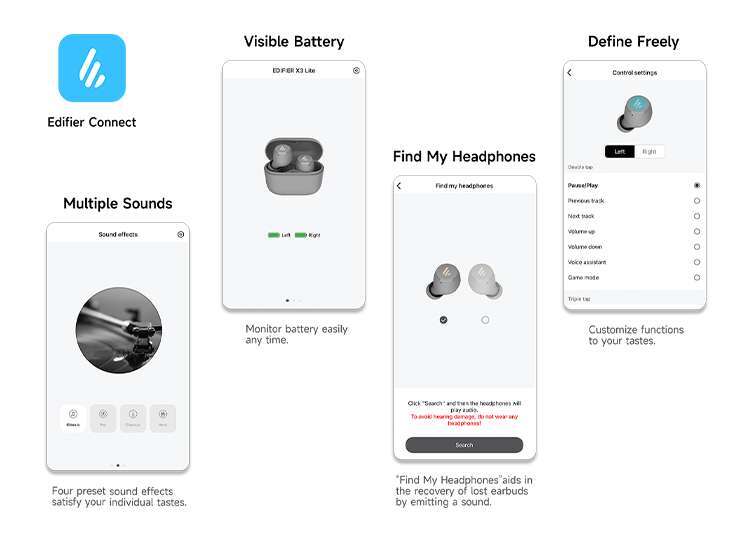
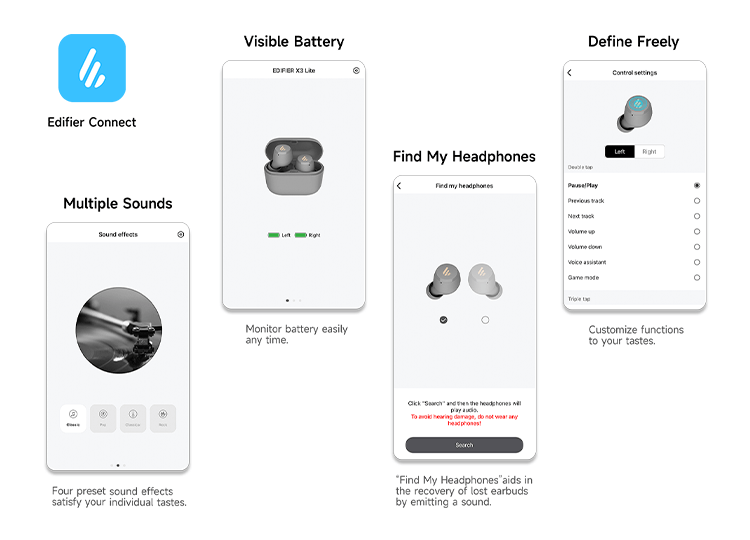
- Use the Edifier Connect app if your model supports it for settings and updates.
Practical tip from experience: When streaming video, enable low-latency codec if available to sync sound with video.

Resetting Edifier headphones: model-specific quick guides
Resets help when pairing fails repeatedly. Below are common reset methods. Check your manual if unsure.
Common reset for on-ear/over-ear:
- Power off the headset.
- Press and hold the power and volume up buttons together for about 8–10 seconds.
- LED flashes or indicator sound confirms reset.
Reset for TWS earbuds:
- Place buds in the charging case and keep the lid open.
- Press and hold the case button (or touch both earbud sensors) for 8–12 seconds.
- Wait for all LEDs to flash, then restart pairing.
Soft reset:
- Turn off the headphones, wait 30 seconds, then turn them on and try pairing again.
How to pair edifier headphones after a reset: enter pairing mode immediately after reset and select the device on your phone.
Compatibility and features to check before pairing
Before you try to pair Edifier headphones, check these items.
- Bluetooth version: Newer phones and headphones (Bluetooth 5.0) offer better range and stability.
- Codec support: aptX, AAC, and SBC presence influences audio quality.
- Multipoint: If you want to connect to laptop and phone simultaneously, confirm multipoint support.
- Device limits: Some older Edifier models remember only a limited number of paired devices.
If you run into trouble, confirm the model number and consult the user manual for model-specific pairing instructions.

Personal experience and lessons learned
I’ve paired Edifier headphones with phones, laptops, and TVs in cafes, offices, and on flights. Here are honest lessons from those sessions.
- Patience matters. Hold the pairing button longer than you think.
- Clear the Bluetooth list on the device first. Old entries often block new connections.
- Keep the firmware current. I solved a persistent dropout issue with a single firmware update.
- Label devices in your phone if you test many headsets. It avoids accidental connects.
A mistake I made: trying to pair a left TWS bud alone. It wouldn’t appear. Putting both buds in the case and following the model reset method fixed it immediately.
Frequently Asked Questions of how to pair edifier headphones
How do I put my Edifier headphones in pairing mode?
Press and hold the power button or dedicated pairing button for 5–8 seconds until the LED flashes or a voice prompt says “pairing.” Then open Bluetooth settings on your device and select the Edifier name.
My device won’t find the headphone. What should I do?
Turn Bluetooth off and on, move closer to the headphones, charge both devices, and try again. If it still fails, forget the device on your phone and reset the headphones.
Can Edifier headphones connect to two devices at once?
Some Edifier models support multipoint pairing. Check your model’s specs; if supported, pair to one device first, then the other while the first is powered on.
Do I need a PIN to pair Edifier headphones?
Most modern Edifier headphones pair without a PIN. If prompted, try common pins like 0000 or 1234. Refer to your manual if those don’t work.
Why does audio drop after pairing?
Audio dropouts often stem from low battery, interference, or outdated firmware. Charge both devices, move closer, update firmware, and remove other active Bluetooth devices nearby.
Conclusion
You now have clear, practical steps for how to pair Edifier headphones across phones, laptops, and TWS earbuds. Try the simple pairing flow first, then use resets, firmware updates, and the tips above for stubborn cases. Get in the habit of charging and keeping firmware current to avoid most problems.
Take action now: put your Edifier headphones into pairing mode and follow the steps above. If you run into trouble, come back to this guide or leave a comment describing your model and symptoms so I can help.

Jamie Lee is a seasoned tech analyst and writer at MyTechGrid.com, known for making the rapidly evolving world of technology accessible to all. Jamie’s work focuses on emerging technologies, product deep-dives, and industry trends—translating complex concepts into engaging, easy-to-understand content. When not researching the latest breakthroughs, Jamie enjoys exploring new tools, testing gadgets, and helping readers navigate the digital world with confidence.