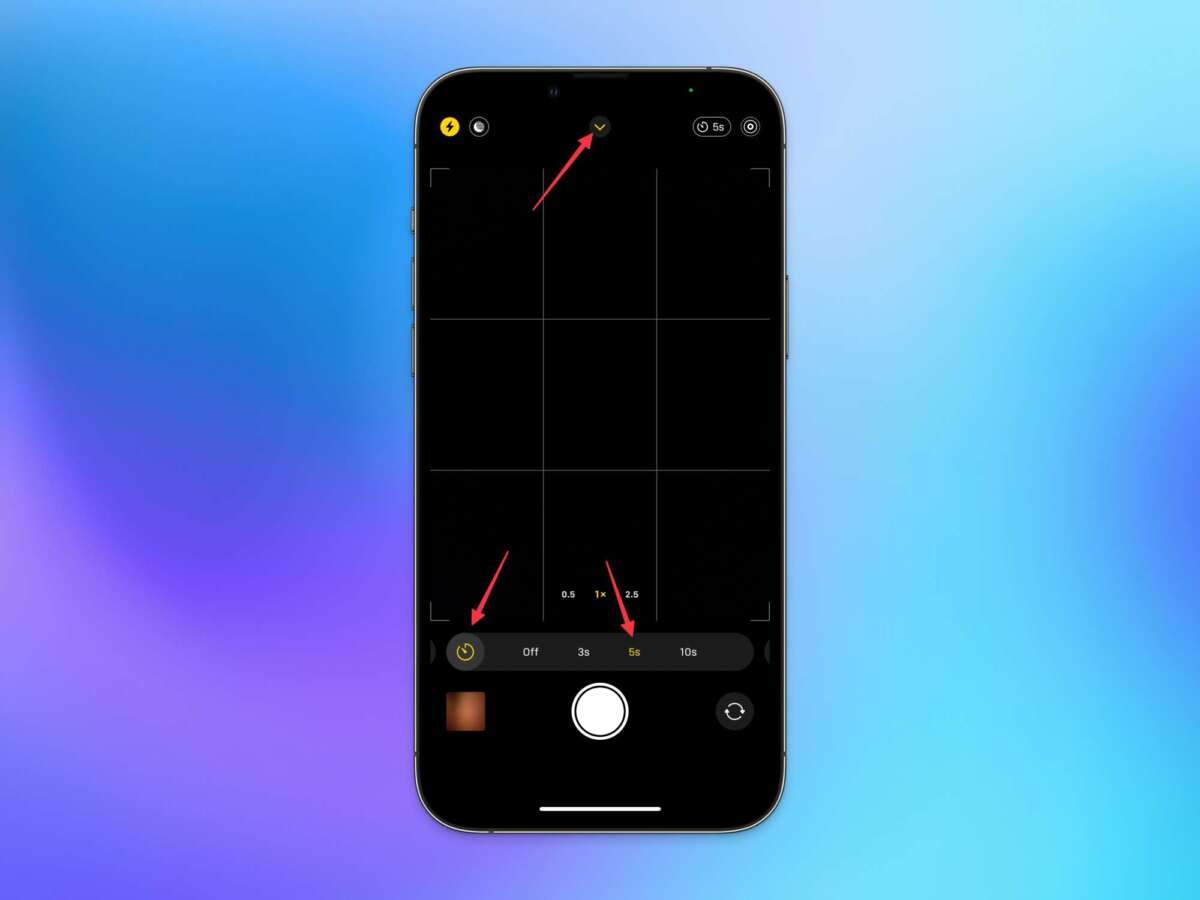
Open the Camera app, tap the timer icon, choose 3s or 10s, then press the shutter.
I’ve used iPhones to shoot portraits, group photos, and hands-free videos for years. In this guide I’ll show exactly how to set timer on iphone camera, explain why it helps, share tips and fixes, and walk you through advanced tricks like using an Apple Watch or third‑party apps. Read on to master the timer and take steadier, better photos every time.

Why use the timer on iPhone camera
The timer helps you get sharp, well-composed shots without rushing the shutter. It removes shake from pressing the button and gives you time to join a group or arrange props. Using the timer also lets you experiment with poses and lighting without a second person. Learning how to set timer on iphone camera is a simple skill that lifts the quality of everyday photos.

How to set timer on iPhone camera — step-by-step
Follow these clear steps to use the built-in Camera app timer. These work on most recent iPhone models and iOS versions.
- Open the Camera app. Make sure you are in Photo mode.
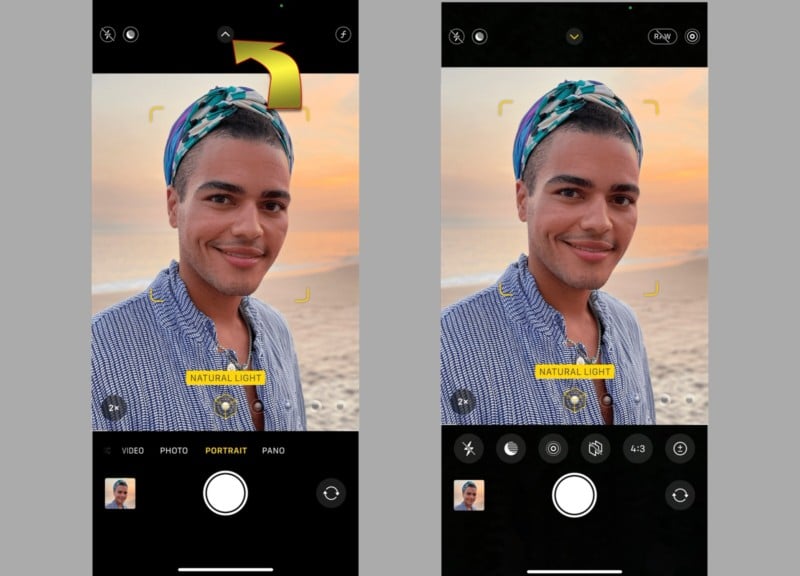
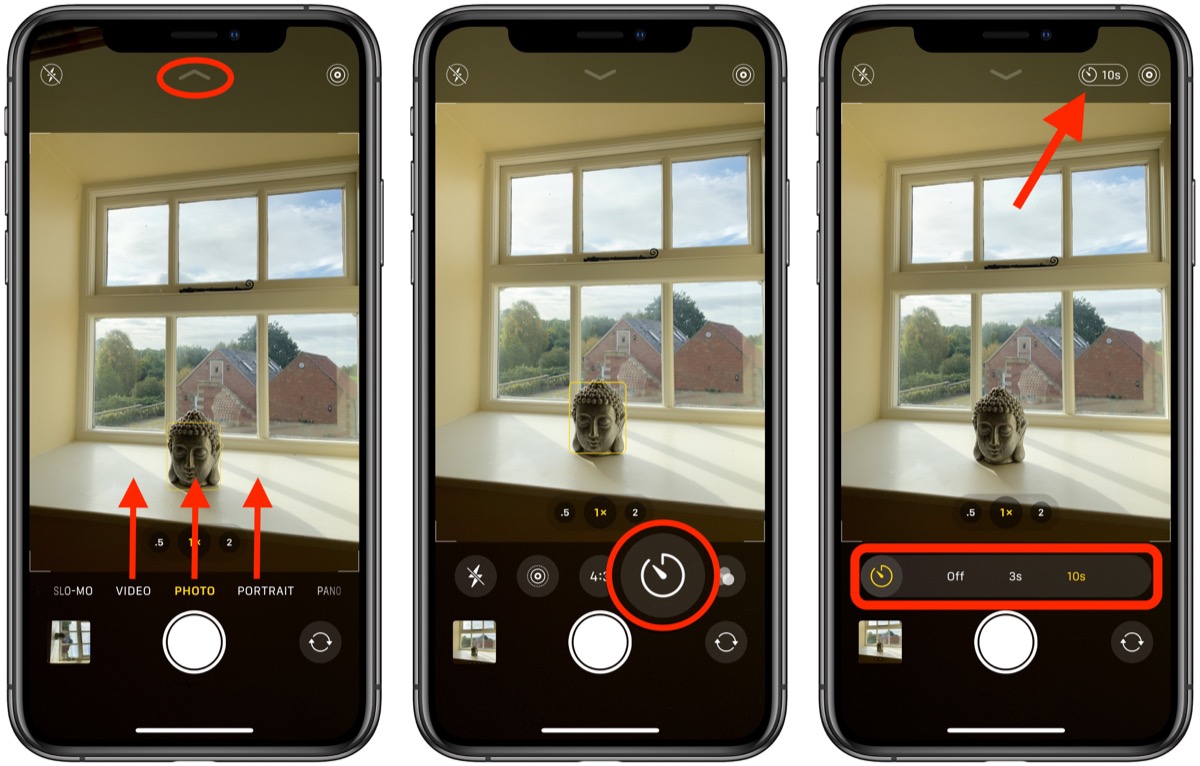
- Tap the arrow at the top (or swipe up on the viewfinder) to reveal camera controls.
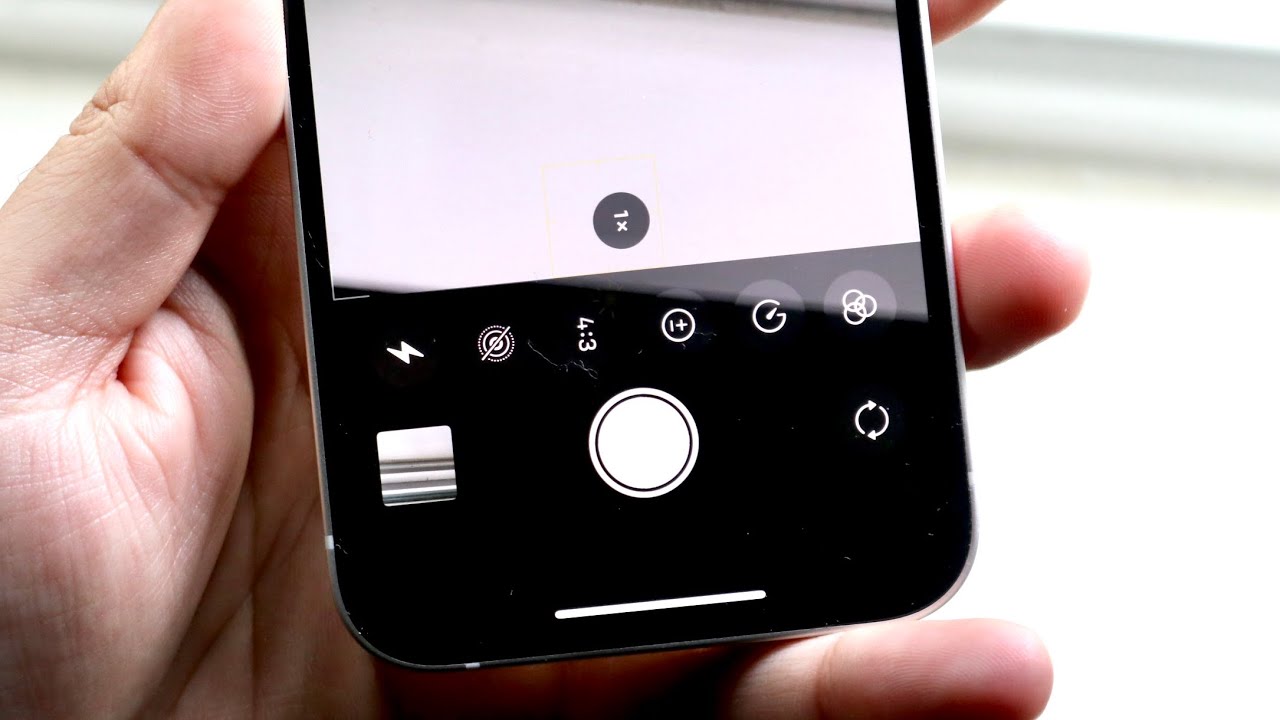
- Tap the Timer icon that looks like a clock. You will see 3s and 10s options.
- Choose 3s for quick shots or 10s for more time to pose.
- Press the shutter button. The timer will count down and the camera will take the photo.
- For burst-style self-takes, press and hold the shutter before setting the timer to combine effects (results vary by iOS).
Practicing these steps helps you build muscle memory. Once you know how to set timer on iphone camera, you’ll use it for portraits, product shots, and long exposures.
Tips for better self-portraits and group shots with the timer
Small changes make a big difference when you use the timer. Try these practical tips.
- Use a tripod or steady surface. A stable base prevents blur from slow shutter speeds.
- Frame and focus first. Lock focus by tapping where you want sharpness, then set the timer.
- Use 10s for running into the frame and 3s for small adjustments. 10s gives you time to get in place.
- Use the volume button on wired headphones to trigger the shutter quietly. This avoids touching the phone.
- Practice your pose once or twice to settle into a natural look before the final shot.
These tips will help after you learn how to set timer on iphone camera and adjust to different shooting situations.
Advanced options: Live Photos, burst mode, Apple Watch, and third‑party apps
The timer is more powerful when paired with other features. Here’s how to extend functionality.
- Live Photos — turn it on to capture moments before and after the shot. This gives you extra frames to choose from.
- Burst mode — combine the timer with burst to capture many frames quickly for action shots.
- Apple Watch — open the Camera Remote app on your watch and tap the shutter. You can start a 3‑second or 10‑second countdown from your wrist.
- Remote shutter devices — Bluetooth remotes and wired remotes work with the Camera app for instant or delayed capture.
- Third‑party apps — some camera apps offer custom timers, intervals for time-lapses, and advanced exposure control beyond the built-in 3s/10s options.
Mix these tools after you learn how to set timer on iphone camera to solve tricky shots like night portraits and group photos where timing matters.
Troubleshooting common issues
If the timer does not behave as expected, try these fixes. Each item targets a frequent problem.
- Timer button is dim or missing — update iOS and restart the Camera app; some controls hide on older iOS versions.
- Photos blur despite timer — use a tripod or hard surface; enable Night mode or increase light for faster shutter speed.
- Timer fires but stops early — check for incoming calls or notifications that interrupt the Camera app. Turn on Do Not Disturb while shooting.
- Remote shutter not working — verify Bluetooth pairing, battery level, and app permissions. Re-pair the device if needed.
- Camera app crashes — force quit and reopen the app, or restart your iPhone to clear temporary issues.
These steps address most problems people find when figuring out how to set timer on iphone camera.

Expert tips and real-life examples
I’ve taken dozens of group photos using the timer, and I learned fast what helps and what wastes time. Here are methods that worked best for me.
- Use a small tripod and level the phone. One time I rushed and the background tilted. A tripod fixed that instantly.
- Mark the spot where people should stand with a subtle prop. It saved time during family shoots.
- Use the Apple Watch for hands-free group shots. I found it far easier than shouting “cheese” and running back into frame.
- Try 10s for full-body shots and 3s for head-and-shoulders. This simple switch improved many portraits.
- When light is low, add a soft fill light or use Night mode with the timer to avoid motion blur.
These tips come from repeated practice. Once you know how to set timer on iphone camera and pair it with these habits, your photos will look more professional.
Frequently Asked Questions of how to set timer on iphone camera
How do I change the timer length on my iPhone camera?
Open the Camera app, reveal the controls, and tap the Timer icon. Pick 3s or 10s from the options shown.
Can I use the timer with Night mode or Live Photos?
Yes. The timer works with Live Photos and often with Night mode, though the camera may adjust exposure time automatically.
Is there a way to make a custom timer longer than 10 seconds?
The built-in Camera app only offers 3 and 10 seconds. For longer timers, use a third-party camera or interval timer app.
How can I take a hands-free photo without touching my iPhone?
Use an Apple Watch with Camera Remote, a Bluetooth remote shutter, or wired earbud volume buttons to trigger the shutter.
Why does my timer photo still look shaky?
Shakiness happens from camera movement or slow shutter speeds. Use a tripod, add light, or enable Night mode with the phone stable to reduce blur.
Conclusion
Mastering how to set timer on iphone camera is quick and practical. The built-in 3s and 10s options remove shake, let you join the shot, and open creative possibilities when paired with tripods, Live Photos, or an Apple Watch. Try the steps and tips here the next time you shoot a group photo or a low-light portrait. If this guide helped, practice the steps, share your results, and leave a comment with your favorite timer trick.

Jamie Lee is a seasoned tech analyst and writer at MyTechGrid.com, known for making the rapidly evolving world of technology accessible to all. Jamie’s work focuses on emerging technologies, product deep-dives, and industry trends—translating complex concepts into engaging, easy-to-understand content. When not researching the latest breakthroughs, Jamie enjoys exploring new tools, testing gadgets, and helping readers navigate the digital world with confidence.