Toggle "Mirror Front Camera" in Settings, or flip photos in Edit to reverse the camera on iPhone.
I’ve guided hundreds of iPhone users through camera settings and edits. In this guide I explain exactly how to reverse camera on iphone, step by step, for both photos and video. You’ll get clear settings, simple edits, app options, troubleshooting, and real tips from my own testing so you can fix mirrored selfies or mirror video the right way.

Why reversing the camera on iPhone matters
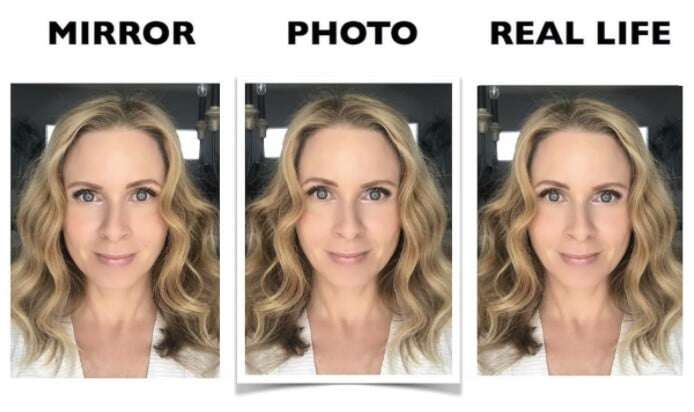
Reversing the camera on iPhone fixes how your selfie looks compared to what others see. Some people want a mirrored selfie because it matches the preview they saw. Others want the non-mirrored version so text, logos, or backgrounds read correctly.
Benefits of reversing the camera on iPhone
- Keeps text and logos readable in selfies and screenshots.
- Makes video and photo compositions match what viewers expect.
- Helps creators keep consistent framing across content.
Common reasons people ask how to reverse camera on iphone
- Selfies show flipped text.
- Portraits look different than the preview.
- Social media or editing needs a mirrored effect.
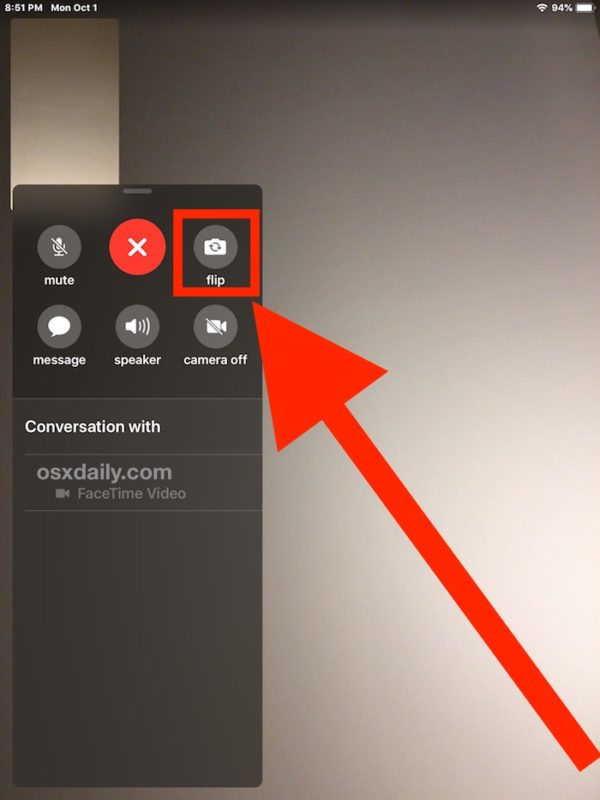
How to reverse camera on iPhone: step-by-step for photos
Apple includes a simple option to mirror selfies and easy editing tools to flip images after you shoot. Here are clear steps.
Turn on mirrored selfies in Settings
- Open Settings on your iPhone.
- Scroll to and tap Camera.
- Find the option called Mirror Front Camera and toggle it on.
- Take a photo with the front camera. The saved photo will match your preview.
Flip a saved photo in Photos
- Open the Photos app and pick the image.
- Tap Edit, then tap the Crop icon.
- Tap the Flip icon (two triangles) to mirror the image horizontally.
- Tap Done to save the mirrored photo.
Use Markup to flip a photo quickly
- Open the photo and tap Edit.
- Tap the three dots and choose Markup.
- Use the crop/flip tools or export to a third-party app that supports flip.
- Save a new mirrored version.
Notes on versions and devices
- Mirror Front Camera appears only in modern iOS versions. Update iOS if you don’t see it.
- Older iPhones may not have the setting; use the flip method in Photos or a third-party app.

Reversing video and live content on iPhone
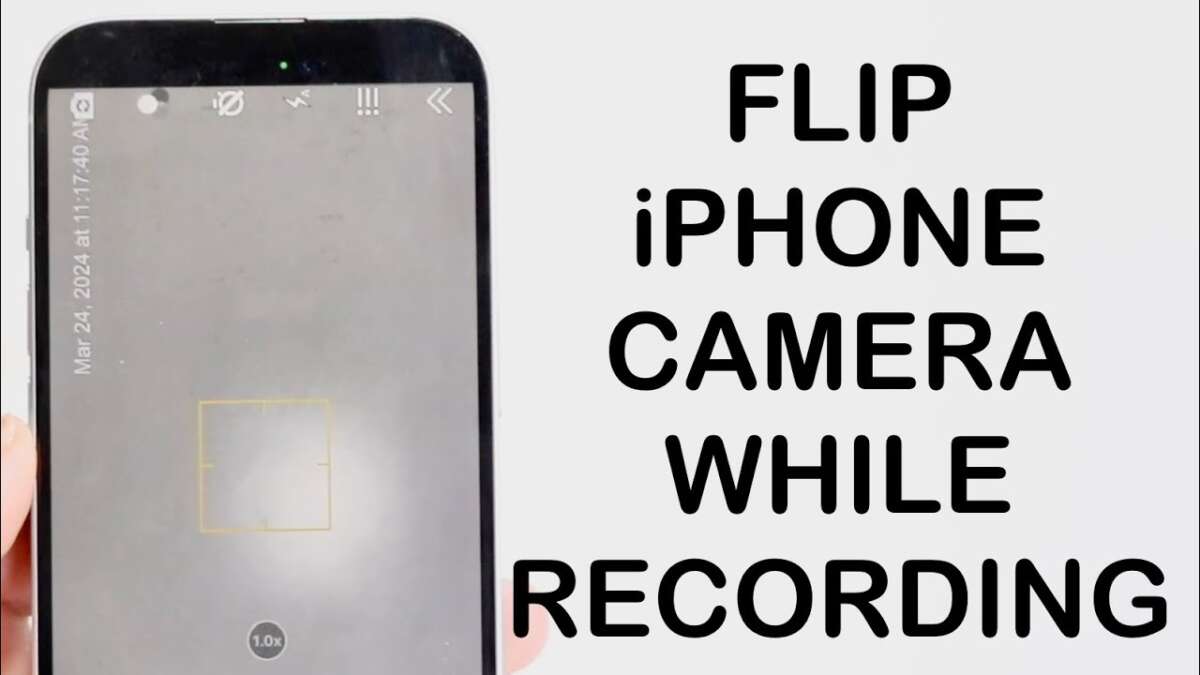
Video is trickier. The Camera app saves front-facing videos unmirrored by default. To reverse video on iPhone you will often need app help or a small edit.
Options to reverse camera on iphone for video
- Use a third-party app such as InShot, CapCut, or apps that offer flip/mirror tools.
- Transfer video to a desktop editor and flip horizontally.
- For short clips, use a shortcut or automation that applies a horizontal flip filter (some community-made shortcuts do this).
Editing video on iPhone
- Import the clip to an app that supports flipping.
- Apply a horizontal mirror or flip transform.
- Export the flipped video back to Photos.
Live Photo tip
- Convert Live Photo to a still and flip it in Photos if you only need a still image. Live Photo video portion may need separate app editing.

Troubleshooting common issues when you try to reverse camera on iPhone
If you can’t reverse the camera on iPhone, these checks fix most problems.
I don’t see "Mirror Front Camera" in Settings
- Check iOS version and update to the latest stable release.
- Some older models or very old iOS versions won’t show the toggle.
Saved image still looks flipped
- You might be seeing the preview, not the saved image. View the saved image in Photos to confirm.
- If sharing to social apps, those apps may re-mirror uploads. Check app upload settings.
Video flip not working
- The built-in Photos editor cannot flip video. Use a third-party app or desktop editor to flip video.
- Ensure you export after flipping; preview changes may not auto-save.
Permissions and app behavior
- Grant camera and photo access to third-party apps.
- Close and reopen an app if flipping tools behave oddly.

Tips, examples, and personal experience
I prefer mirrored selfies for quick profile shots. I toggle Mirror Front Camera when I need consistent previews. For branded content, I always flip photos so logos face the right way.
Practical tips from tests
- Test once before posting. Take a selfie, save it, then view it in Photos to confirm orientation.
- For text-heavy shots, flip the image immediately in Photos to avoid mistakes.
- Keep a trusted app (I use one that flips video reliably) on hand for quick edits.
Mistakes to avoid
- Don’t assume the camera preview equals the saved file.
- Don’t rely on social apps to preserve orientation. Some apps reprocess images.
- Don’t forget to turn the mirror toggle off when you want the standard view.

Best third-party apps and quick workflows
If your iPhone can’t reverse camera on iphone natively for your needs, use apps that are fast and reliable.
Recommended workflow for video
- Record video in Camera.
- Open a video editor app that supports flip.
- Apply horizontal flip and export in the same resolution.
Recommended workflow for photos
- Use Mirror Front Camera for quick mirrored selfies.
- Edit saved photos in Photos > Edit > Crop > Flip when needed.

Frequently Asked Questions of how to reverse camera on iphone
How do I enable mirrored selfies on my iPhone?
Open Settings, tap Camera, then toggle Mirror Front Camera on. Photos taken with the front camera will save as mirrored images when the toggle is enabled.
Can I flip a saved photo on iPhone without an app?
Yes. Open the photo in Photos, tap Edit, tap the Crop tool, then tap the Flip icon to mirror horizontally. Save the edited image when finished.
Why does my front camera look mirrored in preview but not in saved photo?
The preview shows a mirror by default so the view feels natural while framing. The saved photo may be unmirrored unless Mirror Front Camera is enabled or you flip it after saving.
Can I mirror front-facing video on iPhone without third-party apps?
Not with the built-in Photos editor. To mirror video you must use a third-party app or edit on a computer to flip the clip horizontally.
Will social apps change my mirrored photo after uploading?
Some social apps reprocess images and may change orientation. Check upload previews and test one post before posting widely.
Conclusion
You can reverse camera on iphone easily for photos by toggling Mirror Front Camera or flipping saved images in Photos. For video, use a trusted app or desktop editor. Test your workflow, update iOS when needed, and keep a simple app ready for quick flips. Try these steps on your next selfie or clip, share what worked, and subscribe or comment if you want app recommendations or a short tutorial video.

Everett Ashford is a tech reviewer at mytechgrid.com specializing in SSDs, cameras, TVs, earbuds, headphones, and other consumer electronics. He provides honest, data-driven reviews based on hands-on testing and real-world performance analysis. Everett simplifies complex tech details to help readers make smart, confident buying decisions.