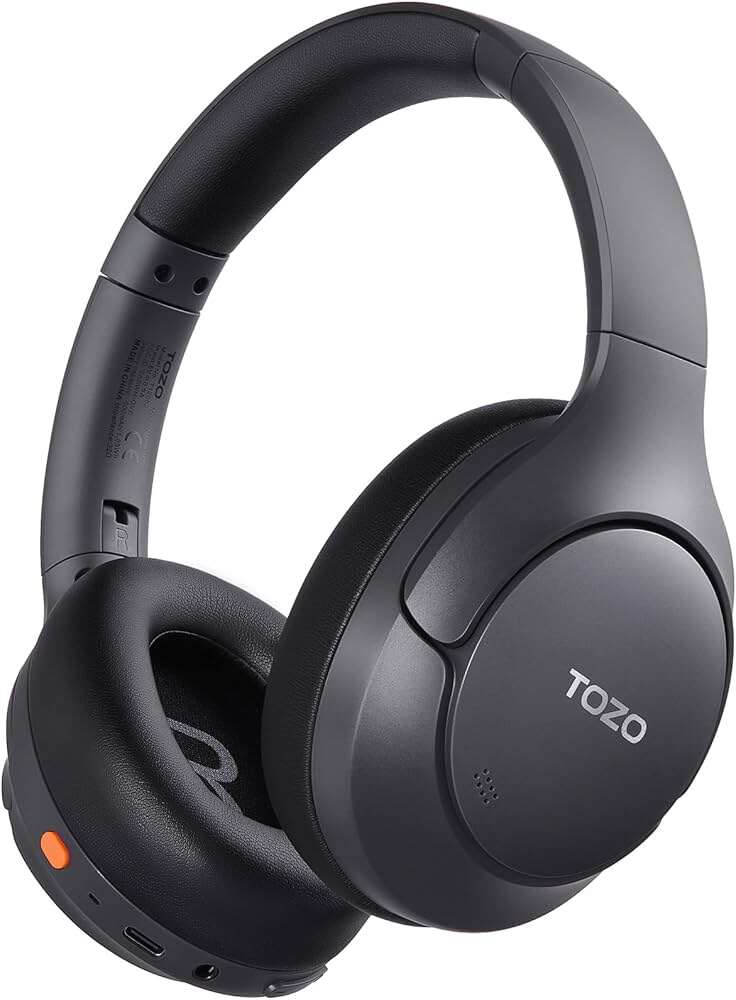
Pair headphones to a Roku TV using the Roku mobile app, the TV's Bluetooth (if available), or a transmitter.
I’ve paired headphones to dozens of TVs and set up Roku systems for friends and family. This guide explains exactly how to pair headphones to Roku TV using every practical method. I’ll walk you step by step through the Roku mobile app private listening, direct Bluetooth pairing (when your Roku TV supports it), wired options, and external Bluetooth transmitters. Expect clear instructions, troubleshooting tips, and real-world advice so you can get private, lag-free audio fast.
:max_bytes(150000):strip_icc()/003_connect-airpods-to-roku-tv-5186324-f1b52fd244114149a45d7551e06eee75.jpg)
Why pair headphones to Roku TV?
Pairing headphones to Roku TV lets you watch late-night shows, play games, or listen without disturbing others. It also helps you hear dialogue more clearly in noisy homes or when you have hearing needs. Knowing how to pair headphones to Roku TV gives you privacy and better sound control.

Which Roku models support direct Bluetooth audio?
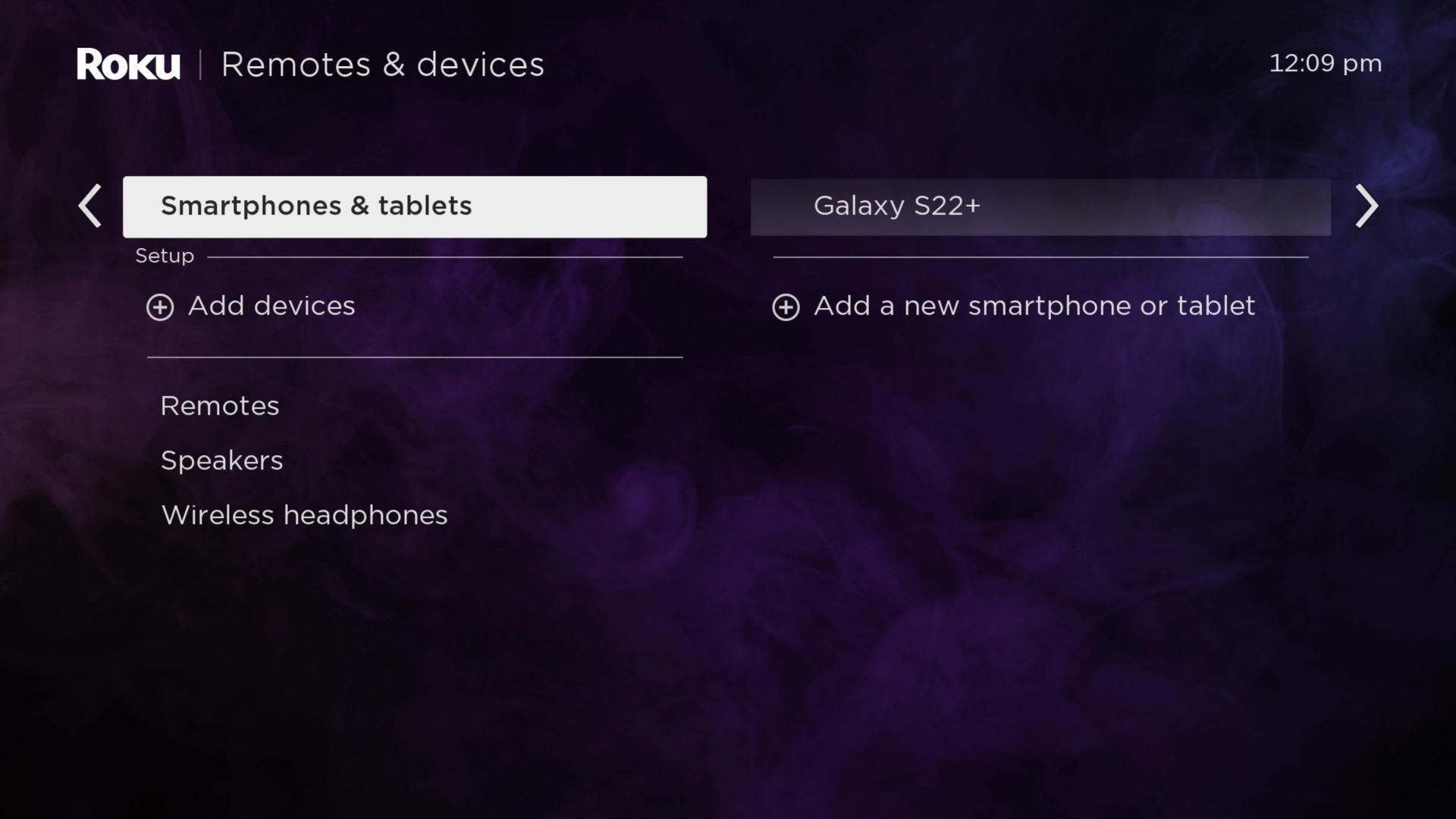
Most Roku streaming devices and Roku TVs do not let you pair standard Bluetooth headphones directly. Roku focuses on private listening through the Roku mobile app instead. A few Roku TV models and accessories may offer Bluetooth audio support, but that is uncommon and model-dependent. Before you try to pair, check your TV settings under Remotes & devices to confirm Bluetooth options. This saves time and prevents confusion when learning how to pair headphones to Roku TV.

Method 1: Private listening with the Roku mobile app (best and easiest)
Private listening is the most reliable way to pair headphones to Roku TV for most users.
Steps:
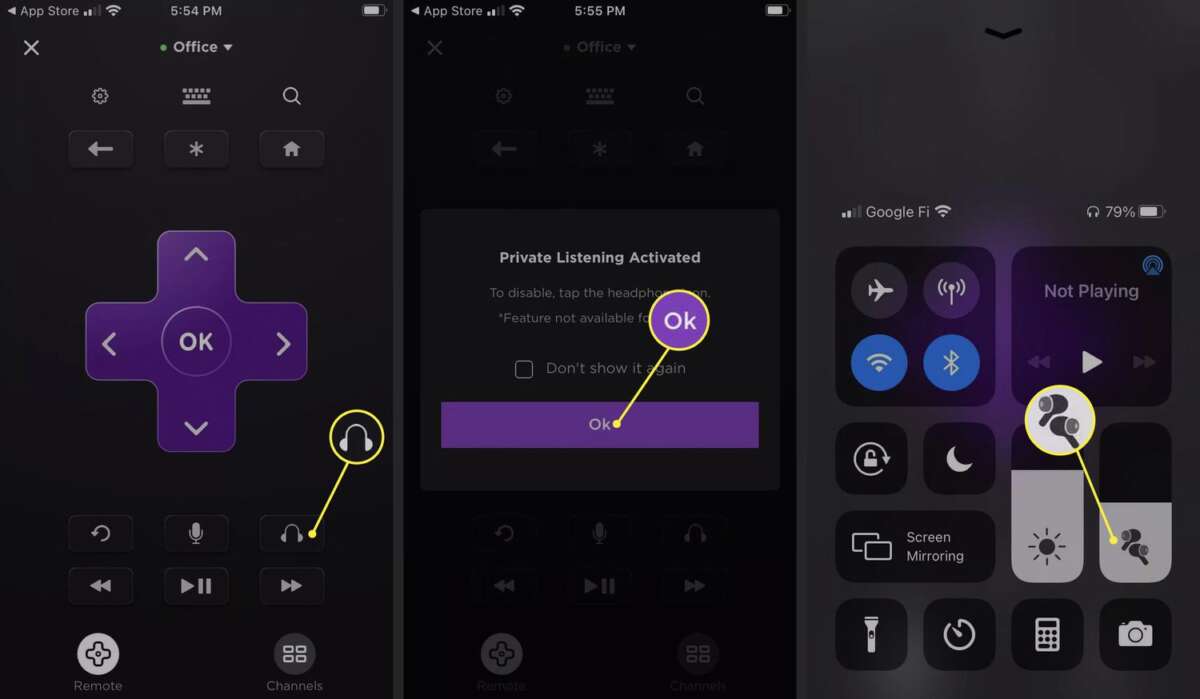
- Install the Roku mobile app on your phone and connect your phone to the same Wi‑Fi network as the Roku TV.
- Open the Roku app and tap the headphone icon or choose your Roku device.
- Plug your headphones into the phone, or pair Bluetooth headphones to the phone first.
- Tap Private Listening in the app. The TV audio routes to your phone and then to your headphones.
Why this method works:
- No TV Bluetooth needed.
- Low setup time.
- Works with wired or Bluetooth headphones paired to your phone.
Real-life tip: I use private listening when kids need quiet. It’s the fastest route and keeps the TV sound active for others if needed.

Method 2: Pairing Bluetooth headphones directly to Roku TV (when supported)
If your Roku TV supports Bluetooth audio, follow these steps. Note: many Roku TVs do not include this feature.
Steps:
- Put your Bluetooth headphones into pairing mode.
- On the Roku TV, go to Settings > Remotes & devices > Bluetooth devices > Pair new device.
- Select your headphones when they appear.
- Confirm pairing. TV audio should now play through your headphones.
Limitations and notes:
- If you don’t see Bluetooth options, your TV likely lacks direct Bluetooth audio support.
- Some Roku firmware versions place Bluetooth controls under Settings > Remotes & devices or Advanced settings.
- Expect possible audio lag with Bluetooth; low-latency codecs like aptX/aptX LL are rare on TVs.
From experience, direct pairing can be convenient but is inconsistent across models. If pairing fails, try the Roku app method or a transmitter.
Method 3: Use a Bluetooth transmitter for any Roku TV
A Bluetooth transmitter is a small device you plug into the TV audio out. It broadcasts sound to your Bluetooth headphones.
Steps:
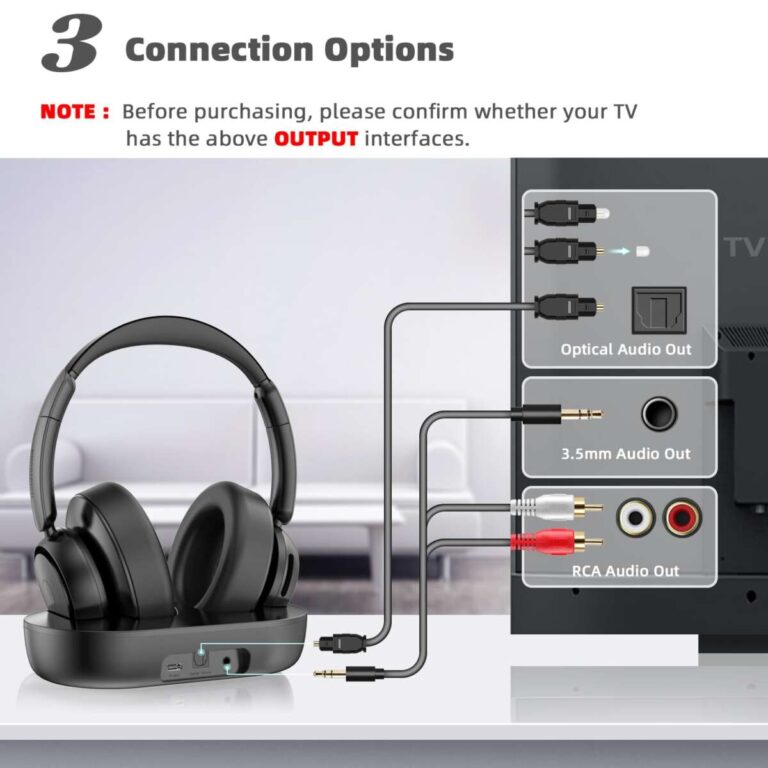
- Choose a transmitter that supports the TV outputs you have: 3.5mm, RCA, or optical (TOSLINK).
- Plug the transmitter into the TV audio out and power it.
- Put the transmitter in pairing mode and pair your Bluetooth headphones.
- Select the TV audio output if needed (on some TVs, choose External Speakers).
Benefits:
- Works with any Roku TV, even those without Bluetooth.
- Some transmitters support low-latency codecs to reduce audio lag.
- Can pair two headphones simultaneously on certain models.
Tip: I tested a low-latency transmitter with a Roku TV and saw a big cut in lip-sync lag. If you watch live sports or play games, pick a transmitter labeled low latency.

Method 4: Wired options and other audio outputs
Wired options are simple and reliable when your TV or receiver supports them.
Options:
- Headphone jack on the TV: Plug directly into the 3.5mm port if available.
- RCA to 3.5mm: Use RCA outputs on the TV or receiver into a headphone amp or adapter.
- Optical to DAC: Use an optical output into a digital-to-analog converter (DAC) and then into wired headphones.
When to use wired:
- You need zero latency.
- Your headphones are wired-only.
- You want the simplest, most reliable connection.
Personal note: When I need perfect audio sync for gaming, I go wired or use a low-latency transmitter. It removes guesswork.

Troubleshooting and tips for smooth pairing
Common issues and fixes when you try to pair headphones to Roku TV.
Issue: Headphones won’t appear when pairing
- Make sure headphones are in pairing mode.
- Move closer to the TV or transmitter.
- Turn off other nearby Bluetooth devices that may block pairing.
Issue: Audio is delayed (lip-sync problem)
- Use private listening via the Roku mobile app for lower latency.
- Use a low-latency Bluetooth transmitter and headphones that support aptX LL.
- Try wired headphones if delay persists.
Issue: App private listening not working
- Confirm phone and Roku TV on same Wi‑Fi network.
- Restart the Roku app and the TV.
- Update the Roku app and TV firmware.
Best practices:
- Keep firmware and app updated.
- Test audio with short clips before long viewing.
- Label and save paired devices if the TV supports multiple pairings.
From my experience, restarting both devices resolves most pairing headaches quickly. Small steps avoid frustration.

Quick questions people ask (PAA-style)
Q: Can I pair two headphones to a Roku TV at once?
- Some Roku apps and transmitters allow two headphones. Direct TV Bluetooth rarely supports two connections. Check your TV or transmitter specs.
Q: Will Bluetooth audio be delayed on Roku TV?
- Bluetooth can add delay. Private listening through the Roku app or a low-latency transmitter reduces lag.
Q: Do all Roku TVs support private listening?
- Yes, private listening works through the Roku mobile app for virtually all Roku TVs when they share the same Wi‑Fi network.

Frequently Asked Questions of how to pair headphones to roku tv
How do I use private listening to pair headphones to Roku TV?
Open the Roku mobile app, connect to the same Wi‑Fi network as your Roku TV, tap the headphones icon, and enable Private Listening. Pair your headphones to your phone first if they are Bluetooth.
Can I pair Bluetooth headphones directly to every Roku TV?
No. Most Roku TVs do not support direct Bluetooth audio pairing. Check Settings > Remotes & devices to confirm if your model supports it.
What if I hear audio lag when headphones are paired to my Roku TV?
Try private listening through the Roku app, or use a low-latency Bluetooth transmitter and matching headphones. Wired connections are the most reliable for zero lag.
Will a Bluetooth transmitter work with Roku TV optical output?
Yes. Many transmitters accept optical (TOSLINK) input and broadcast to Bluetooth headphones. Choose one with low-latency codecs for better sync.
How do I update my Roku TV for better headphone support?
Go to Settings > System > System update on your Roku TV and check for updates. Keeping firmware current can improve compatibility and fix bugs.
Conclusion
You have several solid ways to pair headphones to Roku TV: the Roku mobile app private listening, direct Bluetooth pairing where available, Bluetooth transmitters, or wired connections. Choose the method that best fits your gear, your need for low latency, and your budget. Try the Roku app first—it's fast, simple, and works on most setups. If you need help picking a transmitter or troubleshooting a specific Roku model, leave a comment or subscribe for more hands-on tips.

Jamie Lee is a seasoned tech analyst and writer at MyTechGrid.com, known for making the rapidly evolving world of technology accessible to all. Jamie’s work focuses on emerging technologies, product deep-dives, and industry trends—translating complex concepts into engaging, easy-to-understand content. When not researching the latest breakthroughs, Jamie enjoys exploring new tools, testing gadgets, and helping readers navigate the digital world with confidence.