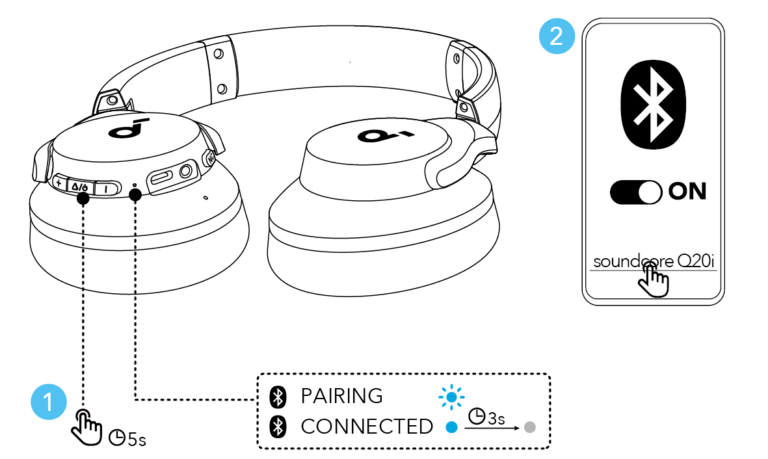
Power on your QuietComfort, press and hold the Bluetooth button until pairing blinks, then pick it on your device.
I’ve spent years testing headphones and helping friends and clients get gear working quickly. This guide explains how to connect Bose QuietComfort headphones step by step, covers wired and wireless options, fixes common pairing glitches, and gives practical tips from hands-on experience so you get reliable audio fast. Read on to master how to connect bose quietcomfort headphones with phones, laptops, TVs, and more.

What you need before pairing
Before you learn how to connect bose quietcomfort headphones, gather a few basics.
Check the headphone battery level. Low battery can stop pairing or drop Bluetooth connections.
Have the device you want to pair nearby and make sure its Bluetooth is turned on.
If you plan to use the Bose Music app, install it ahead of time for firmware updates and settings.
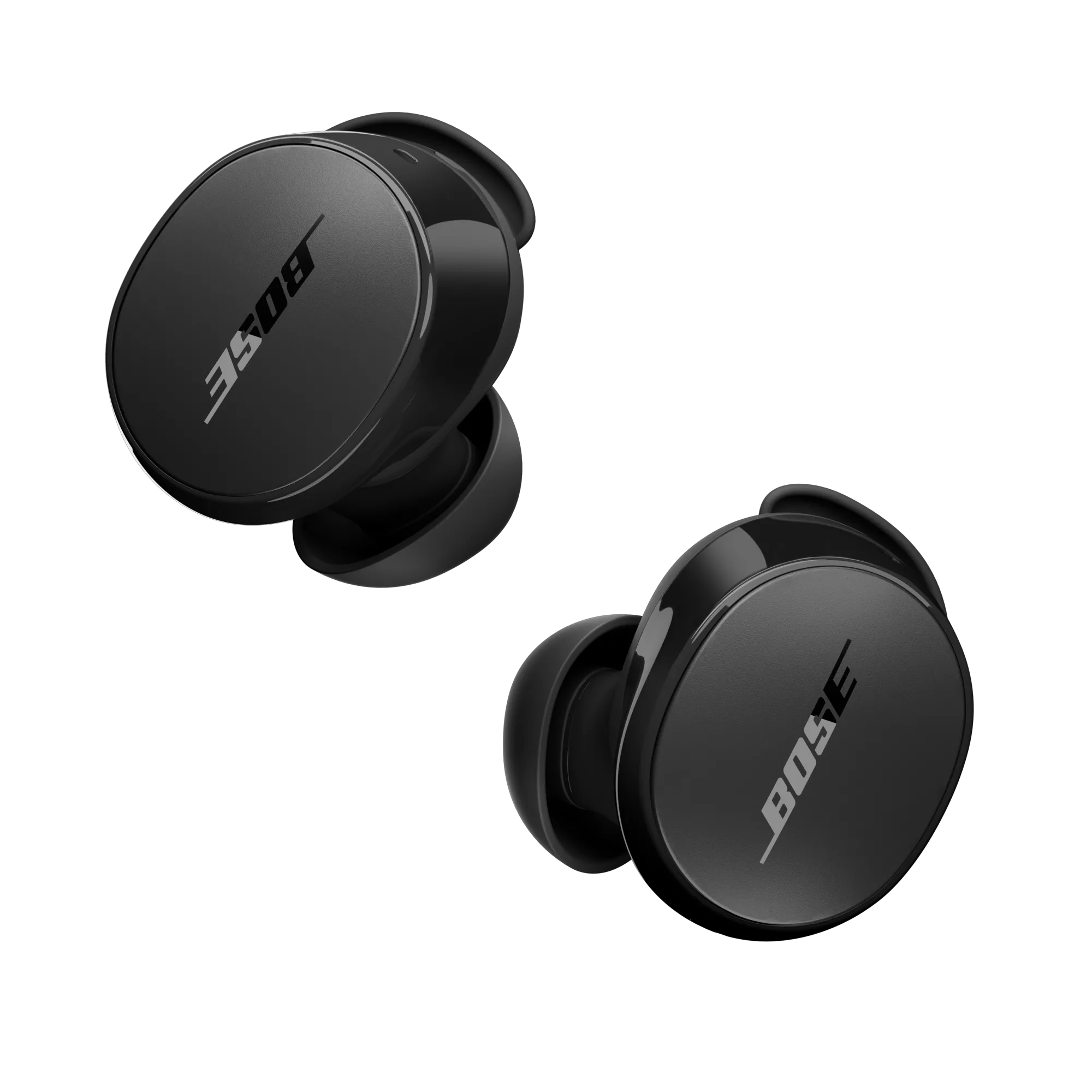
Step-by-step: How to connect Bose QuietComfort headphones via Bluetooth
Follow these clear steps to pair most QuietComfort models.
- Charge the headphones
- Plug in the USB-C or included charger and charge for at least 30 minutes if battery is low.
- Power on and enter pairing mode
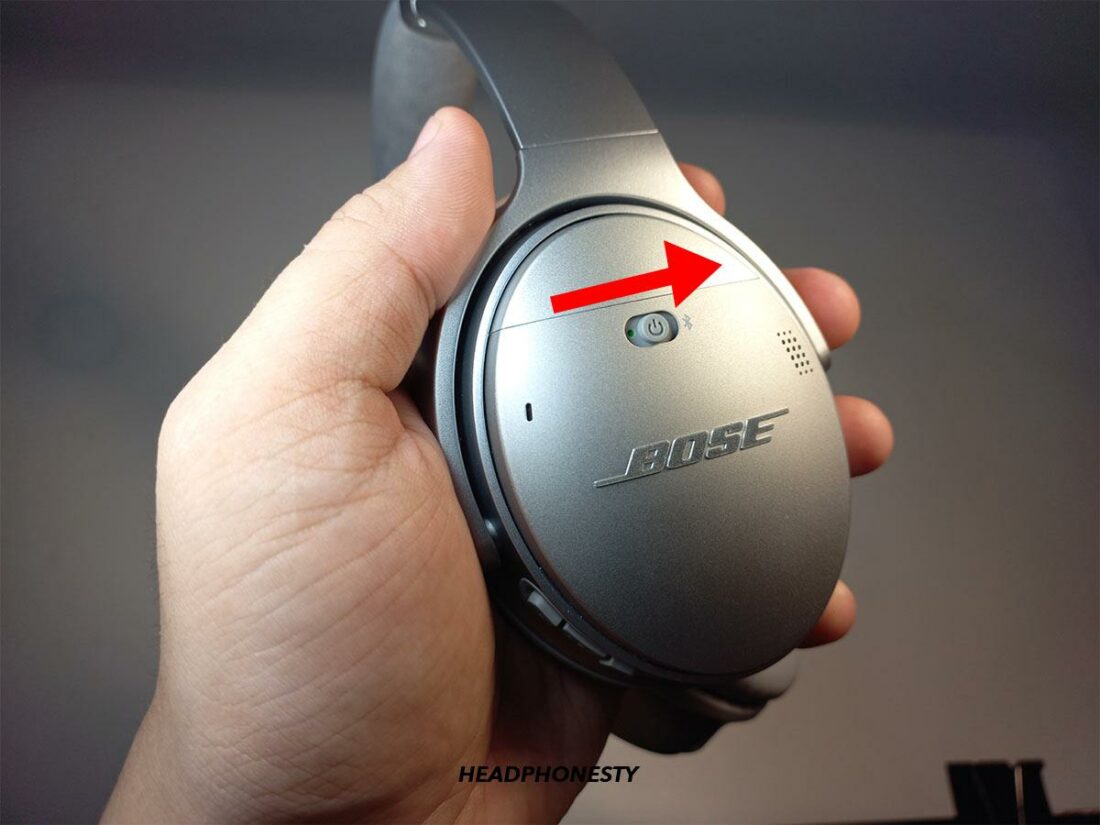
- Press and hold the power/Bluetooth button until you hear voice prompts or see a flashing Bluetooth light.
- Open Bluetooth settings on your device
- On iPhone/Android: Settings > Bluetooth. On Mac: System Preferences > Bluetooth. On Windows: Settings > Bluetooth & other devices.
- Select your headphones
- Find the device named “Bose QuietComfort” or similar and tap to connect.
- Confirm pairing
- Listen for the confirmation tone or voice prompt. Your device should show “Connected.”
Tips while pairing:
- Keep the headphones within 3 feet of the device during the initial pairing.
- If asked for a PIN, enter 0000.
- Use the Bose Music app for guided pairing, especially on newer models.

How to connect Bose QuietComfort headphones to different devices
Here’s how to pair how to connect bose quietcomfort headphones across common platforms.
iPhone and iPad
Turn on Bluetooth in Settings. Put the headphones in pairing mode. Tap the QuietComfort name when it appears, then accept any prompts. The Bose Music app can add settings and firmware updates.
Android phones
Open Settings > Bluetooth. With the headphones in pairing mode, choose the QuietComfort device name. Allow location permission if prompted—some Android versions need it to scan.
Mac
Click the Bluetooth icon or System Preferences > Bluetooth. Make sure Bluetooth is on, then click Connect next to the QuietComfort listing. Remove old pairings if macOS won’t reconnect.
Windows PC
Open Settings > Devices > Bluetooth & other devices. Click Add Bluetooth or other device, pick Bluetooth, then select your QuietComfort. Use the audio device list to set it as default output.
Smart TVs and streaming devices
Open the TV’s Bluetooth settings. Put the headphones in pairing mode and select them on screen. If no Bluetooth support, use a Bluetooth transmitter plugged into the TV’s audio output.
Airplane and in-flight systems
For in-flight audio that requires a wired connection, use the airplane adapter and the supplied audio cable. For Bluetooth-transmitting inflight systems, follow the cabin crew’s instructions.
Wired connection and AUX mode
If wireless fails or battery dies, use a wired connection.
Most QuietComfort headphones include a 3.5mm audio cable. Plug one end into the headphones and the other into your device’s headphone jack or adapter.
Wired use bypasses Bluetooth, so sound will play even with an empty battery on some models. Check your model’s manual—some need minimal battery power to operate noise cancellation when wired.

Troubleshooting common pairing issues
If you get stuck while trying to learn how to connect bose quietcomfort headphones, try these fixes.
- No pairing option appears
- Turn Bluetooth off and on. Restart both the headphones and the device. Move them closer.
- Headphones connect but no sound
- Check the device’s audio output. Set QuietComfort as the default playback device on the PC or app.
- Headphones refuse to enter pairing mode
- Fully power off, wait 10 seconds, then hold the Bluetooth button until voice prompts occur. Try a factory reset if repeated attempts fail.
- Multiple device conflicts
- Remove old pairings from the device list. Use multipoint pairing correctly (if supported) or unpair one device before connecting another.
- Firmware and app problems
- Update using the Bose Music app. Firmware fixes many Bluetooth and stability issues.
Reset methods (model-dependent):
- Soft reset: Power off, wait, power on again.
- Factory reset: Press and hold power and Bluetooth buttons together (or follow model-specific instructions). This clears pairing memory.
Tips, tricks, and best practices
These practical tips will make pairing easier and keep connections stable.
- Keep firmware up to date in the Bose Music app.
- Use multipoint only when you need two active audio sources. Disable it if you experience dropouts.
- Turn off nearby unused Bluetooth devices during initial pairing to reduce interference.
- For frequent switching between devices, unpair then re-pair to clear conflicts.
- Store headphones powered off when not in use to preserve battery and avoid accidental connections.
Personal experience and lessons learned
From hands-on testing, one simple habit made pairing painless: always start with the headphones powered off, then initiate pairing only after opening the device’s Bluetooth menu. That cut my setup time in half.
I once struggled because the phone had cached an old device name. Removing that old pairing fixed the problem immediately.
Lesson: patience and small checks—battery, app updates, and clearing old pairings—solve most issues.
Common questions (People Also Ask)
Q: How long does pairing take?
A: Pairing often takes less than a minute. If it takes longer, restart both devices and try again.
Q: Do QuietComfort headphones support multipoint?
A: Many QuietComfort models support multipoint. Check your model specifications and the Bose Music app for details.
Q: Will firmware updates improve Bluetooth range?
A: Firmware updates can improve stability and performance. Range changes depend on hardware limits and interference.
Q: Can I use the headphones with two phones at once?
A: If your model supports multipoint, you can connect to two phones for calls and media switching. Otherwise, switch manually.
Q: Is the Bose Music app required?
A: The app is optional but useful for updates, settings, and guided pairing on newer QuietComfort models.

Frequently Asked Questions of how to connect bose quietcomfort headphones
How do I put my QuietComfort headphones into pairing mode?
Press and hold the power/Bluetooth button until the Bluetooth indicator flashes or you hear an audio prompt saying “Ready to pair.” Then select the headphone name on your device.
Why won’t my phone find the Bose QuietComfort headphones?
Often the headphones aren’t in pairing mode or Bluetooth on the phone is off. Restart both devices, clear old pairings, and try again within close range.
How do I reset my QuietComfort headphones for pairing?
Power off, then press and hold the power and Bluetooth buttons together for about 10 seconds on many models. Check your model’s manual for exact steps.
Can I connect my QuietComfort headphones using a cable?
Yes. Use the included audio cable to connect to devices that have a headphone jack or adapter. Some features like active noise cancellation still work wired.
What if my QuietComfort keeps disconnecting?
Check battery level, update firmware, reduce interference from other devices, and ensure multipoint settings aren’t causing conflicts. Re-pairing can often fix intermittent disconnects.
How do I update the firmware on my QuietComfort headphones?
Open the Bose Music app and follow the prompts under settings to check for and install firmware updates. Keep the headphones charged during updates.
Is a PIN required when pairing?
If prompted, the default PIN is usually 0000. Most modern devices won’t ask for a PIN during standard pairing.
Conclusion
You now have a clear, practical roadmap for how to connect bose quietcomfort headphones to phones, computers, TVs, and more. Start with a charged headset, use pairing mode correctly, and keep firmware updated to avoid most issues. Try the simple fixes above if pairing fails—restart, clear old pairings, or use the Bose Music app. Take action now: pair your QuietComfort, test a call and a music track, and leave a note below if you hit a snag—your feedback helps others.

Jamie Lee is a seasoned tech analyst and writer at MyTechGrid.com, known for making the rapidly evolving world of technology accessible to all. Jamie’s work focuses on emerging technologies, product deep-dives, and industry trends—translating complex concepts into engaging, easy-to-understand content. When not researching the latest breakthroughs, Jamie enjoys exploring new tools, testing gadgets, and helping readers navigate the digital world with confidence.