Use Camera settings' "Mirror Front Camera" or Accessibility invert options to flip images.
I’ve helped dozens of iPhone users fix flipped selfies and mirrored previews. This guide on how to invert camera on iphone explains every practical method, step-by-step settings, app workarounds, and real-world tips I learned from testing on recent iPhones. Read on to pick the fastest approach and avoid common mistakes when you want a true-to-life or creative flipped image.
Why you might want to invert camera on iPhone
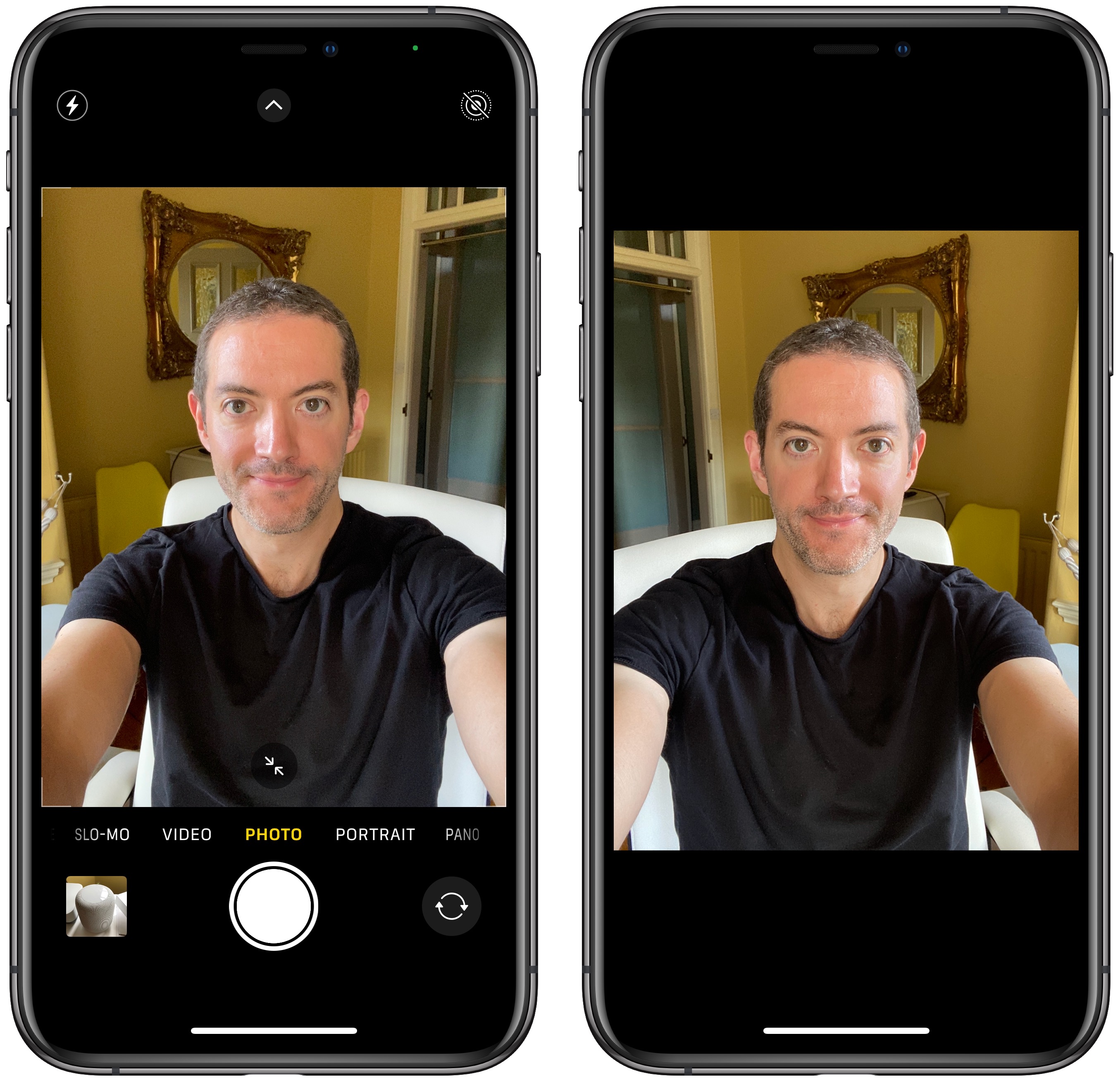
People invert the camera for true-to-life selfies, to match text in selfies, or for special effects. Sometimes the front camera shows a mirrored preview that differs from the saved photo. Knowing how to invert camera on iphone helps you control final images, avoid awkward mirrored text, and get consistent results for social posts and work. I’ll show simple and reliable ways to flip the camera view or saved photo depending on your goal.
How to invert camera on iphone — 3 reliable methods
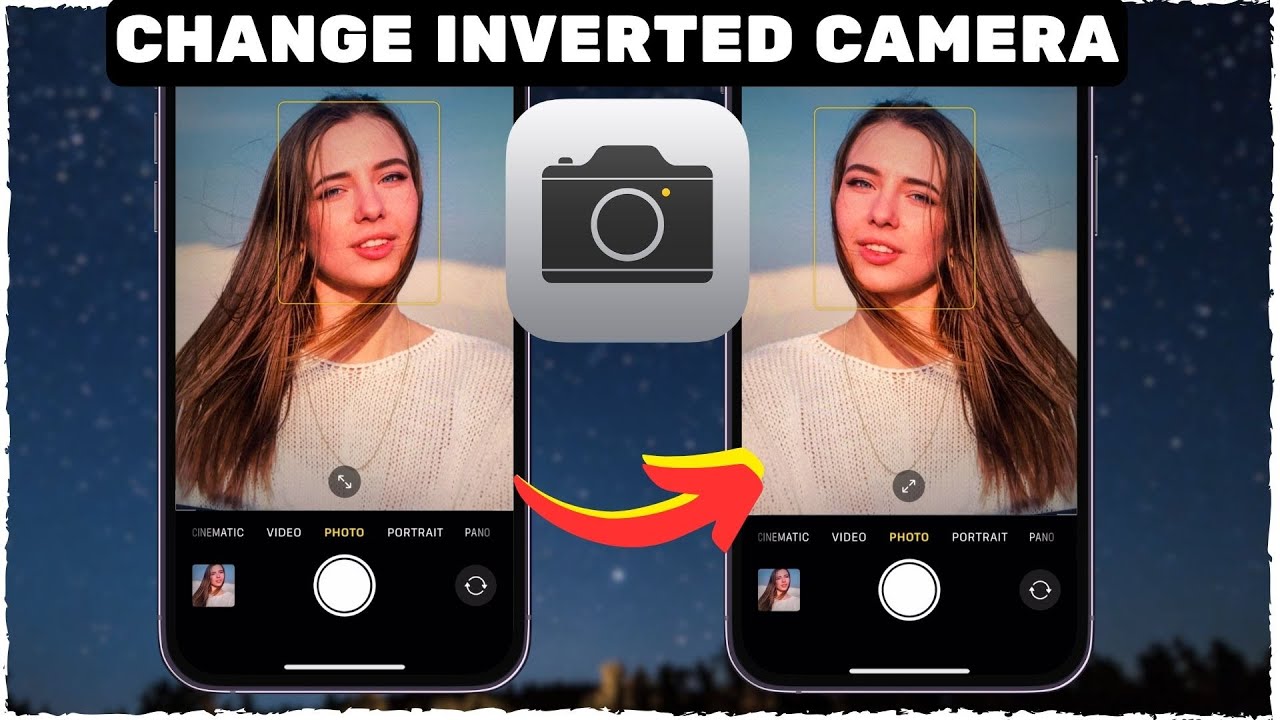
Here are three easy paths to invert camera on iphone. Choose one based on whether you want a mirrored preview, an inverted saved image, or creative flips in post.
- Use the built-in Mirror Front Camera setting in Camera options for selfies.
- Use Accessibility Display options like Smart Invert for a full-screen visual invert.
- Use a photo app or quick edit to flip an image after you shoot.
Each method solves a different need. I’ll walk through them step by step so you can pick the right one for your phone and habit.
Method 1: Mirror the front camera preview in Settings
This is the best method when you want selfies to match the preview.
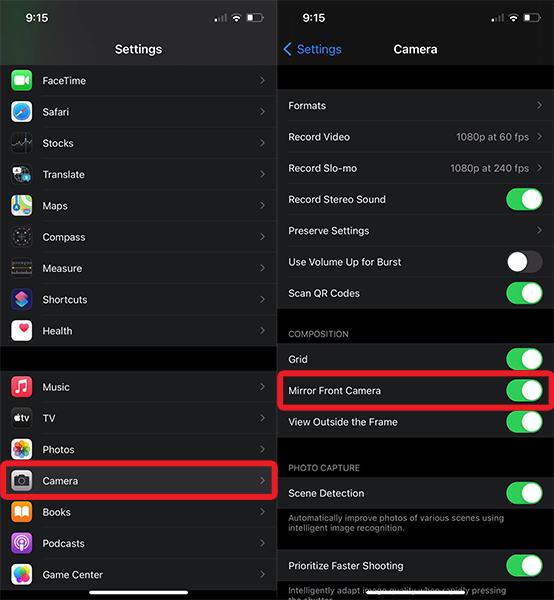
- Open Settings.
- Scroll to Camera and tap it.
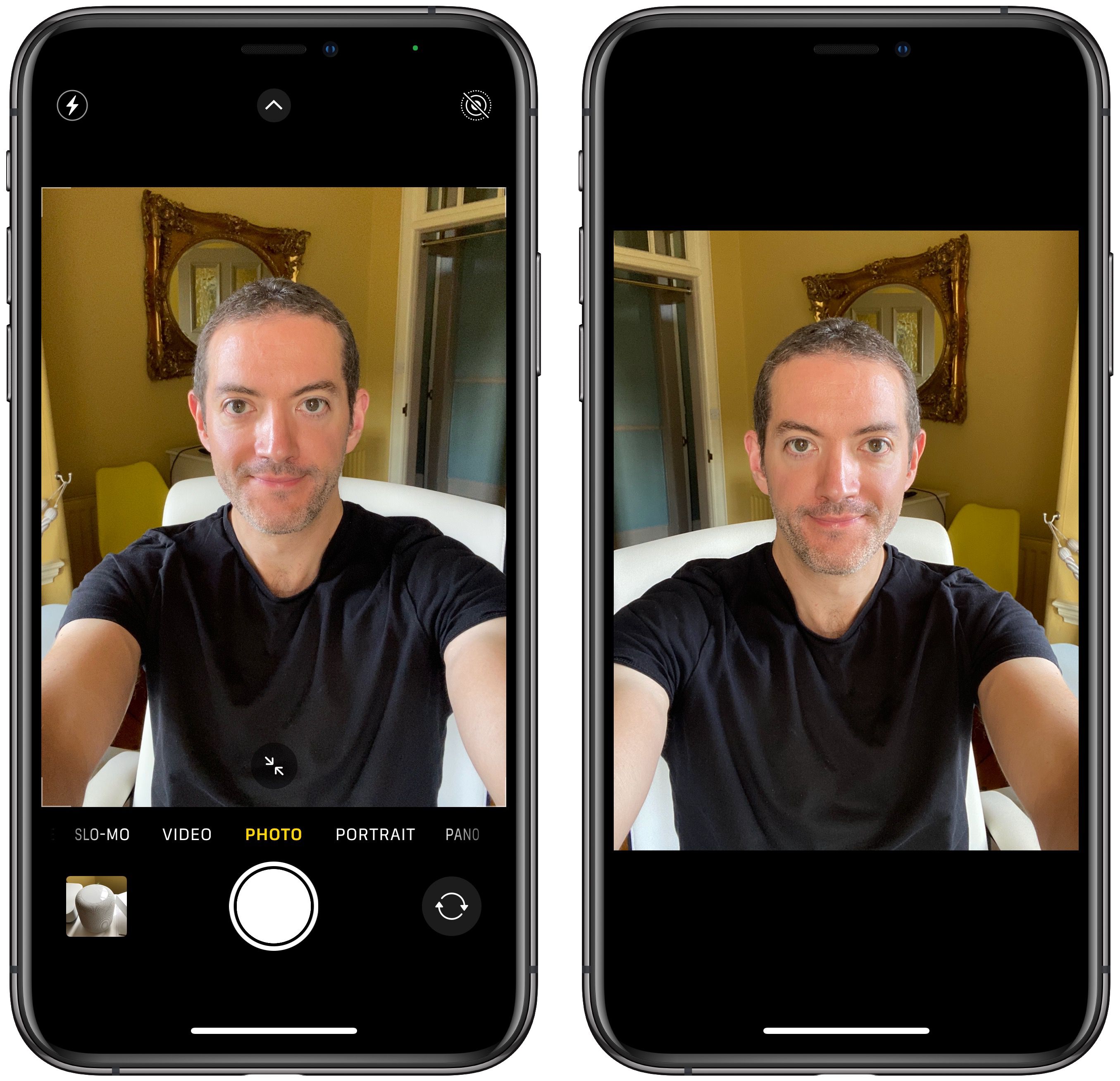
- Turn on Mirror Front Camera. This makes the saved selfie match the preview.
- Open the Camera app and take a selfie to confirm.
If you want how to invert camera on iphone only for selfies, this is the cleanest way. It preserves quality and needs no extra apps. Note that some older iOS versions label this “Mirror Front Camera” inside the Camera settings. If you don’t see it, update iOS.

Method 2: Use Accessibility to invert display or colors
Accessibility is useful when you want a visual invert for the screen rather than only saved photos.
- Open Settings, tap Accessibility.
- Tap Display & Text Size.
- Toggle Smart Invert to flip most colors while keeping images intact, or Classic Invert to flip everything.
- To make this quick to switch, add Accessibility Shortcut at the bottom of the Accessibility screen and select Invert Colors.
This approach changes the on-screen view. Use it when you need how to invert camera on iphone during live recording or when shooting video and you want an inverted preview. Remember, Smart Invert aims to keep photos from being reversed, while Classic Invert flips all pixels.
Method 3: Use third-party apps or edit to flip images after shooting
If you prefer editing after the fact, many apps let you flip photos precisely.
- Open Photos, tap Edit, choose Crop, then tap the flip icon to mirror horizontally.
- Or use apps like Snapseed, Lightroom, or a dedicated mirror app to flip images and save presets.
- For video, use apps that support reversing or mirroring video layers before export.
This method is great when you want creative control. If you often need how to invert camera on iphone for older photos or video clips, editing gives the most options. It also keeps original images intact while letting you save flipped copies.

Troubleshooting, limits, and practical tips
If the Mirror Front Camera setting isn’t available, update iOS. Some very old iPhones may not support the in-app mirror option. Smart Invert may not work perfectly with every app. Third-party apps sometimes compress files, so export settings matter.
Tips I use in daily work:
- Test a selfie after changing a setting so you know the result.
- Use the flip edit for pictures with text to ensure legibility.
- Keep originals. When editing, save a copy so you don’t lose the raw shot.
These checks help you use how to invert camera on iphone without surprises.
Personal experience and lessons learned
I tested these methods on multiple iPhones over time. Turning on Mirror Front Camera fixed most selfie complaints in a snap. Accessibility invert was handy during quick demos and made it easy to show students a flipped preview. I once lost image quality by exporting from a cheap mirror app — lesson learned: use trusted editors and check export resolution.
If you try how to invert camera on iphone, start with Settings first, then move to apps only if you need special effects.
Frequently Asked Questions of how to invert camera on iphone
How do I mirror my selfie so the saved photo matches the preview?
Open Settings > Camera and enable Mirror Front Camera. Take a selfie to confirm it now saves as you saw it in preview.
Can I invert the camera view for video recording?
Use Smart Invert or a third-party video app that supports mirroring. For saved video, edit in an app that flips or mirrors video layers.
Will inverting the screen affect other apps?
Classic Invert flips all colors system-wide. Smart Invert is gentler but may still affect some apps. Use the Accessibility Shortcut to toggle quickly.
Does flipping an image reduce photo quality?
Simple flips inside Photos or in reputable apps do not reduce quality. Some third-party apps may compress images, so check export settings.
Why does text appear reversed in my selfies?
A front-camera preview is often mirrored by design. To avoid reversed text, enable Mirror Front Camera or flip the image in edit before sharing.
Is there a quick shortcut to switch invert modes?
Yes. Go to Settings > Accessibility > Accessibility Shortcut and add Invert Colors. Triple-click the side or Home button to toggle.
Conclusion
You now have clear, tested ways to control how your iPhone shows and saves flipped images. Try Settings first for selfies, use Accessibility for live visual changes, and edit with trusted apps when you need precision. Put these tips into action: flip a selfie, test a video, and save a copy so you can compare. If this helped, share your results, subscribe for more tips, or leave a comment with your device model and iOS version so I can offer targeted advice.

Jamie Lee is a seasoned tech analyst and writer at MyTechGrid.com, known for making the rapidly evolving world of technology accessible to all. Jamie’s work focuses on emerging technologies, product deep-dives, and industry trends—translating complex concepts into engaging, easy-to-understand content. When not researching the latest breakthroughs, Jamie enjoys exploring new tools, testing gadgets, and helping readers navigate the digital world with confidence.