A solid state drive (SSD) is a fast, durable storage device that uses flash memory.
I’ve spent years building and repairing PCs and servers, so I know storage matters. This article answers what is solid state drive ssd with clear, practical detail. You’ll learn how SSDs work, the types you’ll see, real-life benefits and limits, buying tips, and easy steps to install and maintain one. Read on to make smart storage choices and avoid common mistakes.

What is solid state drive SSD? Definition and basics
A solid state drive SSD is a storage device. It stores data using flash memory chips rather than moving parts. That makes SSDs faster, quieter, and more reliable than traditional hard disk drives. The phrase what is solid state drive ssd ties to how people search for an easy definition. Think of an SSD as a thumb drive that works like a high-speed warehouse for your files and apps.
Key simple facts:
- Stores data on NAND flash memory chips.
- No spinning disks or read/write heads.
- Offers much faster boot and app load times than HDDs.
- Comes in different form factors and interfaces.
Why this matters: if you ask what is solid state drive ssd because you want speed and reliability, SSDs deliver that in most everyday and professional uses.
How a solid state drive SSD works
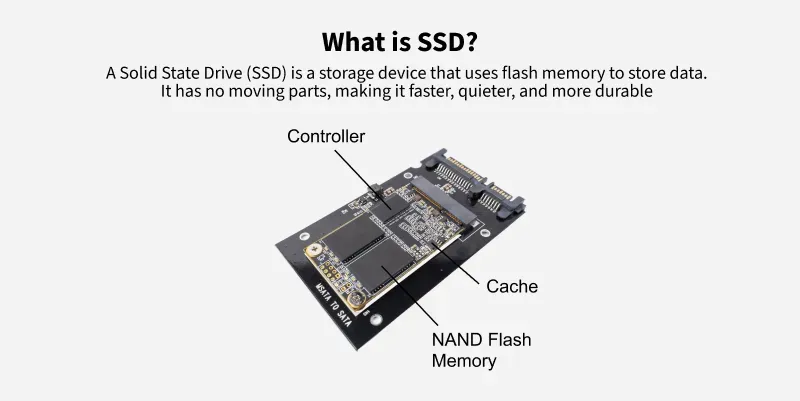
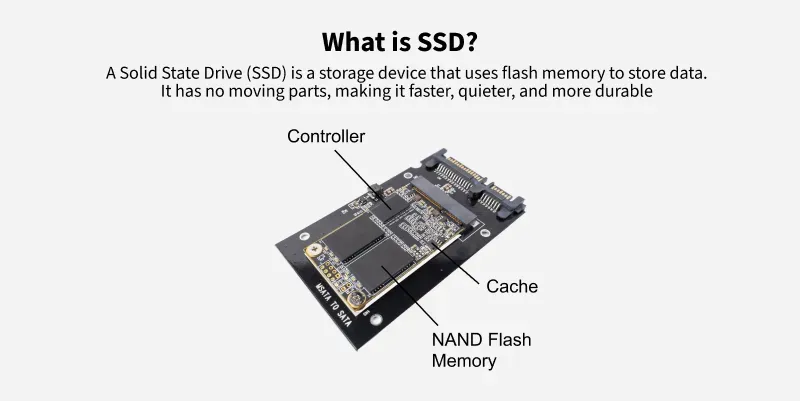
A solid state drive SSD keeps bits in cells on microchips. Each cell holds one or more bits depending on the technology. A controller on the drive manages read and write tasks. Firmware handles wear leveling and error correction to extend life and keep data safe.
Basic process:
- Data is written to flash memory cells.
- Controller maps logical addresses to physical chips.
- Wear-leveling spreads writes across cells.
- TRIM commands help maintain long-term performance.
People also ask (quick PAA answers):
- What is solid state drive ssd speed like? SSDs are much faster than HDDs for reads and writes, especially for small files.
- How reliable is a solid state drive ssd? Modern SSDs are reliable for daily use, though they do have finite write cycles.
- Does a solid state drive ssd need power to keep data? No. SSDs retain data without power.

Types of solid state drive SSDs
There are many types of SSDs. Each type fits different devices and uses.
Common types:
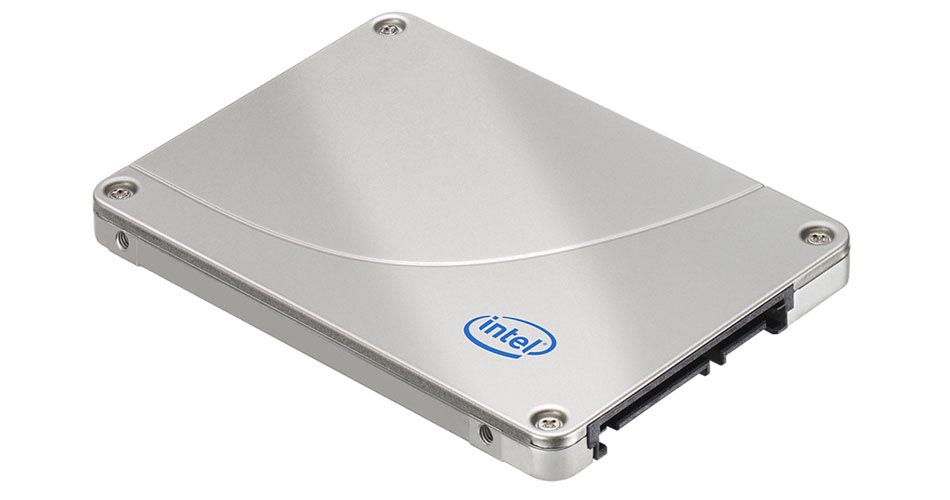
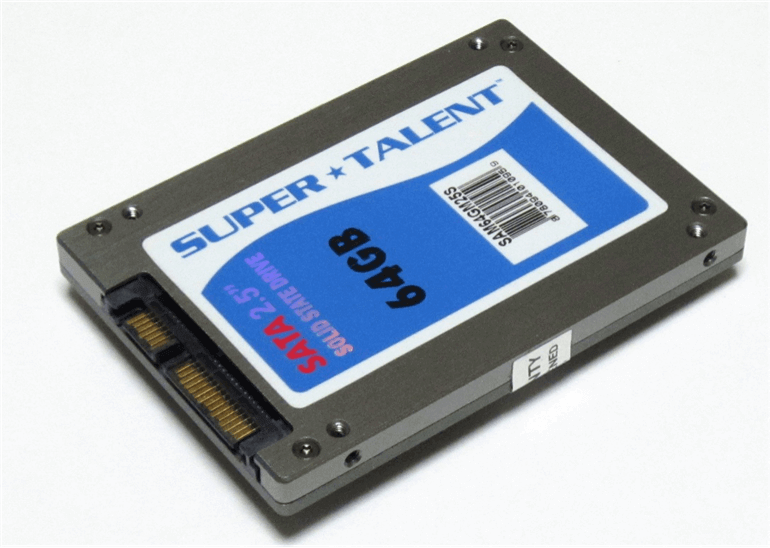
- SATA SSDs: Use the SATA interface. Good upgrade for older laptops and desktops. Offer big speed gains over HDDs.
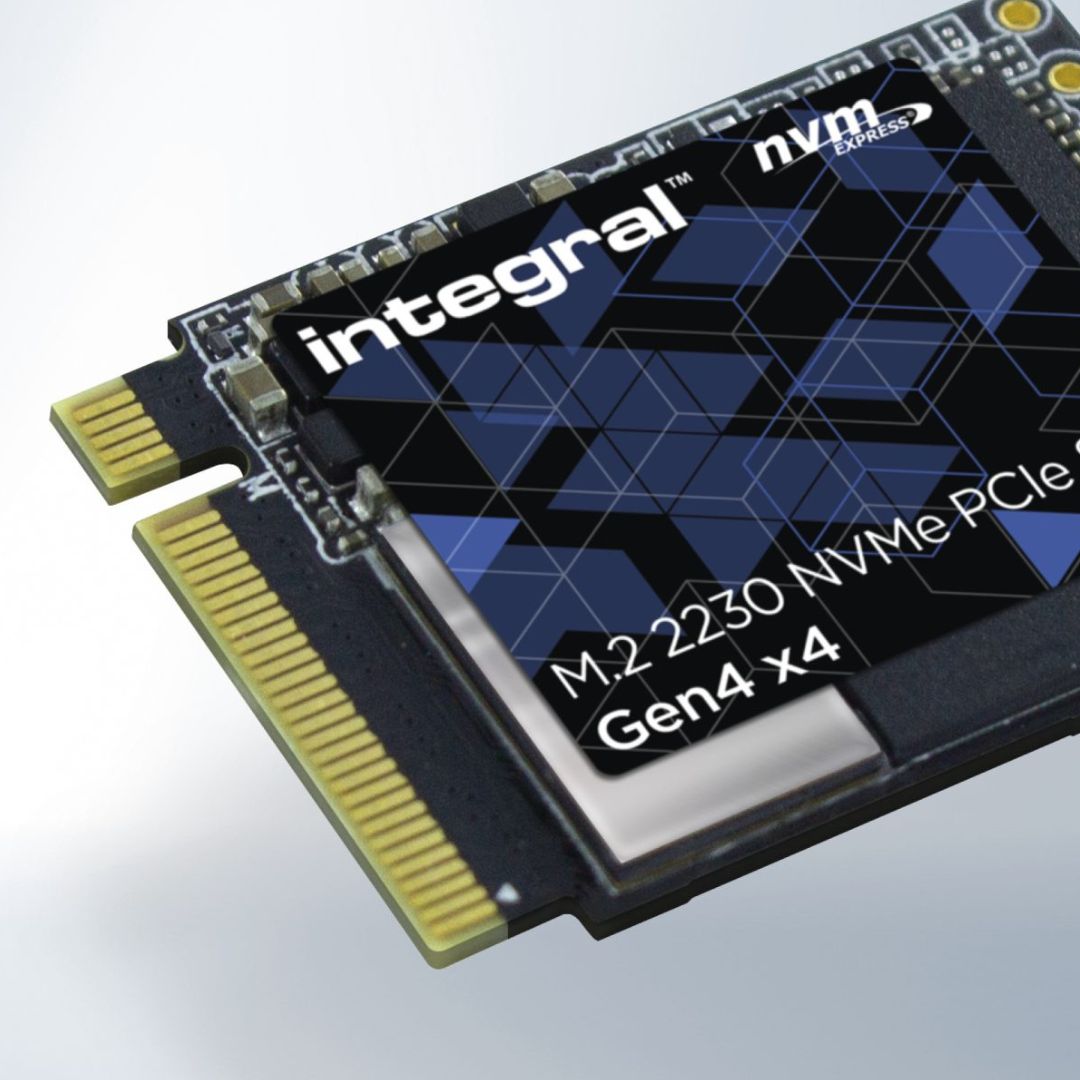
- NVMe SSDs: Use the PCIe bus and the NVMe protocol. Much faster than SATA SSDs. Ideal for gaming and heavy workloads.
- M.2 SSDs: A small form factor that can use SATA or NVMe. Fits modern laptops and compact desktops.
- PCIe add-in SSDs: Plug into a motherboard slot. Used in high-end workstations and servers.
When you wonder what is solid state drive ssd in practical terms, choose a type that fits your device and budget.
Benefits of a solid state drive SSD
SSDs bring clear, everyday benefits. They improve speed, reliability, and user experience.
Major benefits:
- Speed: Faster boot, app load, and file transfer times.
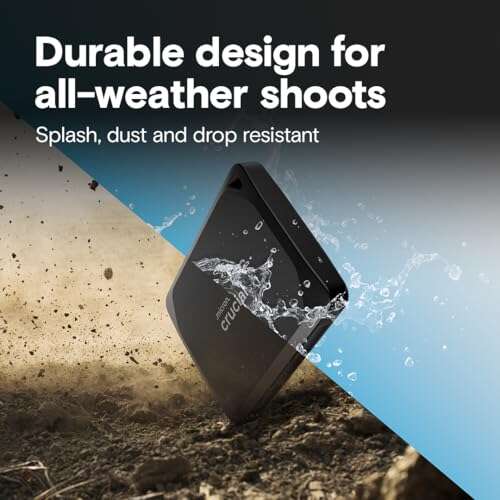
- Durability: No moving parts, so less risk from drops or vibration.
- Low power: Better battery life for laptops.
- Quiet operation: No spinning disks or motor noise.
- Compact size: Good for thin laptops and small builds.
I once swapped an HDD for an SSD in an old laptop. Boot time dropped from two minutes to 20 seconds. That felt like getting a new machine. If you want snappy performance, a solid state drive ssd is often the best upgrade for the money.
Limitations and lifespan of a solid state drive SSD
SSDs are great, but not perfect. They have limits you should know.
Main limitations:
- Finite write cycles: Flash cells wear out after many writes.
- Cost per gigabyte: More expensive than HDDs for high capacity.
- Data recovery: Can be harder after failure than HDD recovery.
- Performance drops when full: SSDs slow if nearly full or not trimmed.
Lifespan tips:
- Check the TBW (terabytes written) rating when buying.
- Use the drive’s SMART tools to track health.
- Keep 10–20 percent free space for best performance.
From my experience, modern consumer SSDs last many years for normal users. Heavy write workloads in servers need enterprise-grade SSDs with higher endurance.
How to choose and buy a solid state drive SSD
Choosing an SSD is easier with clear priorities. Ask these questions first.
Decide on:
- Budget: How much will you spend per gigabyte?
- Capacity: Do you need 256 GB, 500 GB, 1 TB, or more?
- Interface: Does your device support SATA, M.2 NVMe, or PCIe?
- Endurance: Look for TBW and warranty length.
- Performance: Sequential and random read/write speeds matter for different tasks.
Buying checklist:
- Confirm your device’s slot type and size.
- Prefer NVMe for speed, SATA for budget upgrades.
- Get a brand with good firmware and warranty.
- Consider a larger capacity than you think you need.
When you research what is solid state drive ssd, balance cost and performance for your use case. I recommend at least 500 GB for general users today.

Installation, maintenance, and real-life tips
Installing an SSD is usually quick and simple. Here are practical steps and tips I use.
Installation steps:
- Back up your data first.
- Clone your old drive or do a fresh OS install.
- Secure the SSD in the correct slot or bay.
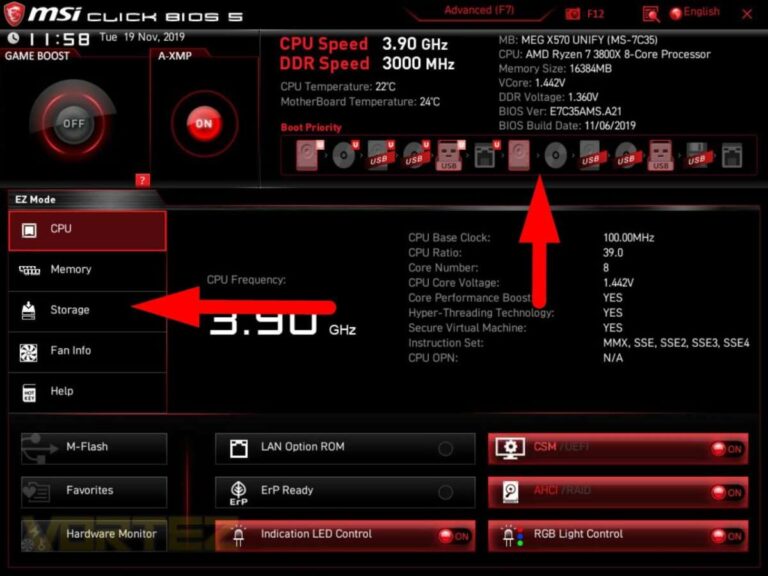
- Enable AHCI or NVMe support in BIOS if needed.
- Update the SSD firmware after install.
Maintenance tips:
- Enable TRIM in your OS.
- Do not defragment an SSD; that causes extra wear.
- Keep firmware up to date for stability and performance.
- Monitor health with the drive’s utility software.
Mistakes I made early on:
- Buying an M.2 NVMe drive without checking motherboard support.
- Filling an SSD to 95 percent and then wondering why it slowed.
- Skipping firmware updates that fixed bugs.
These real tips will help you avoid the same errors and get the most from your SSD.
Real-world use cases and examples
SSDs shine in many places. Here are common uses I see.
Use cases:
- Laptops: Faster startup and snappier apps.
- Gaming PCs: Shorter load times and quicker level streaming.
- Content creation: Faster file transfer and editing responsiveness.
- Servers and databases: High IOPS for many small reads/writes.
- External drives: Portable SSDs for fast backups and transfers.
Example: For a video editor, switching to an NVMe SSD cut render times by 30 percent. For a casual user, switching to a SATA SSD mostly improved day-to-day feel.
Cost vs value: Is a solid state drive SSD worth it?
Price matters. SSDs cost more per gigabyte than HDDs. But value depends on needs.
Considerations:
- If you want speed, SSDs deliver huge value.
- If you need mass storage for backups, HDDs still make sense.
- A hybrid approach often fits: SSD for OS and apps, HDD for cold storage.
If you ask what is solid state drive ssd to decide an upgrade, weigh speed gains against your budget. Often, a mid-range SSD gives the best balance.
Frequently Asked Questions of what is solid state drive ssd
What is solid state drive ssd and why choose it over HDD?
A solid state drive ssd uses flash memory instead of spinning disks. You choose it for much faster speed, lower power use, and better shock resistance.
How long does a solid state drive ssd last?
Modern SSDs typically last many years under normal use. Check the TBW rating and SMART data for a clearer estimate.
Can I replace my laptop HDD with an SSD?
Yes. Most laptops accept SATA or M.2 SSDs. Back up data and confirm the drive form factor first.
Do SSDs fail without warning?
They can fail, but many show SMART warnings before failure. Regular backups remain essential.
Is an NVMe SSD worth the extra cost?
For heavy tasks and gaming, NVMe is worth it. For basic web use, SATA SSDs often suffice.
Will installing an SSD improve battery life?
Yes, SSDs use less power than HDDs, which can improve battery life slightly in laptops.
Can I use an SSD as external storage?
Yes. External SSDs are fast and portable, though more expensive than external HDDs.
Conclusion
Solid state drives have changed how we use computers. They answer what is solid state drive ssd by delivering fast, quiet, and reliable storage for a wide range of users. Choose the right type, follow simple install steps, and monitor drive health to get years of strong performance. Try upgrading a daily machine to an SSD and feel the difference yourself. Share your experience below, subscribe for more guides, or ask a question if you need help choosing the right SSD.

Jamie Lee is a seasoned tech analyst and writer at MyTechGrid.com, known for making the rapidly evolving world of technology accessible to all. Jamie’s work focuses on emerging technologies, product deep-dives, and industry trends—translating complex concepts into engaging, easy-to-understand content. When not researching the latest breakthroughs, Jamie enjoys exploring new tools, testing gadgets, and helping readers navigate the digital world with confidence.