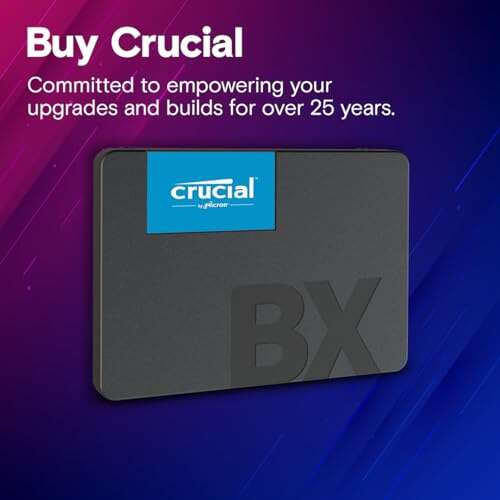
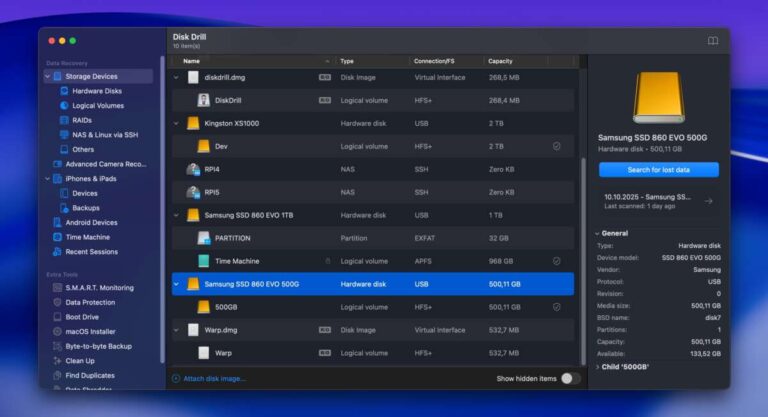
A solid state drive (SSD) stores data electronically for much faster laptop performance.
If you want a clear, confident answer to what is ssd in laptop, you’re in the right place. I’ve spent years building, upgrading, and testing laptops for work and personal projects, and I’ll walk you through what an SSD is, how it works, why it matters, and how to choose and install one. This guide covers everything from basic definitions to practical tips, real-world lessons, and step-by-step upgrade advice so you can make an informed decision and get the best performance from your laptop.
What is an SSD in a laptop?
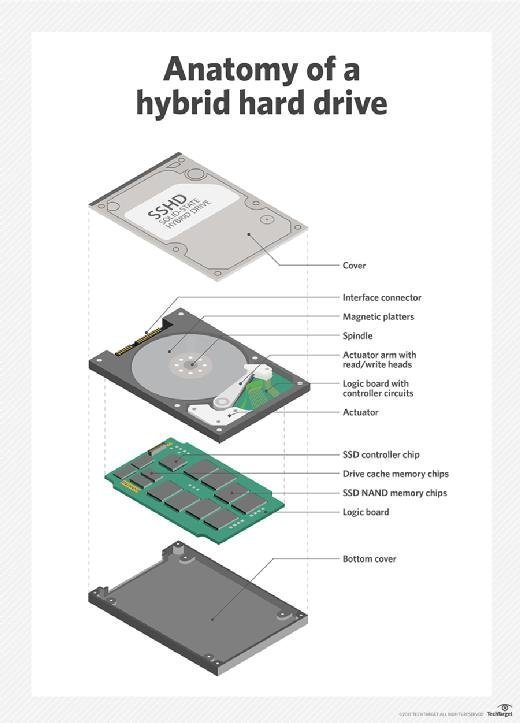
An SSD, or solid state drive, is a storage device that uses flash memory instead of spinning disks. When people ask what is ssd in laptop, they mean the main storage that holds your operating system, apps, and files, but works much faster than a hard drive. SSDs read and write data electronically, which gives faster boot times, quicker app loading, and a snappier overall experience. They are lighter, quieter, and more resistant to physical shock than traditional hard drives.
Types of SSDs used in laptops
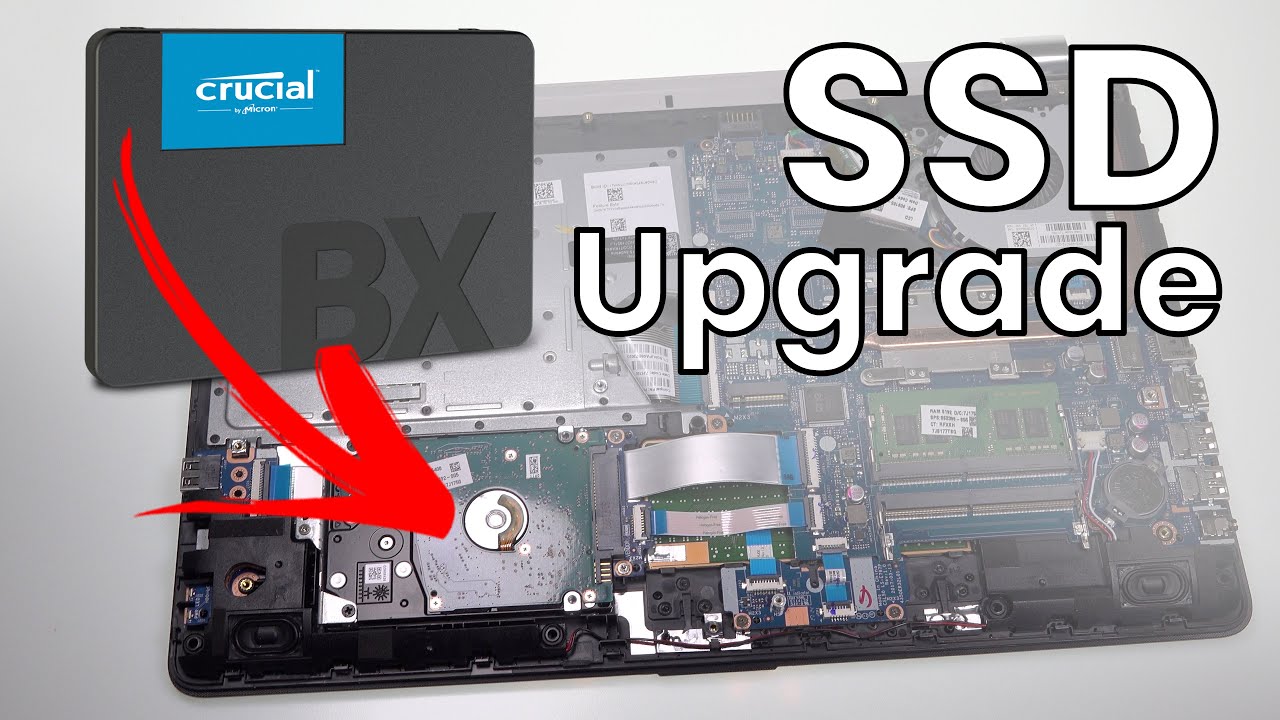
There are several SSD types and form factors you’ll find in laptops. Choosing the correct one matters when answering what is ssd in laptop for your model.
- SATA SSD — Uses the SATA interface and 2.5-inch or mSATA form factor. It’s widely compatible and much faster than HDDs, but slower than NVMe.
- M.2 SATA — Small, stick-shaped SSD. Same speed limits as SATA but in a compact form.
- M.2 NVMe (PCIe) — Uses the PCIe bus and NVMe protocol for much higher speeds. Common in modern laptops for best performance.
- U.2 and PCIe add-in — Rare in consumer laptops, more common in workstations and servers.
If you’re unsure which your laptop supports, check the laptop manual or use an online spec lookup. Matching the physical slot and interface avoids compatibility problems.

Benefits of using an SSD in a laptop
Switching to or buying a laptop with an SSD delivers clear, practical benefits.
- Speed — Faster boot, app launches, file transfers, and smoother multitasking.
- Reliability — No moving parts means less chance of mechanical failure from drops or bumps.
- Battery life — Lower power draw in many workloads, which can extend unplugged time.
- Quiet operation — No spindle noise or audible vibrations.
- Compactness — Smaller physical size lets manufacturers build thinner laptops.
From a real-world standpoint, I saw a 40–60% reduction in time to boot and app load on machines I upgraded from HDD to SSD. That kind of responsiveness makes daily work noticeably better.

Limitations and considerations
SSDs are powerful, but they have trade-offs you should know about.
- Cost per gigabyte — SSDs are pricier than HDDs for the same capacity.
- Write endurance — Flash memory cells wear over time; modern SSDs still last many years for typical users.
- Capacity limits — High-capacity SSDs cost more, so large media collections may require external storage.
- Compatibility — Older laptops may lack NVMe or M.2 slots, limiting upgrade options.
- Data recovery — Recovering data from a failed SSD can be more difficult and expensive than from HDDs.
Be transparent: while SSDs are durable, they aren’t immune to failure. Always back up important files.
How to choose the right SSD for your laptop
Picking the right SSD boils down to matching physical fit, interface, and the performance you need.
- Check form factor — 2.5-inch, M.2 (2280, 2242), or proprietary slot.
- Confirm interface — SATA or NVMe (PCIe) support on your laptop.
- Capacity needs — 256 GB for light use, 512 GB to 1 TB for most users, 2 TB+ for heavy media or projects.
- Performance ratings — Look at sequential read/write and random IOPS for real-world speeds.
- Endurance and warranty — TBW (terabytes written) and warranty length indicate longevity.
Personal tip: I usually recommend a 1 TB NVMe drive for power users and a 512 GB NVMe for most people. That balance offers speed and space without overspending.

Installing or upgrading an SSD in your laptop
Upgrading often takes 20–60 minutes, depending on the laptop. Here’s a safe, general process.
- Back up your data — Use an external drive or cloud backup.
- Check laptop compatibility — Confirm the slot type and interface.
- Prepare imaging tools — Use cloning software if you want to transfer your OS and files.
- Power down and remove battery if possible — Safety first.
- Open the access panel — Remove the old drive or insert the new M.2 module.
- Secure the SSD and reassemble — Tighten screws securely but not overly tight.
- Boot and check BIOS/UEFI — Confirm the SSD is detected and set as the boot drive.
- Install drivers and firmware updates — For peak performance and reliability.
From experience, cloning saves time, but a fresh OS install often yields cleaner performance. If you plan to clone, verify partitions and alignment after cloning to avoid performance drops.
Performance tips and maintenance for SSDs
Keeping an SSD healthy is simple and mostly automated. Follow these steps for long life and steady speed.
- Enable TRIM — Helps the drive manage unused space and sustain speed.
- Keep firmware updated — Manufacturers release fixes and performance improvements.
- Avoid defragmentation — It’s unnecessary and can cause extra writes.
- Monitor drive health — Use S.M.A.R.T. tools to check temperature and wear.
- Maintain free space — Leave 10–20% free to let the SSD manage performance.
I check SSD health every few months and install firmware updates when available. That habit has prevented degradation and unexpected slowdowns on machines I manage.
Cost and value: Is upgrading to SSD worth it?
For most users, upgrading or buying a laptop with an SSD is worth it. The performance boost affects everyday tasks most people do: browsing, editing documents, coding, and media playback. The cost premium has dropped over time, making SSDs accessible.
- Budget buyer — A SATA SSD still provides excellent value vs. HDD.
- Power user — NVMe SSDs justify the extra cost with clear time savings.
- Large storage needs — Combine SSD for system/apps and an external or cloud HDD for archives.
Think of an SSD upgrade like paying for a better coffee machine: you get a faster, smoother daily experience that pays back in productivity and reduced frustration.
Frequently Asked Questions of what is ssd in laptop
What is the main difference between SSD and HDD?
An SSD uses flash memory to store data, while an HDD uses spinning disks and a moving head. This makes SSDs faster, quieter, and more shock-resistant than HDDs.
Will installing an SSD make my laptop faster?
Yes. Replacing an HDD with an SSD typically speeds up boot time, app launches, and file access significantly. The overall system feel becomes noticeably snappier.
Can I use any SSD in my laptop?
Not always. You must match the SSD form factor and interface (for example, M.2 NVMe vs. 2.5-inch SATA) that your laptop supports. Check your laptop manual or specs before buying.
How long does an SSD last in a laptop?
Modern SSDs usually last many years under normal use, often outlasting the laptop itself. Drive lifespan depends on write volume, but most consumer SSDs are rated for hundreds of terabytes written.
Do SSDs need special maintenance?
Minimal maintenance is required: keep TRIM enabled, update firmware occasionally, and back up data. Avoid defragmenting the drive, as that can add unnecessary wear.
Can I clone my old drive to a new SSD?
Yes, many cloning tools allow you to copy your OS and files to a new SSD. Cloning works well, but a fresh install may give cleaner performance for complex systems.
Conclusion
An SSD in a laptop replaces mechanical storage with fast, reliable flash memory that transforms everyday performance. Understanding what is ssd in laptop helps you pick the right drive, perform a safe upgrade, and maintain it for long life. If your laptop still has an HDD, upgrading to an SSD is one of the most noticeable and cost-effective improvements you can make. Take action: check your laptop’s compatibility, back up your data, and consider an SSD upgrade to enjoy faster, quieter computing — then share your experience or questions below to keep the conversation going.

Jamie Lee is a seasoned tech analyst and writer at MyTechGrid.com, known for making the rapidly evolving world of technology accessible to all. Jamie’s work focuses on emerging technologies, product deep-dives, and industry trends—translating complex concepts into engaging, easy-to-understand content. When not researching the latest breakthroughs, Jamie enjoys exploring new tools, testing gadgets, and helping readers navigate the digital world with confidence.