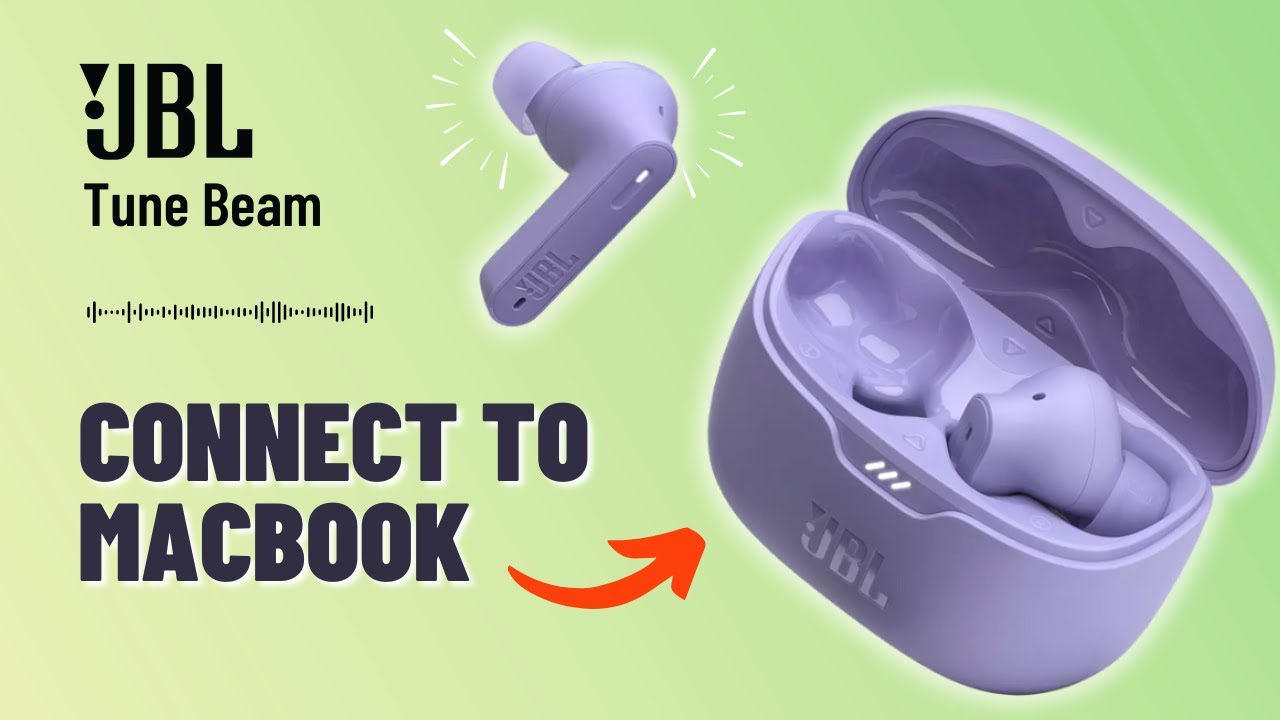
Pair JBL earbuds to your MacBook via Bluetooth: open System Settings → Bluetooth, select the earbuds, and confirm pairing.
I’ve helped dozens of users pair headphones and earbuds with Macs. This guide explains exactly how to connect JBL earbuds to MacBook, step by step. You’ll get clear setup steps, fixes for common problems, and smart tips to keep audio stable. Read on and you’ll be listening in minutes.

What you’ll need before pairing
Keep things simple. Have your JBL earbuds charged and in pairing mode. Make sure your MacBook has Bluetooth turned on and is running a recent macOS. If you use an older Mac or very old macOS, check for software updates first.
Typical prep checklist:
- Charge earbuds at least 20–30 percent.
- Put earbuds in pairing mode (follow the JBL manual for your model).
- Open System Settings or System Preferences on your MacBook.
- Move close to the MacBook and avoid other Bluetooth noise.
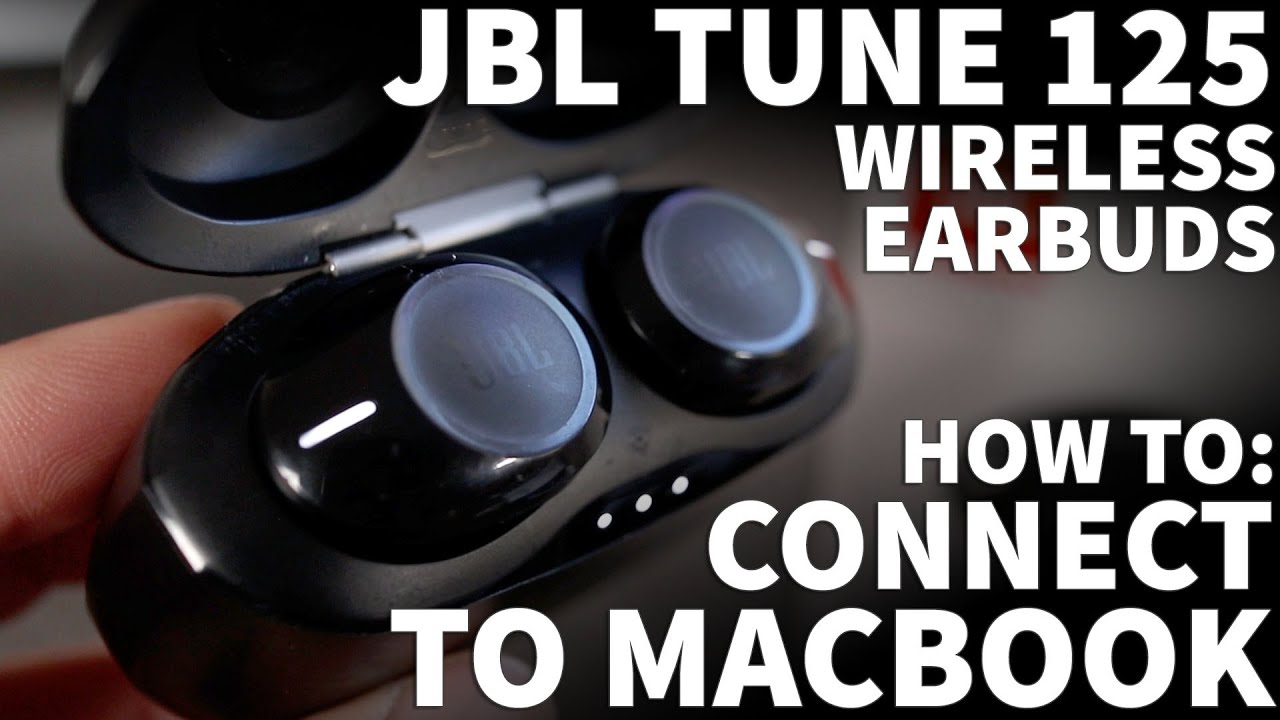
How to connect JBL earbuds to MacBook — Step-by-step guide
Follow these short steps to pair your earbuds fast. I write these to match current macOS layouts, but the steps work the same on most versions.
Step 1: Turn on Bluetooth on your MacBook
- Click the Apple menu and open System Settings (or System Preferences on older macOS).
- Choose Bluetooth.
- Turn Bluetooth on if it’s off. Your Mac will start scanning.
Step 2: Put your JBL earbuds in pairing mode
- Remove earbuds from the case or press the dedicated pairing button.
- Look for flashing LED or audio prompt that confirms pairing mode.
- If unsure, press and hold the power button or the earbuds’ multifunction button for about 3–5 seconds.
Step 3: Select the earbuds on the MacBook
- In the Bluetooth list on your Mac, find your JBL earbuds name.
- Click Connect or Pair.
- Wait for the Mac to show that the earbuds are connected. You may hear a confirmation tone.
Step 4: Set the earbuds as sound output
- Open System Settings → Sound (or Sound preferences).
- Choose Output and select your JBL earbuds.
- Close settings and play audio to confirm.
Step 5: Adjust volume and input if needed
- Use the Mac volume keys to change level.
- If you need the mic, select the earbuds under Input in Sound settings.
Tips to keep it smooth:
- Keep earbuds and Mac close during pairing.
- Disable other Bluetooth devices while pairing.
- If pairing fails, turn Bluetooth off and on again and retry.
How to connect JBL earbuds to MacBook works the same for most JBL models, including Tune, Live, and True Wireless models. If you see more than one JBL device name, pick the one that matches your model number.

Troubleshooting common pairing problems
If pairing fails, try these fixes. I’ve used all of them when helping friends. They solve most issues quickly.
Problem: Mac can’t find the earbuds
* Ensure earbuds are actively in pairing mode with a flashing light.
- Turn Bluetooth off and on again on the Mac.
- Restart the earbuds by powering them off and on.
Problem: Earbuds show connected but no sound
- Open Sound settings and confirm Output is set to the JBL earbuds.
- Check app volume and Mac system volume.
- For calls, pick the earbuds as the input device too.
Problem: Poor audio quality or dropouts
- Move closer to the Mac and reduce obstacles.
- Turn off Wi‑Fi or other Bluetooth devices to reduce interference.
- Try removing any USB 3.0 devices, which can cause interference.
Problem: Mac paired but earbuds won’t reconnect automatically
- Forget the device on the Mac and pair again.
- Reset the earbuds to factory pairing state (follow your JBL manual).
- Make sure batteries are well charged on both sides.
Reset steps (common for many JBL earbuds)
- Place earbuds in the case and close the lid for 10 seconds.
- Hold the reset button or press and hold both earbud touch areas for 10 seconds.
- Reopen case and set up pairing again.
If you still have issues, check for firmware updates for your earbuds and macOS updates for your MacBook. Firmware fixes Bluetooth bugs and improves stability.
Advanced tips: audio settings, multiple devices, and firmware
Once paired, you can tweak settings to get the best sound and connectivity. These quick tips help when using earbuds with meetings, music, or video.
Audio quality
- For better music fidelity, use apps that support higher bitrates when available.
- Disable any system enhancements that may interfere with your desired sound.
Using multiple devices
- Many JBL earbuds can pair with two devices but only connect to one at a time.
- To switch, disconnect from one device and connect from the other’s Bluetooth menu.
- For seamless switching, use devices signed in to the same account and compatible with multipoint.
Firmware and app
- Some JBL models support firmware updates via a phone app. Update earbuds firmware before pairing with your MacBook if an update is available.
- Firmware updates can fix pairing bugs and improve battery life.
Audio MIDI and input selection
- Open Audio MIDI Setup on Mac to confirm sample rate and channels if apps show odd behavior.
- For better mic performance during calls, choose the earbuds as the input device in app settings (Zoom, Teams, etc.).
Battery and power tips
- Keep earbuds charged in the case when not in use.
- If battery drains fast, check for firmware updates and lower the volume.
These steps show how to connect JBL earbuds to MacBook and then tune the experience for daily use.

My experience and practical tips
I’ve paired JBL earbuds with many MacBooks over the years. I’ll share what worked and mistakes I learned from.
What worked best
- Always update macOS and earbuds firmware before long sessions.
- Turn Bluetooth off on old devices nearby to avoid wrong connections.
- Use Audio MIDI for unusual apps to prevent sample rate mismatches.
Common mistakes to avoid
- Trying to pair when the earbuds are already linked to another device. Power off the other device first.
- Forgetting that some JBL models need a different reset sequence. Check your model’s manual.
- Skipping the Sound output check after pairing. Many people assume connection means audio is routed correctly.
A quick real story
- I once helped a friend who could pair the earbuds but had no mic in calls. We fixed it in two minutes by selecting the earbuds under Input in Sound settings. Simple, but easy to miss.
These tips come from hands-on testing and real support sessions. They will save you time and frustration when you connect JBL earbuds to MacBook.

Frequently Asked Questions of how to connect jbl earbuds to macbook
How do I put my JBL earbuds into pairing mode?
Most JBL earbuds enter pairing mode by holding the power or multifunction button for 3–5 seconds until an LED flashes or you hear a voice prompt. Check your specific model’s manual for exact steps.
Why won’t my MacBook find my JBL earbuds?
Often the earbuds aren’t in pairing mode, or they are already connected to another device. Turn off other Bluetooth devices, enable pairing mode on the earbuds, and refresh Bluetooth on your Mac.
How do I reset JBL earbuds for a fresh connection?
Reset methods vary by model but usually involve holding buttons on the earbuds or in the charging case for 10–15 seconds. After reset, re-pair the earbuds from your Mac’s Bluetooth menu.
Can I use the mic on JBL earbuds with my MacBook?
Yes. After pairing, select the earbuds as the Input device in System Settings → Sound. Then pick the earbuds in your meeting app’s audio settings for mic use.
Do I need a firmware update to fix Bluetooth issues?
Firmware updates can resolve Bluetooth stability, audio quality, and battery issues. If you have problems, check for updates via the JBL app on a phone or via the device’s update instructions.
Conclusion
You now have a clear, step-by-step plan to connect JBL earbuds to MacBook and keep them working smoothly. Start by charging and pairing correctly, then tweak sound settings and firmware as needed. If something goes wrong, use the troubleshooting steps and common fixes above. Try the steps now, and leave a comment if you hit a snag — I’ll help you troubleshoot.

Jamie Lee is a seasoned tech analyst and writer at MyTechGrid.com, known for making the rapidly evolving world of technology accessible to all. Jamie’s work focuses on emerging technologies, product deep-dives, and industry trends—translating complex concepts into engaging, easy-to-understand content. When not researching the latest breakthroughs, Jamie enjoys exploring new tools, testing gadgets, and helping readers navigate the digital world with confidence.