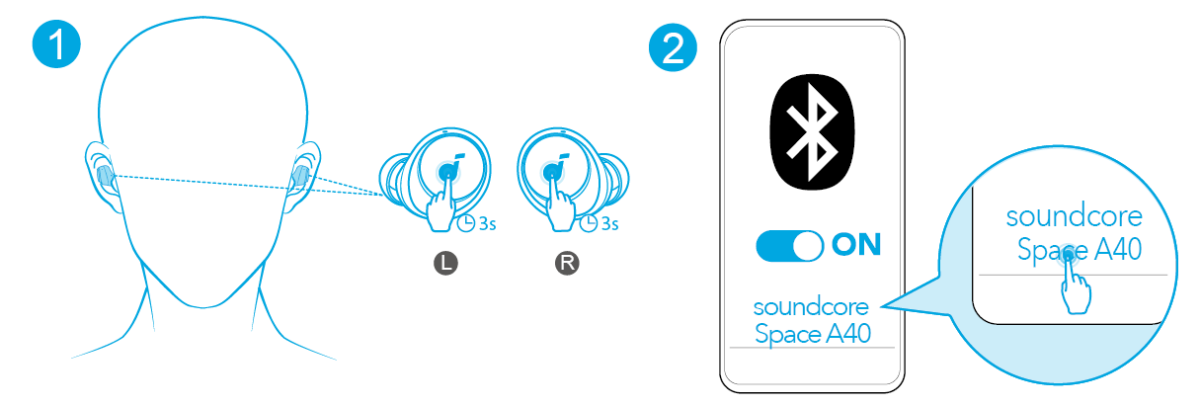
Open the Space A40 case, select Soundcore Space A40 in Bluetooth settings, and follow the pairing prompt.
Learning how to pair Soundcore A40 earbuds takes less than a minute once you know the correct steps. This guide explains first-time pairing, manual pairing, app setup, connection problems, device switching, and reset options so you can enjoy stable audio without guesswork.
What You Need Before Pairing Soundcore A40 Earbuds
Before you start, check a few simple things. Your earbuds and charging case should have enough power. Keep the earbuds close to your phone, tablet, or computer, ideally within a few feet.
The Soundcore Space A40 uses Bluetooth for wireless audio. Your device must have Bluetooth turned on, and the earbuds should not already be connected to another nearby device.
Make sure you have:
• Soundcore Space A40 earbuds and charging case
• A charged phone, tablet, or computer
• Bluetooth switched on
• The Soundcore app, if you want extra controls
• The earbuds within Bluetooth range
If the earbuds are brand new, remove any protective film from the charging contacts. This small step matters. If the film stays in place, the earbuds may not charge or wake correctly.

How to Pair Soundcore A40 Earbuds for the First Time
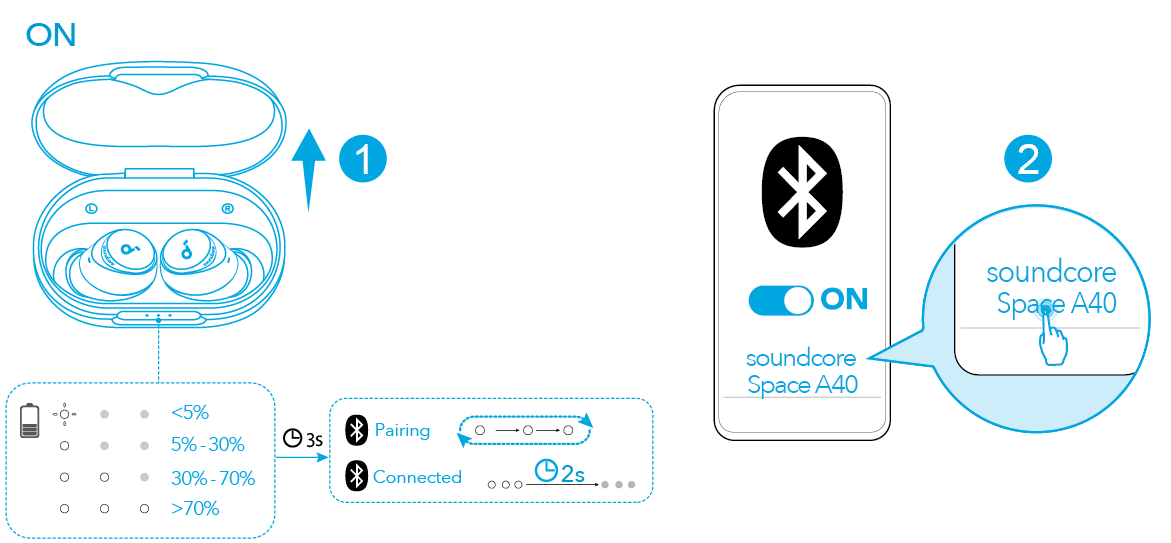
First-time pairing is usually automatic. The earbuds enter pairing mode when you open the case and take them out.
Follow these steps:
- Place both earbuds inside the charging case.
- Open the case lid.
- Remove both earbuds.
- Wait for the indicator lights to flash.
- Open Bluetooth settings on your device.
- Look for “Soundcore Space A40.”
- Tap the name to connect.
- Accept any pairing request that appears.
On an iPhone, open Settings, select Bluetooth, and choose Soundcore Space A40 under Other Devices. On Android, open Settings, tap Connected devices or Bluetooth, and select the earbuds from the available device list.
On a Windows PC, open Settings, select Bluetooth & devices, choose Add device, select Bluetooth, and click Soundcore Space A40. On a Mac, open System Settings, choose Bluetooth, and select Connect beside the earbuds.
After pairing, place both earbuds back in the case and remove them again. They should reconnect to the same device. This is a useful test because it confirms that the first connection was saved.
How to Pair Soundcore A40 Earbuds Manually
Sometimes the earbuds do not enter pairing mode by themselves. This can happen if they were connected to another phone or if the first setup was interrupted.
To pair Soundcore A40 earbuds manually:
- Put both earbuds in the charging case.
- Keep the case lid open.
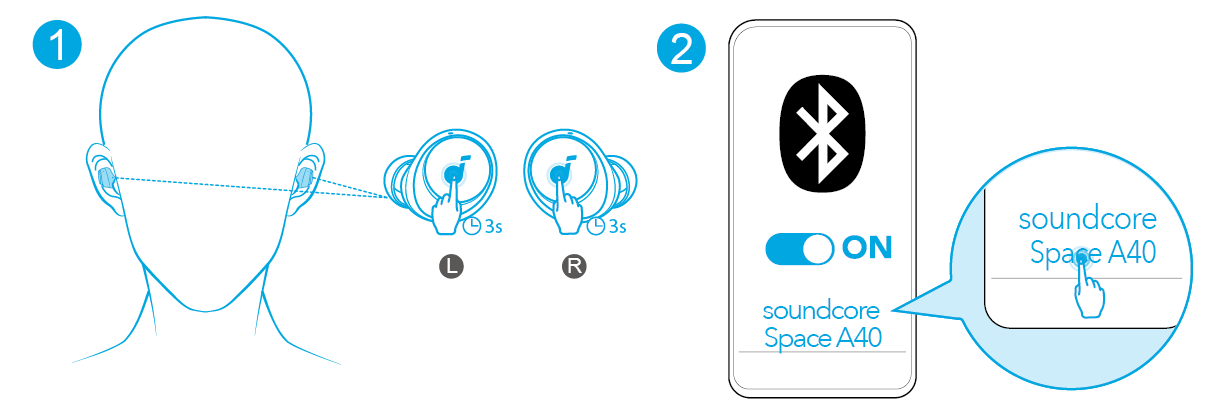
- Touch and hold both earbuds at the same time.
- Continue holding for about three seconds.
- Wait for the earbud lights to flash.
- Open Bluetooth settings on your device.
- Select Soundcore Space A40.
The flashing lights show that the earbuds are ready to connect. If you do not see the name, turn Bluetooth off and on again. You can also move away from other Bluetooth devices that may try to connect first.
Do not close the case during this process. Closing the case can stop the earbuds from entering pairing mode.
When I help troubleshoot wireless earbuds, this is one of the most common missed steps: users hold only one earbud. The Space A40 earbuds need both earbuds to enter manual pairing mode together.

How to Connect Soundcore Space A40 to the Soundcore App
The Soundcore app adds useful settings after the Bluetooth connection works. It can help you manage noise cancellation, transparency mode, equalizer settings, firmware updates, and touch controls.
Use this process:
- Download and open the Soundcore app.
- Sign in or continue as a guest if that option is available.
- Turn on Bluetooth.
- Connect the earbuds through your device’s Bluetooth menu first.
- Return to the Soundcore app.
- Choose Space A40 from the product list.
- Follow the on-screen setup steps.
Pairing through the phone’s Bluetooth menu first is often more reliable. The app does not replace the basic Bluetooth connection. Instead, it manages supported features after the earbuds are connected.
Keep the app updated. Firmware updates may improve performance, fix known bugs, or add support for newer functions. Do not remove the earbuds from the case during an update unless the app tells you to do so.
The exact app screens may change after an update. If a menu looks different, search for the Space A40 product page inside the app rather than repeating the entire Bluetooth setup.
How to Pair Soundcore A40 Earbuds With a Second Device
The Space A40 can remember multiple devices, but it normally connects to one active audio source at a time unless a supported multipoint feature is enabled and configured.
To connect a second device:
- Disconnect the earbuds from the first device.
- Put the earbuds into pairing mode.
- Open Bluetooth settings on the second device.
- Select Soundcore Space A40.
- Confirm the connection.
If your model and firmware support multipoint connection, enable it in the Soundcore app. Then you may be able to connect to two devices, such as a phone and laptop.
Multipoint can be useful for work. For example, music can play from your laptop while calls from your phone receive priority. However, the feature may behave differently across phones, computers, and operating systems.
If the second device cannot find the earbuds, remove or forget the Space A40 from the first device temporarily. This prevents the first device from taking control during setup.

How to Reconnect Soundcore A40 Earbuds Automatically
After the first successful pairing, Soundcore A40 earbuds should reconnect to the last device they used. Keep Bluetooth enabled and remove both earbuds from the case.
If automatic reconnection fails, try these steps:
• Keep the earbuds close to the device.
• Confirm Bluetooth is turned on.
• Check that the earbuds are not connected to another device.
• Open the Bluetooth menu and tap Soundcore Space A40.
• Restart Bluetooth on your phone or computer.
• Return the earbuds to the case, close the lid, and try again.
Automatic reconnection is not always instant. Some phones delay Bluetooth connections to save battery. Waiting a few seconds can solve the issue without a reset.
On Android, check whether the phone has restricted Bluetooth or the Soundcore app in the background. Battery-saving settings can limit how quickly the app detects the earbuds.
On a computer, make sure the Space A40 is selected as both the output and input device when needed. A computer may connect the earbuds for music but keep its built-in microphone selected for calls.
How to Fix Soundcore A40 Pairing Problems
Pairing problems usually come from an old Bluetooth record, low battery, another connected device, or earbuds that are not in pairing mode.
Try this troubleshooting order:
- Charge the case and earbuds for at least a short period.
- Turn Bluetooth off, wait a few seconds, and turn it back on.
- Forget or remove Soundcore Space A40 from your device.
- Place both earbuds in the open case.
- Hold both earbuds for about three seconds to enter pairing mode.
- Search for the earbuds again.
- Restart your phone, tablet, or computer if needed.
To forget the earbuds on most devices, open Bluetooth settings, tap or click the settings icon beside Soundcore Space A40, and choose Forget, Remove, or Unpair.
Check the charging contacts if one earbud does not respond. Dirt, skin oil, or moisture can block the connection between the earbud and case. Wipe the contacts gently with a clean, dry cotton swab. Do not pour liquid into the case.
Bluetooth interference can also affect pairing. Wi-Fi routers, crowded offices, cars, game consoles, and other wireless accessories may create a busy signal environment. Moving to another room can reveal whether interference is the real cause.

How to Reset Soundcore A40 Earbuds
Reset the earbuds when they refuse to pair, connect to the wrong device, or show unusual left-and-right behavior. A reset clears stored Bluetooth pairing information, so you will need to pair them again.
Use the standard reset process:
- Delete Soundcore Space A40 from your device’s Bluetooth list.
- Place both earbuds in the charging case.
- Leave the case lid open.
- Touch and hold both earbuds for about ten seconds.
- Watch for the indicator lights to flash three times.
- Close the case, wait briefly, and open it again.
- Remove the earbuds and pair them as new.
The light pattern is important. If the earbuds do not flash as expected, charge them and try again. Also check that both earbuds are seated correctly in the case.
A reset should be a later step, not the first one. It removes saved connections, so basic Bluetooth troubleshooting is easier and faster in most cases.
After resetting Soundcore A40 earbuds, pair them with only one device first. Once that connection works, add other devices one at a time.
Common Mistakes to Avoid When Pairing
Even simple Bluetooth setup can fail when one small detail is missed. Avoid these common mistakes:
• Selecting “Soundcore” instead of “Soundcore Space A40” when several products appear.
• Trying to pair while the earbuds are still connected to another device.
• Holding only one earbud during manual pairing.
• Closing the case while the earbuds are entering pairing mode.
• Ignoring low battery warnings.
• Pairing inside a crowded wireless environment.
• Skipping the forget-and-repair step after a failed connection.
• Updating firmware while the earbuds have very little battery.
Another mistake is using the app before completing Bluetooth pairing. The phone must normally recognize the earbuds first. Once the system connection works, the app can identify the product and provide its extra controls.
I also recommend naming the earbuds clearly if your device allows it. A simple name such as “Space A40” makes them easier to find in a long list of speakers, watches, cars, and headphones.

Pairing Soundcore A40 Earbuds With iPhone, Android, and Computers
The basic method is the same across devices, but menu names differ.
iPhone and iPad
Open Settings, tap Bluetooth, and turn Bluetooth on. Select Soundcore Space A40 under Other Devices, then wait for the status to change to Connected.
If the earbuds appear under My Devices but will not connect, tap the information icon and choose Forget This Device. Put the earbuds into pairing mode and connect again.
Android phones and tablets
Open Settings, select Connected devices or Bluetooth, and tap Pair new device if required. Choose Soundcore Space A40 from the list.