Pair your Sony earbuds with a laptop in minutes using Bluetooth or a wired connection.
I’ve paired Sony earbuds with many laptops, from budget notebooks to high-end ultrabooks, and I’ll walk you through every step. This guide explains how to connect Sony earbuds to laptop using Bluetooth on Windows and macOS, how to use wired options, and how to fix common problems. You’ll get clear steps, practical tips from real use, and simple explanations of codecs, latency, and mic settings so you get the sound and reliability you want.
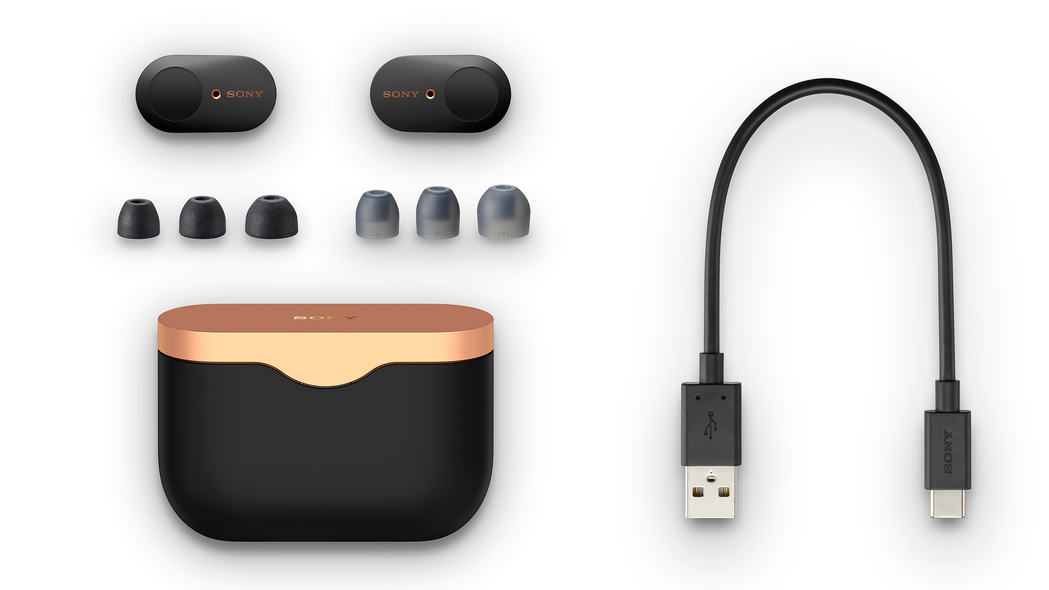
Why connect Sony earbuds to a laptop?
Connecting Sony earbuds to a laptop lets you enjoy private audio for calls, music, and videos with great sound and noise control. Sony earbuds often include active noise cancellation, good battery life, and built-in mics. Using them with a laptop improves meetings, streaming, and gaming without cluttering your desk.
Benefits of connecting your earbuds to a laptop
- Hands-free calls and clear voice pickup.
- Better mobility and no cable tangles.
- Access to noise cancellation for focused work.
- Low-latency audio for video or casual gaming (with the right codecs).
Common uses people expect
- Video calls and remote work.
- Watching movies and streaming music.
- Recording quick voice notes or playing casual games.

Source: youtube.com
Before you start: check compatibility and prepare your devices
Before pairing, make sure your earbuds are charged and your laptop supports Bluetooth or the proper wired input. If your laptop is older, it may need a Bluetooth adapter. Many Sony earbuds support Bluetooth 5.x and modern codecs like AAC or SBC.
Quick checklist
- Charge the earbuds to at least 30 percent.
- Turn on Bluetooth on the laptop.
- Put earbuds into pairing mode (see model guide).
- Update your laptop’s Bluetooth drivers if needed.
Things that affect pairing success
- Distance and interference from Wi-Fi or other Bluetooth devices.
- Low battery in earbuds or laptop.
- Missing or old Bluetooth drivers on Windows.

Source: youtube.com
How to connect Sony earbuds to laptop: Bluetooth on Windows (10 and 11)
Follow these steps to pair most Sony earbuds with Windows 10 or 11. The exact model name may appear during pairing.
Step-by-step pairing on Windows
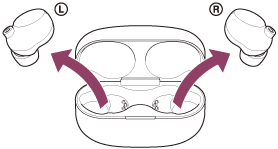
- Turn on the earbuds and enable pairing mode. Usually hold the power or touch sensor until the LED flashes.
- On your laptop, open Settings → Bluetooth & devices.
- Turn Bluetooth on and click Add device → Bluetooth.
- Select your Sony earbuds from the device list and click Connect.
- Wait for Windows to report the device is ready. Test audio by playing a short clip.
If Windows asks for a PIN, try 0000 or 1234. Most modern earbuds pair without a PIN.
Driver and device settings tips
- Update Bluetooth drivers from Device Manager if pairing fails.
- Set the earbuds as the default output and input in Sound settings.
- Close apps that may hold the audio device (like video calls).
Source: sony.net
Windows common issues and fixes
- Device not found: Reboot both devices and retry. Move closer.
- Connected but no sound: Set the earbuds as default playback device.
- Microphone poor quality: Change the input device in the app or disable hands-free telephony if you want high-quality stereo audio.
How to connect Sony earbuds to laptop: Bluetooth on macOS
Mac pairing is usually simple and fast. Most Sony earbuds are fully compatible with macOS.
Step-by-step pairing on macOS
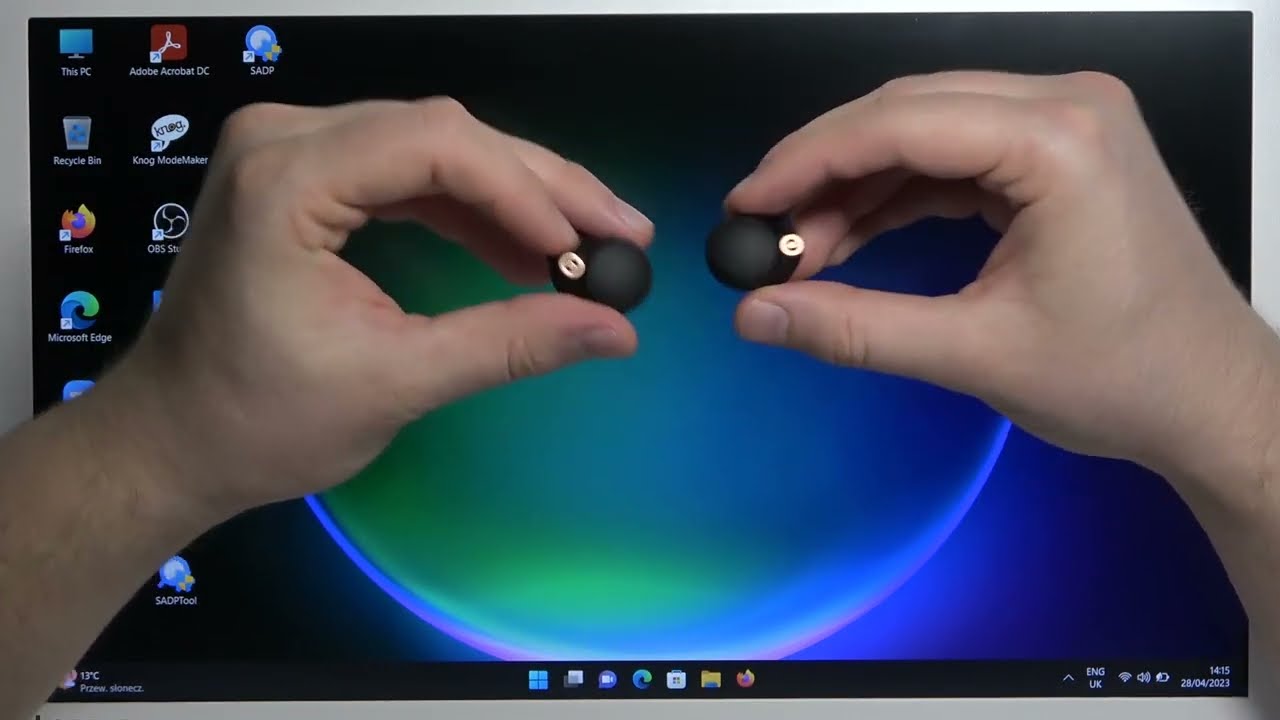
- Put the earbuds in pairing mode.
- On the Mac, open System Settings or System Preferences → Bluetooth.
- Ensure Bluetooth is on. Watch the device list.
- Click Connect beside your Sony earbuds.
- Select the earbuds in Sound settings for input and output.
macOS notes
- If the earbuds appear but won’t connect, remove them and try again.
- For call apps, check the input device inside the app’s audio settings.
Source: youtube.com
Wired connections: USB-C, USB dongles, and 3.5mm jack
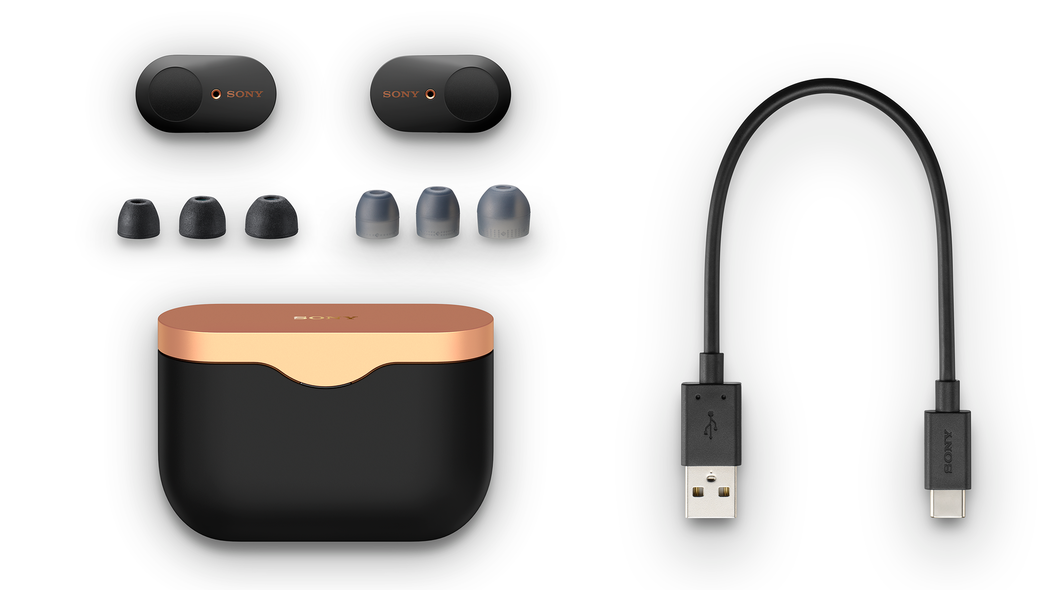
Some Sony earbuds or accessories allow wired audio. If your model supports USB-C audio or includes a cable, you can connect directly. Some earbuds include a USB dongle for lower latency.
When to use wired
- You need zero Bluetooth latency for pro audio or gaming.
- Your laptop lacks stable Bluetooth.
- You want to save earbud battery.
How to connect wired
- USB-C to USB-C: Plug directly if both devices support audio over USB.
- USB dongle: Plug the dongle into the laptop USB-A/USB-C port and pair per instructions.
- 3.5mm jack: Use the included cable if the earbuds support wired mode and the laptop has a headphone jack.
Limitations
- Not all Sony earbuds support wired mode.
- Microphone use may be limited by cable capabilities.
Source: stefan-naas.de
Troubleshooting common issues when you connect Sony earbuds to laptop
Here are typical problems and quick fixes based on hands-on use.
Problem: Earbuds won’t pair
- Reset the earbuds per the manual and remove them from the laptop’s Bluetooth list.
- Restart laptop Bluetooth or the whole laptop.
Problem: Pairs but audio stutters
- Move closer and avoid crowded Wi-Fi bands.
- Disable other active Bluetooth devices.
- Update Bluetooth drivers or firmware.
Problem: Mic is weak or not recognized
- Set the earbuds as the communication device in sound settings.
- If the driver shows "Headset" vs "Headphones," choose the one that matches use. Headset mode may use a lower-quality mic profile.
Problem: High audio latency in games
- Use a low-latency mode if the earbuds and dongle support it.
- Prefer wired connections or a dedicated low-latency USB dongle for gaming.
Reset and firmware
- Resetting often clears pairing errors.
- Check Sony’s app or support site for firmware updates. Firmware can improve stability and add codec support.

Source: verdeimports.com
Tips for best audio quality, codecs, and low latency
Get the best sound by matching settings and knowing what codecs do.
Codec basics
- SBC: Standard, universal, medium quality.
- AAC: Better for Apple devices and acceptable for music on many systems.
- LDAC (Sony): Higher bitrate, better quality on supported devices, but needs laptop support and drivers.
How to improve quality
- Use the Sony companion app to enable features or update firmware.
- On Windows, enable high-quality audio in Sound Control Panel for music apps.
- Close bandwidth-heavy apps to reduce interference.
Latency and gaming
- Choose wired if you need perfect sync.
- Use the Sony low-latency mode or a dedicated dongle for better results.
Practical tip from my testing
- I saw the biggest improvement after updating the laptop Bluetooth driver. Simple updates cut dropouts and improved codec support.
Source: whathifi.com
Personal experience, mistakes to avoid, and pro tips
I connect earbuds daily for calls and music. Here’s what I learned the hard way.
Lessons learned
- Keep the earbuds charged before big calls. Low battery causes drops.
- Remove unused paired devices. Too many paired devices can confuse the laptop.
- Test audio before a meeting. Quick sound checks avoid awkward delays.
Common mistakes
- Trying to pair while the earbuds are already connected to a phone. Disconnect from the phone first.
- Ignoring firmware updates. They often fix bugs.
- Assuming codecs will always work. The laptop must support the codec too.
Simple hacks I use
- Rename earbuds in Bluetooth settings to find them fast.
- Use a small USB Bluetooth dongle for better range on older laptops.
- Keep the charging case handy for quick re-pairs when earbuds won’t enter pairing mode.
Frequently Asked Questions of how to connect sony earbuds to laptop
How do I put Sony earbuds into pairing mode?
Press and hold the power or touch sensor button until the LED flashes or you hear a voice prompt that says "pairing." Exact steps vary by model.
Why can’t my laptop find my Sony earbuds?
Check that the earbuds are in pairing mode, charged, and not currently connected to another device. Restart Bluetooth on the laptop and try again.
Will Sony earbuds work with any laptop?
Most modern laptops with Bluetooth support basic functions. For advanced codecs like LDAC, the laptop must also support those codecs or use a compatible dongle.
How do I use the mic on my Sony earbuds with my laptop?
Set the earbuds as the default input in your laptop’s sound settings and in any meeting app. If quality is low, choose the headset or communication profile in settings.
What if audio is delayed during videos or games?
Try a wired connection or a low-latency dongle. Also use earbuds’ low-latency mode if available and ensure the laptop supports that feature.
Conclusion
You now have clear, practical steps for how to connect Sony earbuds to laptop using Bluetooth and wired options. Test pairing, update drivers, and pick the right mode for calls, music, or gaming. Try the tips and avoid the common mistakes I shared, and you’ll get a reliable connection fast. If this helped, try pairing now and leave a note about your model and experience below — I’ll answer and help troubleshoot.

Jamie Lee is a seasoned tech analyst and writer at MyTechGrid.com, known for making the rapidly evolving world of technology accessible to all. Jamie’s work focuses on emerging technologies, product deep-dives, and industry trends—translating complex concepts into engaging, easy-to-understand content. When not researching the latest breakthroughs, Jamie enjoys exploring new tools, testing gadgets, and helping readers navigate the digital world with confidence.