Turn on Bluetooth on your laptop and earbuds, then connect them via the laptop’s Bluetooth settings.
I’ve paired earbuds with dozens of laptops over the years—from Windows workstations to MacBooks and Linux rigs. In this guide I’ll show step-by-step how to pair earbuds to laptop, explain why pairing sometimes fails, and share real tips I learned from hands-on troubleshooting. Read on to get fast wins, reliable fixes, and clear steps you can use right now.
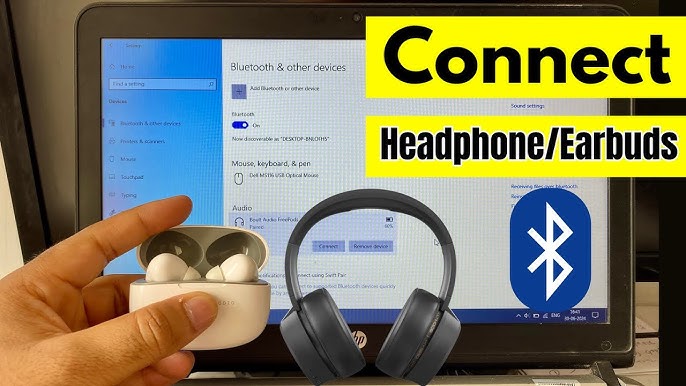
How Bluetooth pairing works
Pairing is the process that lets two devices trust each other. For earbuds and a laptop, pairing creates a short-lived secure link. The laptop and earbuds exchange small packets to agree on a connection. Most earbuds use Bluetooth audio profiles like A2DP for stereo sound or HFP for phone calls.
Common terms to know:
- Bluetooth: wireless tech that links devices over short distances.
- Pairing: initial handshake that authorizes devices to connect.
- Profile: a set of features for audio, calls, or low-latency use.
Understanding this helps when you troubleshoot. If the laptop can’t see the earbuds, the problem is usually power, range, or mode. If audio is choppy, it is often a profile or driver issue. I’ll walk through solutions in the sections below.
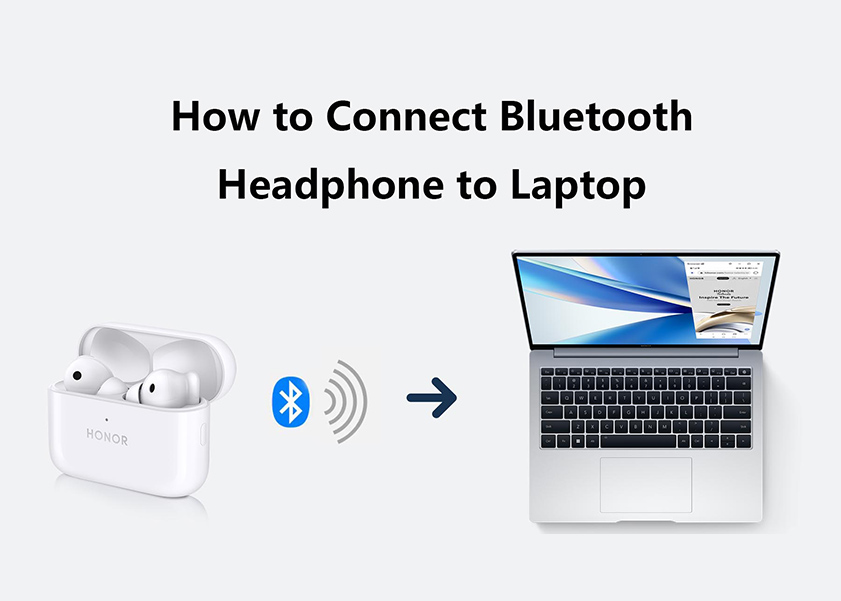
Prepare your earbuds and laptop
Before you attempt to pair, check a few basics. I do these checks every time I pair new earbuds.
Quick checklist:
- Make sure earbuds are charged.
- Turn on the earbuds and set them to pairing mode.
- Keep the earbuds near the laptop, within a few feet.
- Turn off other Bluetooth devices that might interfere.
Pairing mode varies by model. Common methods include pressing and holding a button, opening the charging case, or touching the earbuds together. If you’re not sure, check the manual or the quick-start card.

How to pair earbuds to laptop on Windows 10 and 11
These steps work for most Windows PCs. I use Windows laptops daily and find this flow reliable.
Steps:
- Open Settings. Go to Devices > Bluetooth & other devices.
- Turn on Bluetooth. Click Add Bluetooth or other device, then Bluetooth.
- Put your earbuds into pairing mode.
- Select the earbuds from the list on screen.
- Confirm any prompts. Wait for “Connected” to show.
If audio does not play:
- Click the speaker icon, then open Sound settings.
- Choose your earbuds as the output device.
- Update Bluetooth drivers via Device Manager if the earbuds aren’t found.
I once had a laptop fail to pair because an older Bluetooth driver didn’t support BLE. Updating drivers fixed it quickly.

How to pair earbuds to laptop on macOS
Pairing on a Mac is simple. I recommend closing other audio apps while pairing.
Steps:
- Open System Settings (or System Preferences) > Bluetooth.
- Make sure Bluetooth is on.
- Put earbuds into pairing mode.
- Click Connect next to the earbuds name.
- Confirm in the menu bar if asked.
If sound doesn’t go to earbuds:
- Open Sound settings and select the earbuds as Output.
- Restart Bluetooth if the device is listed but won’t connect.
I prefer macOS because it handles reconnection well across Apple devices. For non-Apple earbuds, ensure firmware is current.

How to pair earbuds to laptop on Linux
Linux distributions vary, but the flow is the same. I often use a utility like Blueman or the GNOME Bluetooth panel.
Basic steps:
- Open Bluetooth settings in your desktop environment.
- Turn Bluetooth on.
- Put the earbuds in pairing mode.
- Select the earbuds and pair.
If you see no audio or low quality:
- Install pulseaudio-module-bluetooth or pipewire-pulse.
- Switch the profile to A2DP for high-quality audio in Sound settings.
I’ve fixed many Linux pairing issues by switching to PipeWire for better Bluetooth audio support.
Troubleshooting common pairing problems
Pairing problems are common. Here are focused fixes I use repeatedly.
Problem: Earbuds don’t appear in the laptop’s list
- Ensure earbuds are in pairing mode and charged.
- Turn Bluetooth off and on on the laptop.
- Remove old pairings from the earbuds by resetting them.
Problem: Laptop says paired but no audio
- Select earbuds as the output device in sound settings.
- Reboot the laptop and reconnect.
- Update or roll back Bluetooth drivers if a recent update broke audio.
Problem: Dropped audio or stuttering
- Move closer to the laptop and remove obstructions.
- Turn off Wi‑Fi on 2.4 GHz temporarily to test interference.
- Use A2DP instead of HFP for music playback.
Problem: Multiple devices connecting accidentally
- Forget devices you don’t use in Bluetooth settings.
- Reset the earbuds to clear the pairing list.
- How long does pairing take? Usually a few seconds to a minute once both devices are ready.
- Can I use wired and Bluetooth at the same time? Most laptops use one output at a time; choose the one you prefer.
- Will earbuds pair automatically after first time? Most will auto-reconnect if Bluetooth is on and devices are in range.

Tips, best practices, and security
Small habits make pairing smooth and safe.
Best practices:
- Keep firmware updated on both earbuds and laptop.
- Reset earbuds before selling or sharing them.
- Turn off Bluetooth when not in use to save battery and improve security.
- Use the laptop’s Bluetooth toggle to stop automatic reconnections if needed.
Security tips:
- Avoid pairing in crowded public places.
- Set devices to non-discoverable after pairing if your OS supports it.
- Forget devices you no longer own.
These steps reduce interference and protect your data.
Accessories and alternatives
If Bluetooth causes trouble, there are options.
Alternatives:
- Use a USB Bluetooth dongle with modern Bluetooth version support.
- Use a wired connection if the earbuds support AUX via a cable.
- Use a USB-C or Lightning adapter for direct audio output.
I keep a small Bluetooth dongle in my bag. It fixed pairing issues on older laptops more than once.
Personal experience and lessons learned
I’ve paired earbuds across many systems. Here are practical lessons.
Real lessons:
- Update drivers first. This avoids many issues.
- Always try a reset on earbuds before heading into deep troubleshooting.
- Keep the user manual handy. Pairing mode methods vary.
- Test with another device (phone or tablet) to isolate laptop vs earbuds.
One time I thought a laptop’s Bluetooth was broken. It was the earbuds stuck in a different pairing slot. A reset solved it in 30 seconds.
Frequently Asked Questions of how to pair earbuds to laptop
How do I put earbuds in pairing mode?
Most earbuds enter pairing when you press and hold a button or open the case. Follow the manual for exact steps.
Why won’t my laptop find my earbuds?
Check that earbuds are in pairing mode, charged, and close to the laptop. Turn Bluetooth off and on again and try pairing.
What if my laptop pairs but no sound plays?
Select the earbuds as the audio output in sound settings. Restart the Bluetooth service or update drivers if needed.
Can I pair multiple earbuds to one laptop?
You can pair multiple earbuds, but most laptops can actively stream to only one audio device at a time.
How do I fix choppy audio with earbuds?
Move closer, reduce interference, and switch to the A2DP profile for music. Updating Bluetooth drivers also helps.
Conclusion
You can pair earbuds to laptop quickly when you know the right steps. Charge the earbuds, enable pairing mode, and connect through Bluetooth settings on Windows, macOS, or Linux. If problems arise, update drivers, reset the earbuds, and check audio output settings.
Takeaway: Follow a simple checklist—charge, pair, select output, update drivers—and you’ll solve most issues fast. Try these steps now and leave a comment about your device if you want tailored help.

Everett Ashford is a tech reviewer at mytechgrid.com specializing in SSDs, cameras, TVs, earbuds, headphones, and other consumer electronics. He provides honest, data-driven reviews based on hands-on testing and real-world performance analysis. Everett simplifies complex tech details to help readers make smart, confident buying decisions.