Connect your Sony earbuds by enabling Bluetooth on your iPhone and putting the earbuds into pairing mode.
I’ve paired dozens of headphones and earbuds with iPhones in real-world settings, and I’ll walk you through exactly how to pair Sony earbuds to iPhone. This guide covers step-by-step pairing, troubleshooting tips, codec and feature notes, and practical advice from hands-on experience so you can connect quickly and reliably.
Why correct pairing matters and what to expect
Pairing creates a secure Bluetooth link between the iPhone and your Sony earbuds. A good pairing gives stable audio, microphone access, and controls for calls and voice assistants. When you learn how to pair sony earbuds to iphone, you get better sound, fewer dropouts, and access to device-specific features through the Sony | Headphones Connect app.
Common reasons to re-pair include new iPhones, software updates, or when earbuds were previously connected to another device. Expect simple pairing for most modern Sony true wireless models, but know that some advanced features need the Sony app or firmware updates.

Step-by-step: How to pair Sony earbuds to iPhone
Follow these clear steps. I use short steps so you can follow them on the go.
- Turn on Bluetooth on your iPhone
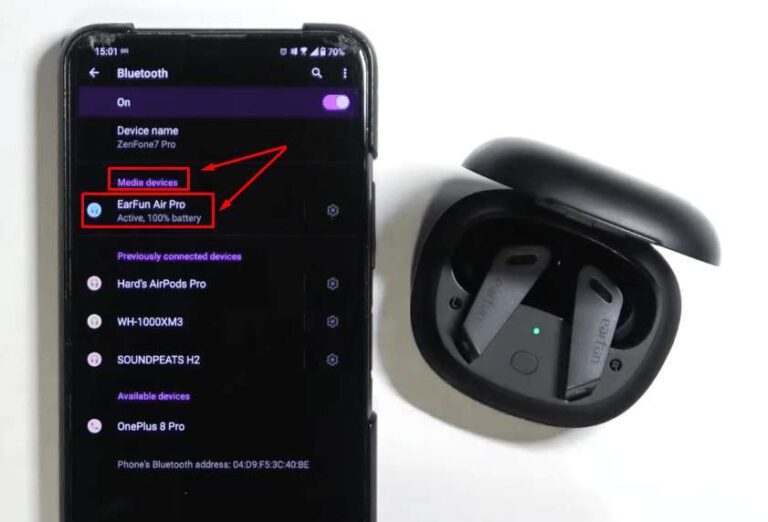
- Open Settings, tap Bluetooth, and switch it on. Keep this screen visible; the iPhone scans automatically.
- Put your Sony earbuds into pairing mode
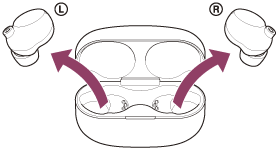
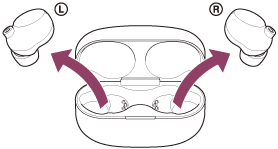
- For many Sony true wireless models, open the charging case near the iPhone to enter pairing mode automatically.
- If automatic pairing doesn’t start, press and hold the earbuds’ power button or the case button for 5–7 seconds until the LED flashes blue or you hear a voice prompt saying “Bluetooth pairing.”
- Select the earbuds on the iPhone
- Look under Other Devices in the Bluetooth screen for a name like “WF-1000XM4” or “Sony WF-XXXX.”
- Tap the name to pair. The iPhone will show Connected next to the device.
- Check audio and mic
- Play music or make a quick call to confirm sound and microphone work.
- If stereo or call sound fails, revisit Bluetooth settings or open the Sony app to finalize settings.
If pairing fails repeat these steps and try a restart of both devices. My experience is that a full restart or a quick reset of the earbuds fixes most pairing hiccups.
Troubleshooting common pairing issues
Pairing problems are usually simple to resolve. Try these fixes in order.
-
Earbuds not appearing on iPhone
- Turn Bluetooth off and on. Close the iPhone’s Bluetooth screen and reopen.
- Move closer and remove other nearby Bluetooth devices.
-
Earbuds show as connected but no audio
- On the iPhone, tap the device in Bluetooth settings and ensure it’s set as the audio output.
- Restart the music app or the iPhone.
-
Can’t pair after previous device connection
- Put the earbuds into pairing mode again. If needed, reset the earbuds to factory settings and forget the device on your iPhone (tap the “i” and choose Forget This Device).
-
Frequent dropouts
- Keep firmware up to date via the Sony | Headphones Connect app.
- Disable Wi‑Fi on a crowded 2.4 GHz network temporarily to test interference.
I once had a pair of Sony earbuds that kept reconnecting to a laptop. Forgetting the earbuds on the laptop and re-pairing only with the iPhone fixed the issue in under two minutes.

Features, settings, and best practices after pairing
After you pair, tweak a few settings to get the best experience.
-
Install Sony | Headphones Connect
- The app lets you update firmware, adjust EQ, enable noise cancellation, and configure touch controls.
-
Enable AAC for best iPhone audio
- iPhone uses AAC for higher-quality audio. Note that aptX is not supported on iPhone, so audio quality depends on AAC or SBC.
-
Configure Siri and call settings
- Allow Siri access when prompted and test the microphone for calls. Use Noise Cancellation during calls if your model supports it.
-
Battery and power tips
- Keep the case charged. If battery levels look off, recalibrate by fully charging and fully discharging once.
-
Multipoint and device switching
- Some Sony models support multipoint pairing. Check the specs. If yours does not, manually disconnect from one device before pairing another.
From personal use, I recommend opening the Sony app after pairing. The app often pushes small firmware updates that greatly improve connection stability.
PAA-style quick questions
What if my iPhone can’t find my Sony earbuds?
- Make sure earbuds are in pairing mode and close to the iPhone. Turn Bluetooth off and on and try again.
Do I need the Sony app to pair?
- No. You can pair directly via iPhone Bluetooth, but the Sony app is useful for firmware updates and advanced settings.
Will iPhone use aptX with Sony earbuds?
- No. iPhone uses AAC or SBC; aptX is not supported on iOS devices.

Frequently Asked Questions of how to pair sony earbuds to iphone
How do I put Sony earbuds into pairing mode?
Put them in the charging case and open it near the iPhone, or press and hold the earbuds’ button until the LED flashes and a pairing voice prompt plays.
Why won’t my iPhone find the earbuds?
They may not be in pairing mode, or Bluetooth is off. Move devices closer and turn off other Bluetooth devices or restart the iPhone.
How do I reset my Sony earbuds before pairing again?
Different models reset differently; usually press and hold the earbud buttons or use the Sony app to perform a factory reset. After reset, repeat pairing steps.
Can I use Sony earbuds with Siri on my iPhone?
Yes. Once paired, press the earbud control or use a voice command to activate Siri if the earbuds support voice assistants.
Will pairing erase settings on other devices?
Pairing to an iPhone won’t erase settings on other devices, but some earbuds automatically disconnect from a previous device. Use the Sony app to manage multipoint or device lists.
Conclusion
You now have clear, practical steps to pair and troubleshoot Sony earbuds with your iPhone. Start with Bluetooth on the iPhone, put the earbuds into pairing mode, and use the Sony app for firmware and feature control. Try the quick fixes if something goes wrong, and remember that a reset and a restart solve most issues.
Take action: pair your earbuds now and test a call, then explore the Sony app for better sound. If you found this helpful, leave a comment or share your pairing story.

Everett Ashford is a tech reviewer at mytechgrid.com specializing in SSDs, cameras, TVs, earbuds, headphones, and other consumer electronics. He provides honest, data-driven reviews based on hands-on testing and real-world performance analysis. Everett simplifies complex tech details to help readers make smart, confident buying decisions.