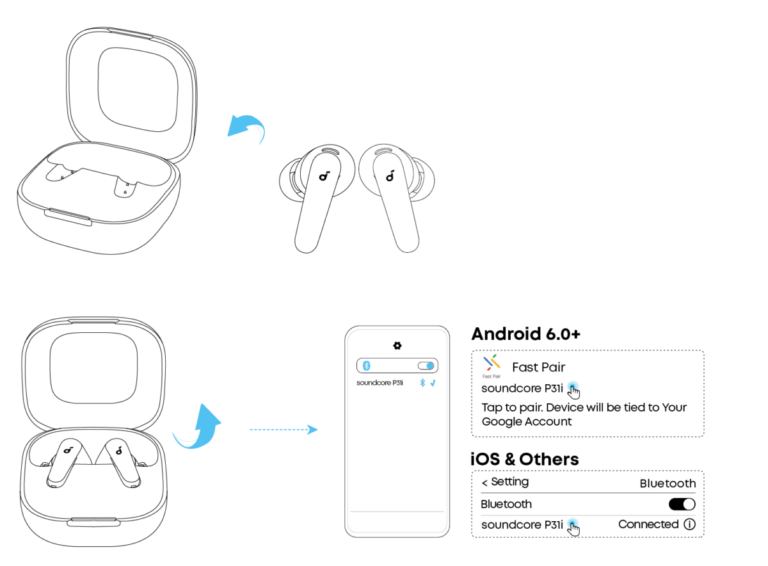
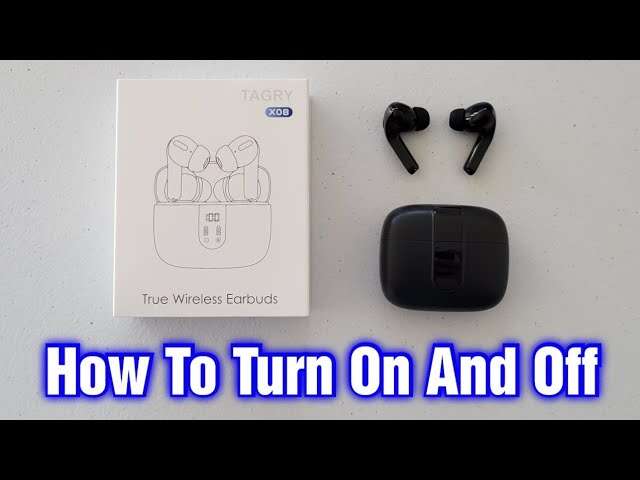
Connect Beats earbuds to your phone via Bluetooth in seconds: enable Bluetooth, open the case, and follow onscreen prompts.
I’ve helped dozens of people pair Beats earbuds with phones of all kinds, and I know the common pitfalls and quick wins. This guide walks you through exactly how to connect Beats earbuds to phone, step by step, with clear troubleshooting, real-world tips, and settings you’ll want to check. Read on to pair faster, fix common issues, and get the best audio from your Beats earbuds.
Why proper pairing matters
Good pairing keeps audio stable and battery life healthy. When you know how to connect Beats earbuds to phone correctly, you avoid dropouts, slow reconnections, and unexpected mute. Proper setup also unlocks features like automatic switching, voice prompts, and firmware updates. Follow the steps here to get reliable sound for calls, music, and workouts.
What you’ll need before pairing
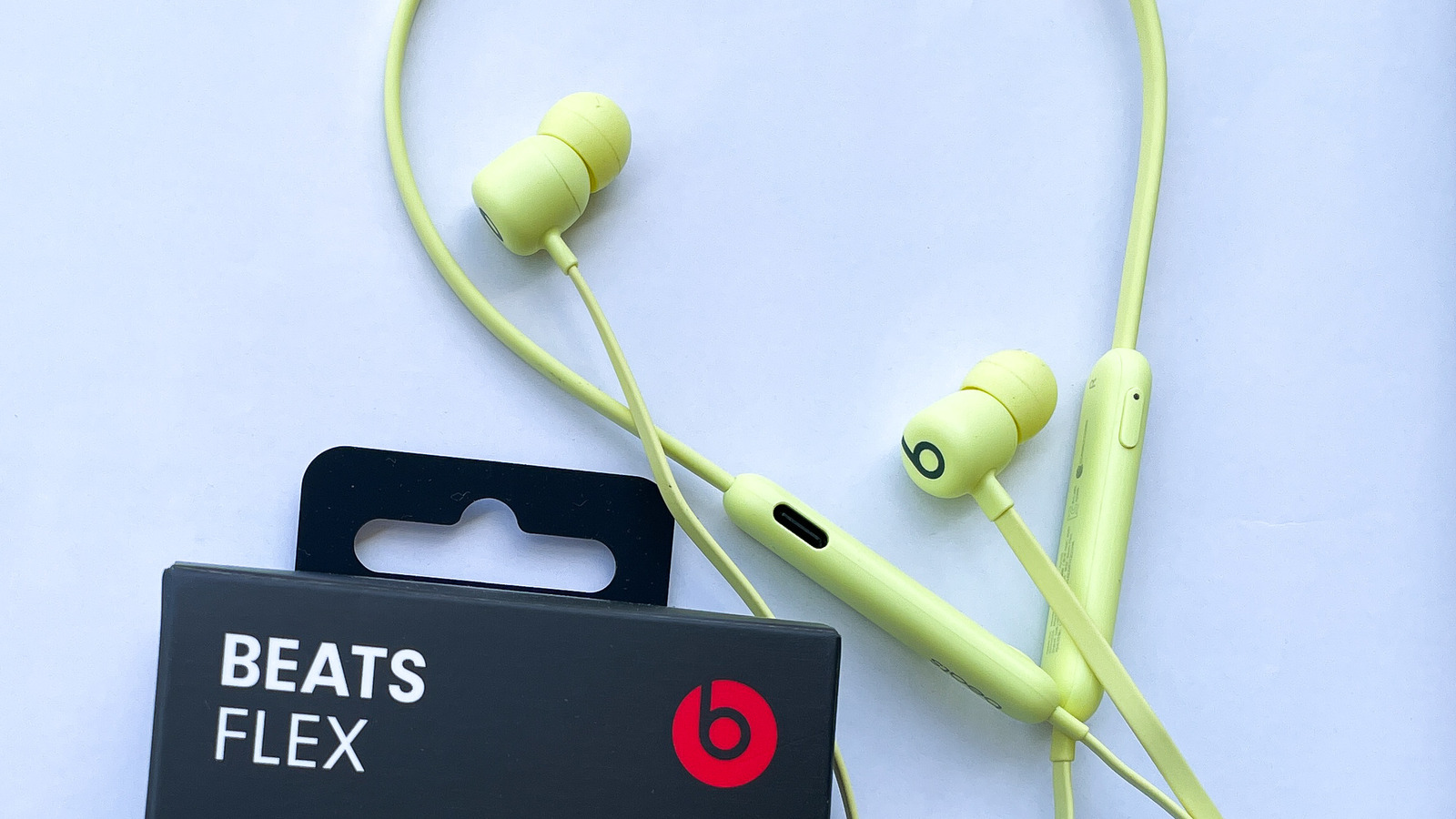
- A charged iPhone or Android phone with Bluetooth turned on.
- Beats earbuds with some battery left.
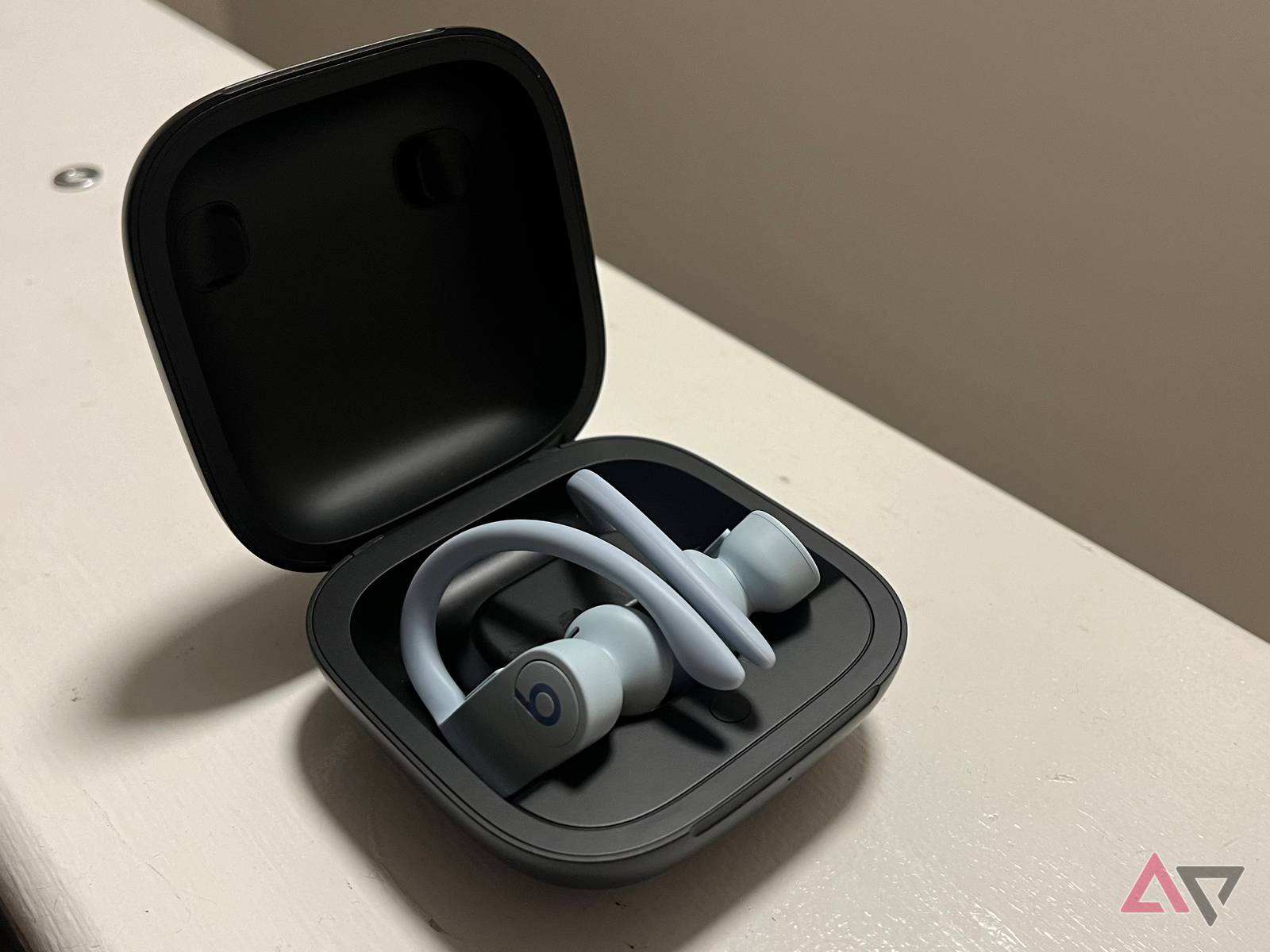
- The earbuds’ case if they are true wireless; some models need the case to initiate pairing.
- Patience to follow prompts and reset if things go wrong.
Prepare both devices in a quiet spot. This reduces interruptions while you pair. Once you practice a few times, connecting your Beats earbuds to phone becomes quick and automatic.
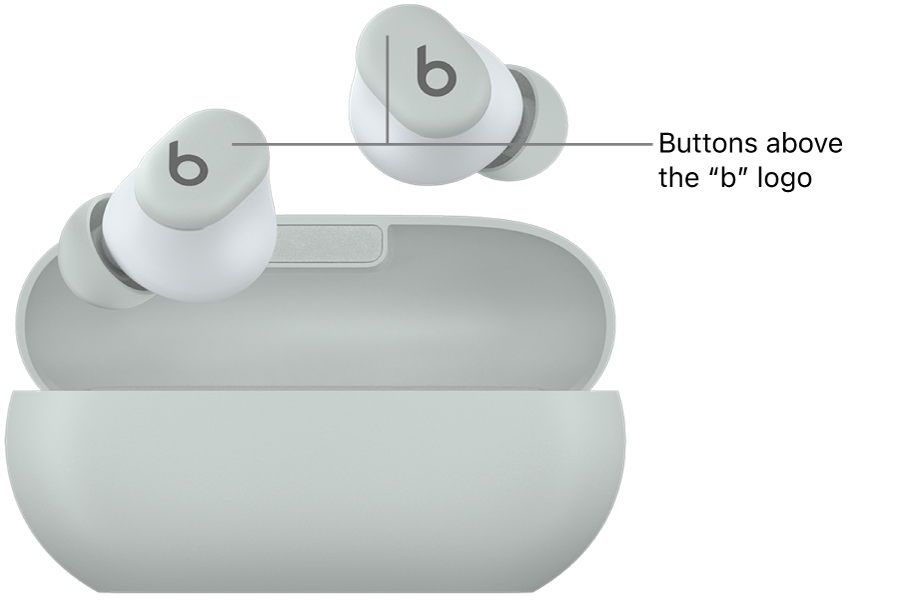
How to connect Beats earbuds to phone
Below are clear, tested steps for iPhone and Android. These work for most Beats models, including Beats Studio Buds, Powerbeats Pro, Beats Fit Pro, and Solo Pro.
Pairing with iPhone (iOS)
- Charge your Beats earbuds and place them near your iPhone.
- Open the earbuds case (for true wireless) or turn the earbuds on.
- Wait for the iPhone to display a pairing animation or popup. Tap Connect.
- Follow any onscreen steps to complete setup. Allow permissions for notifications or audio if asked.
- Check Settings > Bluetooth to confirm the earbuds show Connected.
If the popup does not appear, open Settings > Bluetooth, find your Beats earbuds under Other Devices, and tap to pair. Once paired, your iPhone can switch automatically across Apple devices if this feature is enabled.
Pairing with Android
- Turn on Bluetooth: Settings > Connected devices > Connection preferences > Bluetooth.
- Make your Beats earbuds discoverable: open the case or press and hold the power/pairing button until the LED blinks.
- In Bluetooth devices on Android, tap Scan or Refresh. Select your Beats name when it appears.
- Confirm pairing by tapping Pair. Allow any requested permissions.
For some Android phones, install the Beats app or the device maker’s companion app to access firmware updates and advanced features.
Pairing with other devices
- Windows: Open Bluetooth & other devices, click Add Bluetooth, and select your Beats.
- Mac: Open Bluetooth in System Settings and pair the earbuds.
- Multiple devices: Most Beats support multi-device switching, but behavior varies by model. If you plan to use multiple devices, test switching to confirm how your specific Beats handle it.

Troubleshooting common issues
- No popup on iPhone: Close the case, wait 10 seconds, then reopen it near the phone. If still no popup, connect via Settings > Bluetooth.
- Earbuds won’t enter pairing mode: Force reset the earbuds (see reset steps below) and try again.
- One earbud not working: Put both earbuds back in the case, remove them, and reconnect. A reset often fixes sync issues.
- Drops during calls: Move closer to your phone and remove obstacles. Update firmware and avoid crowded Wi-Fi or Bluetooth environments.
- Low volume or muffled sound: Clean the ear tips and mesh gently. Try a different ear tip size for a better seal.
Reset steps (common for many Beats models):
- Place earbuds in the case and keep the lid open.
- Hold the setup button for about 15 seconds until the LED flashes.
- Close the case, reopen, and attempt pairing again.
Advanced tips and settings
- Firmware updates: Keep firmware current via the Beats app or device settings to fix bugs and improve connection stability.
- ANC and Transparency: Toggle active noise cancellation or transparency in the phone’s Bluetooth settings or the Beats app for the right mix of awareness and isolation.
- Automatic ear detection: Turn it on or off in device settings to control auto-pause behavior when you remove an earbud.
- Optimize battery life: Disable always-on voice assistants and reduce usage of ANC if you need longer battery per charge.
- Name your earbuds: Give them a clear name in Bluetooth settings so you can spot them easily when connecting multiple devices.
These steps enhance how to connect Beats earbuds to phone and help you keep the connection fast and stable for daily use.
Personal experience and lessons learned
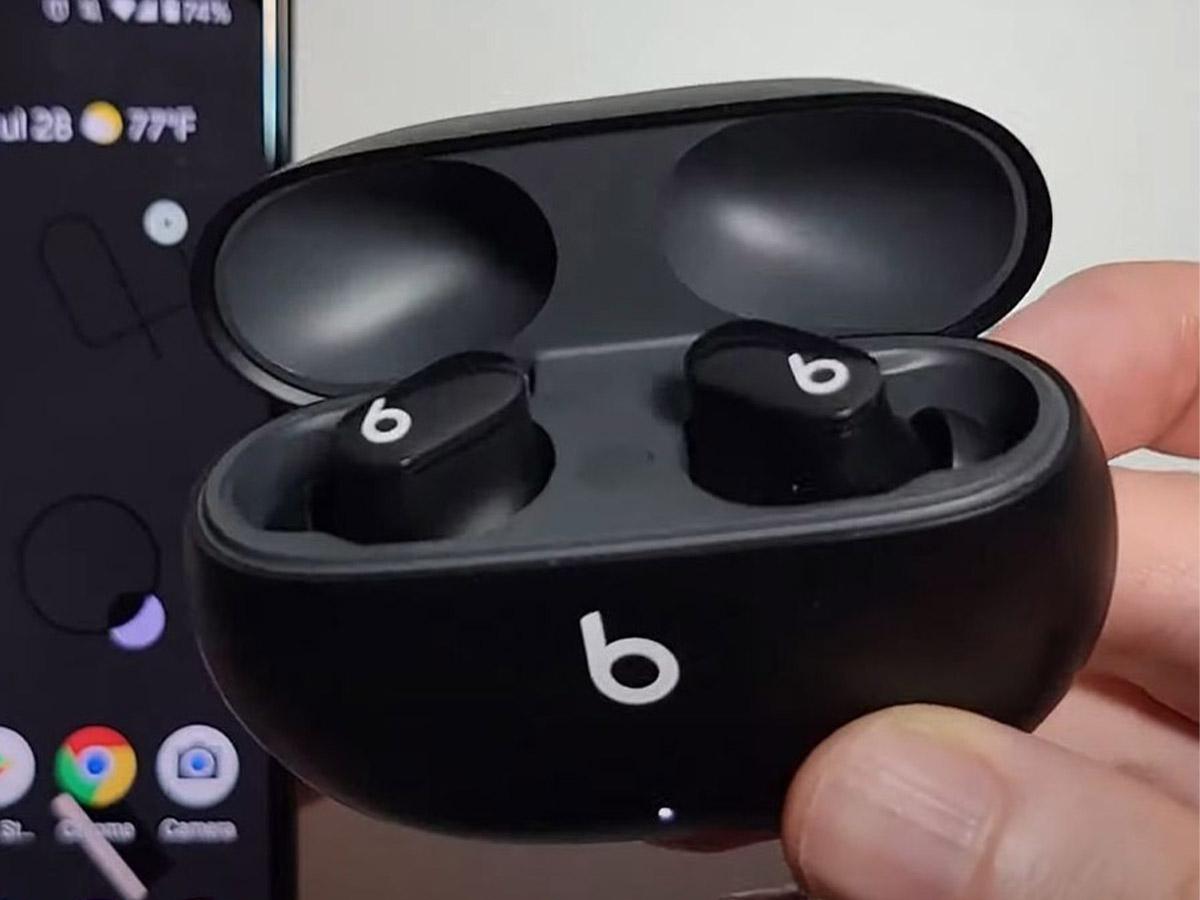
I’ve paired Beats earbuds with many phones during my work and travel. One clear lesson: proximity matters. I once struggled to pair a set because my phone was in my back pocket and the case was on a table. Bringing them within a few inches solved it instantly. Another tip: always check for firmware updates before blaming hardware. I fixed persistent stutters simply by updating the earbuds.
Mistakes to avoid: don’t assume low volume means a hardware fault. Often it’s an ear-tip fit issue or a phone EQ setting. Don’t skip a reset; it resolves many odd behaviors quickly. Treat each pairing like a small checklist: battery, Bluetooth on, earbuds in pairing mode, and device visible.
Frequently Asked Questions of how to connect beats earbuds to phone
How do I put my Beats earbuds in pairing mode?
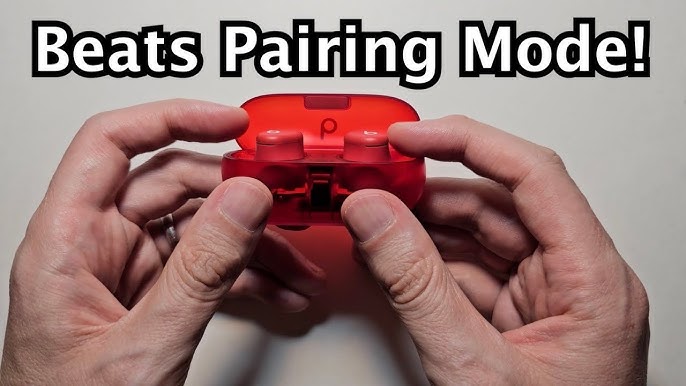
Open the case or turn the earbuds on, then press and hold the setup or power button until an LED flashes. On many models, a blinking white light means the earbuds are discoverable and ready to pair.
Why won’t my phone find my Beats earbuds?
Common causes are low battery, the earbuds already connected to another device, or Bluetooth is off on the phone. Try charging the earbuds, disabling Bluetooth on other devices, and rescanning on your phone.
How do I reset my Beats earbuds?
Place the earbuds in their case, open the lid, then press and hold the setup button for about 15 seconds until the LED flashes. Close the case, reopen it, and try pairing again.
Can I connect Beats earbuds to multiple phones?
Most Beats models can remember multiple devices but may not actively connect to more than one at the same time. To switch, disconnect on the first phone or select the earbuds from the second phone’s Bluetooth menu.
My left or right earbud isn’t working. What should I do?
Return both earbuds to the case, remove them, and reconnect. If that fails, perform a reset and pair again. If problems persist, clean the charging contacts and check for firmware updates.
Conclusion
Pairing your Beats earbuds with your phone should be quick and painless when you follow the right steps. Keep your devices charged, use the case or pairing button to enter discoverable mode, and update firmware regularly to avoid issues. A small reset often fixes most problems, and checking fit and settings improves sound and battery life. Try the steps here today, test a firmware update, and leave a comment with your pairing success or any hurdles you want help fixing.

Everett Ashford is a tech reviewer at mytechgrid.com specializing in SSDs, cameras, TVs, earbuds, headphones, and other consumer electronics. He provides honest, data-driven reviews based on hands-on testing and real-world performance analysis. Everett simplifies complex tech details to help readers make smart, confident buying decisions.