Connect the cable box to the TV with an HDMI cable, select the matching input, and follow the on-screen setup steps.
Learning how connect cable box to TV is simple once you understand which cable carries the picture and sound. This guide explains the best connection method, older cable options, input settings, remote control setup, and common fixes. You will also learn how to avoid the small wiring mistakes that often cause a blank screen.

What You Need Before You Start
Before learning how connect cable box to TV, collect the right equipment. Most modern setups need only a cable box, a television, a power cord, and one HDMI cable.
Check these items first:
• Cable box from your TV provider
• Television with an available HDMI port
• HDMI cable
• Coaxial cable from the wall outlet to the cable box
• Cable box remote and TV remote
• Power cords for both devices
The coaxial cable brings the cable signal into the box. The HDMI cable then sends the picture and sound from the box to the TV. Think of the cable box as a translator: it changes the incoming service signal into a format your TV can display.
Use a working HDMI cable if possible. A damaged or very old cable can cause a black screen, missing sound, or an error message. HDMI cables do not usually need a special brand for standard cable TV, but the cable must fit firmly in both ports.
If your TV or cable box is mounted on a wall, leave enough space to bend the cables gently. Sharp bends can loosen the connection over time. Also, make sure the cable box has open air around it so it does not overheat.
How Connect Cable Box to TV With HDMI
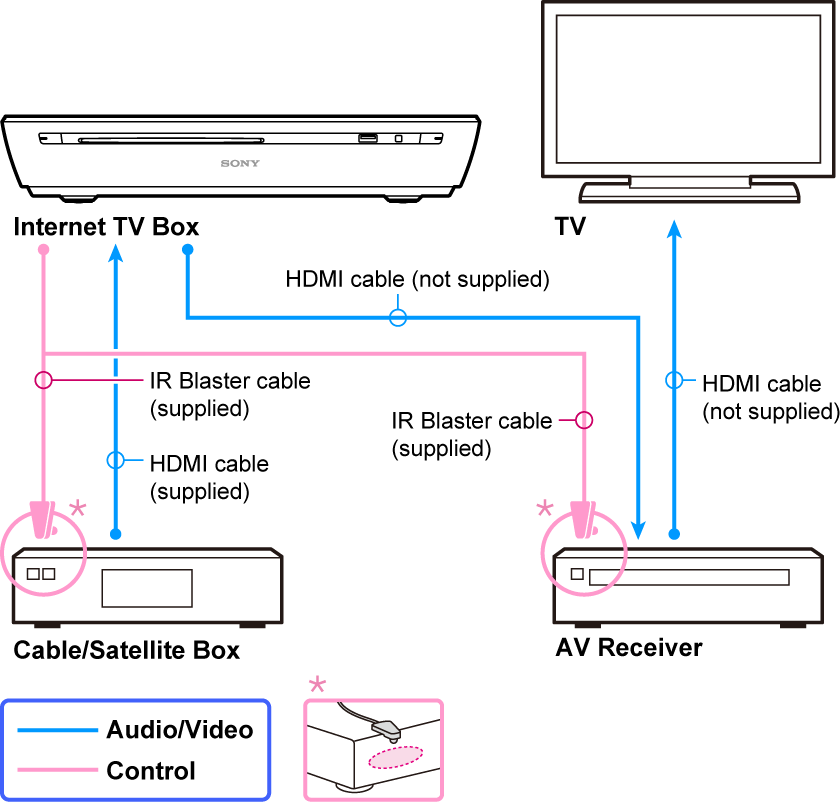
HDMI is the easiest and best way to connect most cable boxes. It carries high-definition video and audio through one cable, which keeps the setup clean.
Follow these steps for how connect cable box to TV:
-
Turn off the TV and cable box.
-
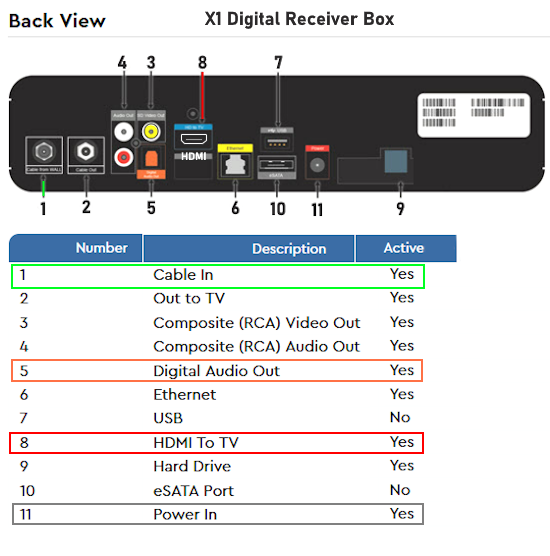
Connect the coaxial cable from the wall outlet to the port labeled “Cable In,” “RF In,” or “Input” on the cable box. Turn the connector clockwise until it feels snug. Do not force it.
-
Plug one end of the HDMI cable into the HDMI Out port on the cable box.
-
Plug the other end into an HDMI In port on the TV. Note the port number, such as HDMI 1, HDMI 2, or HDMI 3.
-
Connect the power cord to the cable box and plug it into a safe wall outlet or surge protector.
-
Turn on the TV.
-
Turn on the cable box and wait several minutes for it to start.
-
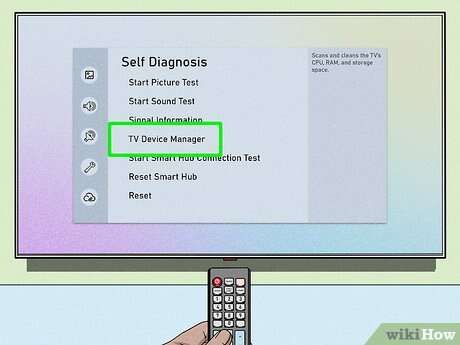
Press the Input, Source, or TV/Video button on the TV remote.
-
Select the HDMI input that matches the port you used.
-
Wait for the cable service screen or live channel to appear.
The most common mistake is choosing the wrong TV input. For example, if the HDMI cable is connected to HDMI 2, the TV must be set to HDMI 2. The TV may show “No Signal” even when every cable is connected correctly if the selected source is wrong.
Some cable boxes take a few minutes to load after power-up. During this time, you may see a welcome screen, a loading message, or a blank screen. Give the box time before unplugging it.
How Connect Cable Box to TV Without HDMI
Older TVs and cable boxes may not have HDMI ports. In that case, use the best connection supported by both devices.
Component video cables
Component video uses three video plugs:
• Red
• Green
• Blue
You also need two audio plugs:
• Red for the right audio channel
• White for the left audio channel
Match each plug to the same color on the TV and cable box. Then select the component input on the TV. Component video can support high-definition pictures, but it sends audio through separate cables.
Be careful with the red plugs. Component video often has a red video plug, while the red audio plug sits nearby. Match the labels, not only the colors.
Composite AV cables
Composite cables usually have three plugs:
• Yellow for video
• White for left audio
• Red for right audio
Connect each plug to the matching port. Then select AV, Video, or Composite on the TV.
This method is easy, but the picture quality is lower than HDMI. It may be suitable for an older television, but text and fine details may look less sharp.
Coaxial RF connection
Some older cable boxes have a coaxial RF output. Connect a coaxial cable from the box’s “To TV” or “RF Out” port to the TV’s antenna or cable input.
Set the TV to the channel specified by the cable box instructions. This is often channel 3 or channel 4, but the correct channel can vary. RF connections provide the lowest picture quality and may not work with every modern TV.

How to Choose the Correct TV Input
The input setting tells the TV where to find the video signal. It works like choosing the correct door in a hallway. If the cable box is connected to HDMI 1 but the TV is looking at HDMI 3, nothing will appear.
Use the TV remote and look for one of these buttons:
• Input
• Source
• AV
• Video
• TV/Video
Press the button several times if needed. A list may appear on the screen. Select the input that matches the port used on the TV.
Here are common input names:
• HDMI 1 or HDMI 2: Used for HDMI connections
• AV or Video: Used for yellow, red, and white cables
• Component: Used for red, green, blue, red, and white cables
• TV or Antenna: Used for a coaxial RF connection
If you are unsure, look at the label beside the cable on the back or side of the TV. Some TVs also display a small input preview when you switch sources.
A universal remote may control the cable box, but it may not change the TV input unless it has been programmed. Keep the original TV remote nearby during setup.
How to Connect the Cable Line to the Cable Box
The cable line usually comes from a wall outlet. It uses a round connector with a small pin in the center.
To connect it:
-
Find the coaxial wall outlet.
-
Attach one end of the coaxial cable to the outlet.
-
Attach the other end to the cable box port labeled “Cable In” or “RF In.”
-
Tighten both connectors by hand.
Do not connect the wall cable to the cable box’s “RF Out” or “To TV” port. Those ports send a signal out to another device. Connecting the incoming service line to the wrong port can prevent the cable box from receiving channels.
If your home has a splitter, check that it is connected correctly. One side should connect to the wall outlet, while the output ports feed the cable box or other devices. A weak or damaged splitter can reduce signal strength and cause missing channels.
Cable providers may also need to activate the box. If the box shows an activation message, follow the instructions on screen or contact the provider. Wiring alone cannot activate a device that has not been added to your account.
How to Set Up the Cable Box Remote
After you learn how connect cable box to TV, the next step is making the remote work properly. In many homes, the cable remote controls the cable box, while the TV remote controls volume and power.
You may be able to program the cable remote to control both devices. The exact process depends on the provider and remote model, but it often includes these steps:
-
Turn on the TV.
-
Press and hold the TV button on the cable remote.
-
Enter the manufacturer code listed in the remote guide.
-
Press the Power or Volume button to test it.
-
Save the code if the TV responds.
Some newer cable remotes pair automatically through Bluetooth or an on-screen setup menu. If the remote uses infrared signals, point it toward the cable box when changing channels.
If the volume does not work, check whether the remote is controlling the TV or the cable box. Press the correct device button first. Replace the batteries if the remote works only from very close range.
A soundbar or home theater receiver can change the setup. If the cable box connects to the receiver instead of the TV, select the receiver’s input and use the receiver remote for sound.
:max_bytes(150000):strip_icc()/how-to-connect-a-tv-and-modem-to-one-cable-outlet-02-94bab013f13f450d9c5f98f75f53baef.jpg)
How Connect Cable Box to TV and Soundbar
An HDMI connection normally sends both video and audio to the TV. If you use a soundbar, there are several possible arrangements.
The simplest setup is:
-
Connect the cable box to the TV with HDMI.
-
Connect the TV to the soundbar using HDMI ARC or eARC, if available.
-
Turn on HDMI-CEC or the related control setting if you want one remote to control several devices.
Another option is to connect the cable box directly to the soundbar’s HDMI input. Then connect the soundbar’s HDMI output to the TV’s HDMI ARC port. This can work well, but the soundbar must support the video format sent by the cable box.
For optical audio:
-
Connect the cable box to the TV with HDMI.
-
Connect an optical cable from the TV’s optical audio output to the soundbar.
-
Set the TV audio output to optical or external speakers.
If you hear sound from both the TV and soundbar, turn off the TV speakers in the sound settings. Audio menus differ by brand, so the option may be called “TV Speakers,” “Audio Output,” or “External Speaker.”

Common Problems and Practical Fixes
Even when you follow the steps for how connect cable box to TV, problems can happen. Most are easy to fix.
The TV says “No Signal”
Check these points:
• Confirm that the cable box is powered on.
• Select the correct HDMI or AV input.
• Remove and reconnect both ends of the HDMI cable.
• Try another HDMI port on the TV.
• Test another HDMI cable.
• Restart the TV and cable box.
A useful test is to connect another device, such as a game console, to the same TV input. If that device works, the issue may be the cable box or HDMI cable.
The picture is black but sound works
This can result from a resolution mismatch or a temporary HDMI handshake problem. Turn off both devices, unplug them for about one minute, and reconnect the cable box first. Then turn on the TV and select the correct input.
If the issue continues, check the cable box display settings. Some boxes allow you to change the output resolution. Choose a setting supported by the television, such as 720p or 1080p.
There is a picture but no sound
Press the mute button on both remotes. Then check the TV audio output and make sure the volume is not set to zero.
If you use red and white audio cables, confirm that both are connected. With HDMI, try another HDMI port or cable. A soundbar may also be set to the wrong input.
Some channels are missing
Missing channels often point to an account, signal, or activation issue rather than a TV connection problem. Restart the box and check the provider’s outage information.
If only certain channels are missing, the service package may not include them. If many channels are missing or pixelated, inspect the coaxial cable and splitter for loose connections or damage.
The remote does not change channels
Point the remote toward the cable box, not only the TV. Replace the batteries and remove objects that block the box’s front sensor.
If the remote is new, it may need pairing or programming. Follow the instructions for that specific remote model.
Mistakes I Often See During Setup
When helping people set up home entertainment systems, I often see the same small errors. The most common one is connecting the HDMI cable but forgetting to switch the TV input.
Another frequent mistake is using the wrong HDMI port on a soundbar or receiver. An HDMI ARC port is designed for a particular purpose, and not every HDMI port supports the same features. Check the labels before plugging in the cable.
People also replace cables too quickly. First, reseat the connections and confirm the source input. In many cases, the problem is not a bad cable but a loose plug or incorrect setting.
One lesson I have learned is to label cables during setup. A small label reading “Cable Box HDMI” can save time later, especially when a TV has four or more HDMI ports.
Avoid forcing any connector. HDMI plugs should slide in smoothly, and coaxial connectors should tighten by hand. If a port feels loose or damaged, stop and inspect it rather than pushing harder.
Tips for a Clean and Reliable Setup
A neat setup is easier to troubleshoot and safer for your equipment.
Use these practical tips:
• Keep the cable box in an open area with good airflow.
• Avoid placing the box on top of another hot device.
• Use a surge protector for the TV and cable box.
• Leave a little slack in each cable.
• Keep power cords away from sharp edges.
• Label each HDMI cable and input.
• Do not bend HDMI or coaxial cables sharply.
• Keep spare batteries for both remotes.
If you frequently lose service, note whether the problem affects live channels, streaming apps, or both. This detail helps identify the cause. A cable signal issue usually affects the cable box, while a TV input issue may affect only the selected source.
For picture quality, HDMI is the preferred choice. Older connections can still work, but they may limit resolution, copy-protection support, or audio features. The best connection is the newest format supported by both devices.
Frequently Asked Questions About How Connect Cable Box to TV
Can I connect a cable box to a TV with HDMI?
Yes. Connect the cable box’s HDMI Out port to an HDMI In port on the TV, then select the matching HDMI input. HDMI carries both picture and sound through one cable.
Do I need a coaxial cable with HDMI?
Usually, yes. The coaxial cable brings the cable service signal from the wall outlet to the cable box, while HDMI sends the processed picture and sound from the box to the TV.
Why does my TV say “No Signal” after I connect the cable box?
The TV may be set to the wrong input. Check the HDMI port number, press the TV’s Input or Source button, and select the matching input.
Can I connect a cable box to an older TV?
Yes, if the cable box and TV share a compatible connection. You may use component, composite AV, or RF coaxial cables, but picture and sound quality may be lower than HDMI.
Can I connect the cable box directly to a soundbar?
Yes, if the soundbar has a compatible HDMI input and output. You can also connect the cable box to the TV first and send sound from the TV to the soundbar through HDMI ARC or optical audio.
Why do I have sound but no picture?
Restart both devices and check the HDMI connection. A wrong input, loose cable, or unsupported display resolution can cause sound to work while the picture remains blank.
Do I need to activate my cable box?
Most cable boxes require activation by the service provider. If the box displays an activation message or does not show subscribed channels, contact the provider after checking the cable connections.
Conclusion
Learning how connect cable box to TV usually takes only a few minutes. Connect the coaxial cable to the cable box, connect HDMI from the box to the TV, choose the matching input, and complete any activation steps.
If you use an older TV, component, composite, or RF cables can still work. When something goes wrong, check the input source first, then reseat the cables, restart both devices, and test another port if needed.
Set up your system carefully, label the cables, and keep this guide nearby for future troubleshooting. Explore your TV and cable box settings to get the clearest picture and best sound, and share your setup experience in the comments.

Everett Ashford is a tech reviewer at mytechgrid.com specializing in SSDs, cameras, TVs, earbuds, headphones, and other consumer electronics. He provides honest, data-driven reviews based on hands-on testing and real-world performance analysis. Everett simplifies complex tech details to help readers make smart, confident buying decisions.