Connect earbuds to your computer via Bluetooth, USB-C, USB-A, or a 3.5mm jack quickly and reliably.
I’ve spent years fixing audio setups for friends and clients, and I’ll walk you through exactly how to connect earbuds to computer. This guide covers wired and wireless earbuds, step-by-step setup for Windows and Mac, troubleshooting tips, sound and mic tweaks, and real-world mistakes I’ve learned from. Read on to get your earbuds working fast and sounding great.
Why use earbuds with a computer
Earbuds give private sound. They block outside noise and keep your audio from disturbing others. Many people use earbuds for calls, music, gaming, and video editing. Knowing how to connect earbuds to computer saves time and avoids frustration.
Earbuds can be cheap or pro-level. The right connection gives better sound and less lag. I’ll explain each option so you pick the best one for your needs.

Types of earbuds and computer connections
There are a few common ways to connect earbuds to computer. Each has pros and cons.
- 3.5mm analog jack: Works with older laptops and desktops. It offers low latency but no digital controls.
- USB-A and USB-C wired earbuds: Plug-and-play for many modern systems. They can include built-in DACs and mics.
- Bluetooth wireless earbuds: Most popular for convenience. Requires pairing and may need drivers or codecs.
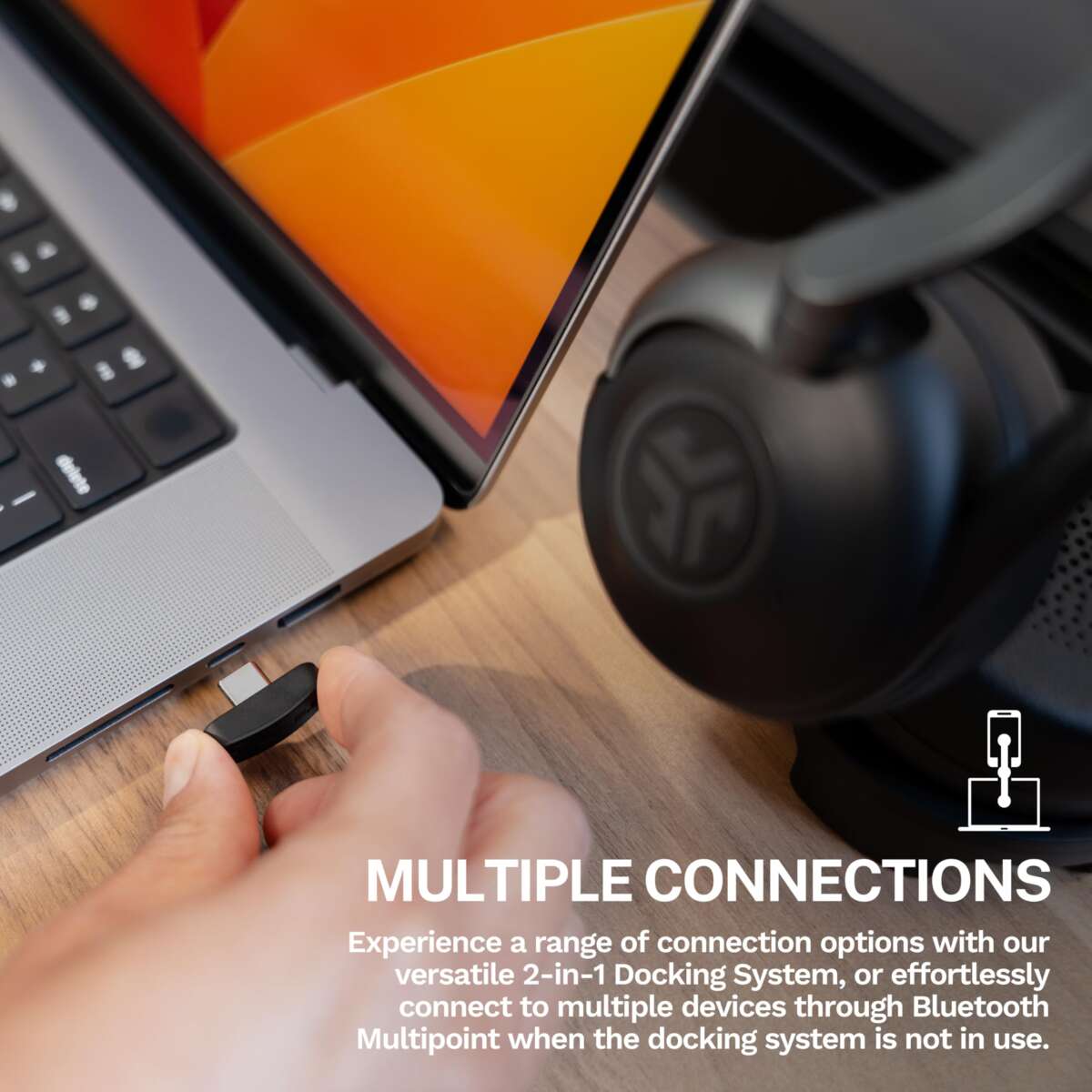
- Wireless dongles: USB adapters that reduce latency for gaming earbuds. Good for stable connections.
- USB sound cards and hubs: Useful for desktops without a dedicated headphone jack.
Match the earbud type to your computer ports. If your computer lacks a headphone jack, you’ll need an adapter or USB earbuds. Understanding these options makes it easier to connect earbuds to computer correctly.

Step-by-step: How to connect earbuds to computer
Below are clear steps for the most common connection methods. Follow the section that fits your earbuds.
Wired earbuds with a 3.5mm jack
- Check your computer for a headphone port. Some laptops have a single combo jack for mic and headphones.
- Plug the 3.5mm plug fully into the jack. You should feel a click.
- Set your audio output to headphones in the sound settings. On Windows, open Sound Settings and choose the output device. On Mac, go to System Preferences > Sound.
- Test audio with a short clip. Adjust volume on the computer and earbuds if available.
If sound is low, check the cable and port for dirt or damage. A loose plug often causes crackling.
Wired earbuds with USB-A or USB-C
- Plug the USB connector into an available USB port.
- Wait for the computer to detect the device. Most modern OSes install drivers automatically.
- Select the USB device as the audio output in sound settings.
- Test the mic and playback. Some USB earbuds appear as separate output and input devices.
If drivers fail to install, download the latest drivers from your computer maker’s site or use generic USB audio drivers.
Bluetooth earbuds
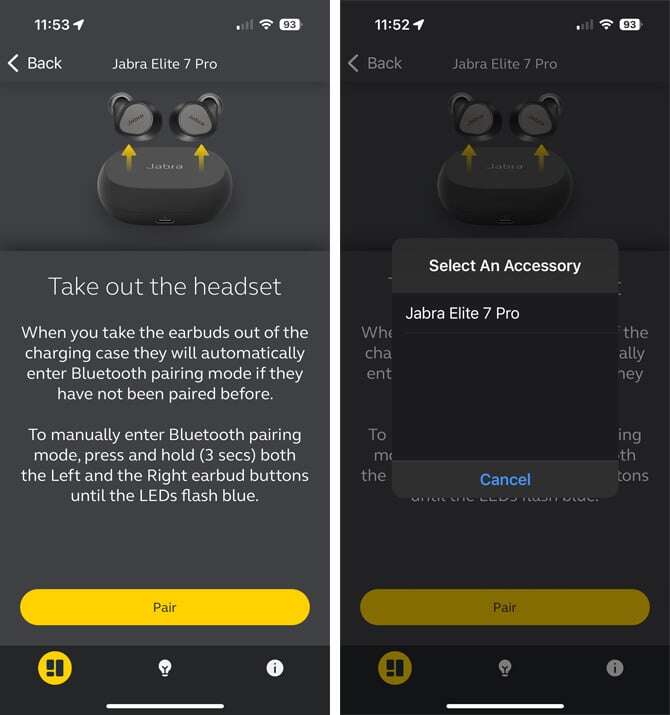
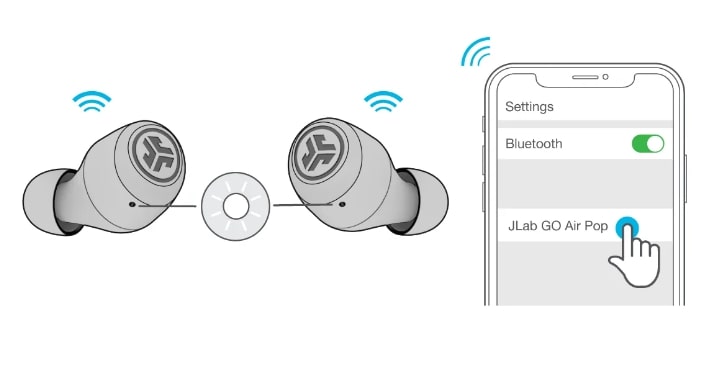
- Turn on your earbuds and enable pairing mode. Check the manual for the exact method.
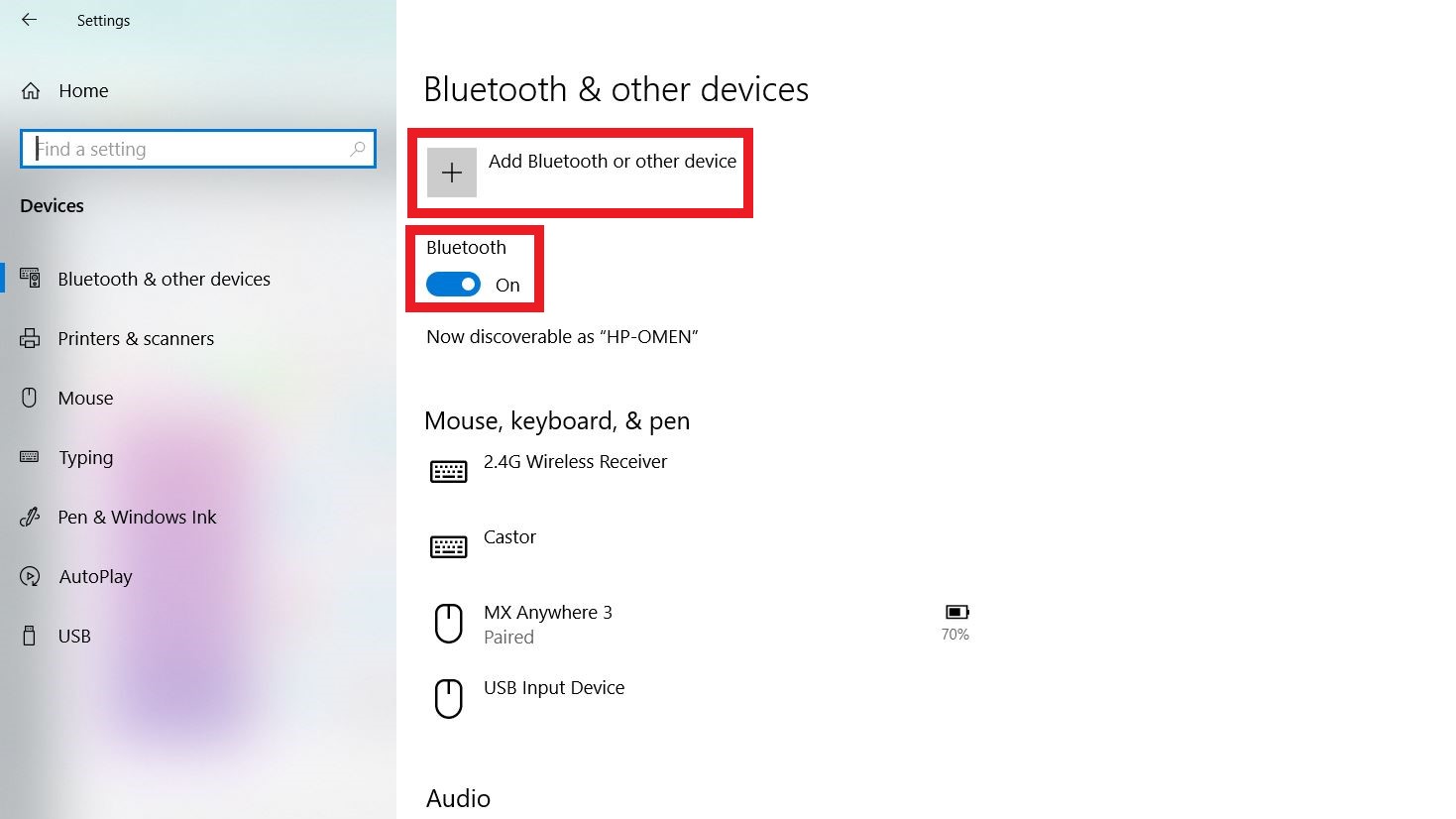
- On Windows, open Settings > Bluetooth & devices > Add device and select Bluetooth. On Mac, open System Preferences > Bluetooth and pair.
- Select your earbuds from the list. Wait until the status reads Connected.
- Choose the earbuds for audio output and input in the sound settings.
- Test playback and call quality.
If you see two Bluetooth device profiles like “Headset” and “Headphones,” choose the one labeled for better music quality (often A2DP or similar).
Using a wireless dongle
- Plug the dongle into a USB port.
- Turn on your earbuds and wait for them to connect to the dongle.
- Set the dongle as the default audio device if needed.
- Test for latency and dropouts, especially with gaming.
Dongles often give lower latency than standard Bluetooth. They can be locked to a single brand or model.
Troubleshooting common problems when connecting earbuds to computer
Slow pairing, no sound, or poor mic quality happen often. Here are quick fixes.
- No sound after plugging in earbuds: Check the sound output in settings and mute states. Try another port or device to isolate the issue.
- Bluetooth pairing fails: Turn Bluetooth off and on, remove previous pairings, and try again. Restart the earbuds and computer if needed.
- Microphone not detected: Choose the correct input in sound settings. Grant browser or app permission for mic access.
- One side not working: Inspect the plug and cable. Try the earbuds on a phone to confirm hardware status.
- Latency during gaming or video: Use a low-latency codec or a USB dongle for better performance.
If you tried all steps and the problem persists, test another pair of earbuds. That isolates whether the issue is the computer or the earbuds.

Tips for best sound and microphone performance
Small steps improve audio a lot. Try these quick tips.
- Use the correct output profile: Many systems show multiple profiles for Bluetooth. Pick the high-quality audio option for music.
- Update drivers and firmware: Keep Bluetooth drivers and earbud firmware current. Updates often fix bugs.
- Adjust app-level audio: Some apps require you to select the audio device inside the app settings.
- Reduce interference: Move away from USB 3.0 ports or crowded wireless areas that cause Bluetooth interference.
- Use equalizer and noise reduction: Many OSes and apps offer simple EQ and noise suppression tools for clearer voice calls.
These tips help you get consistent results when you connect earbuds to computer.
:max_bytes(150000):strip_icc()/GalaxyBudsPro_26-d8bcbc1a8dc0403bb2beee5a074163ee.jpg)
My experience: mistakes I made and lessons learned
I once spent an hour troubleshooting earbuds that would not pair. The issue was a muted Bluetooth radio on the laptop. Simple checks save time.
I also learned to check earbud firmware before blaming the computer. Updates fixed both connection drops and mic problems for me.
Lessons I share:
- Always check simple things first: power, volume, and mute.
- Try a different device to confirm whether the earbuds or computer is the problem.
- Buy earbuds with clear documentation on pairing and profiles.
These habits prevented repeated headaches and made setups fast and predictable.

Frequently Asked Questions of how to connect earbuds to computer
How do I pair Bluetooth earbuds with a Windows PC?
Turn on pairing mode on your earbuds. On Windows, go to Settings > Bluetooth & devices > Add device, then select your earbuds to pair and connect.
Why do my earbuds sound muffled on my computer?
You may be using the headset profile, which prioritizes voice over music. Switch to the high-quality audio profile in sound settings for better music clarity.
Can I use wired earbuds with USB-C only computers?
Yes. Use a USB-C to 3.5mm adapter or get USB-C wired earbuds. If using an adapter, choose one with a built-in DAC for best sound.
My mic works on phone but not on PC. What should I do?
Check the input device in your computer’s sound settings and give apps permission to use the mic. Update drivers and try a different port or adapter.
How do I fix audio delay when watching videos?
Set earbuds to a low-latency codec or use a wired connection. A USB dongle or wired USB/3.5mm connection reduces delay significantly.
Will USB earbuds always sound better than Bluetooth?
Not always. USB can offer direct digital output and less latency. Bluetooth quality varies by codec and signal strength, so both can sound great depending on hardware.
Do I need special drivers to connect earbuds to computer?
Most earbuds work with built-in OS drivers. Some USB earbuds and wireless dongles may offer optional drivers or apps to unlock extra features.
Conclusion
You now have clear, practical steps to connect earbuds to computer. Use the right connection for your gear, update drivers, and test audio settings. Start with simple checks and move to drivers or firmware only when needed. Try the method that matches your earbuds: wired for low latency, USB for plug-and-play, and Bluetooth for convenience. If this guide helped, try the steps now and leave a comment about your setup or any issue you still face.

Everett Ashford is a tech reviewer at mytechgrid.com specializing in SSDs, cameras, TVs, earbuds, headphones, and other consumer electronics. He provides honest, data-driven reviews based on hands-on testing and real-world performance analysis. Everett simplifies complex tech details to help readers make smart, confident buying decisions.