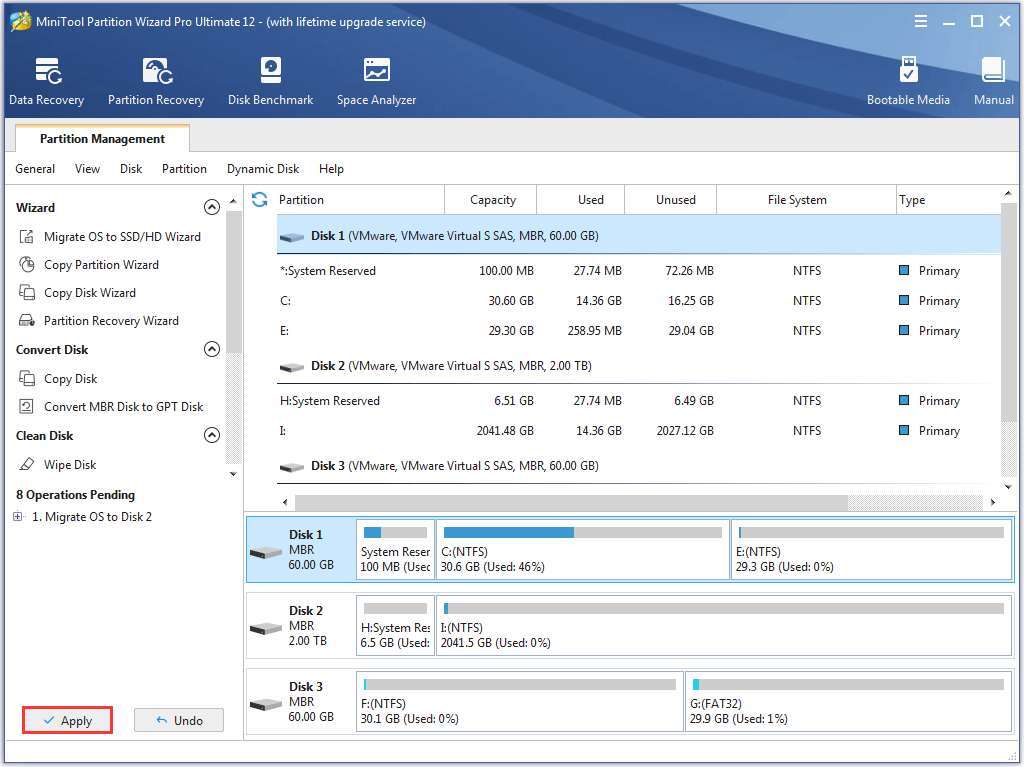
To clone Windows 10 to an SSD, copy the entire system drive with cloning software, then boot from the new SSD.
Learning how to clone Windows 10 to SSD can save hours of setup, app installation, and file transfers. The process is safe when you prepare the drives, choose the right cloning mode, and confirm that the new SSD can boot before wiping the old drive. This guide explains each step in plain language, including UEFI settings, partition layouts, drive sizes, activation, and common errors.
What Does Cloning Windows 10 to an SSD Mean?
Cloning creates an exact copy of your Windows 10 system drive. The copy can include the operating system, boot files, installed programs, personal files, settings, and recovery partitions.
Unlike a normal file copy, cloning preserves the hidden data that Windows needs to start. Think of it as moving your entire digital workspace into a new house without packing each item by hand.
People usually clone Windows 10 to SSD for these reasons:
- Faster startup and application loading
- Better performance on older computers
- More storage space
- Replacement of a failing hard disk drive
- Migration to a newer laptop or desktop drive
- Avoiding a full Windows installation
An SSD has no moving parts. It can read data much faster than a traditional hard disk drive, although the exact improvement depends on the computer, SSD type, interface, and workload.
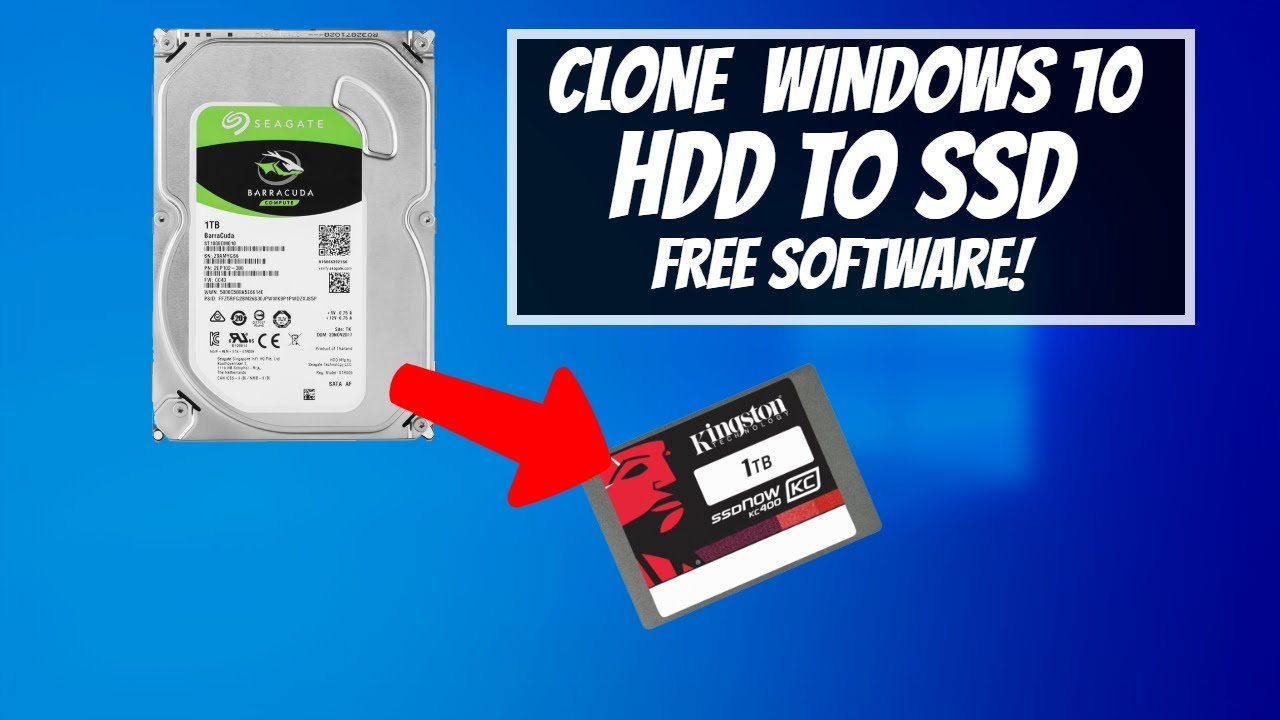
What You Need Before You Clone Windows 10 to SSD
Before learning how to clone Windows 10 to SSD, check your hardware and protect your data. Most cloning problems happen because the target drive is too small, the wrong disk is selected, or the computer loses power during the process.
Prepare these items:
- A compatible SSD
- A working Windows 10 computer
- A SATA-to-USB adapter or external SSD enclosure, if needed
- Reliable disk-cloning software
- A full backup of important files
- A stable power connection
- Enough free space on the source drive
The new SSD must have enough usable capacity for the data on the old Windows drive. A 500 GB source drive may fit on a 500 GB SSD only if the source contains less data than the target can hold. Check the actual used space, not just the drive’s advertised size.
To check storage use in Windows 10:
- Open Settings.
- Select System.
- Choose Storage.
- Review the space used on the Windows drive.
A backup is still essential. Cloning is usually reliable, but a power failure, cable problem, software error, or wrong disk selection can cause data loss. Save important documents to an external drive or trusted cloud storage first.
Choose the Right SSD and Check Compatibility
The SSD must match your computer’s connection and physical space. Most desktop computers support a 2.5-inch SATA SSD, while newer systems may use an M.2 SATA or M.2 NVMe SSD.
Check these points before buying:
- Form factor: Confirm whether you need a 2.5-inch drive or an M.2 module.
- Interface: SATA and NVMe are different technologies.
- Physical space: Some laptops need a mounting bracket or a special adapter.
- Capacity: The SSD should hold all required partitions and used data.
- firmware mode: The computer may use UEFI or legacy BIOS.
- Connection speed: An NVMe SSD cannot reach its full speed through a SATA connection.
If your old drive uses MBR and the computer boots in legacy BIOS mode, cloning it to a GPT drive may require extra work. Modern Windows 10 systems often use UEFI and GPT, but you should verify your setup.
To check the partition style:
- Right-click the Start button.
- Select Disk Management.
- Right-click the disk label, such as Disk 0.
- Select Properties.
- Open the Volumes tab.
- Check Partition style.
Do not initialize or format the new SSD until your cloning software instructs you to do so. Some tools prepare the disk automatically, and manual changes can create confusion.
:max_bytes(150000):strip_icc()/11-how-to-clone-hdd-to-ssd-in-windows-4775671-57a6438d638a42059887668dae292424.jpg)
Select Cloning Software
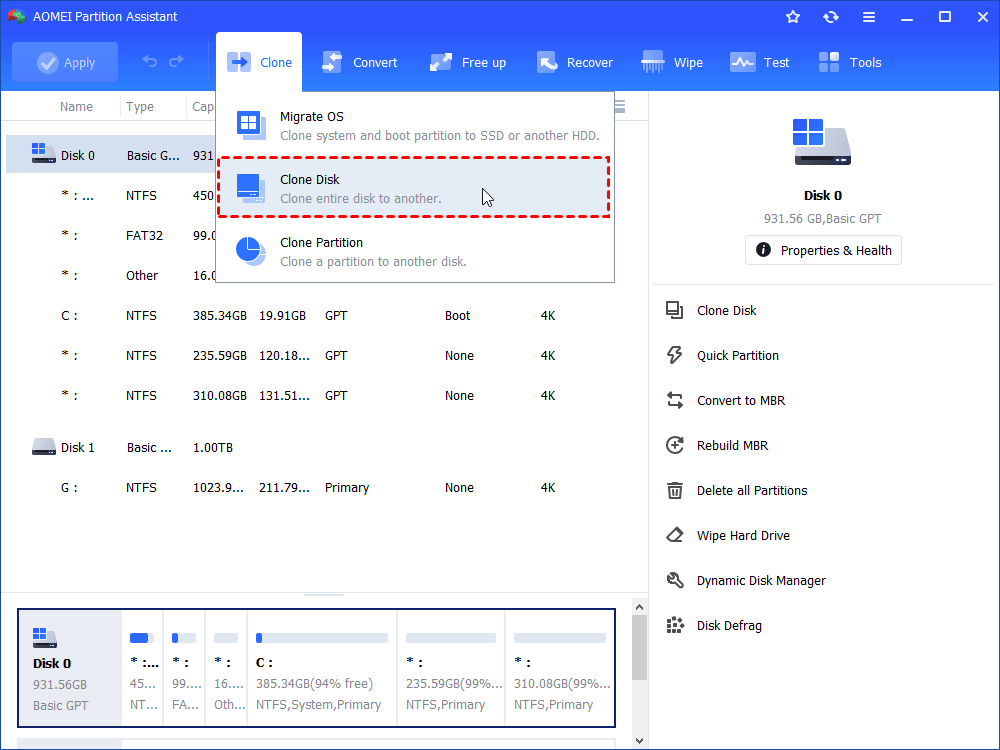
Several tools can clone a Windows 10 drive. The best choice depends on your comfort level and whether you want a simple graphical interface or more advanced control.
Common options include:
- Macrium Reflect: Known for disk imaging and cloning features. Availability and features can change between editions.
- Clonezilla: Powerful and free, but its text-based interface may feel difficult for beginners.
- Rescuezilla: A more user-friendly interface for Clonezilla-based operations.
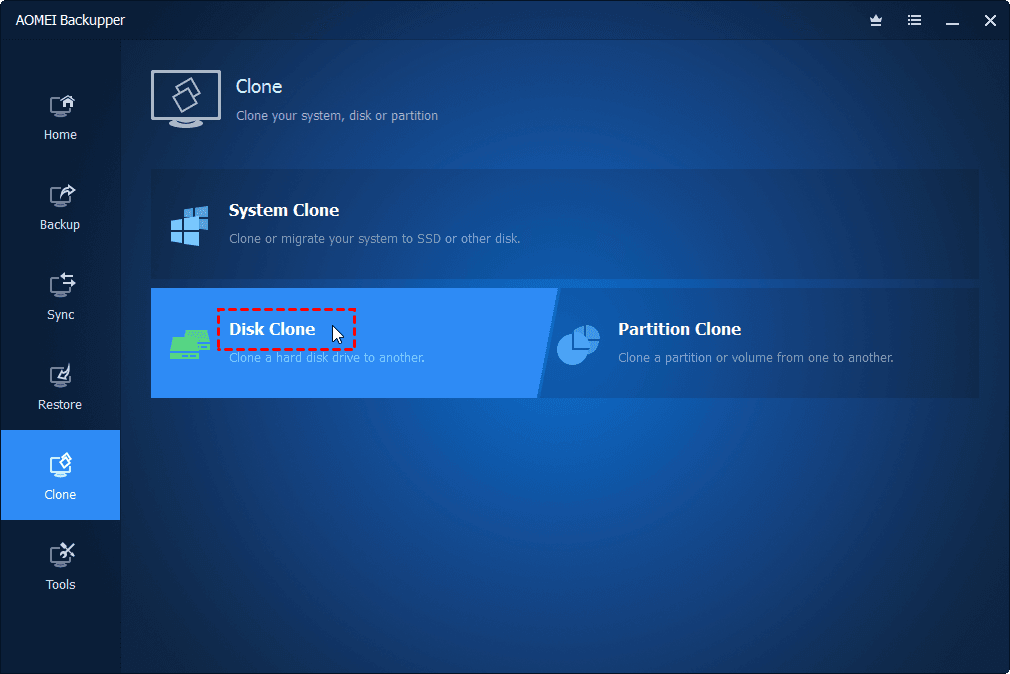
- AOMEI Backupper: Offers cloning and migration features, depending on the edition.
- EaseUS Disk Copy: Designed for drive migration and cloning, with some features limited by the plan.
Download software only from the developer’s official website. Avoid unknown download portals, modified installers, and tools that make unsupported promises.
A good cloning program should let you:
- Select the source disk and target disk clearly
- Copy all required Windows partitions
- Resize partitions during migration
- Clone to a smaller drive when the used space fits
- Create bootable rescue media
- Verify or inspect the cloned drive
Read the current software documentation before starting. Features and license terms can change, especially for free editions.

How to Clone Windows 10 to SSD: Step-by-Step
The following method works for most desktop and laptop migrations. The names of buttons may vary slightly between cloning programs.
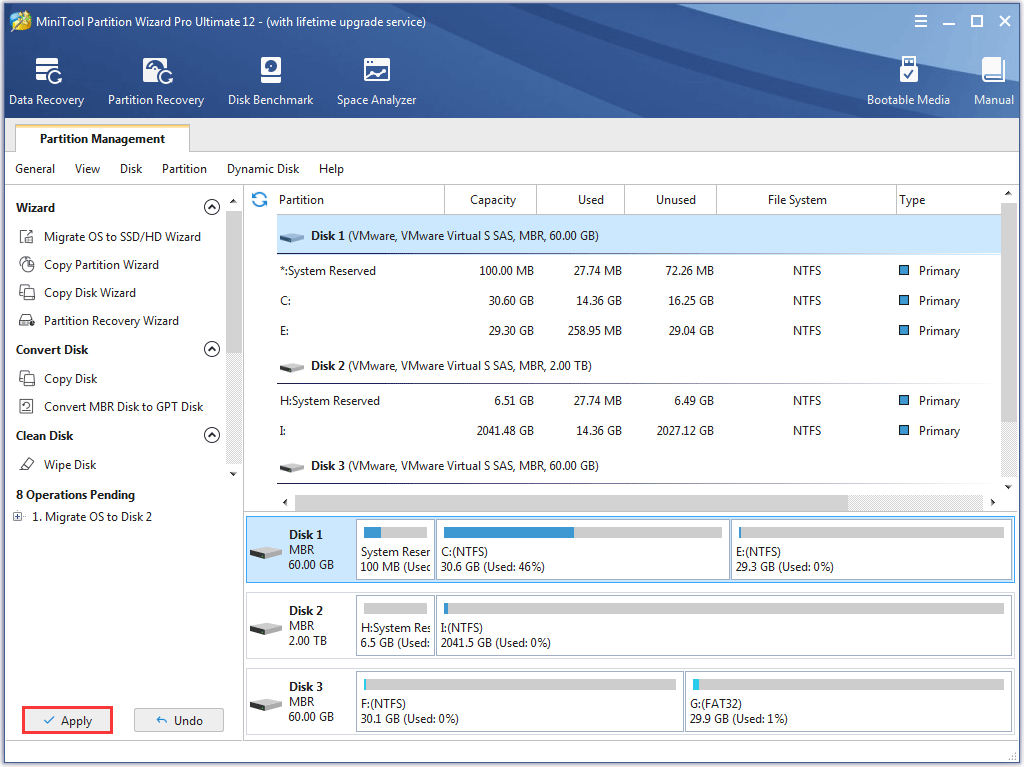
1. Connect the new SSD
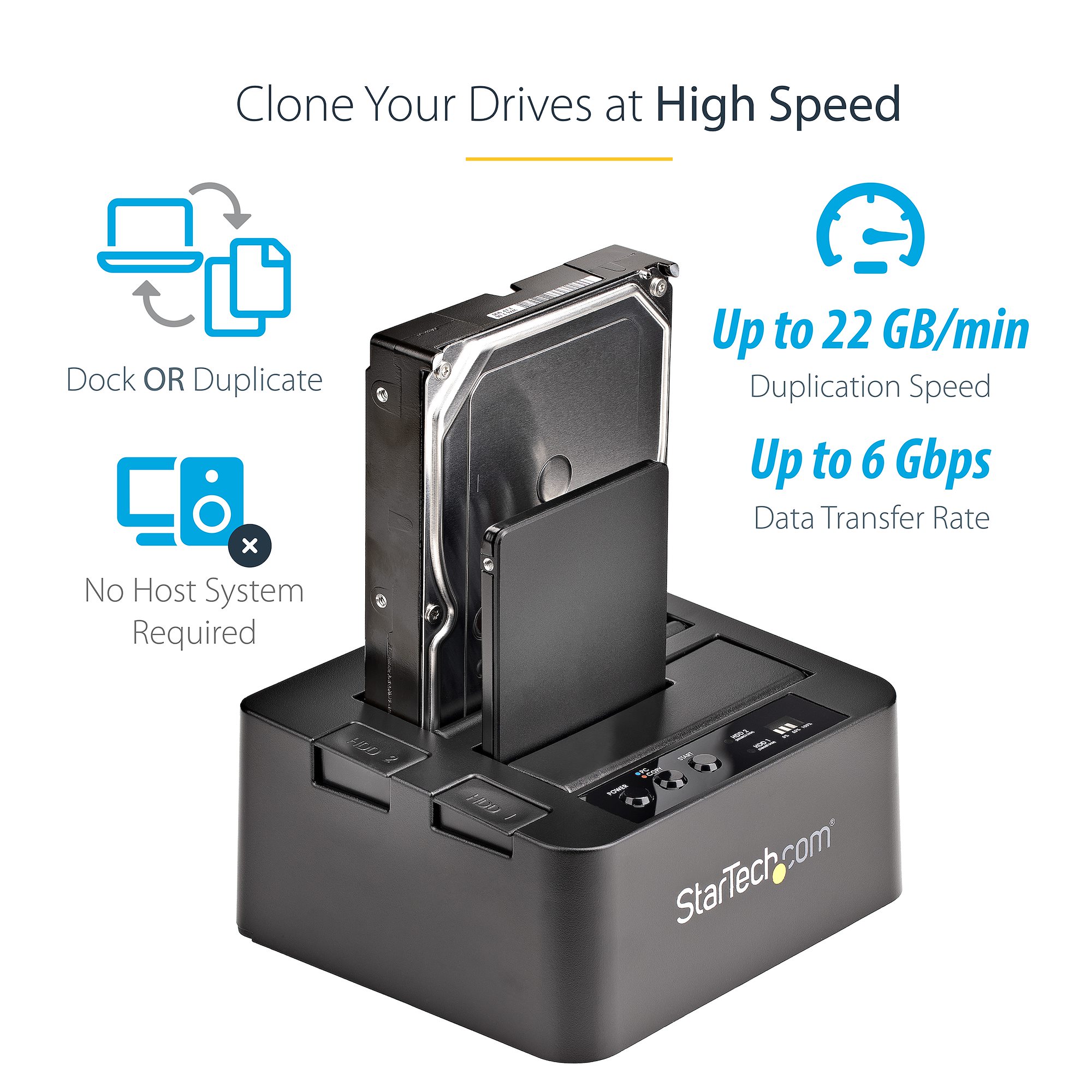
Install the SSD inside the computer or connect it through a suitable USB adapter. Make sure Windows detects it.
Open Disk Management and confirm that the new drive appears. Identify it by its capacity and model name. This step matters because selecting the wrong target can erase your old Windows installation.
2. Install and open the cloning tool
Install your chosen program on the current Windows system. Close apps that use many files, such as video editors, virtual machines, and database programs.
Some cloning tools can copy a live Windows system while it is running. Others may restart into a special recovery environment. Both methods can work when used correctly.
3. Select the source disk
Choose the disk that currently contains Windows 10. Do not select only the C: partition unless the software specifically identifies all required boot partitions.
A typical Windows 10 installation may contain:
- An EFI System Partition
- A Microsoft Reserved partition
- The main Windows partition
- A Windows recovery partition
The exact layout varies. Copying the entire disk is usually safer than selecting one partition.
4. Select the target SSD
Choose the new SSD as the destination. Carefully review the model, size, and partition list.
The target disk will normally be erased during cloning. If it contains files, copy them elsewhere first. Stop immediately if the source and target disks look reversed.
5. Adjust partition size
If the new SSD is larger, expand the Windows partition to use the extra space. Many programs offer options such as fit to entire disk or intelligent sector copy.
If the new SSD is smaller, the source drive’s used space must fit. Delete unnecessary files, empty the Recycle Bin, and remove temporary data before cloning.
Do not delete EFI, system, or recovery partitions unless you understand the consequences. They may be small, but Windows can need them to boot.
6. Start the clone
Begin the process and do not disconnect either drive. The time can range from several minutes to many hours, depending on the amount of data, USB speed, drive health, and cloning method.
Keep a laptop connected to its charger. On a desktop, avoid restarting the computer or switching off the power during the operation.
7. Shut down after completion
When the software reports success, shut down the computer completely. Do not simply restart while both drives are connected if you are unsure which drive the system will use.
At this stage, you have completed the main part of how to clone Windows 10 to SSD. The next step is making the computer boot from the new drive.
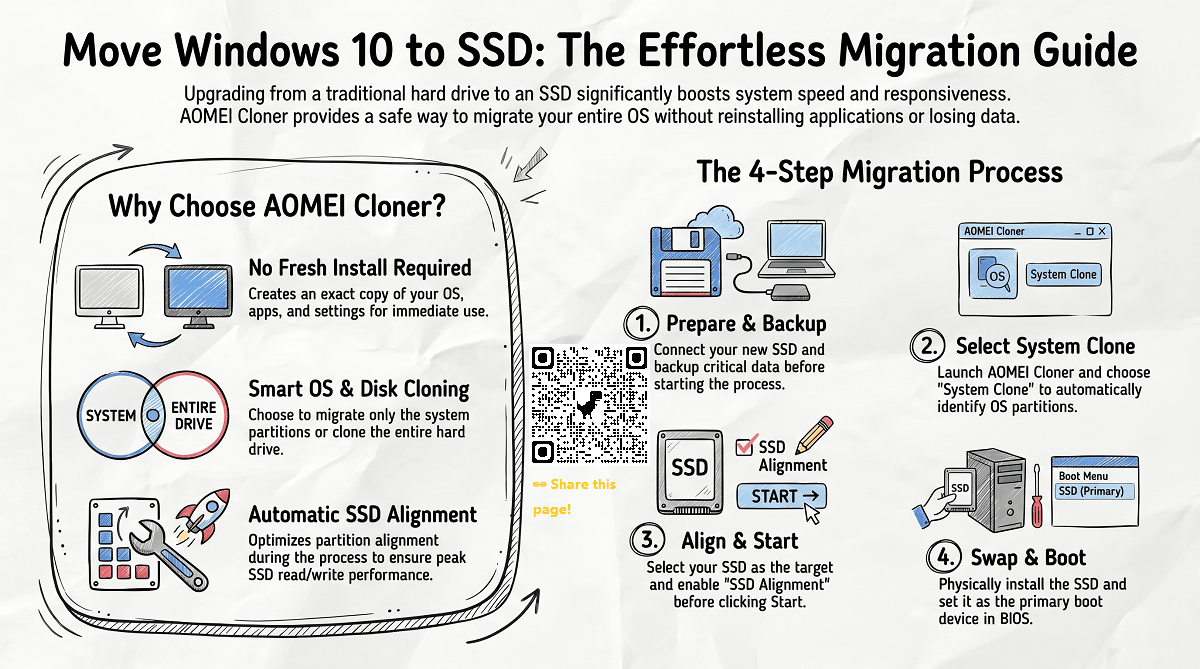
How to Boot From the Cloned SSD
The safest method is to disconnect the old drive before the first boot. This prevents Windows from loading from the wrong disk and makes it easier to confirm that the clone works.
For a desktop, turn off the computer and disconnect the old drive’s data cable or power cable. For a laptop, replace the old drive with the cloned SSD if the design allows it.
Then:
- Turn on the computer.
- Enter the firmware setup by pressing a key such as F2, Delete, F10, or Esc.
- Open the boot settings.
- Place the new SSD or Windows Boot Manager at the top.
- Save the changes and restart.
The exact key depends on the computer maker. Some systems also provide a one-time boot menu.
If Windows starts normally, check that your files and programs work. Open File Explorer, review the drive capacity, and confirm that your usual applications launch.
To verify the active system drive:
- Press Windows key + R.
- Type
msinfo32. - Press Enter.
- Review the BIOS mode under System Summary.
- Check the drive model in Device Manager or the manufacturer’s SSD utility.
Once you are certain the SSD works, reconnect the old drive if you want to use it for storage. Be careful not to format the old drive until you have tested the new installation for several days.
What to Do After Cloning Windows 10
After you clone Windows 10 to SSD, complete a few maintenance tasks. These steps help confirm stability and protect the new installation.
Check Windows activation
Windows activation usually remains intact when the motherboard does not change. A drive replacement alone generally does not create a new license requirement, but activation depends on your license type and hardware.
Check it by opening:
Settings > Update & Security > Activation
If activation is missing, sign in with the Microsoft account linked to the digital license or use the product key associated with the computer.
Update SSD firmware
Use the SSD maker’s official utility to check firmware and drive health. Do not interrupt a firmware update, and follow the manufacturer’s instructions.
Enable TRIM
TRIM helps Windows tell the SSD which data blocks are no longer needed. Windows 10 usually manages this automatically.
Open Command Prompt as administrator and run:
fsutil behavior query DisableDeleteNotify
A result of 0 normally means TRIM notifications are enabled.
Optimize the SSD
Windows 10’s Optimize Drives tool sends the correct maintenance command for the drive type. It does not perform the same traditional defragmentation used for hard drives.
Open the Start menu, search for Defragment and Optimize Drives, and review the drive status.
Keep the old drive for a short time
One mistake I often see is formatting the old drive immediately. Keep it untouched until the new SSD passes several boots, software checks, and file checks.
That old drive is your safety net. Once the migration proves stable, you can erase it through Disk Management and use it as secondary storage.
Common Problems When Cloning Windows 10 to SSD
Even a careful migration can fail for simple reasons. These fixes cover the most common cases.
The SSD does not appear
Try another USB port, cable, adapter, or enclosure. Check whether the SSD appears in firmware settings, not just in Windows.
If the drive is new, Disk Management may ask you to initialize it. Do not choose a partition style until you know whether your system uses UEFI/GPT or legacy BIOS/MBR.
Windows shows “No bootable device”
The boot files may not have copied correctly, or the firmware may be using the wrong boot mode.
Try these steps:
- Confirm that the SSD is first in the boot order.
- Choose Windows Boot Manager for the cloned SSD.
- Match the original UEFI or legacy BIOS mode.
- Run the cloning tool’s boot repair feature.
- Reconnect the old drive temporarily to check whether the original still boots.
The clone is larger than the SSD
The source drive may contain too much used data, or the cloning tool may be copying every sector.
Remove unnecessary files and try an intelligent sector copy. You may also shrink the main Windows partition in Disk Management before cloning.
Windows starts but applications fail
This can happen if the clone was incomplete or if a program depends on a changed drive letter. Check that the Windows partition has the expected letter, then restart the computer.
Some licensed applications may require reactivation. This is controlled by each software publisher, not by the cloning process.
The SSD is slower than expected
Confirm that the SSD is connected to the correct interface. A SATA SSD will not perform like an NVMe SSD, and an NVMe drive in a slower adapter may be limited by the connection.
Check available firmware updates, power settings, thermal conditions, and benchmark results from the SSD manufacturer’s tool.

Tips for a Safer Windows 10 SSD Migration
A smooth migration is mostly about preparation. These practical habits reduce risk:
- Back up personal files before cloning.
- Use a surge protector or uninterrupted power supply for desktop systems.
- Disconnect extra external drives to reduce the risk of selecting the wrong disk.
- Record BitLocker recovery information before changing drives.
- Pause large downloads and cloud-sync jobs.
- Keep the computer cool during long transfers.
- Do not interrupt the clone because the progress bar seems slow.
- Test the new SSD before erasing the old one.
- Keep the original drive as a backup until the new system is stable.
If BitLocker is enabled, save the recovery key before starting. Cloning encrypted drives can work, but software support varies. Some tools may copy the encrypted data without issue, while others may require BitLocker to be suspended or decrypted first.
Windows 10 reached the end of Microsoft’s standard support period on October 14, 2025. Cloning Windows 10 can still move your existing installation to an SSD, but it does not extend security support. If your hardware supports Windows 11, consider whether a clean upgrade or supported migration is the better long-term choice.
Frequently Asked Questions About How to Clone Windows 10 to SSD
Can I clone Windows 10 to an SSD without reinstalling programs?
Yes. A full disk clone copies the Windows installation, applications, settings, and files. Some programs may still ask for activation if they detect a hardware or drive change.
Can I clone Windows 10 to a smaller SSD?
Yes, if the used data on the source drive fits on the smaller SSD. You may need to delete files or shrink the Windows partition before starting.
Should I clone the entire disk or only the C: drive?
Clone the entire disk in most cases. This includes boot, system, recovery, and other hidden partitions that Windows may need to start.
Will Windows remain activated after cloning to an SSD?
Usually, replacing only the storage drive does not remove activation. Check Settings > Update & Security > Activation, because license behavior can vary with the license type and other hardware changes.
Can I use the old hard drive after cloning Windows 10 to SSD?
Yes. Keep it untouched until the SSD boots correctly and your files work. After testing, you can format the old drive and use it for backups or extra storage.
Why does my cloned SSD show less space than expected?
The cloning software may have copied the original partition size instead of expanding it. Use Disk Management to inspect unallocated space and extend the main partition when possible.
Do I need to format the SSD before cloning?
Usually, no. Most cloning programs erase and prepare the target drive during the process. Formatting it first is unnecessary unless the software specifically requests it.
Conclusion
Learning how to clone Windows 10 to SSD is a practical way to improve speed without rebuilding your computer from scratch. Back up your files, confirm the SSD is compatible, copy every required partition, and set the new drive as the first boot device.
Take your time when identifying the source and target disks. Test the cloned SSD before formatting the old drive, and remember that moving Windows 10 to faster hardware does not extend its support period. If this guide helped, explore more Windows storage guides, share your results, or leave a comment about your SSD migration.

Everett Ashford is a tech reviewer at mytechgrid.com specializing in SSDs, cameras, TVs, earbuds, headphones, and other consumer electronics. He provides honest, data-driven reviews based on hands-on testing and real-world performance analysis. Everett simplifies complex tech details to help readers make smart, confident buying decisions.