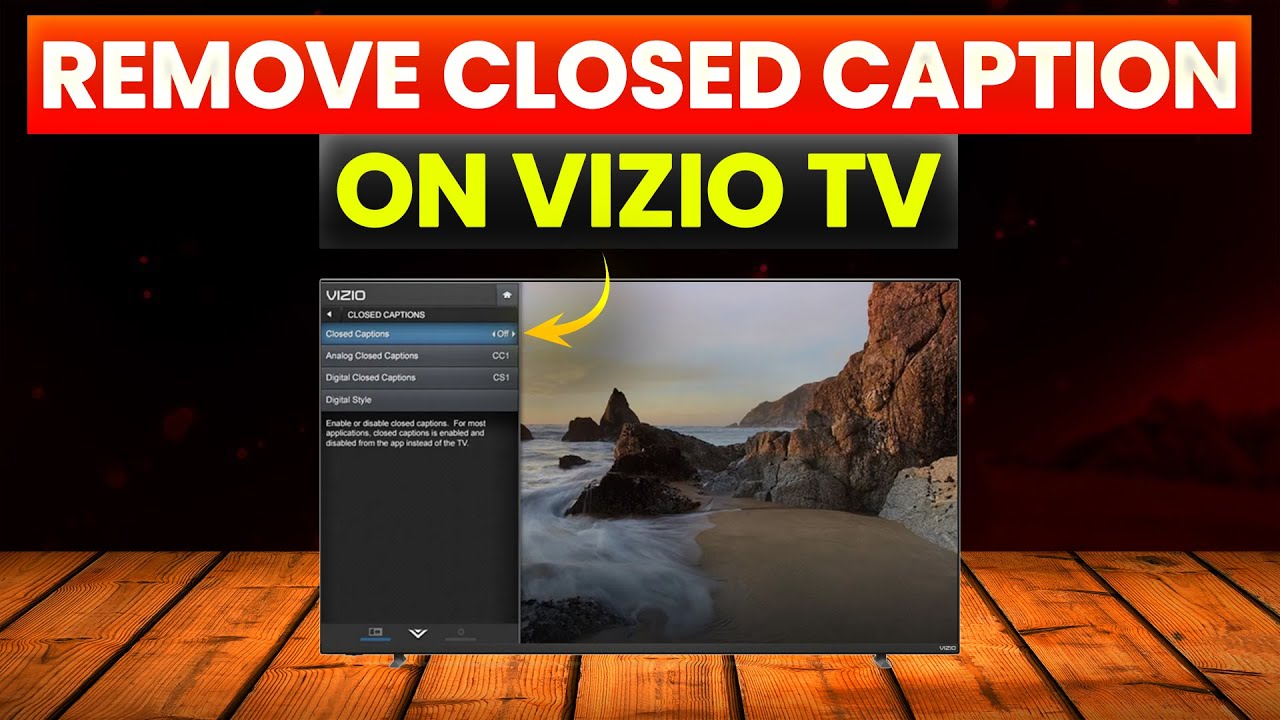
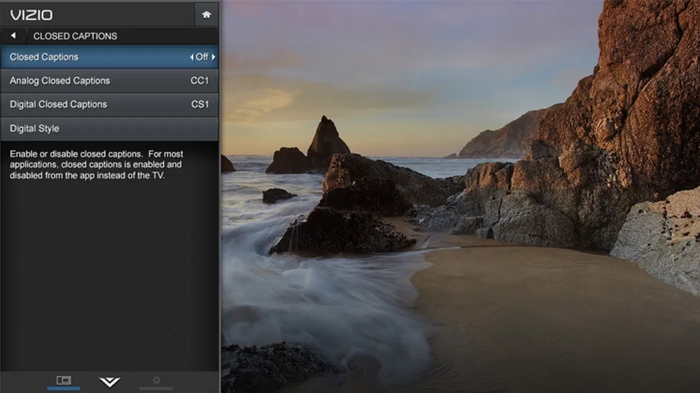
To turn off closed caption on a Vizio TV, open Menu, choose Closed Captions, and select Off.
If you are searching for how to turn off closed caption Vizio TV settings, you can usually fix it in less than a minute. The exact steps vary by Vizio model, remote, and viewing source, so this guide covers SmartCast TVs, older Vizio sets, cable boxes, streaming devices, and apps.
How to turn off closed caption Vizio TV settings
Vizio TVs use a few different menus. Newer SmartCast models often place caption controls under Accessibility, while older models may show a direct Closed Captions option.
Try these steps first:
- Turn on your Vizio TV.
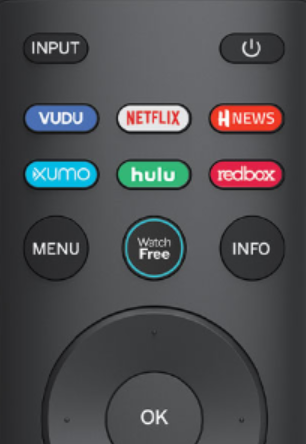
- Press the Menu button on the Vizio remote.
- Open Accessibility, Closed Captions, or Captions.
- Select Closed Captions.
- Change the setting to Off.
- Exit the menu and check a live channel or video.
This is the most common method for how to turn off closed caption Vizio TV features. The wording may differ slightly, but look for terms such as Captions, Closed Captions, Subtitles, or CC.
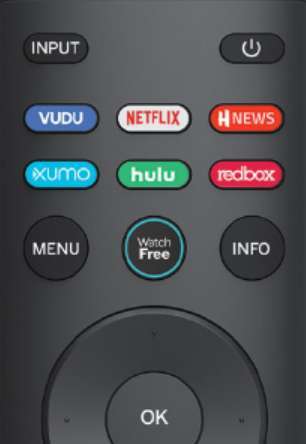
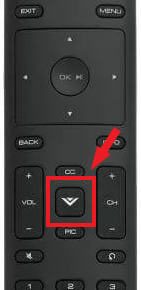
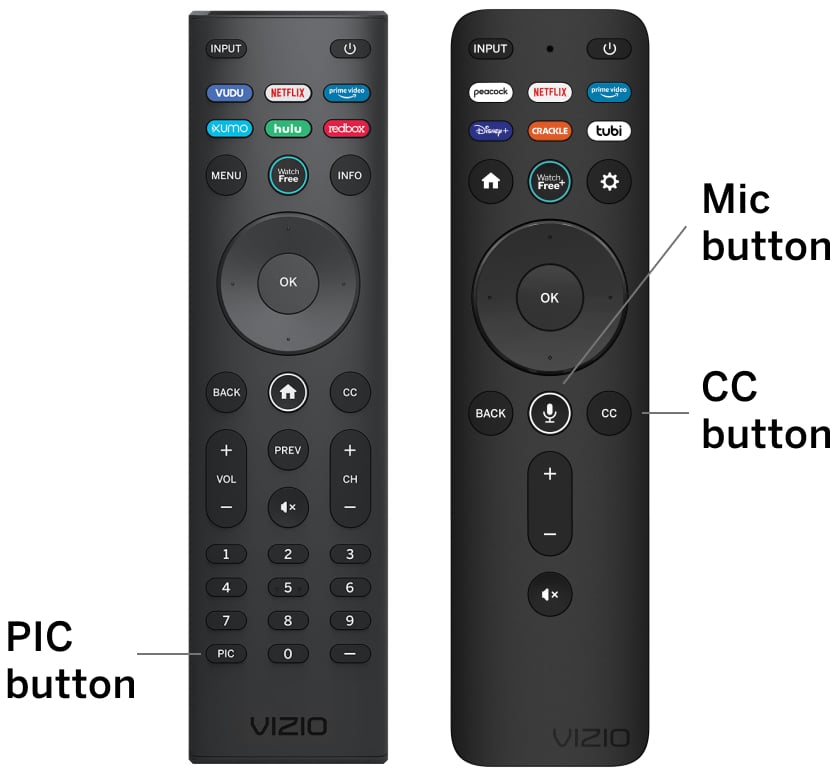
On some remotes, you may see a CC button. Press it once, then choose Off from the caption menu. If the button opens a small overlay, use the arrow keys and OK button to confirm your choice.
Turn off captions on newer Vizio SmartCast TVs
Many newer Vizio televisions use the SmartCast interface. On these models, caption controls may be inside the Accessibility menu instead of the main TV settings.
Follow these steps:
- Press the Home button on your remote.
- Select the Settings gear.
- Choose Accessibility.
- Open Closed Captions.
- Set Closed Captions to Off.
- Press the Back button to leave the menu.
If you do not see Accessibility, open System, then look for Accessibility or Closed Captions. Vizio has changed menu layouts across different software versions, so the location can vary.
For users learning how to turn off closed caption Vizio TV menus, the key is to change the setting on the television itself. However, this may not disable captions created by a cable box, Roku, Apple TV, game console, or streaming app.
Turn off captions on older Vizio TVs
Older Vizio models may use the VIA or VIA+ platform. Their menu names are often simpler, but the control is still easy to find.
Try this path:
- Press Menu on the Vizio remote.
- Select Setup or TV Settings.
- Choose Closed Captions.
- Select Digital Closed Captions or Closed Captions.
- Choose Off.
- Press Exit.
Some older televisions show Analog Closed Captions and Digital Closed Captions as separate options. If both appear, turn off both settings.
This step is important when following how to turn off closed caption Vizio TV instructions on an older set. Turning off only digital captions may leave analog captions active, especially when watching older broadcasts or equipment connected through composite cables.

Use the Vizio remote to disable captions
The remote can be the fastest solution. Look for a button labeled CC, CCD, Subtitle, or Closed Captions.
Press the button and watch for an on-screen menu. Select Off, Disable, or No Captions. Then wait a few seconds for the text to disappear.
If the remote does not have a caption button, use Menu or Home instead. A missing CC button does not mean your TV cannot control captions.
When I troubleshoot this issue, I first test the CC button and then open the full settings menu. This avoids changing random picture or audio options by mistake. It also helps confirm whether the TV or another device controls the captions.
Captions still appear after you turn them off
If captions remain visible, the TV may not be the device creating them. A connected device or app can add its own subtitles on top of the television picture.
Check these sources:
• Cable or satellite box: Open the box’s settings and disable Closed Captioning or Subtitles.
• Roku: Go to Settings, Accessibility, Captions mode, then select Off.
• Amazon Fire TV: Open Settings, Accessibility, Closed Captions, then turn captions off.
• Apple TV: Open Settings, Accessibility, Subtitles and Captioning, then disable Closed Captions and SDH.
• Netflix: Start a video, open Audio & Subtitles, and select Off.
• YouTube: Select the CC icon in the video player and turn captions off.
• Blu-ray player or game console: Check the device’s language, accessibility, or subtitle settings.
This is one of the most common reasons that how to turn off closed caption Vizio TV steps seem ineffective. Think of your TV as a picture frame. If another device paints the words onto the picture, changing the frame will not remove them.
Check whether the broadcast controls the captions
Over-the-air channels and cable channels may deliver caption data with the program. Your Vizio TV can often hide that data, but some broadcast equipment has its own controls.
Change to a different channel after disabling captions. If captions appear on only one channel, the issue may be related to that station or broadcast feed.
You can also test a built-in app, such as WatchFree+ or another app installed on the TV. If captions are gone in the built-in app but remain on cable, the cable box or receiver likely controls them.
This simple test makes how to turn off closed caption Vizio TV troubleshooting much faster. It separates a television setting from a source setting before you spend time resetting the entire TV.

Restart the TV and update its software
A temporary software issue can prevent a caption setting from saving. Restarting the TV is safe and often clears small menu errors.
To power cycle the TV:
- Turn off the Vizio TV.
- Unplug it from the wall.
- Wait at least 60 seconds.
- Plug it back in.
- Turn the TV on and check the caption setting again.
If captions return, check for a software update under Settings, System, or Check for Updates. Menu names differ by model.
Vizio’s official support materials and the Federal Communications Commission explain that closed captions can be controlled by the television, program source, or device. That is why one universal fix does not work for every setup.

Reset caption settings without resetting the whole TV
Before using a full factory reset, look for a way to restore only accessibility settings. Some Vizio models let you change caption appearance and behavior without erasing apps or network details.
Open the Closed Captions menu and check for options such as:
• Caption Style
• Digital Style
• Reset Caption Settings
• Restore Defaults
If captions are set to Always On, change the mode to Off or Automatic. Automatic may display captions when a program includes them, while Off should keep them hidden.
A full factory reset should be the last resort. It removes personal settings, saved Wi-Fi information, installed apps, and other preferences. Most caption problems do not require that level of reset.
Common mistakes to avoid
Turning off captions should be simple, but a few common mistakes can create confusion.
• Changing subtitles inside Netflix while watching cable: Each source may have separate caption controls.
• Selecting Automatic instead of Off: Automatic can still show captions when the program sends caption data.
• Turning off only digital captions: Older equipment may use analog captions.
• Using a universal remote with limited commands: Some remotes cannot open every Vizio accessibility menu.
• Assuming captions are burned into the video: Text that is permanently part of the video cannot be removed through TV settings.
• Skipping the source test: Checking a built-in app and a live channel can quickly reveal which device controls the text.
When helping someone with how to turn off closed caption Vizio TV settings, I recommend taking a photo of the original menu before changing anything. It makes it easier to restore a setting if the wrong option is selected.
Accessibility and closed caption options
Closed captions are designed to help people follow dialogue, sound effects, and speaker changes. They are useful for viewers who are deaf or hard of hearing, people watching in a noisy room, and anyone learning a language.
Vizio TVs may offer more than a simple on or off switch. Depending on the model, you may be able to adjust:
• Text size
• Font style
• Text color
• Background color
• Caption opacity
• Window opacity
• Edge style
These options do not usually affect whether captions appear. They change how the words look when captions are enabled.
If captions help someone in your home, consider using the source device’s profile settings instead of disabling them everywhere. For example, a streaming service may save subtitle preferences for one profile while leaving them off for another.
Frequently Asked Questions About How to Turn Off Closed Caption Vizio TV
How do I turn off closed caption Vizio TV settings with the remote?
Press Menu or Home, open Accessibility or Closed Captions, and select Off. If your remote has a CC button, press it and choose Off from the on-screen menu.
Why do captions keep coming back on my Vizio TV?
Captions may be controlled by a cable box, streaming stick, app, or broadcast source instead of the TV. Disable captions on that device as well, then restart the Vizio TV.
Does turning off Vizio TV captions remove subtitles from Netflix?
Not always. Netflix has its own subtitle control, so open the Audio & Subtitles menu during playback and select Off.
What should I do if my Vizio TV has no Closed Captions option?
Look under Accessibility, System, Setup, TV Settings, or CC. You can also check the connected device because it may control the captions instead of the television.
Can I turn off captions on a Vizio TV without a remote?
Try the physical buttons on the TV, the Vizio mobile app if your model supports it, or a compatible replacement remote. The exact available controls depend on the TV model.
Why do captions appear on only one channel?
That channel may be sending different caption data, or its receiver may have a separate caption setting. Test another channel and a built-in TV app to identify the source.
Will a factory reset turn off closed captions?
A factory reset usually restores the TV’s original settings, which may turn captions off. However, it also erases network details, apps, and personal preferences, so try the normal caption menu first.
Conclusion
Turning off captions on a Vizio TV usually takes only a few steps: open Menu or Home, find Accessibility or Closed Captions, and choose Off. If the words remain, check the cable box, streaming device, app, or game console because that source may control them.
The best approach for how to turn off closed caption Vizio TV settings is to test one source at a time. Start with the television menu, then check connected devices and apps. Save this guide for later, and share your Vizio model or setup in the comments if you need more specific help.

Everett Ashford is a tech reviewer at mytechgrid.com specializing in SSDs, cameras, TVs, earbuds, headphones, and other consumer electronics. He provides honest, data-driven reviews based on hands-on testing and real-world performance analysis. Everett simplifies complex tech details to help readers make smart, confident buying decisions.