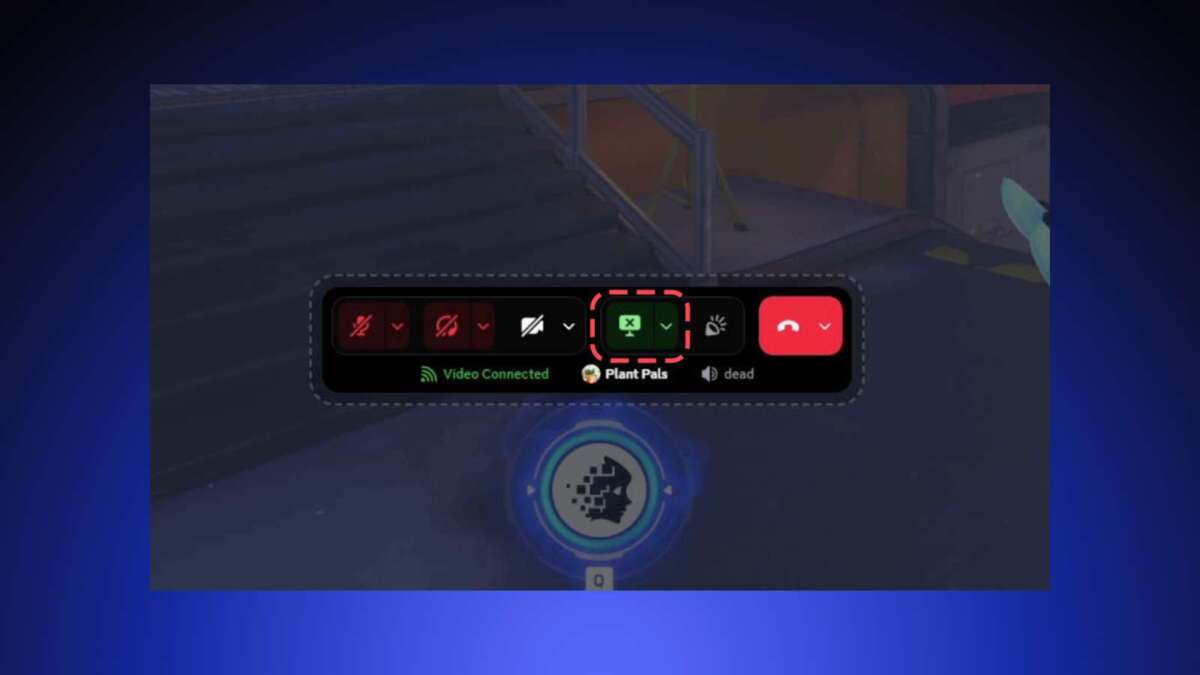
Hold and drag the camera preview in Discord Overlay to reposition your webcam freely.
I’ve worked with live streams, gaming overlays, and Discord settings for years. In this guide I’ll show exactly how to move camera in Discord overlay, explain why it matters, and give step-by-step instructions, troubleshooting tips, and pro tweaks you can use right away. Read on to get hands-on, reliable steps that actually work.

Why move camera in Discord overlay
Moving your camera in the Discord overlay keeps your webcam out of the way of HUDs, chat, or game UI. It also helps you frame your face, avoid blocking important on-screen info, and make streams look cleaner. Knowing how to move camera in Discord overlay improves viewer experience and reduces distractions during gameplay or calls.

Prerequisites and settings to check first
Before trying to move camera in Discord overlay, confirm these basics:
- Make sure you have the Discord desktop app installed. The overlay feature is not available in the web app.
- Enable in-game overlay in Discord settings under Overlay. Toggle the Overlay switch on.
- Allow Discord permission to use your camera and microphone in your OS privacy settings.
- Use a supported camera or virtual cam software that Discord recognizes.
- Update Discord to the latest version to avoid layout bugs.
These checks stop common blockers when you try to move camera in Discord overlay. If any setting is missing, the overlay or camera preview might not appear.

Step-by-step: how to move camera in Discord overlay
Follow these clear steps to move camera in Discord overlay while in a game or full-screen app:
- Start your game or full-screen app that supports Discord overlay.
- Open Discord overlay with the hotkey (default is Shift + `). If it doesn’t open, verify the hotkey in Discord Settings > Overlay.
- Locate the camera preview window in the overlay. This shows your webcam feed.
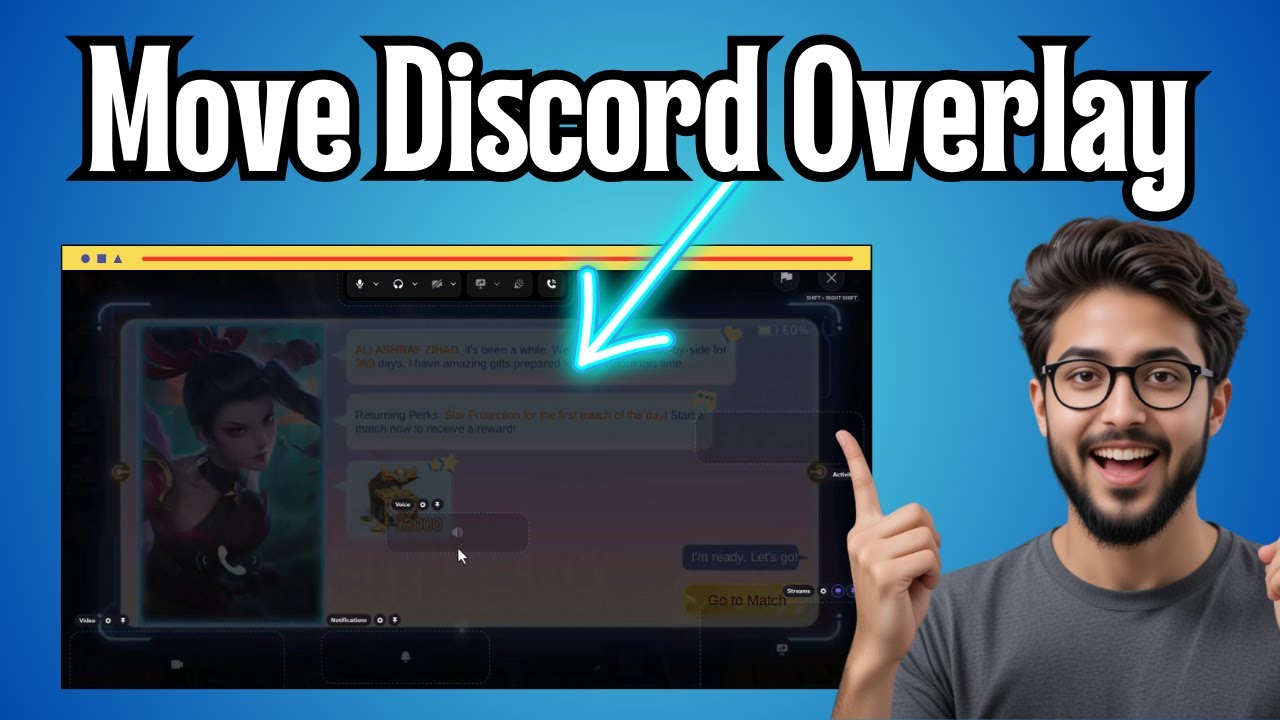
- Click and hold the camera preview with your mouse. Drag it to the desired location on screen.
- Release the mouse button to drop the camera preview. The overlay saves the position per app or game.
- To resize, drag from the corners if the overlay allows resizing. Some Discord builds support click-and-drag resizing.
If you switch games, repeat these steps. Discord stores overlay position for each app, so you can place the camera differently for different games.
Troubleshooting: if you can’t move the camera in Discord overlay
Common problems and fixes when you cannot move camera in Discord overlay:
- Overlay not appearing: Confirm Overlay is enabled in Discord and the app is listed under Game Activity.
- Camera preview missing: Check camera permissions and test in Discord Voice & Video settings.
- Dragging doesn’t work: Try running Discord as administrator or restart the app. Some games block overlay input unless Discord has the right privileges.
- Position won’t save: Disable any third-party window manager or virtual desktop tools that may block position storage.
- Virtual camera conflicts: If using virtual cam software, switch to a physical webcam temporarily to test overlay behavior.
These steps usually fix the issue. If problems persist, reinstall Discord or clear the app cache.
Advanced tips and custom positioning
Use these advanced tips to get better results when you move camera in Discord overlay:
- Use hotkeys. Set a custom overlay hotkey in Discord Settings to quickly toggle and move the camera.
- Lock position when done. Some overlays or third-party apps allow locking the position to prevent accidental moves.
- Use virtual backgrounds carefully. If using virtual backgrounds, test how they look in the smaller overlay preview.
- Match aspect ratio. Ensure your camera’s aspect ratio looks good in the overlay by adjusting webcam resolution in device settings.
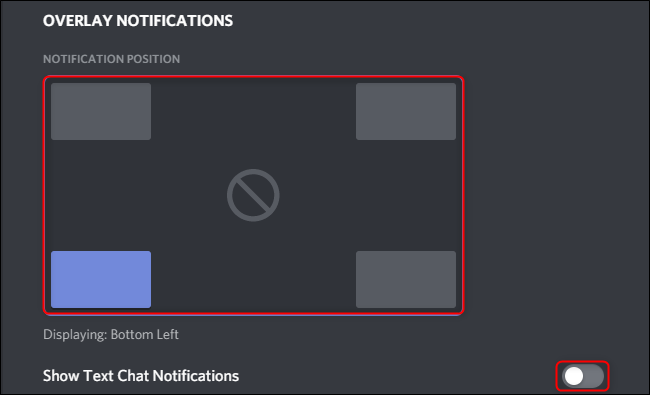
- Position per app. Place the camera differently for each app. You might want bottom-left for one game and top-right for a video call.
These tweaks help you control how the camera sits over your screen. Small moves can make a big visual difference.

Personal experience, mistakes to avoid, and lessons learned
I’ve managed overlay layouts for streamed tournaments and casual streams. Early on, I left the camera covering chat and missed key game cues. Here are lessons I learned:
- Don’t assume one position fits all games. Move camera in Discord overlay per app for clarity.
- Test before a live session. Quick tests reveal if the camera hides UI or obstructs important info.
- Avoid complex overlays during critical gameplay. Keep the camera small and out of sight during competitive play.
- Keep a consistent visual style. Viewers prefer stable camera placement across sessions.
These simple habits save time and frustration. I recommend practicing repositioning before going live.

Safety, privacy, and limitations
Be aware of these safety and tool limits when repositioning your camera in Discord overlay:
- Privacy: Overlay shows your webcam to others. Ensure your background and surroundings are appropriate before joining a call.
- App limitations: Some full-screen apps block overlay input or hide overlays entirely.
- Performance: Running overlays and virtual cam software increases CPU/GPU load. Test performance impact on your system.
- Reliability: Overlay behavior can change with Discord updates. Keep Discord updated and check patch notes for overlay changes.
Understanding these boundaries helps you use overlay without surprises.

Frequently Asked Questions of how to move camera in discord overlay
How do I enable the overlay to move my camera?
Enable Overlay in Discord Settings > Overlay. Then open the overlay with the hotkey while in a game or full-screen app to access the camera preview.
Can I resize the camera in Discord overlay?
Some Discord builds allow resizing by dragging the preview corners. If resizing isn’t available, change your webcam resolution in Discord Voice & Video settings.
Why won’t the overlay camera move in my game?
Your game may block overlay input or Discord may lack permissions. Try running Discord as administrator and ensure the game is added to Game Activity.
Will the camera position stay the same for all apps?
Discord stores overlay position per app. You may need to move the camera separately for each game or application.
Is the overlay camera visible to all participants automatically?
Yes. Anyone viewing your overlay-enabled stream or call sees the webcam. Always check privacy settings and background before enabling the camera.
Conclusion
Moving your camera in Discord overlay is quick and powerful. Follow the steps above, check basic settings, and test positions per app. Small changes to overlay placement can improve viewer experience and reduce distractions. Try repositioning your camera now, save a layout you like, and share your setup or questions below to keep improving your stream or calls.

Everett Ashford is a tech reviewer at mytechgrid.com specializing in SSDs, cameras, TVs, earbuds, headphones, and other consumer electronics. He provides honest, data-driven reviews based on hands-on testing and real-world performance analysis. Everett simplifies complex tech details to help readers make smart, confident buying decisions.