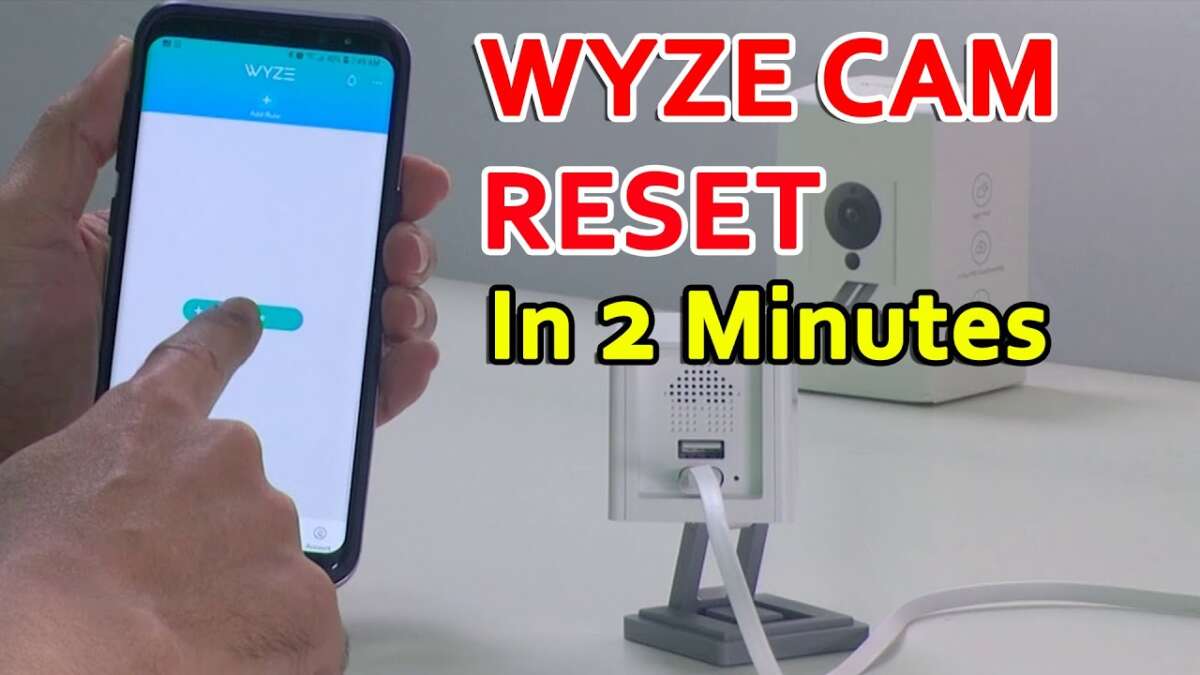
To reset a Wyze camera, press and hold the setup button until the LED flashes amber and blue, then follow the app prompts.
I’ve worked with smart-home gear for years and walked through dozens of Wyze setups and resets. This guide explains how to reset Wyze camera models step by step, why you might reset one, what each reset type does, and how to avoid common mistakes. Read on for clear, practical steps and real-world tips to get your camera back online quickly and safely.
Why reset a Wyze camera?
Resetting a Wyze camera fixes many common problems. You might need a reset after network changes, persistent errors, or when you sell or gift the camera. A reset can remove corrupted settings, clear pairing issues, and restore the camera to a known state. Knowing which reset to use saves time and avoids unnecessary data loss.

Types of resets and what they do
Restart
- A quick power cycle that reboots the device without erasing settings.
- Press and hold the setup button until the LED indicates the camera is ready to re-pair. This keeps most settings but clears transient pairing issues.
- Restores the camera to original settings and removes stored Wi-Fi credentials and local configurations. Use this before selling or when nothing else works.
App-based remove and re-add
- Remove the device from the Wyze app, then add it again. This often resolves cloud or account pairing problems without a full factory reset.
Choosing the right reset depends on the problem. If you need to know how to reset Wyze camera to factory defaults, follow the factory steps below. For intermittent issues, try a restart first.
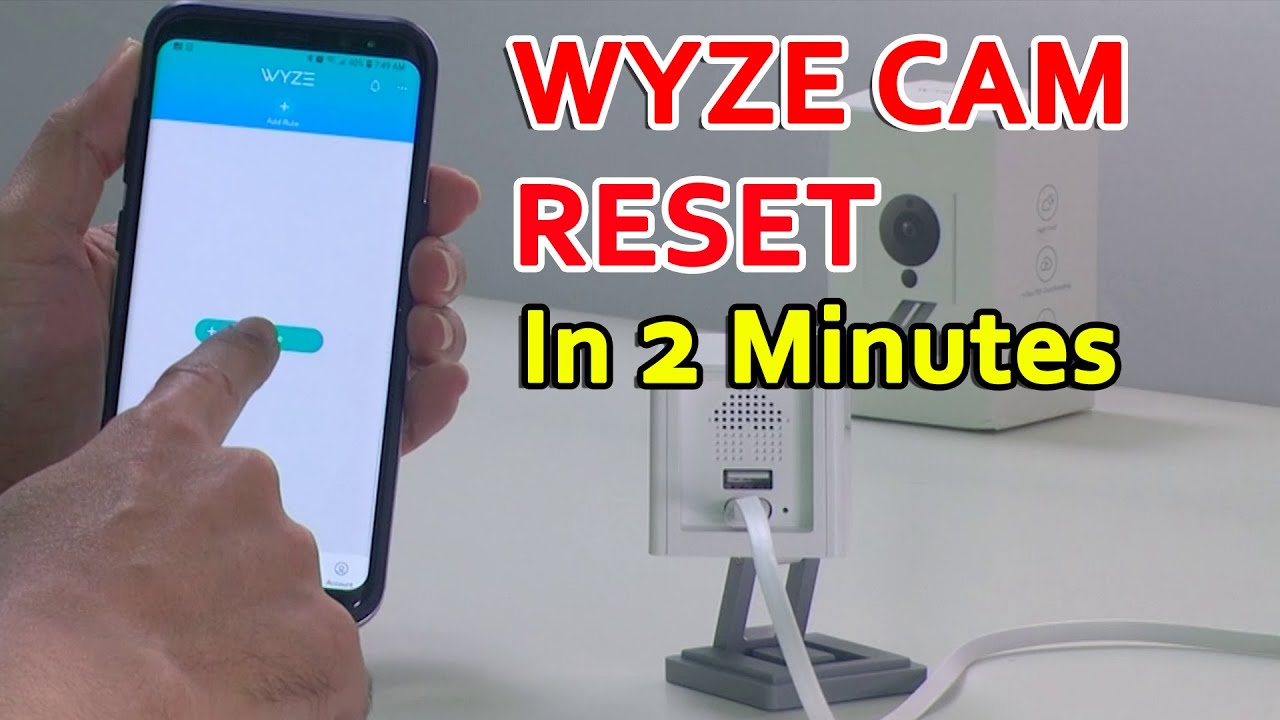
How to reset Wyze Camera (Wyze Cam v2 and v3) — step-by-step
Follow these steps when you want to reset Wyze Cam v2 or v3. These steps explain how to reset Wyze camera hardware to clear pairing and network problems.
- Power the camera
- Plug the camera into power and wait 30 seconds.
- Locate the setup button
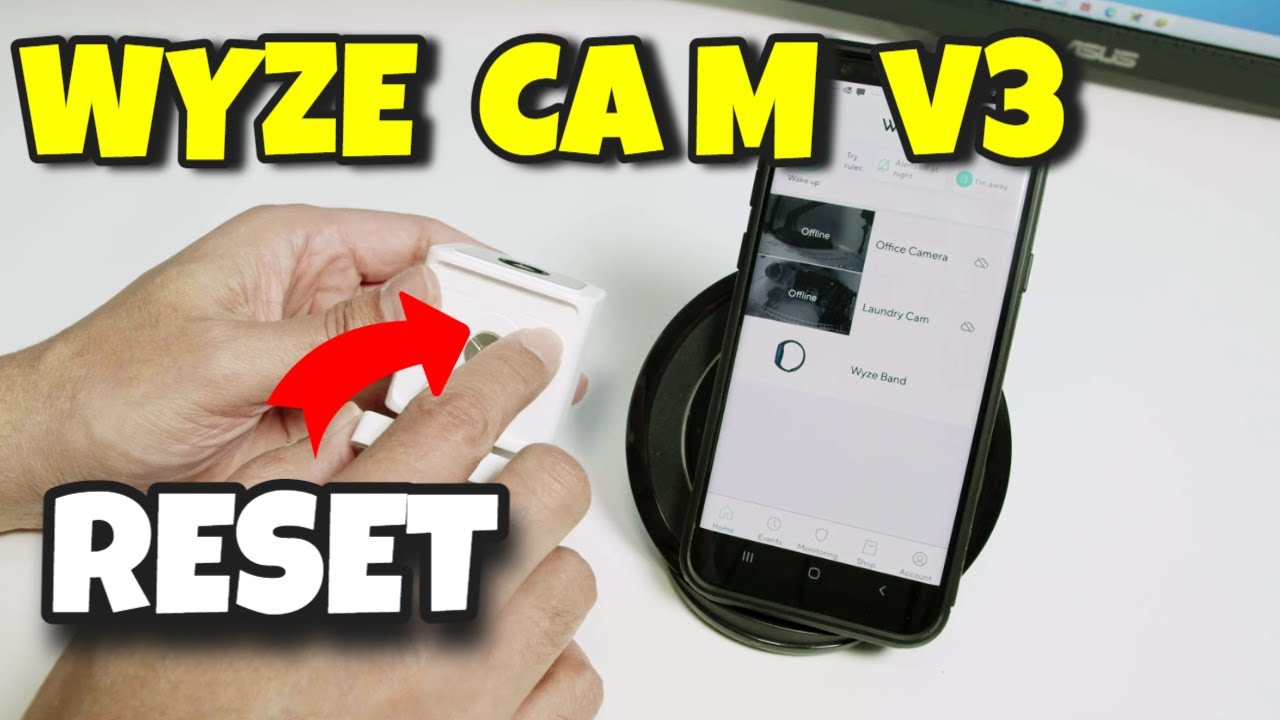
- The setup button is on the bottom or side of the camera.
- Press and hold
- Press and hold the setup button for about 10–20 seconds.
- Watch the LED
- Release when the LED flashes amber then blue. That indicates factory reset mode.
- Re-add to the Wyze app
- Open the Wyze app, tap Add Device, and follow the on-screen pairing steps.
After this process you’ll have reset the camera to default settings. When you re-add it, set a strong Wi‑Fi password and update firmware. If you run into pairing errors, place the camera near the router and retry.
How to reset Wyze Cam Pan (Pan/Tilt models)
Pan models include moving parts, but resets are similar. Here’s how to reset Wyze Cam Pan.
- Power the camera and wait
- Wait 30 seconds after power on.
- Find the reset button
- It is near the base or under the camera shell.
- Hold the button
- Press and hold for 10–20 seconds.
- Listen and watch the LED
- You’ll hear the pan motor move and the LED will flash amber then blue.
- Use the Wyze app to re-pair
- Follow Add Device in the app and complete setup.
If the pan motor jams after reset, gently power-cycle the device and try again. A physical nudge is rarely needed; avoid forcing the head.

How to reset Wyze camera using the Wyze app
Sometimes the app method solves account or cloud issues without a full hardware reset. Here’s how to reset Wyze camera via the app.
- Open the Wyze app
- Sign in and go to the Cameras list.
- Select the camera
- Tap the camera > Settings (gear icon).
- Remove the device
- Choose Device Info then Remove Device. Confirm removal.
- Factory reset if needed
- If re-adding fails, perform a hardware reset as described earlier.
- Re-add the camera
- Tap Add Device and follow the QR-code or sound pairing process.
Removing and re-adding is a safe way to refresh how the app and cloud see your camera. It does not always remove SD card recordings, so check local files separately.

Troubleshooting after a reset
If the camera won’t pair, try these quick fixes.
- Move the camera closer to the router
- Temporarily disable 5 GHz or use a 2.4 GHz network
- Restart your router and modem
- Make sure your phone and camera are on the same network during setup
- Update the Wyze app to the latest version
If you still can’t pair, factory reset again and test with a different phone. Persistent failures might indicate a hardware issue and may require replacement.

Best practices before and after resetting
Before you reset, follow these tips to avoid headaches.
- Backup SD card clips
- Note any custom settings and schedules
- Write down the Wi‑Fi name and password
- Update the app and record the camera’s firmware version
After reset, do this.
- Recreate secure passwords and schedules
- Update firmware before enabling motion alerts or cloud recording
- Test live view and push notifications
- Verify that the camera records to SD card if used
These steps make how to reset Wyze camera a smoother process and protect your data.
Security, privacy, and limitations of resetting
Resetting clears local settings but may not remove cloud-stored clips tied to your account. If you sell a camera, remove it from the app and delete cloud history where possible. Resets do not fix hardware failures like bad power supplies or damaged sensors. For persistent faults, contact support or pursue warranty replacement.
Personal experience and lessons learned
I once reset a batch of Wyze cameras for a rental property. A full factory reset on each device solved odd motion alerts. I learned to label each camera and record Wi‑Fi details first. That saved hours. My tip: perform one test reset and re-pair near the router before moving devices into place.
Frequently Asked Questions of how to reset wyze camera
How long does it take to reset a Wyze camera?
A hardware factory reset takes about 10–20 seconds to trigger, plus a few minutes to re-pair the device in the app. Allow 5–10 minutes to complete setup and firmware updates.
Will resetting my Wyze camera delete my recordings?
A factory reset removes device settings and Wi‑Fi credentials but does not always erase SD card files. Remove and save important SD clips before resetting if you want to keep them.
Can I reset a Wyze camera without the app?
You can perform a hardware reset using the setup button to restore factory settings, but re-pairing and final setup require the Wyze app. The app is needed to reconnect to cloud services.
Why won’t my Wyze camera re-pair after a reset?
Common causes are wrong Wi‑Fi band (5 GHz vs 2.4 GHz), distance from the router, or outdated app firmware. Move the camera closer, use 2.4 GHz, and update the app before trying again.
Does reset fix all Wyze camera problems?
Resetting fixes many software and network issues but not physical damage or defective hardware. If problems persist after a reset and firmware update, contact support or consider a replacement.
Conclusion
Resetting a Wyze camera is a useful skill for troubleshooting, securing devices, or preparing them for a new owner. Use a simple restart for minor issues, a soft reset for pairing trouble, and a factory reset when you need a full wipe. Back up local data, keep firmware current, and follow the app prompts to avoid pitfalls. Try these steps the next time you need to reset Wyze camera, and leave a comment if you want help with a specific model or error.

Everett Ashford is a tech reviewer at mytechgrid.com specializing in SSDs, cameras, TVs, earbuds, headphones, and other consumer electronics. He provides honest, data-driven reviews based on hands-on testing and real-world performance analysis. Everett simplifies complex tech details to help readers make smart, confident buying decisions.