Press the pairing button, hold Home and Back, then follow the on-screen steps to connect your Roku remote and TV.
Learning how to pair my Roku remote with my TV is usually simple, but the right method depends on your Roku model. A Roku TV, Roku Streaming Stick, Roku Express, and voice remote may use different pairing steps. This guide explains each method, fixes common problems, and shows how to control your TV’s power and volume with one remote.
Before You Pair Your Roku Remote
First, identify what you have. This small step can save you time because not every Roku remote connects in the same way.
A Roku TV has Roku software built into the television. A Roku streaming player is a separate box or stick that plugs into an HDMI port. In most cases, the remote pairs with the Roku device, while TV power and volume control are set up separately.
Check these details:
• Look for a pairing button inside the battery compartment or on the back of the remote.
• Check whether your remote has a microphone button or voice-control button.
• Confirm that the Roku device is connected to power and turned on.
• Make sure the remote has fresh batteries.
• Keep the remote close to the Roku device during setup.
A standard infrared Roku remote usually does not pair. It sends signals when you point it directly at the Roku player. A Roku voice remote uses wireless communication and must pair with the Roku device.
When people ask how to pair my Roku remote with my TV, they often mean two different things: connecting the remote to Roku and programming the remote to control the TV. The steps below cover both.

How to Pair a Roku Voice Remote
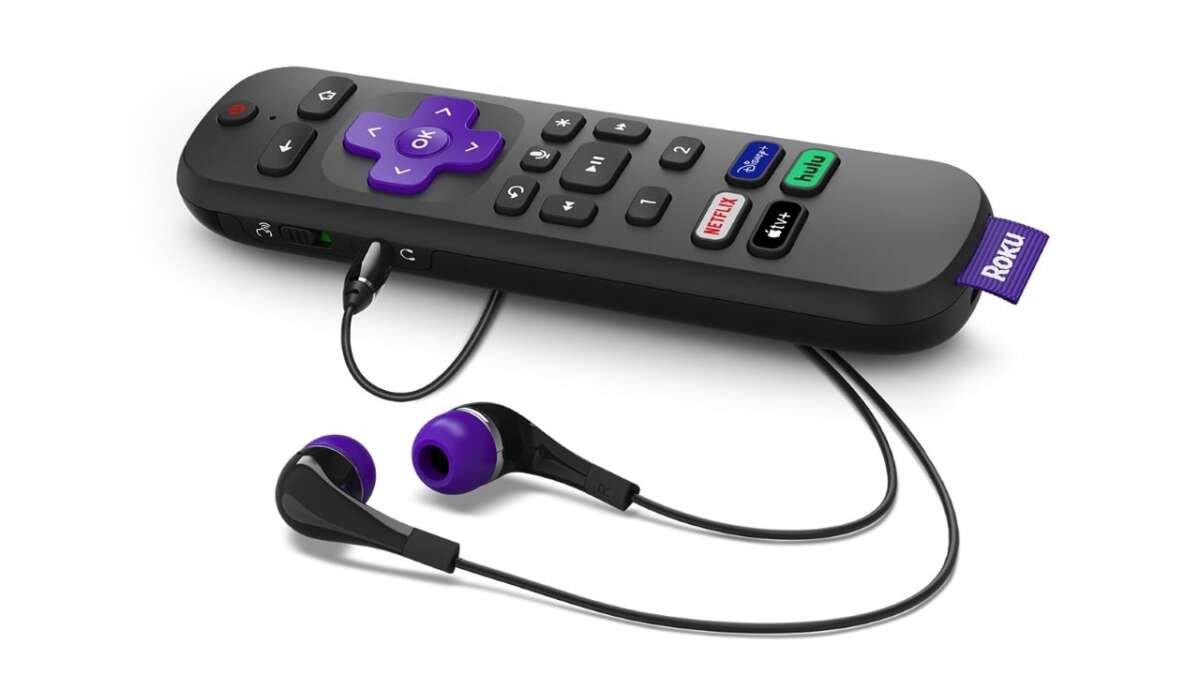
A Roku voice remote is the most common remote that needs pairing. It can control the Roku system without being pointed directly at the device.
Pair a remote with a Roku streaming player
Use these steps if you have a Roku Express 4K, Roku Streaming Stick, Roku Ultra, or another Roku player connected to your TV.
- Turn on the TV and select the HDMI input used by your Roku device.
- Insert fresh batteries into the Roku voice remote.
- Place the remote near the Roku player.
- Press and hold the pairing button for about five seconds.
- Release the button when the pairing light starts flashing.
- Wait for the pairing message to appear on the TV screen.
- Follow the instructions shown on the screen.
The pairing button may be inside the battery compartment. On some newer rechargeable remotes, it may be on the bottom or back of the remote.
If your remote has no visible pairing button, press and hold the Home and Back buttons together for about five seconds. This method works with many Roku voice remotes, although the exact process can vary by model.
Pair a replacement Roku remote
If you bought a replacement remote, turn off the Roku device and unplug it for about 30 seconds. Plug it back in, wait for the Roku logo or home screen, and then place the remote near the player.
Insert the batteries and hold the pairing button. If the remote does not pair, remove the batteries, restart the Roku device, and try again. This reset often clears a failed pairing attempt.
When I troubleshoot how to pair my Roku remote with my TV, I find that distance causes many failures. Keep the remote within a few feet of the Roku player, not across the room.
:max_bytes(150000):strip_icc()/Rokuhome-c8e944a9c88a4e74bfcf10950b95a1ca.jpg)
How to Pair a Roku Remote With a Roku TV
A Roku TV has the Roku system built into the television, so you pair the remote directly with the TV.
- Turn on the Roku TV using the power button on the television.
- Install fresh batteries in the remote.
- Hold the remote close to the TV.
- Press and hold the pairing button for about five seconds.
- Wait for the pairing light to flash.
- Follow the pairing instructions on the TV screen.
Some Roku TV remotes pair as soon as you install the batteries. If pairing does not begin, press and hold the Home and Back buttons for five seconds.
You can also restart the process by removing the batteries and unplugging the TV for about 60 seconds. Plug the TV back in, reinstall the batteries, and try again.
The Roku TV remote should then control menus, apps, playback, and other Roku features. If it is a voice remote, you can also use voice commands after pairing finishes.
For anyone searching how to pair my Roku remote with my TV, the key difference is this: a Roku TV receives the remote signal itself, while a separate Roku player receives the signal and sends video to the TV through HDMI.

How to Set Up TV Power and Volume Controls
Pairing a Roku remote with a Roku device does not always set up the TV’s power and volume buttons. You may need to program those controls separately.
Set up the remote through Roku settings
- Press the Home button on your Roku remote.
- Open Settings.
- Select Remotes & devices.
- Choose your remote.
- Select Set up remote for TV control.
- Follow the on-screen instructions.
- Choose the correct TV brand when prompted.
- Test the volume and power buttons.
During setup, Roku may play music or another test sound. When the sound stops, select Yes if the remote muted the TV correctly. If it did not work, choose No and try the next code.
This process allows the Roku remote to control basic TV functions. It usually includes power, volume, and mute.
What if the TV does not support automatic setup?
Some older TVs or less common brands may not respond to the automatic setup. In that case, use the original TV remote for power and volume, or use the manufacturer’s universal remote instructions.
HDMI-CEC may also help. This feature lets connected devices communicate through HDMI. TV brands use different names for it, such as Anynet+, Simplink, Bravia Sync, or VIERA Link.
To try HDMI-CEC:
• Open your TV’s settings.
• Find the HDMI-CEC control.
• Turn it on.
• Enable the related control options on your Roku device.
HDMI-CEC can improve device control, but it is not the same as pairing a Roku remote. It may not work with every TV, HDMI cable, or setup.
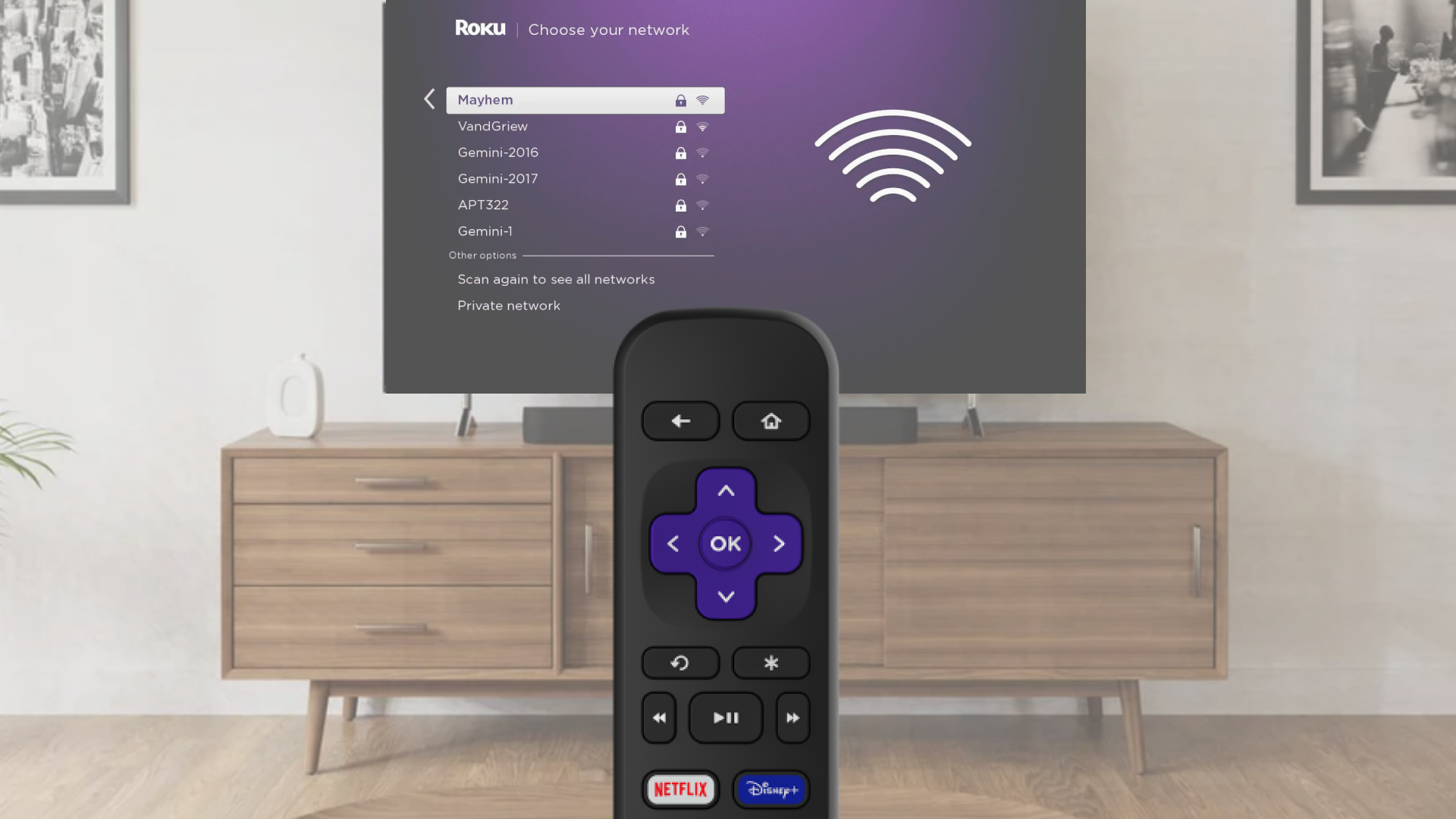
How to Pair My Roku Remote With My TV Without Wi-Fi
You do not need Wi-Fi to pair a physical Roku remote with a Roku TV or Roku player. The remote communicates with the Roku device through infrared or wireless signals.
However, Wi-Fi is needed for several other tasks. You may need an internet connection to stream content, activate a Roku device, download updates, or use the Roku mobile app.
If you are setting up a Roku player in a new location, connect it to the TV first. Then pair the remote while the Roku setup screen is visible. The remote can pair before the Roku device connects to your home network.
A Roku mobile app is different. It requires the phone and Roku device to be connected to the same wireless network. If the Roku is not on Wi-Fi, the phone app may not find it.

How to Pair My Roku Remote With My TV Using the Roku App
The Roku mobile app can act as a temporary remote. This is useful when the physical remote is lost or stops working.
- Download the official Roku mobile app.
- Connect your phone to the same Wi-Fi network as the Roku device.
- Open the app.
- Allow it to search for nearby Roku devices.
- Select your Roku player or Roku TV.
- Tap the remote icon.
- Use the virtual remote to open Settings.
- Select Remotes & devices and add a new remote.
The app cannot replace every remote feature. Some Roku devices may require a physical remote during initial setup, and the app cannot help if the Roku is disconnected from Wi-Fi.
I have found the app most useful as a bridge. It lets you open the Roku menu, restart the device, and begin pairing a replacement remote.
If the Roku does not appear in the app, check that the phone is on the same Wi-Fi network. Guest networks, VPNs, and separate 2.4 GHz and 5 GHz network names can sometimes prevent discovery.

Why Your Roku Remote Will Not Pair
A failed pairing attempt does not always mean the remote is defective. Most problems come from power, distance, interference, or using the wrong steps.
Try these solutions in order:
• Replace both batteries with a fresh pair.
• Move the remote within two or three feet of the Roku device.
• Restart the Roku by unplugging it for 30 to 60 seconds.
• Remove the remote batteries while the Roku restarts.
• Reinstall the batteries when the Roku home screen appears.
• Hold the pairing button for five seconds.
• If there is no pairing button, hold Home and Back together.
• Check that the Roku device is connected to power.
• Confirm that the TV is on the correct HDMI input.
• Remove nearby wireless devices that may cause interference.
Rechargeable Roku remotes may need to charge before they can pair. Connect the charging cable and wait several minutes before trying again.
Another common mistake is trying to pair a remote with the television when the remote is designed for the Roku player. Pointing a Roku streaming remote at the TV will not pair it with the television. It must pair with the Roku box or stick first.
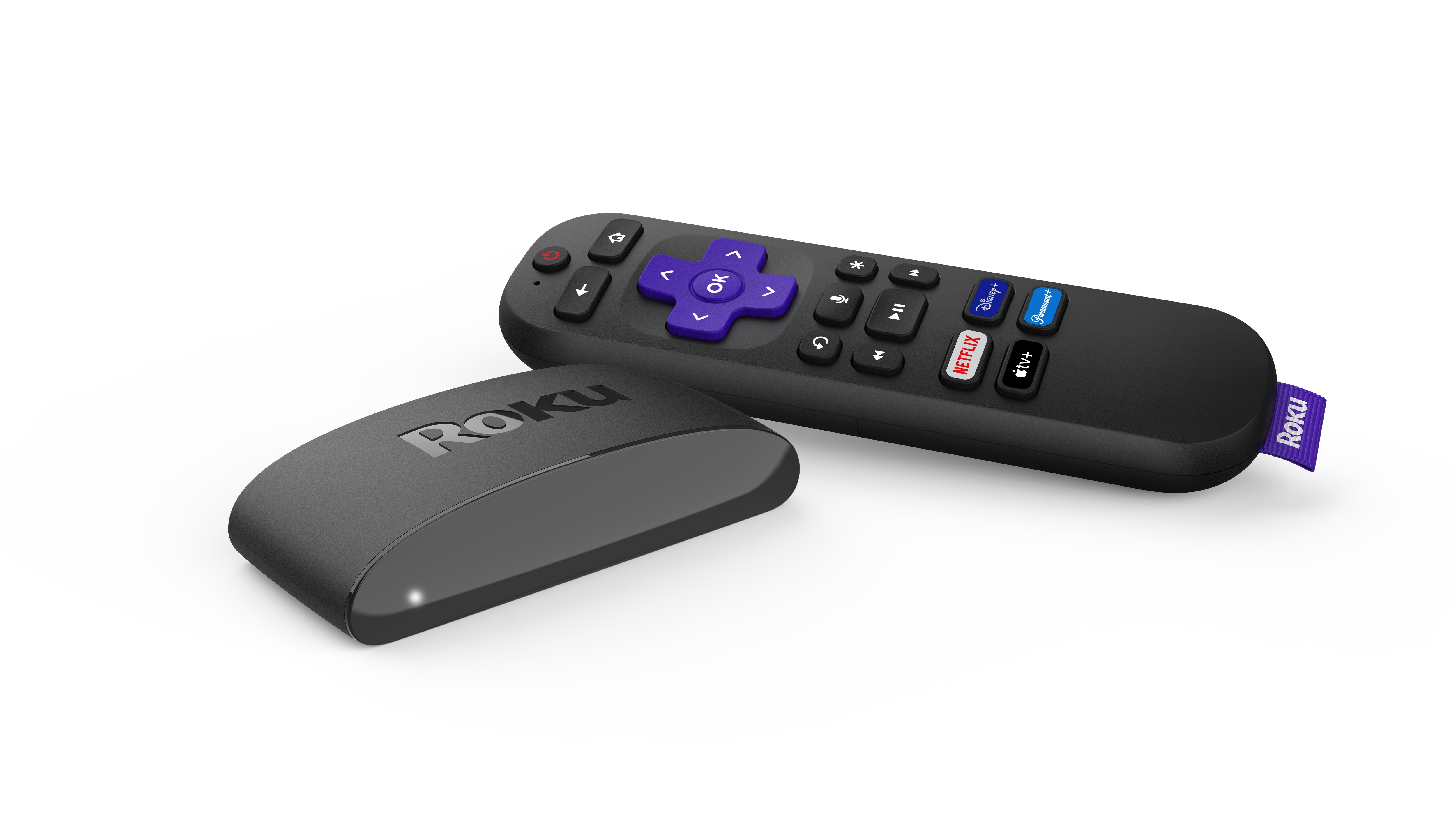
How to Reset a Roku Remote
Resetting the remote can solve repeated pairing errors. The exact process depends on whether the remote uses replaceable batteries or has a rechargeable battery.
For a battery-powered Roku voice remote:
- Unplug the Roku device.
- Remove the remote batteries.
- Wait at least 30 seconds.
- Plug the Roku device back in.
- Wait for the home screen.
- Reinstall the batteries.
- Hold the pairing button for five seconds.
For some rechargeable remotes:
- Unplug the Roku device.
- Press and hold the pairing button.
- Keep holding the button while reconnecting the Roku device to power.
- Continue holding until the pairing light flashes.
- Release the button and wait for the pairing message.
Not every remote supports the same reset method. If these steps do not work, check the instructions for your specific Roku remote model.
Avoid pressing random button combinations for a long time. That can make troubleshooting harder and may activate a feature you did not intend to use.

Roku Remote Compatibility and Limitations
Roku remotes are not completely interchangeable. A remote made for one Roku model may not support every feature on another model.
Consider these limits:
• Basic infrared remotes need a clear line of sight.
• Voice remotes need wireless pairing.
• Private listening may work only with certain remote models or the Roku mobile app.
• TV power and volume controls depend on TV compatibility.
• Some older Roku players do not support newer voice remotes.
• A Roku TV remote may not pair with a separate Roku streaming player.
• A replacement remote may need an update or setup before all buttons work.
The safest choice is a replacement remote listed as compatible with your exact Roku model. You can find the model name in Settings, under System and About, if the Roku is still accessible.
If you are buying a new remote, check whether it includes a pairing button, voice control, private listening, and rechargeable power. These features affect both compatibility and price.
Practical Tips for a Smoother Roku Setup
A few simple habits can prevent most Roku remote problems.
Keep the Roku device in an open area rather than behind the TV. This improves wireless performance and prevents heat from building up around the device.
Use high-quality batteries and replace both batteries at the same time. Mixing old and new batteries can cause weak signals and repeated disconnections.
Label your remotes if your home has more than one Roku device. A remote may pair with a nearby Roku player, which can make it seem like the remote is not working with the intended TV.
When learning how to pair my Roku remote with my TV, do not rush through the on-screen test. Test the power, volume, mute, Home, and navigation buttons before putting away the old remote.
Also, keep the original TV remote nearby during setup. It may be needed to change the HDMI input, enable HDMI-CEC, or adjust TV settings that the Roku remote cannot access.
Frequently Asked Questions About How to Pair My Roku Remote With My TV
How do I put my Roku remote into pairing mode?
Open the battery compartment and look for a pairing button. Hold it for about five seconds until the status light flashes; if there is no button, hold Home and Back together for about five seconds.
Why is my Roku remote blinking but not pairing?
A blinking light usually means the remote is searching for a Roku device. Restart the Roku, replace the batteries, move the remote closer, and try pairing again.
Can I pair a Roku remote directly to any TV?
A Roku remote pairs with a Roku TV or Roku streaming device, not with every television as a general universal remote. You can set up compatible Roku remotes to control TV power and volume after the Roku connection works.
Can I use my phone if I lost my Roku remote?
Yes, you can use the official Roku mobile app if your phone and Roku device are on the same Wi-Fi network. The app may not work during first-time setup or when the Roku is disconnected from Wi-Fi.
Why does my Roku remote control the Roku but not the TV volume?
The remote may be paired with Roku but not programmed for TV control. Open Settings, choose Remotes & devices, select the remote, and use Set up remote for TV control.
Do Roku remotes need Wi-Fi to work?
Physical Roku remotes do not need Wi-Fi to send commands to the Roku device. Wi-Fi is needed for streaming, the mobile app, and some setup or update tasks.
How far should my Roku remote be from the device during pairing?
Keep the remote within a few feet of the Roku device during pairing. Once connected, a voice remote can usually work from farther away, while an infrared remote needs a clear path to the receiver.
Conclusion
Pairing a Roku remote is usually a quick process once you know which type of remote and Roku device you have. Use the pairing button or the Home and Back buttons for a voice remote, then set up TV power and volume controls through Roku’s settings.
If the remote fails, start with fresh batteries, a close range, and a full Roku restart. Remember that pairing the remote with Roku is different from programming it to control your TV. Try the steps above, and explore Roku’s official support resources if your model needs a specific method.

Everett Ashford is a tech reviewer at mytechgrid.com specializing in SSDs, cameras, TVs, earbuds, headphones, and other consumer electronics. He provides honest, data-driven reviews based on hands-on testing and real-world performance analysis. Everett simplifies complex tech details to help readers make smart, confident buying decisions.