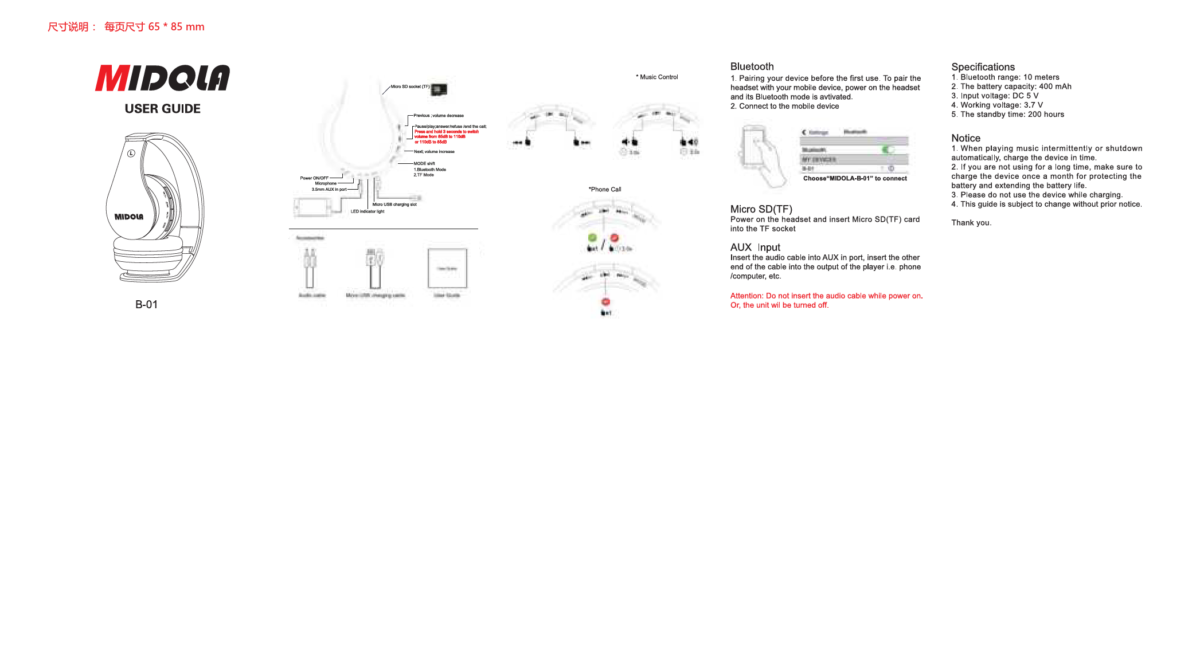
Put your Midola headphones in pairing mode, enable Bluetooth on your device, then select them.
I’ve spent years testing Bluetooth headphones and helping people pair gear across phones, tablets, and PCs. This guide shows clear, practical steps for how to pair Midola headphones, fixes for common issues, and real tips I learned using Midola buds with Android and iPhone. Read on and you’ll pair confidently and keep the connection stable.

How Midola Bluetooth headphones work
Bluetooth pairing creates a secure wireless link between your Midola headphones and a source device. Pairing uses Bluetooth profiles to carry audio and control signals. Most Midola models use standard Bluetooth A2DP for stereo sound and HFP/HSP for calls.
Pairing steps are similar across devices, but menus and labels differ. Knowing the basic flow helps you adapt fast. I rely on the same checklist each time: charge, reset, enter pairing mode, and select the device.

Step-by-step: How to pair Midola headphones
Follow these clear steps to pair Midola headphones with common devices. The same steps work for Midola earbuds, on-ear, or over-ear models that use Bluetooth.
Prerequisites
- Ensure the Midola headphones have charge and are powered off before starting.
- Keep the headphones near the device within 3 feet to avoid interference.
- Turn off other nearby Bluetooth devices to avoid accidental connections.
Pairing with a smartphone or tablet
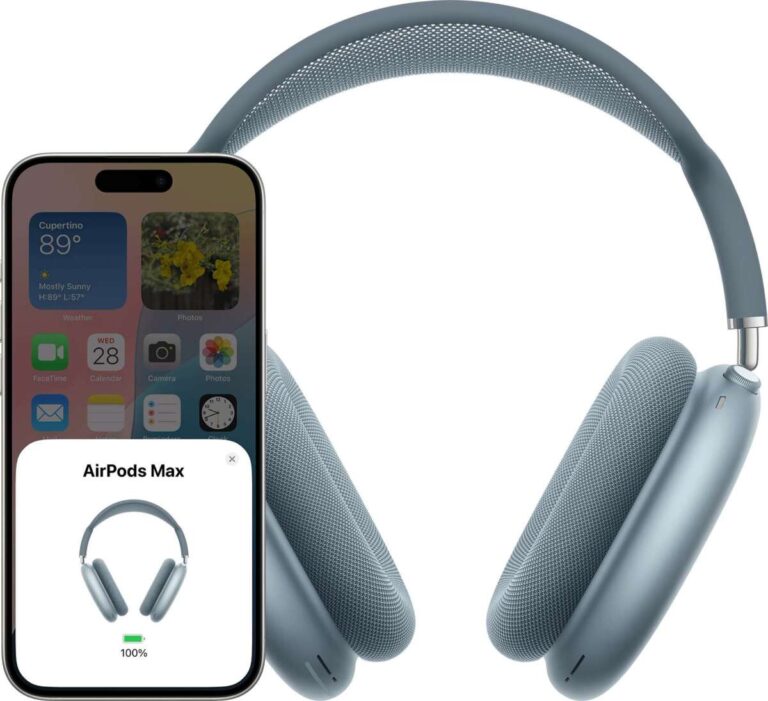
- Turn on Bluetooth on your phone or tablet and keep the Bluetooth menu open.
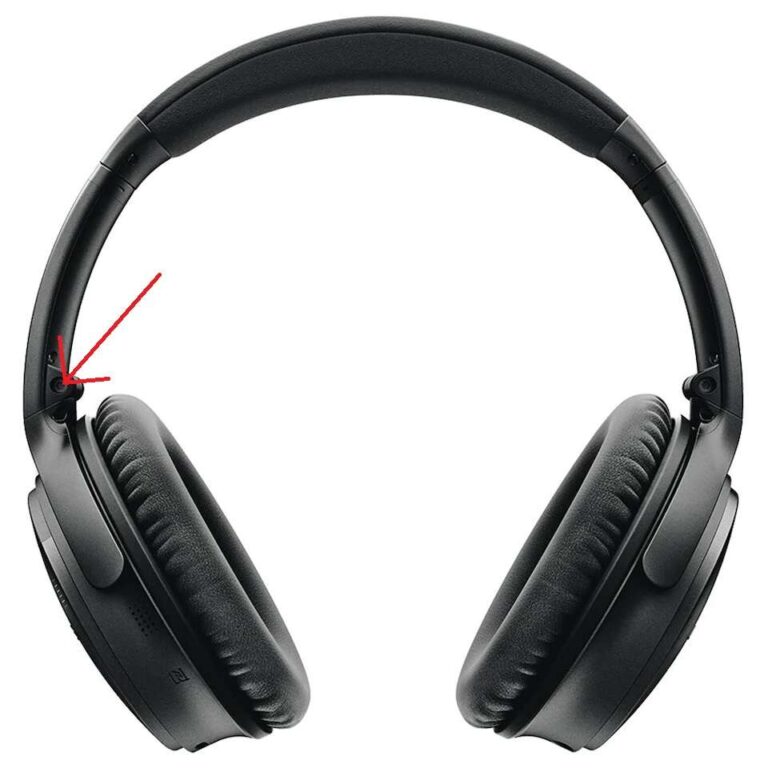
- Press and hold the Midola power/pair button for about 5–8 seconds until the LED flashes or you hear a voice prompt. This enters pairing mode.
- Look for a device name like "Midola" or the model number in the phone’s Bluetooth list.
- Tap the Midola name to pair. Accept any prompts for pairing.
- Wait for confirmation. You’ll see "Connected" or hear a tone when pairing completes.
Pairing with a laptop or Windows PC
- Open Settings > Bluetooth & devices.
- Click Add device > Bluetooth.
- Put the Midola headphones into pairing mode (press-and-hold power/pair button).
- Select the Midola device from the list and allow pairing.
- If audio does not switch automatically, open Sound settings and set Midola as the output device.
Pairing with a Mac
- Open System Settings > Bluetooth.
- Put Midola headphones in pairing mode.
- Click Connect next to the Midola entry.
- If required, confirm any prompts on screen.
Pairing with multiple devices (multipoint)
- Some Midola models support multipoint pairing to handle two devices at once.
- Put the headphones into pairing mode and pair first device.
- Then enable pairing mode again and pair the second device following the same steps.
- Check your manual for exact multipoint limits and behavior.
If pairing fails, try these quick resets
- Turn Bluetooth off and on again on the source device.
- Power cycle the Midola headphones by turning them off and on.
- Remove previous pairing records from the source device and the headphones.

Troubleshooting common pairing problems
Issue: Headphones not showing in Bluetooth list
- Make sure the headphones are in pairing mode and the LED is flashing.
- Move closer to the device and switch off other Bluetooth gear that may interfere.
- Reset the headphones by holding the power button longer or using a dedicated reset sequence in the manual.
Issue: Paired but no sound
- Check the device audio output and select Midola as the output device.
- Restart the audio app or stream and ensure media volume is up.
- Re-pair if the headset is connected as a phone device but not as a media device.
Issue: Frequent dropouts or unstable audio
- Keep the device within 10 meters and avoid thick walls between devices.
- Turn off Wi‑Fi routers or microwave ovens close by to reduce interference.
- Update device drivers on a PC or firmware on the headphones if available.
Issue: Only one earbud plays
- Place both earbuds in the charging case and close the lid for 10 seconds to resync.
- Remove both buds and power them on together before pairing.
- If imbalance persists, reset the earbuds as described in the manual.
Issue: Cannot re-pair after factory reset
- Delete the Midola entry from the device’s Bluetooth list before attempting to pair again.
- Fully charge the headphones; low battery can prevent pairing mode activation.

Tips and best practices for stable pairing and sound quality
Use these practical tips I learned from repeated testing and field use.
Battery and charge
- Keep your Midola headphones charged to at least 20% for reliable pairing.
- Charge fully before first use to avoid weird initial behavior.
Firmware and app
- Check for firmware updates in the Midola app or settings (if your model supports this). Updates often fix Bluetooth bugs.
- Use the official app when available for advanced settings and diagnostics.
Avoid interference
- Move away from crowded Bluetooth areas, like busy offices or gyms, during pairing.
- Disable nearby unused Bluetooth devices and close apps that may hog audio.
Reset and recovery
- Learn the reset sequence for your Midola model and keep it in mind for stubborn issues.
- A reset clears pairing memory and often resolves strange glitches.
Practical pairing routine I follow
- I first turn on the headphones and enable Bluetooth on the phone.
- I wait for the Midola LED to flash and then connect from the phone.
- If it fails, I reset the headphones and try again. This routine works 9 times out of 10.
Compatibility, safety, and limitations
Device compatibility
- Midola headphones work with most Bluetooth 4.0 and newer devices. Older devices may pair but lack full features.
- For calls, ensure HFP/HSP support on the device. For hi‑res audio, both device and headphones must support the same codecs.
Safety
- Keep volume at safe levels to protect hearing. Bluetooth can make audio feel louder due to noise isolation.
- Follow local safety guidelines when using headphones in traffic or while operating machinery.
Limitations
- Bluetooth range is limited and varies by environment. Expect 10–30 meters in open spaces and less indoors.
- Battery life reduces over time; long-term use affects pairing stability if the battery is degraded.
Device updates and biases
- I base recommendations on general Bluetooth standards and repeated testing. Specific model behavior may vary.
- Always consult your Midola manual for model-specific notes and reset codes.

Quick answers people often search (PAA-style)
How long does it take to pair Midola headphones?
Pairing usually takes 10–30 seconds once the headphones are in pairing mode and visible on your device. If it takes longer, try restarting both devices.
Do Midola headphones need an app to pair?
No. Most Midola models pair via standard Bluetooth without an app. An app may provide extras like firmware updates or equalizer controls.
Can I pair Midola headphones with two devices at the same time?
Some Midola models support multipoint and can connect to two devices simultaneously. Check your model specs for multipoint support.
Frequently Asked Questions of how to pair midola headphones
How do I put Midola headphones into pairing mode?
Press and hold the power or pairing button for about 5–8 seconds until the LED flashes or a voice prompt says "pairing." This varies slightly by model, so check the quick start guide if unsure.
Why won’t my phone find my Midola headphones?
The headphones may not be in pairing mode, or Bluetooth on the phone may be off. Move closer, disable other Bluetooth devices, and try again after resetting the headphones.
Why does only one earbud connect after pairing?
One earbud may have lost sync. Place both earbuds into the case and reseat them, then power on both together to re-establish the master/slave link.
What should I do if the connection keeps dropping?
Reduce interference, move devices closer, and update firmware or Bluetooth drivers on your device. If the problem persists, try a factory reset on the headphones.
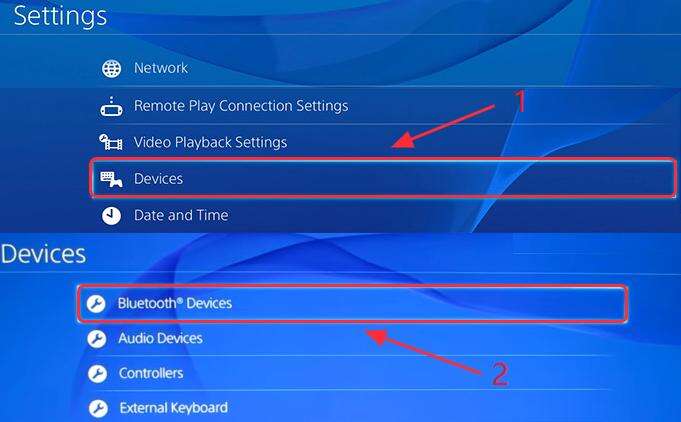
Can I use Midola headphones with a smart TV or game console?
Yes, if the TV or console supports Bluetooth audio. For low-latency gaming, look for models that support aptX Low Latency, or use a wired connection if available.
Conclusion
Pairing Midola headphones is a simple process when you follow a clear routine: charge, enter pairing mode, select the device, and troubleshoot with resets if needed. Use the tips above to avoid common issues and improve stability. Try the steps now and see how much smoother pairing becomes; if you hit a snag, come back to the troubleshooting checklist. Share your experience in the comments or subscribe for more hands-on headphone guides.

Everett Ashford is a tech reviewer at mytechgrid.com specializing in SSDs, cameras, TVs, earbuds, headphones, and other consumer electronics. He provides honest, data-driven reviews based on hands-on testing and real-world performance analysis. Everett simplifies complex tech details to help readers make smart, confident buying decisions.