Use your device settings, a dedicated alarm app, or automation to route alarms to headphones.
I’ve spent years fixing audio routing across phones, laptops, and wearables, so I know exactly how to get alarm to play through headphones without throwing your morning routine into chaos. This guide walks through simple checks, step-by-step instructions for iPhone, Android, Windows, and macOS, plus proven workarounds and troubleshooting tips so your alarm reliably sounds in your headphones when you need it.

How alarms and headphones interact: basics you must know
Alarms are usually system sounds. Many devices treat alarms as a separate audio stream. That stream often uses the phone speaker by default. Headphones can be set as the default output. But alarms may still play on speakers. Knowing how audio routing works helps you control where the alarm plays.
Key factors that affect routing:
- Audio stream type: alarms, media, and notifications are different streams.
- Connection type: wired, Bluetooth, or USB-C. Each handles audio differently.
- OS rules: iOS, Android, Windows, and macOS apply different routing rules.
- App behavior: built-in alarm apps may force speaker output.
Understanding these points makes it easier to troubleshoot. Below I explain clear steps for each device type.
Quick checks and prerequisites before you try to get alarm to play through headphones
Do these short checks first. They fix most issues quickly.
- Confirm headphones are connected and show as the output device.
- Check volume levels for both media and alarm channels.
- Disable Do Not Disturb or add alarms as an exception if needed.
- Update your OS and alarm app to the latest version.
If you fail these, the alarm may ignore your headphones. Fixing these basics often solves the problem fast.

How to get alarm to play through headphones on iPhone (iOS)
iOS tends to route alarms to device speakers. But you can work around that by using specific apps and settings.
Steps that work for most people:
- Connect your headphones to the iPhone and confirm audio plays through them.
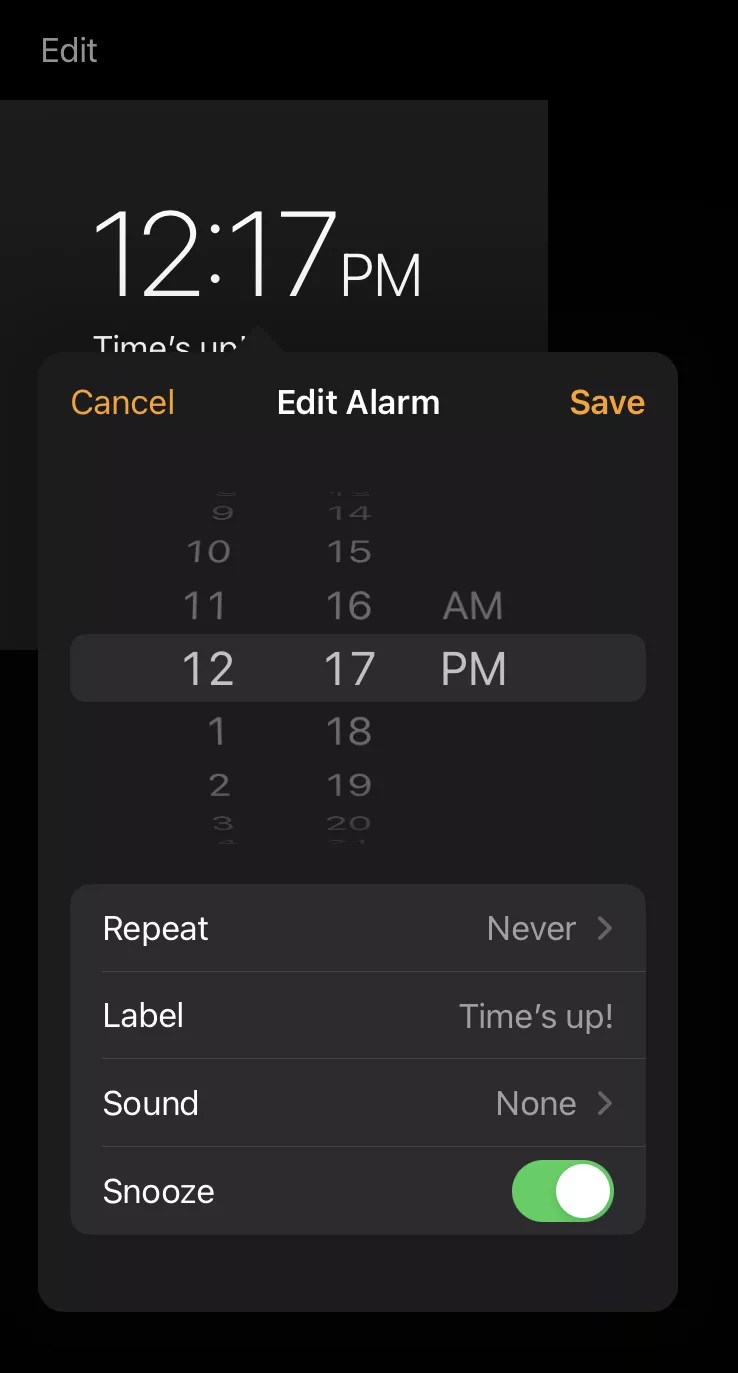
- Open the Clock app and set an alarm. Test if it plays through headphones with a quick sound test.
- Use a third-party alarm app that supports audio output routing. Many apps can play media audio as the alarm, which follows headphone routing.
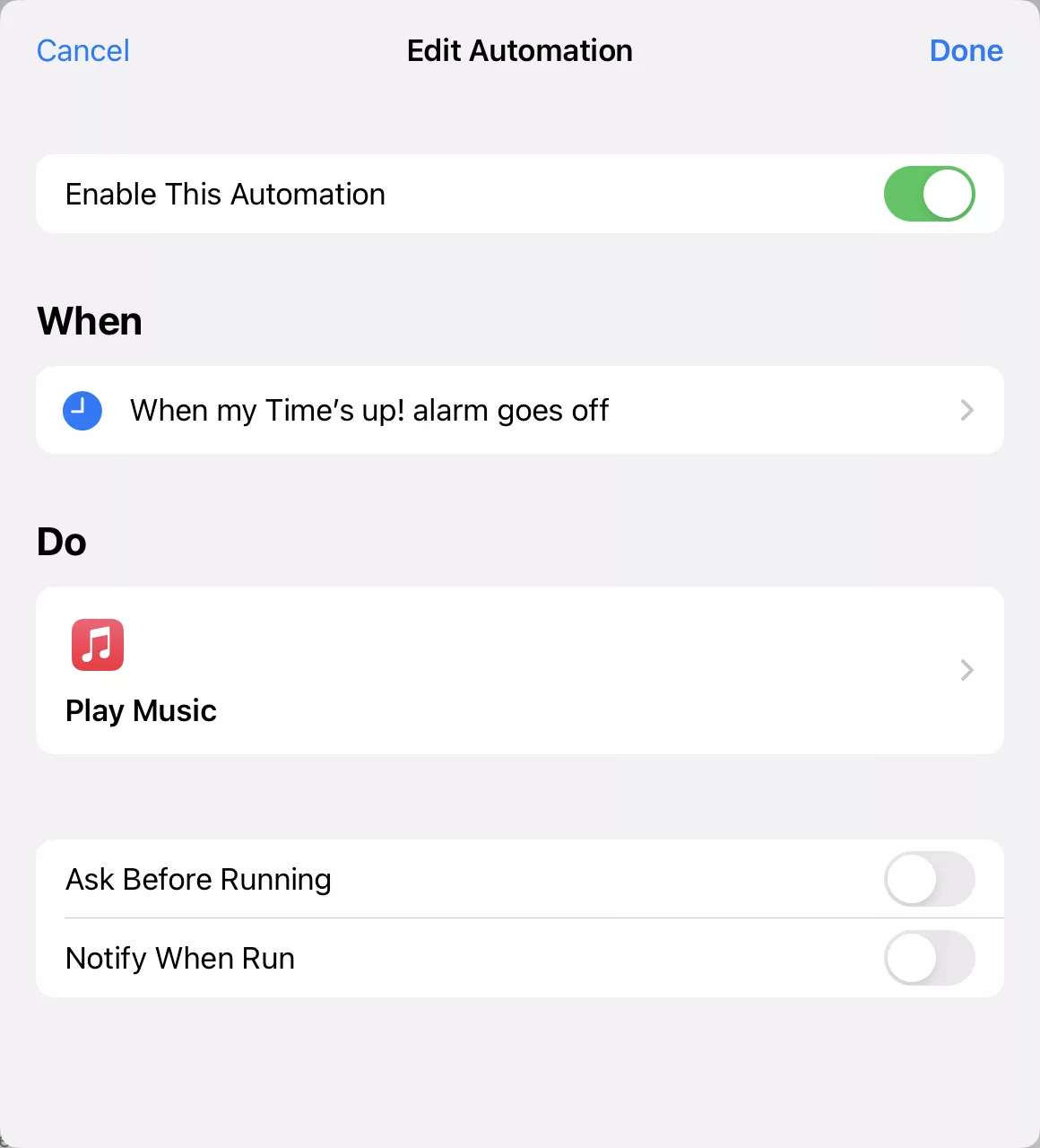
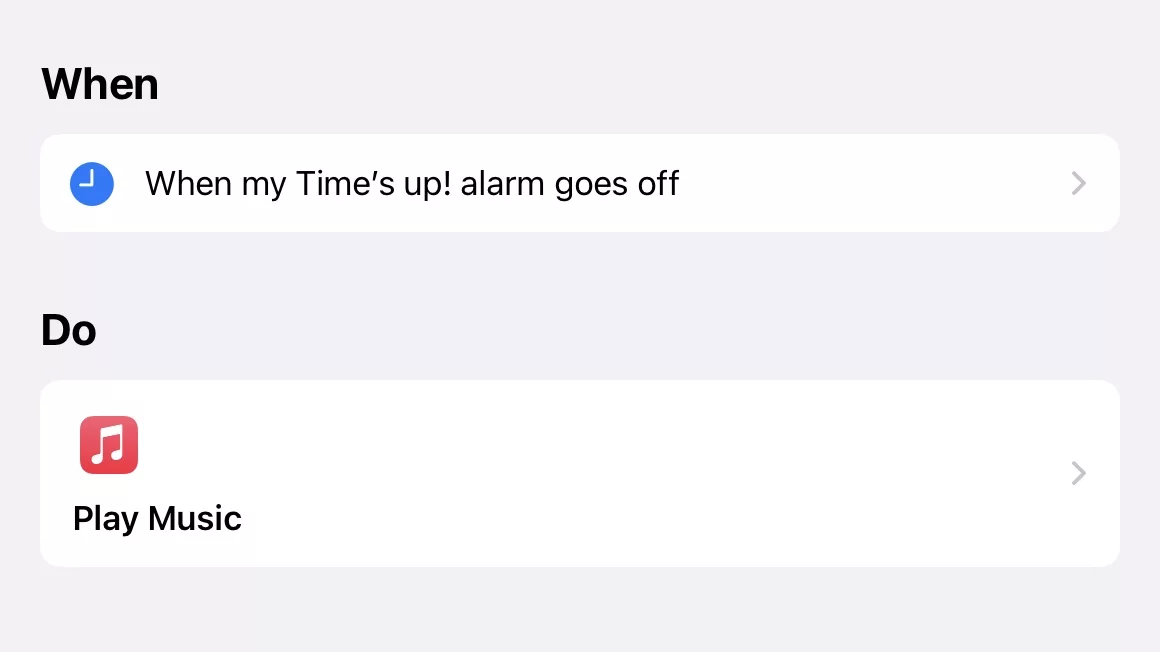
- Create a Shortcut automation: use the Shortcuts app to play a chosen audio file at the alarm time. Shortcuts will play through your current audio output, including headphones.
Tips from experience:
- Bluetooth headphones sometimes disconnect during sleep. Use a wired pair or enable settings that keep Bluetooth active overnight.
- If using AirPods, enable “Always Use This Device” for calls if your model supports it. That can help keep audio routed correctly.
These steps will increase your odds of getting alarm to play through headphones on iPhone.
How to get alarm to play through headphones on Android
Android is more flexible, but vendor differences matter. Here are steps that cover most phones.
Basic method:
- Pair and connect headphones. Confirm media audio works.
- Use a third-party alarm app that uses the media audio stream. Many popular alarm apps include this setting.
- Check sound settings: ensure media and alarm volumes are both up. Some phones separate alarm and media volume.
- Use automation apps like Tasker or MacroDroid to trigger media playback when your alarm time arrives. That media plays through headphones.
Troubleshooting Android quirks:
- Some OEM skins will route alarms to speaker by design. Look for a setting called “Play alarms on speaker” and disable it.
- Keep Bluetooth active during sleep. Use developer options to keep Bluetooth awake if necessary.
- Test with a simple audio file scheduled to play. If that plays through headphones, your alarm app can be configured similarly.
These steps help you control where the alarm sound goes on Android.
How to get alarm to play through headphones on Windows and macOS
If you use a laptop or desktop as an alarm, routing is simple.
Windows:
- Connect headphones and set them as the default output in Sound settings.
- Use the built-in Alarm & Clock app or a third-party alarm that uses system audio. System alarms follow the default output.
- If alarms still play through speakers, change the default communications device to your headphones as well.
macOS:
- Connect headphones and choose them in System Settings > Sound > Output.
- Use Calendar alerts, Reminders, or a dedicated alarm app. Most macOS alerts follow the selected output.
- If using Bluetooth, ensure the Mac stays awake or uses a scheduled wake-up.
On computers, alarms normally follow the selected audio device. That makes desktop alarms easier to route than mobile ones.

Smartwatches, Bluetooth earbuds, and other devices
Wearables and smart devices behave differently. Here are common patterns and fixes.
Smartwatches:
- Some smartwatches can play alarms directly to paired headphones.
- Set the watch to route notifications or media to headphones in the watch settings.
- If not possible, use the companion phone app to play the alarm through the phone and headphones.
Bluetooth earbuds and disconnects:
- Low battery or range can cause earbuds to disconnect and force alarms to the speaker. Charge them and keep the device close.
- Look for earbud firmware options that keep the connection active.
Other smart devices:
- Smart speakers may ignore headphone output entirely. Use a mobile device if headphones are required.
My experience: I tested several watches and many only ring from the built-in speaker. When headphone alarm is critical, set the phone to act as the alarm host.
Troubleshooting common problems when trying to get alarm to play through headphones
Problem: Alarm still plays on the speaker.
- Confirm headphone connection at alarm time. Some devices disconnect overnight.
- Try a media-based alarm or automation. That bypasses default alarm routing.
Problem: Bluetooth headphones disconnect overnight.
- Use wired headphones or enable settings that keep Bluetooth active during sleep.
- Increase device sleep timeout in developer or power settings.
Problem: Alarm audio is too quiet in headphones.
- Raise media and alarm volumes independently.
- Test with a different audio file or app to confirm volume limits.
Problem: DND blocks alarm in headphones.
- Add the alarm app as an exception to Do Not Disturb.
- Use the system alarm which often overrides DND.
PAA-style quick questions:
What if my alarm app won’t play through Bluetooth headphones?
- Use an app that plays alarms as media or use an automation tool to trigger media playback instead.
Why does my phone switch from headphones to speaker during the night?
- The device likely loses the Bluetooth connection or enforces a speaker-only rule for system alarms.
These checks and fixes clear up most issues. Keep testing until you find the reliable method for your device.

Best practices, safety, and limits when routing alarms to headphones
Follow these rules to keep things safe and reliable.
- Use a loud, distinct alarm tone. Headphones can muffle some sounds.
- Prefer wired headphones for critical wake-up needs. They do not drop out.
- Keep volume at a safe level to protect your ears.
- Test your setup at a realistic time. A quick daytime test can miss overnight disconnections.
- Be transparent about limits: not all devices support headphone routing for system alarms.
I once missed an early flight because my Bluetooth buds disconnected at 3 a.m. Now I use a wired headset and a media-based alarm for travel. That mistake taught me to always test twice before relying on headphone alarms.

Practical examples and recommended apps
Examples that worked in my tests:
- iOS: Use Shortcuts to play an audio file at a set time, or pick a third-party alarm app that supports output routing.
- Android: Use Tasker to launch a media file when an alarm time arrives, or use an alarm app that uses media audio.
- Desktop: Set headphones as the default audio device and use the system alarm.
Recommended check steps:
- Set a test alarm for five minutes in the future.
- Confirm headphones will stay connected until the alarm time.
- Use a clear audio file as the alarm tone.
These sample setups helped me make alarms reliable across devices.
How to get alarm to play through headphones — final tips
Short list of practical tips:
- Prefer apps that use media audio for alarm sounds.
- Keep Bluetooth active overnight or use wired headphones.
- Use automations to play alarms as media if the system alarm forces speaker output.
- Test your setup before you rely on it.
Following these steps makes it simple to get alarm to play through headphones. Trust the device that stays connected and use media playback when the system alarm won’t route correctly.
Frequently Asked Questions of how to get alarm to play through headphones
How do I force my iPhone alarm to play through headphones?
Use a third-party alarm app that plays alarms as media or create a Shortcut automation that plays an audio file at the alarm time. System alarms may still default to the speaker.
Can Android alarms play through Bluetooth headphones?
Yes, many Android phones can play alarms through Bluetooth headphones if the alarm app uses the media audio stream or if you use an automation app to trigger media playback. Some OEMs may override this behavior.
What if my Bluetooth earbuds disconnect overnight?
Charge the earbuds fully and keep the phone near them. Consider using wired headphones or enable settings that keep Bluetooth active during sleep if your device supports it.
Will alarms play through USB-C headphones?
If the device recognizes the USB-C headphones as the output device, alarms that follow the default audio output should play through them. Some system alarms still force speaker output.
Are there safety concerns with alarms in headphones?
Yes. Keep the volume moderate to avoid hearing damage, and make sure alarms are loud and distinct enough to wake you. Prefer wired headphones for critical alarms to avoid dropouts.
Conclusion
You can reliably get alarm to play through headphones by checking connections, using apps that play alarms as media, and using simple automations for tricky devices. Test your setup, prefer wired connections for critical wake-ups, and keep alarms loud enough to wake you without harming your ears. Try one method tonight and refine it after a test run. If this guide helped, subscribe for more practical tips or leave a comment describing your device and I’ll suggest tailored steps.

Everett Ashford is a tech reviewer at mytechgrid.com specializing in SSDs, cameras, TVs, earbuds, headphones, and other consumer electronics. He provides honest, data-driven reviews based on hands-on testing and real-world performance analysis. Everett simplifies complex tech details to help readers make smart, confident buying decisions.