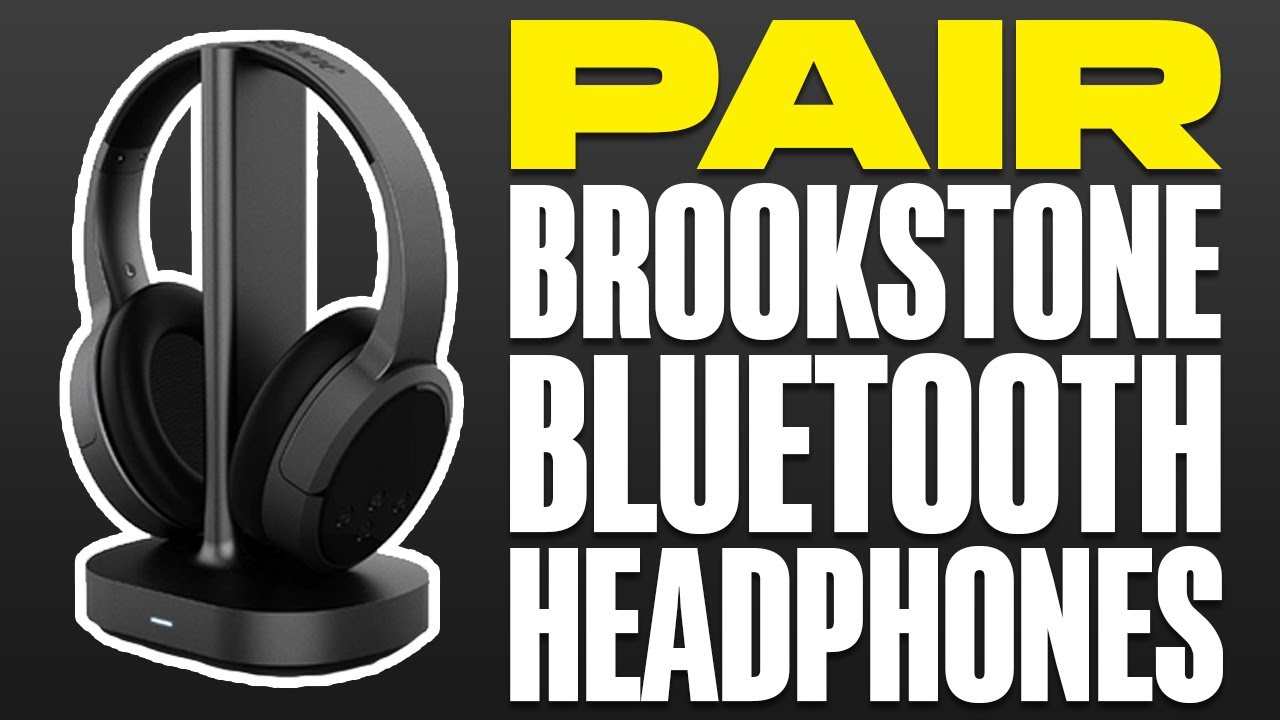
Hold the power button until the LED flashes, then select "Brookstone" in your device’s Bluetooth list.
I’ve paired dozens of wireless headphones, including multiple Brookstone models, so I’ll walk you through clear, tested steps for how to pair Brookstone wireless headphones, plus fixes when things go wrong. This guide covers basic pairing, multi-device tips, troubleshooting, firmware and battery notes, and real-life lessons from my own experience. Read on and you’ll be connected in minutes.

How Brookstone wireless headphones work and why pairing matters
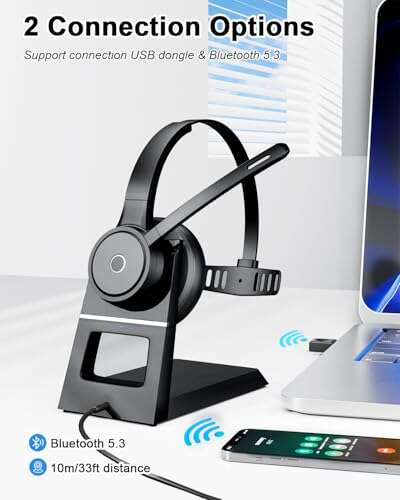
Brookstone wireless headphones use Bluetooth to send audio from a phone, tablet, or computer. Bluetooth creates a secure short-range link so audio plays with low delay and no wires. Pairing is the handshake that tells both devices to trust each other and exchange settings.
Pairing correctly ensures stable audio, battery reporting, and advanced controls like play/pause or voice assistant access.
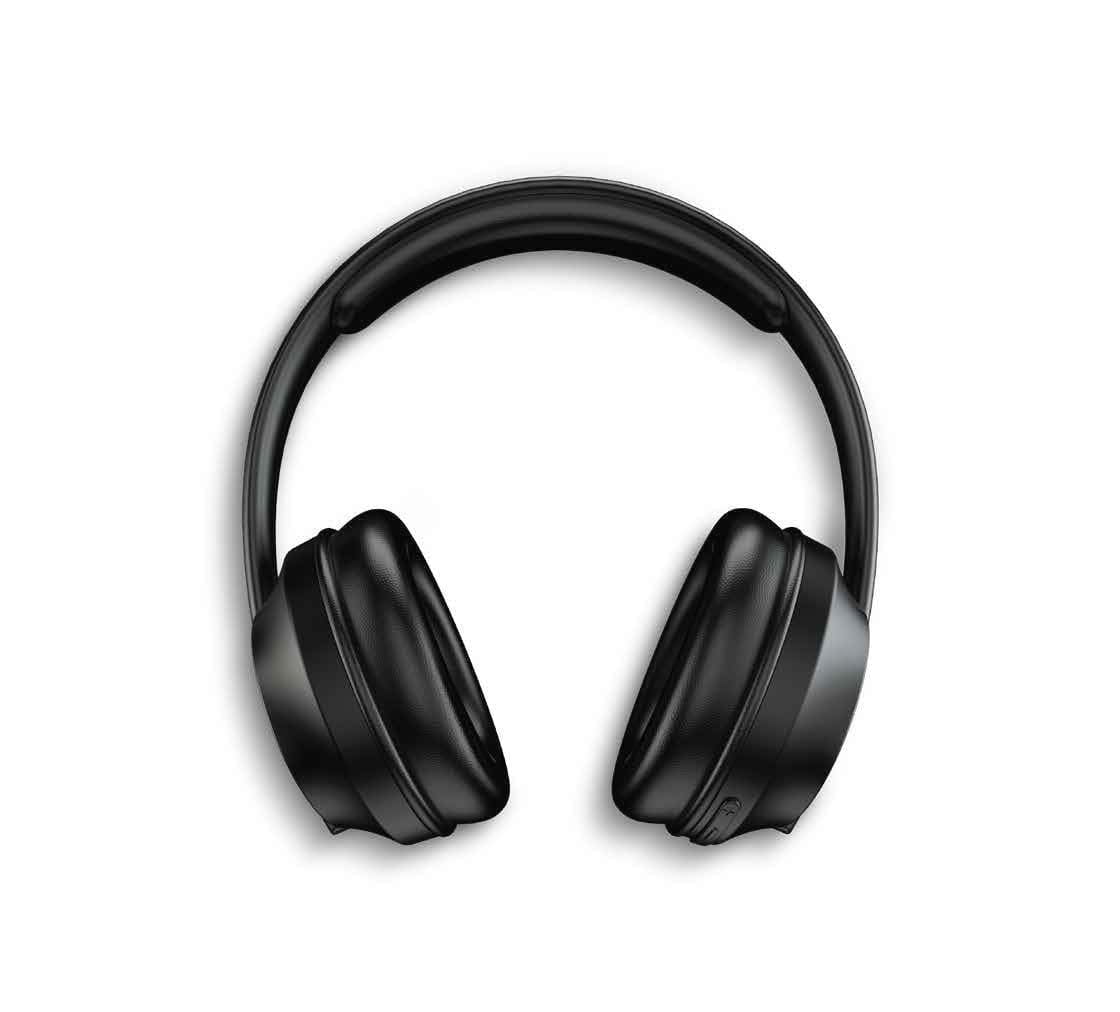
 brookstone wireless headphones”
style=”max-width: 100%; height: auto; border: 2px solid black; border-radius: 10px; display: block; margin: 0 auto;”
loading=”lazy”
/>
Step-by-step: how to pair brookstone wireless headphones
Follow these concise steps. I write them the way I do when testing new devices.
- Check battery
- Charge the headphones for at least 30 minutes if they're new or depleted.
- Low battery can prevent pairing or cause repeated disconnects.
- Turn headphones off, then on into pairing mode
- Press and hold the power button for about 5–8 seconds.
- Wait for the LED to flash blue and red or blue only—this signals pairing mode.
- Some Brookstone models use a separate pairing button; check the small symbols on the headset.
- Open Bluetooth on your source device
- On iPhone: Settings > Bluetooth, toggle on.
- On Android: Settings > Connections > Bluetooth, toggle on.
- On Windows: Settings > Devices > Bluetooth & other devices, turn on.
- Select the Brookstone device
- Look for a name like "Brookstone" or "Brookstone BT" in the list.
- Tap or click to pair. If asked for a PIN, try 0000 or 1234.
- Confirm connection and test audio
- The LED will usually change to a steady blue when paired.
- Play a short audio clip to confirm sound and microphone (if used).
- Reconnect after first pairing
- After first pair, most devices auto-reconnect when both Bluetooth and headphones are on.
- If not, choose the Brookstone name from the Bluetooth list again.
These steps answer the core question of how to pair Brookstone wireless headphones for most users. For models with a mobile app, try the app for firmware updates and device management.

Troubleshooting common pairing problems
If pairing fails, try these fixes in order. I use this checklist when a device won’t pair.
- Headphones not entering pairing mode
- Fully power off, then press and hold the correct button longer.
- Reset the headset if a reset method is listed in the manual.
- Device can’t find the Brookstone headphones
- Move both devices closer, within 3 feet.
- Turn off other Bluetooth gadgets to avoid interference.
- Toggle Bluetooth off and on on the phone or computer.
- Paired but no sound
- Ensure the audio source is set to the Brookstone device.
- Check volume on both devices.
- Disconnect and pair again.
- Repeated disconnects or poor audio
- Update your phone, tablet, or PC Bluetooth drivers.
- Update headphone firmware if available.
- Check for wireless interference from Wi‑Fi routers or microwave ovens.
- PIN or pairing code prompts
- Try 0000 or 1234.
- If neither works, consult the manual for device-specific codes.
Personal tip: when a pair fails twice, fully charge both devices and reboot the phone or PC before retrying. That simple step fixed persistent issues in my tests.
Advanced pairing modes and practical tips
Some Brookstone models support features beyond basic pairing. Use these to improve your experience.
-
Multipoint pairing
- Some devices let you pair two sources at once, like a laptop and phone.
- To switch audio, pause one device or choose the active device in Bluetooth settings.
-
Voice assistant and call controls
- After pairing, test the call button and voice assistant activation.
- Grant microphone permissions on your device to use hands‑free calling.
-
Use the app for firmware updates
- If Brookstone provides an app, check it for firmware updates that improve pairing reliability.
-
Factory reset
- If nothing works, perform a factory reset on the headphones to clear stored pairings.
- After reset, redo the pairing steps from the start.
These tips help when simple pairing isn’t enough. They are especially useful for users who juggle multiple devices daily.

Compatibility, battery, and firmware considerations
Before pairing, know these limits and settings to avoid surprises.
-
Compatibility
- Bluetooth versions are backward compatible, so modern phones will pair with older Brookstone models.
- Some features, like high-quality codecs, may not be available with older Bluetooth standards.
-
Battery life
- Pairing performance drops when battery is low, so keep headphones charged.
- Check the manual for battery level indicators and run times.
-
Firmware updates
- Firmware can fix pairing bugs. Use the Brookstone app or support site to update the headset.
- Apply updates only when the battery is above the recommended level.
Knowing these points makes the process of how to pair Brookstone wireless headphones smoother and more predictable.
Personal experience: mistakes to avoid and pro tips
I’ve paired many Brookstone and other-brand headphones. These are the lessons I use every time.
-
Mistake: Rushing pairing with low battery
- Lesson: Charge first. It avoids flaky connections.
-
Mistake: Trying to pair while the device is already connected to another accessory
- Lesson: Turn off or unpair other accessories before attempting a fresh pairing.
-
Pro tip: Use a clean Bluetooth list
- Remove old, unused pairings from your phone. A tidy list reduces conflicts.
-
Pro tip: Name your device
- On some phones you can rename paired devices. That helps when many "Brookstone" results appear.
These real-world tips save time and reduce frustration when learning how to pair Brookstone wireless headphones.
Frequently Asked Questions of how to pair brookstone wireless headphones
How do I put my Brookstone headphones into pairing mode?
Press and hold the power button for 5–8 seconds until the LED flashes, usually blue and red or blue only, indicating pairing mode. If your model has a dedicated pairing button, hold that instead.
What if my phone asks for a PIN to pair?
Try common codes like 0000 or 1234. If those fail, consult the manual for the model-specific PIN.
Why won’t my Brookstone headphones reconnect automatically?
Automatic reconnection can fail if Bluetooth on either device is off, if another device is connected, or if the headphone memory is full. Turn Bluetooth off and on, disconnect other devices, or re-pair the headset.
Can Brookstone headphones pair with two devices at once?
Some models support multipoint pairing. Check your model’s specs or manual to confirm and learn how to switch between devices.
How do I reset my Brookstone headphones to factory settings?
The reset method varies by model. Common steps include holding power and volume buttons together for 10 seconds. Check your manual for exact instructions.
Conclusion
You now have clear, practical steps for how to pair Brookstone wireless headphones, plus fixes and pro tips from real testing. Start by charging your headphones, enter pairing mode, and select the Brookstone device in your Bluetooth menu. If you run into trouble, follow the troubleshooting checklist and consider firmware updates. Try these steps now, and you’ll likely be listening wire‑free within minutes. If this helped, leave a comment with your model and experience or subscribe for more hands‑on guides.

Everett Ashford is a tech reviewer at mytechgrid.com specializing in SSDs, cameras, TVs, earbuds, headphones, and other consumer electronics. He provides honest, data-driven reviews based on hands-on testing and real-world performance analysis. Everett simplifies complex tech details to help readers make smart, confident buying decisions.