To pair Tagry earbuds, open the case, turn on Bluetooth, select Tagry, and confirm the connection.
Learning how to pair Tagry earbuds is simple once you understand the correct order. Most pairing problems come from an old Bluetooth connection, low battery, or earbuds that are not in pairing mode. This guide explains the setup process for Android phones, iPhones, computers, and single-earbud use, along with reliable fixes for connection problems.
How to Pair Tagry Earbuds for the First Time
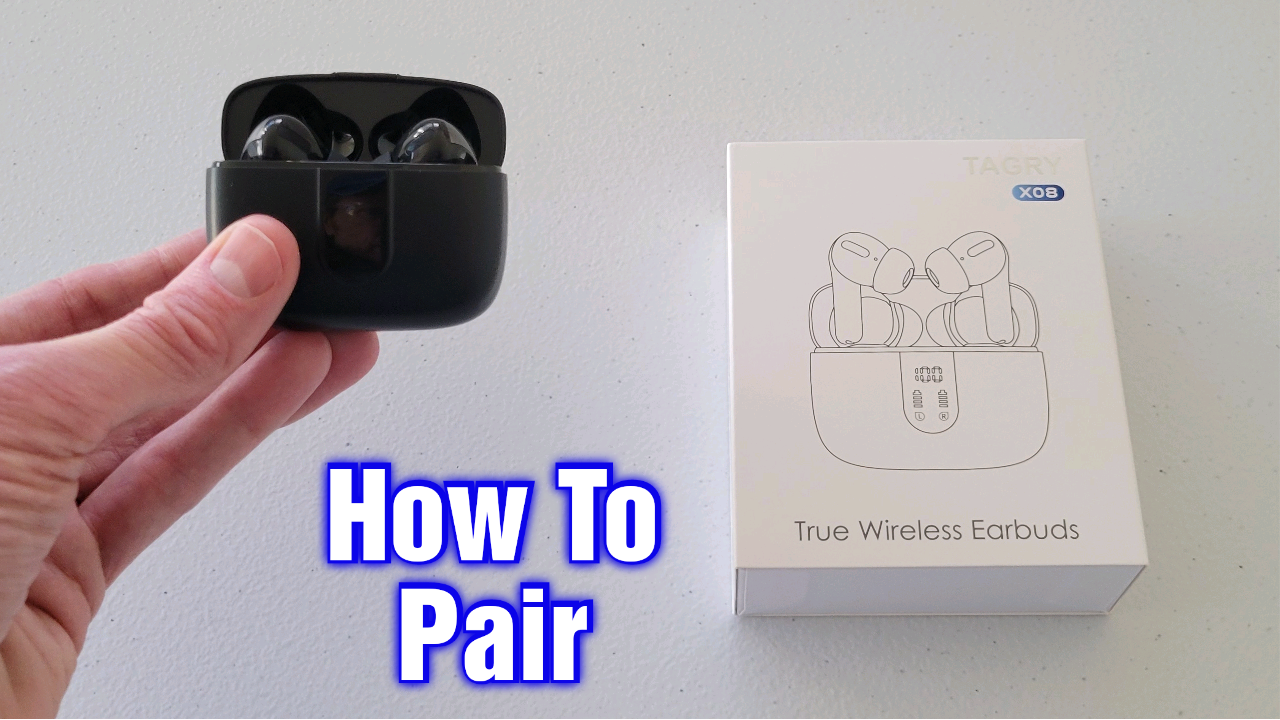
Tagry earbuds usually enter pairing mode when you remove both earbuds from the charging case. Their indicator lights may flash blue, red, or white, depending on the model. The exact light pattern can vary between Tagry models, so use the included manual if the lights behave differently.
Follow these steps to pair Tagry earbuds:
- Charge the earbuds and charging case for at least a few minutes.
- Remove both earbuds from the case.
- Place the earbuds close to your phone.
- Open your phone’s Settings app.
- Select Bluetooth.
- Turn Bluetooth on.
- Wait for a device name such as Tagry, TAGRY-T20, TAGRY-X08, or a similar model name.
- Tap the Tagry device name.
- Select Pair, Connect, or OK if your phone asks for confirmation.
- Play music to test the connection.
Once the earbuds connect, return them to the case. The next time you remove them, they should reconnect to the last device they used. This automatic connection works best when Bluetooth is active and no other nearby device is trying to connect first.

How to Pair Tagry Earbuds With an Android Phone
Android phones may use slightly different menus, but the basic process remains the same. On most devices, Bluetooth settings are found under Settings, Connected devices, or Connections.
To pair Tagry earbuds with Android:
- Open Settings.
- Tap Connected devices, Connections, or Bluetooth.
- Choose Pair new device if your phone shows that option.
- Remove both Tagry earbuds from the case.
- Wait for the Tagry name to appear under Available devices.
- Tap the Tagry name.
- Approve the pairing request.
Keep the phone and earbuds within about 3 feet during setup. Bluetooth can work across a room, but close range removes many causes of failed pairing.
If the Tagry name does not appear, turn Bluetooth off and on again. You can also close the Bluetooth screen, reopen it, and place the earbuds back in the charging case before trying again.

How to Pair Tagry Earbuds With an iPhone
The iPhone pairing process is quick. Make sure both earbuds have power and that they are outside the case before searching for them.
Use these steps:
- Open Settings on your iPhone.
- Tap Bluetooth.
- Turn Bluetooth on.
- Remove both Tagry earbuds from the case.
- Look under Other Devices.
- Tap the Tagry model name.
- Wait until the status changes to Connected.
After you pair Tagry earbuds with an iPhone, the device should appear under My Devices. If the earbuds show as Not Connected, tap the name again.
Some iPhones may show a pop-up connection notice. Accept it if it appears. If your Tagry earbuds connect but produce no sound, open Control Center, tap the audio output icon, and select the Tagry earbuds as the playback device.

How to Put Tagry Earbuds Into Pairing Mode
Pairing mode makes the earbuds visible to a phone or computer. Tagry earbuds often enter pairing mode automatically when removed from the case, especially during the first setup.
If automatic pairing does not start, try this method:
- Put both earbuds into the charging case.
- Close the lid for about 10 seconds.
- Open the lid.
- Remove both earbuds at the same time.
- Touch and hold the control area on each earbud for several seconds if the lights do not flash.
- Open Bluetooth settings on your device.
- Select the Tagry name when it appears.
Avoid pressing the touch controls too early. Some models use a short tap for play and pause but a longer press for pairing or power control. Holding the controls for too long may turn the earbuds off instead.
A flashing light usually means the earbuds are searching for a device. A steady light often means they are connected, charging, or waiting in the case. Because Tagry has several models, light colors and timing are not identical across every product.

How to Pair Tagry Earbuds When Only One Earbud Works
One-earbud problems often happen when the two earbuds lose their link with each other. Your phone may then see one earbud as a separate Bluetooth device.
First, forget every Tagry entry from your phone. Then reset and reconnect the earbuds:
- Open Bluetooth settings.
- Tap the information icon beside each Tagry listing.
- Choose Forget This Device, Unpair, or Remove.
- Place both earbuds in the charging case.
- Make sure both earbuds are charging.
- Remove both earbuds together.
- Wait for them to sync with each other.
- Search for Tagry in Bluetooth settings.
- Tap the main Tagry listing.
If this does not work, perform a full reset. Many Tagry models reset by placing both earbuds in the case and pressing their touch controls for around 10 seconds. The reset method differs by model, so check the product manual before repeating it.
A useful practical lesson is to avoid pairing one earbud alone during the first setup. Pairing both earbuds together gives them the best chance to form a stereo connection before they connect to your phone.

How to Pair Tagry Earbuds With a Windows PC
Windows computers can pair with Tagry earbuds for music, calls, and video meetings. The computer must have working Bluetooth hardware. Some desktop computers need a separate Bluetooth adapter.
To pair Tagry earbuds with Windows 11:
- Open Settings.
- Select Bluetooth & devices.
- Turn Bluetooth on.
- Click Add device.
- Choose Bluetooth.
- Remove the Tagry earbuds from their case.
- Select the Tagry model name.
- Click Done when Windows confirms the connection.
On Windows 10, open Settings, select Devices, choose Bluetooth & other devices, and click Add Bluetooth or other device.
If the earbuds connect but sound still comes from the computer speakers, select the speaker icon on the taskbar. Choose the Tagry earbuds from the available sound output devices.
For video calls, check the microphone setting inside the meeting app. Windows may connect the earbuds for sound but keep the computer’s built-in microphone selected.

How to Pair Tagry Earbuds With a Mac
Mac computers use a simple Bluetooth menu for wireless earbuds. Keep the earbuds near the Mac and close other Bluetooth devices during setup.
Follow these steps:
- Open the Apple menu.
- Select System Settings.
- Click Bluetooth.
- Turn Bluetooth on.
- Remove both Tagry earbuds from the case.
- Find the Tagry name in the device list.
- Click Connect.
On older macOS versions, open System Preferences and select Bluetooth. After you pair Tagry earbuds, click the Control Center icon in the menu bar to choose them for sound output.
If the earbuds connect but do not play audio, open System Settings, select Sound, and choose Tagry under Output. For calls, also choose Tagry under Input if you want to use the earbud microphone.

What to Do if Tagry Earbuds Do Not Show Up
When Tagry earbuds do not appear in the Bluetooth list, the cause is usually easy to find. The earbuds may be asleep, connected to another device, or too low on battery.
Try these checks:
• Charge the earbuds and case.
• Turn Bluetooth off and back on.
• Move away from other paired devices.
• Turn off Bluetooth on your old phone, tablet, or laptop.
• Put both earbuds in the case, close the lid, and try again.
• Keep the earbuds within a few feet of the device.
• Restart your phone or computer.
• Reset the earbuds if they still remain invisible.
The most common mistake is leaving Bluetooth enabled on a previous device. Earbuds usually reconnect to the last device they used, which can prevent a new phone from finding them.
Also inspect the charging contacts. Dirt or skin oil can stop an earbud from charging and powering on. Wipe the contacts gently with a dry cotton swab. Do not pour liquid into the case or use a sharp metal tool.

How to Fix Tagry Earbuds That Keep Disconnecting
A Bluetooth connection can drop because of distance, radio interference, software errors, or a weak battery. Walls, crowded wireless areas, and nearby routers may also affect performance.
Use this troubleshooting order:
- Keep the phone within 30 feet of the earbuds.
- Remove the earbuds from your phone’s Bluetooth list.
- Restart the phone.
- Reset the Tagry earbuds.
- Pair them again as a new device.
- Test them with another phone.
If they work well with another phone, the original device may have a Bluetooth setting or software issue. Install available phone updates, but avoid assuming an update will fix every problem.
Bluetooth earbuds can also disconnect when one earbud has a much lower charge than the other. Place both earbuds in the case and confirm that both charging indicators respond.
How to Reset Tagry Earbuds Before Pairing Again
A reset clears old pairing data. It is useful when the earbuds connect to the wrong device, appear twice in Bluetooth settings, or work on only one side.
A common reset process is:
- Remove Tagry earbuds from the phone’s Bluetooth list.
- Place both earbuds in the charging case.
- Leave the case open.
- Touch and hold both earbud controls for about 10 seconds.
- Watch for a change in the indicator lights.
- Close the case for a few seconds.
- Remove both earbuds.
- Pair Tagry earbuds again from the Bluetooth menu.
Not every Tagry model uses the same reset gesture. Some versions require the earbuds to be outside the case, while others use the case button. Check the model manual when the common method does not work.
Resetting removes saved connections, but it does not usually repair physical damage, worn batteries, or blocked charging contacts. If the earbuds remain unresponsive after charging and resetting, contact the seller or Tagry support.