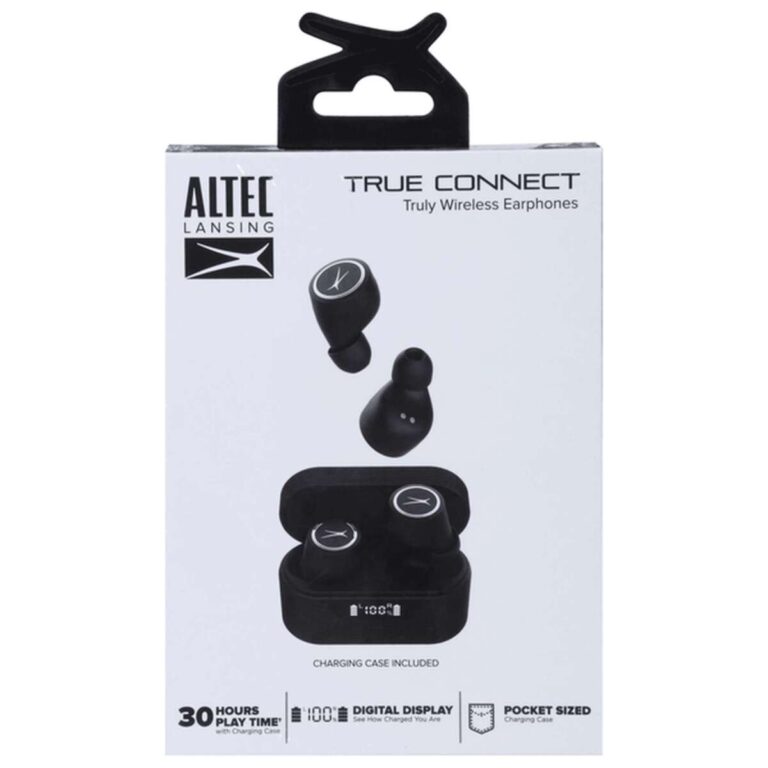
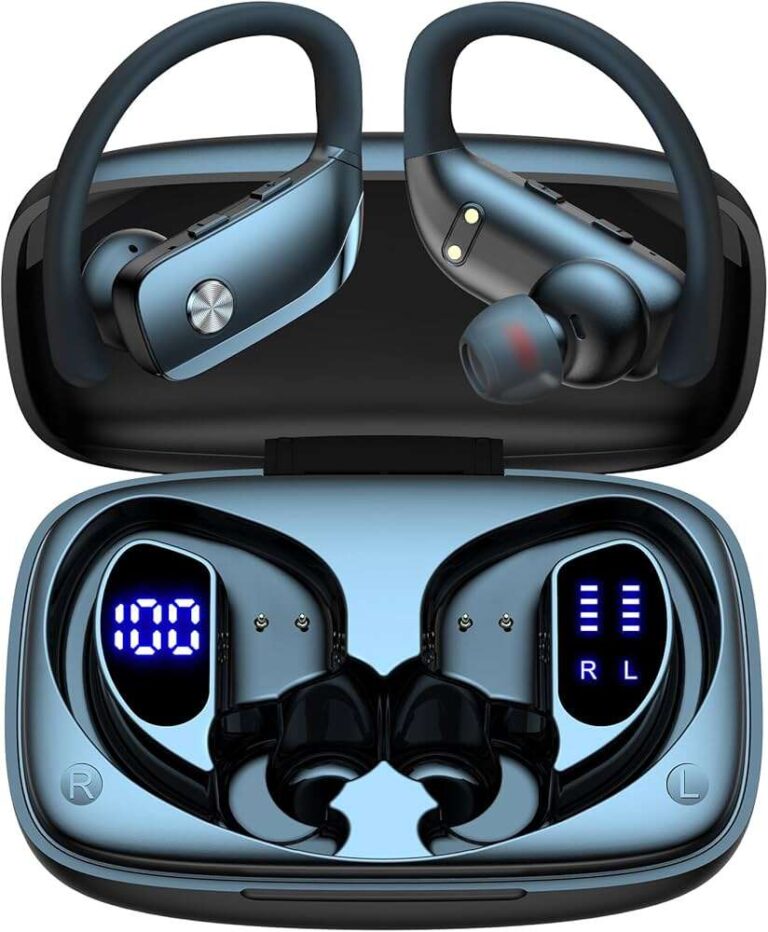
Connect Prime Audio earbuds by turning on pairing mode and selecting "Prime Audio" in your device Bluetooth.
I’ve spent years testing earbuds and teaching people to connect them quickly. This guide explains how to connect Prime Audio earbuds to phones, laptops, and other devices. You’ll get step-by-step pairing instructions, troubleshooting tips, and real-world advice I learned testing Prime Audio earbuds in daily use. Read on to master the connection process and keep your earbuds working reliably.
Understanding Prime Audio earbuds
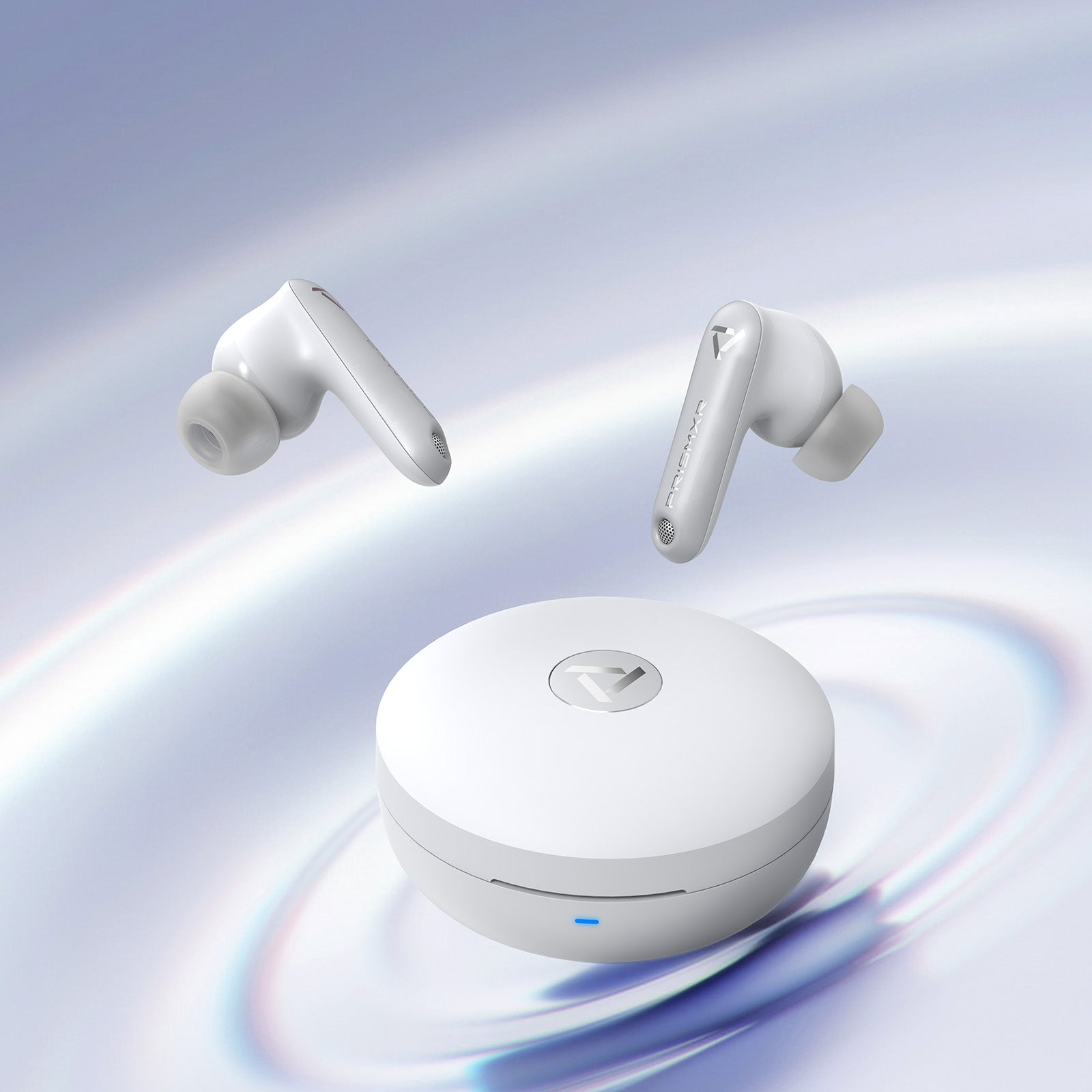
Prime Audio earbuds are true wireless in-ear headphones. They use Bluetooth to stream sound from phones, tablets, laptops, and smart TVs. Key features usually include a charging case, touch controls, and a dedicated pairing mode.
Knowing the basics helps when you connect. Most models follow the same pairing logic: charge the case, open or press a pairing button, and select the earbuds in your device’s Bluetooth menu. When I first used Prime Audio earbuds, that simple pattern solved most connection issues.

Preparing to connect: what to check first
Before pairing, do a quick checklist. This saves time and prevents common mistakes.
- Ensure the charging case and earbuds have enough battery. Low battery often blocks pairing.
- Close other active Bluetooth connections on your phone or laptop. This reduces interference.
- Update your device operating system when possible. Newer OS versions have better Bluetooth compatibility.
- Install the Prime Audio companion app if your model has one. The app can simplify firmware updates and settings.
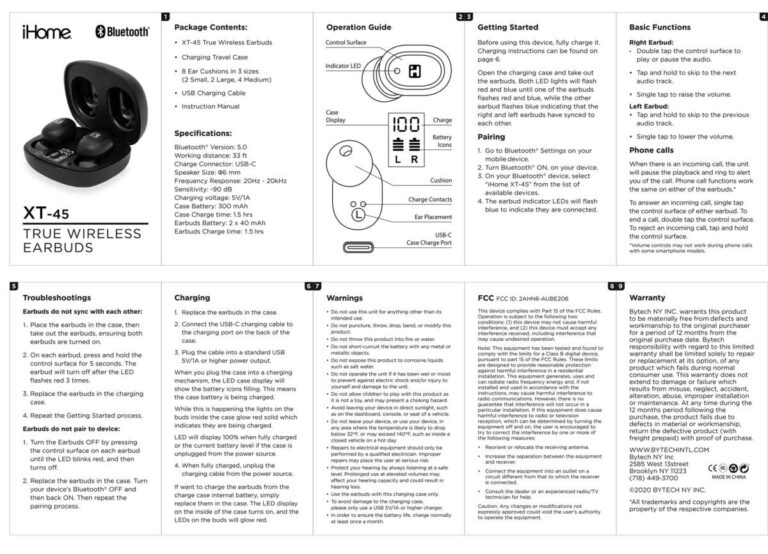
- Read the quick start guide that came with your Prime Audio earbuds for model-specific steps.
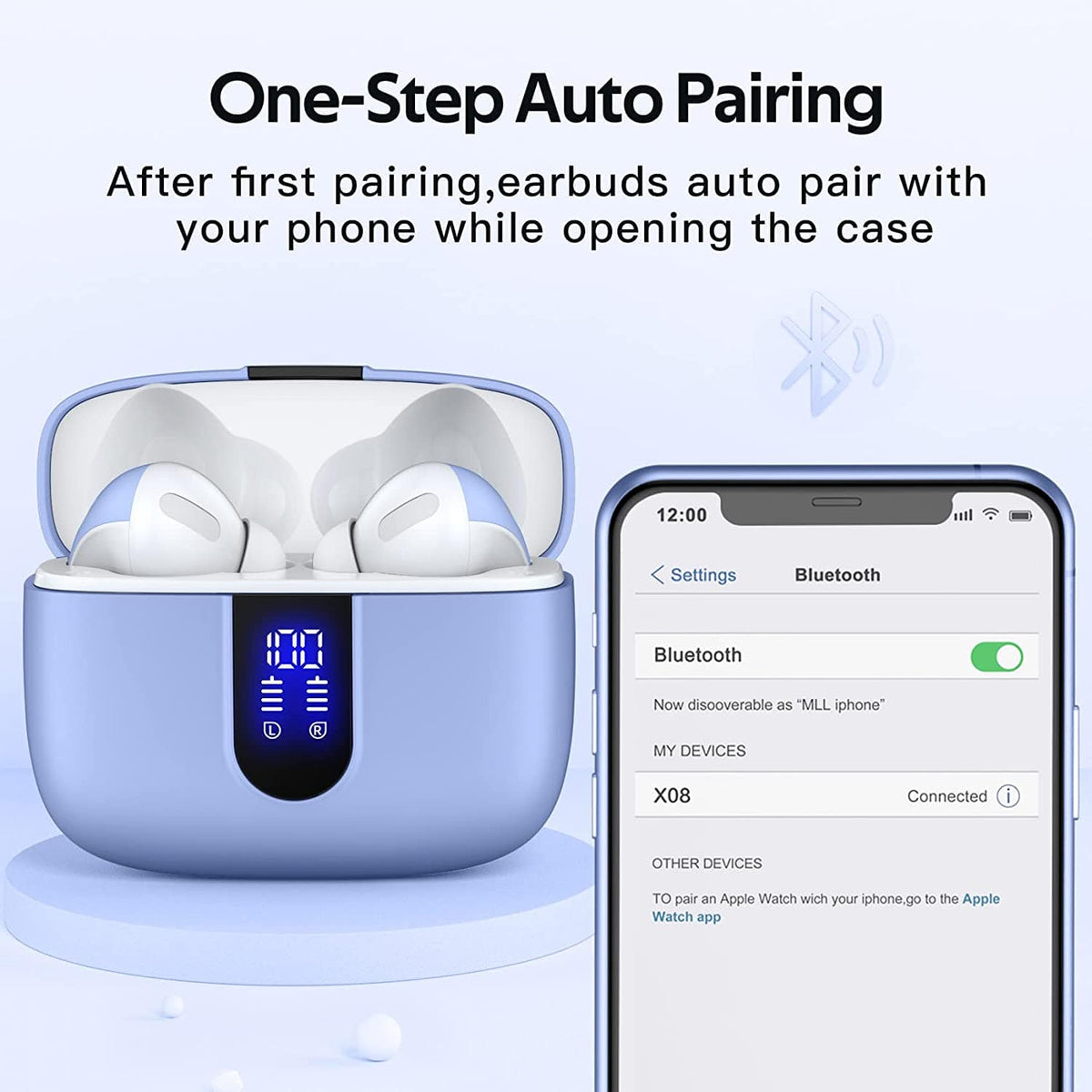
Step-by-step pairing with smartphone (Android and iPhone)
These steps cover most Prime Audio earbuds. Follow the Android or iPhone path based on your device.
- Charge and power up
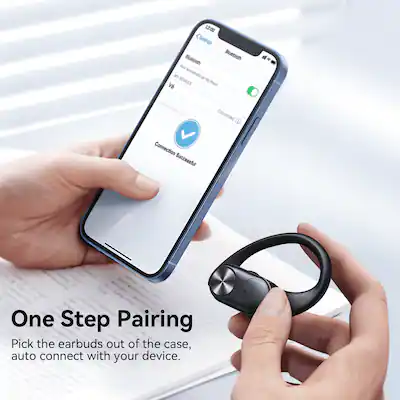
- Put the earbuds in the charging case and close it for a few seconds, then open the case.
- If earbuds don’t automatically power on, press the case button or the earbuds’ touch sensor to wake them.
- Enter pairing mode
- Most Prime Audio earbuds enter pairing mode when you first open the case. If not, press and hold the case button or touch both earbuds for 3–6 seconds until an LED flashes.
- Open Bluetooth on your phone
- Android: Settings > Connections > Bluetooth. Turn Bluetooth on.
- iPhone: Settings > Bluetooth. Turn Bluetooth on.
- Select the earbuds
- Look for a device named "Prime Audio," "Prime Audio L," "Prime Audio R," or the model name.
- Tap to pair. You may see a confirmation or a pairing request. Accept it.
- Confirm audio and controls
- Play audio and test volume and touch controls. If audio only plays from one earbud, remove and reinsert both earbuds into the case then try again.
If you have trouble, restart your phone and retry the steps. I often find a quick phone restart clears Bluetooth cache and lets Prime Audio earbuds pair cleanly.

Pairing with a laptop or desktop (Windows and macOS)
Prime Audio earbuds work well with computers when paired correctly. Follow these short steps.
Windows 10/11
- Open Settings > Devices > Bluetooth & other devices.
- Turn Bluetooth on and click Add Bluetooth or other device > Bluetooth.
- Put Prime Audio earbuds in pairing mode and select them from the list.
- Wait for the “Connected” message, then choose the earbuds as the playback device in the system tray if needed.
macOS
- Open System Settings or System Preferences > Bluetooth.
- Make sure Bluetooth is on.
- Put Prime Audio earbuds in pairing mode. Click Connect next to the earbuds in the Bluetooth list.
- Select the earbuds as the output device in Sound settings if audio doesn’t switch automatically.
Tip: For Windows, updating Bluetooth drivers can fix stubborn issues. I once fixed an intermittent drop by installing the laptop’s latest Bluetooth driver.
Troubleshooting common connection problems
Most pairing problems have simple fixes. Work through these common issues in order.
Problem: Earbuds not appearing in Bluetooth list
- Make sure earbuds are in pairing mode. Look for a flashing LED or listen for voice prompts from the earbuds.
- Move closer to the device. Keep the distance under 10 feet with no major obstacles.
- Turn Bluetooth off and on again on your device.
Problem: Only one earbud plays
- Place both earbuds back in the case and remove them together to reset the connection between left and right.
- If one earbud is dead, charge it fully and retry pairing.
Problem: Frequent dropouts
- Check for interference from Wi-Fi routers, microwaves, or other Bluetooth devices.
- Keep both earbuds and the connected device’s firmware up to date.
Problem: Cannot pair after resetting
- Remove (forget) the Prime Audio earbuds from your device’s Bluetooth list and add them again.
- Reset the earbuds by following the model’s reset procedure (often holding buttons for 10 seconds).
People also ask: How long does pairing take?
Pairing usually takes 5–30 seconds after you enter pairing mode. If it takes longer, restart both devices.
People also ask: Will Prime Audio earbuds connect to two devices at once?
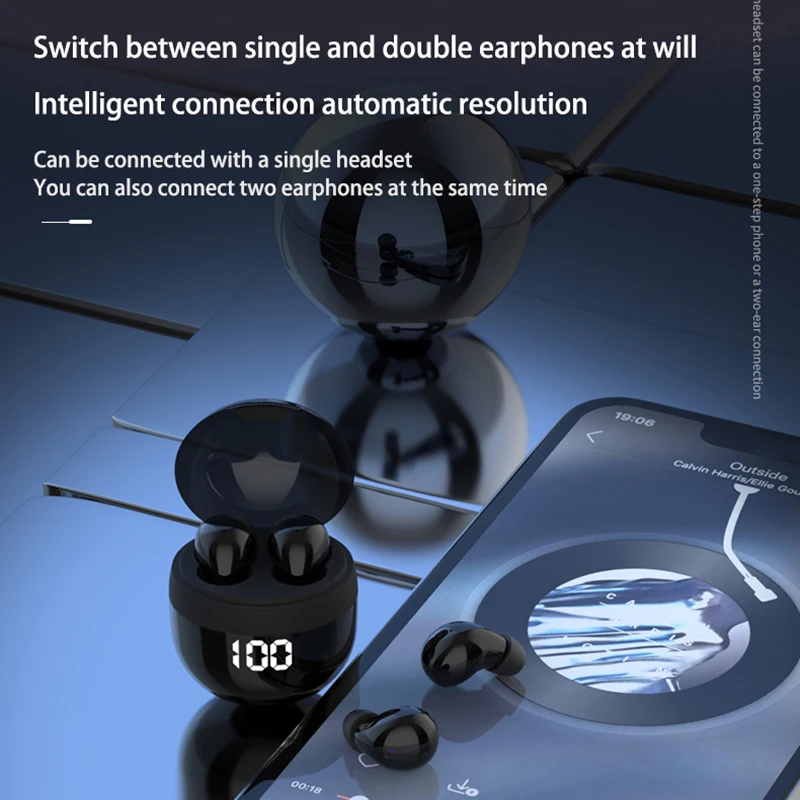
Most models support one active connection at a time. Some newer Prime Audio earbuds offer multipoint pairing for two devices, but check the specific model’s features.
Tips for best audio quality and stable connections
Small habits improve sound and reliability with Prime Audio earbuds.
- Keep earbuds and device close during calls or music streaming for best Bluetooth stability.
- Update firmware using the Prime Audio app or the manufacturer’s update tool. Firmware often fixes audio sync and connectivity issues.
- Clean the earbuds and charging contacts regularly. Dirty contacts cause charging and connection errors.
- Use the correct ear tip size for a snug fit. A better seal improves bass and reduces perceived dropouts.
- Turn off other Bluetooth audio devices nearby when pairing to avoid pairing conflicts.
Personal experience: mistakes I made and lessons learned
I once tried pairing Prime Audio earbuds with an old tablet while standing beside a Wi-Fi router. The connection failed repeatedly. Moving away from the router and restarting the tablet fixed it instantly. From that, I learned to check the environment before troubleshooting.
Another time I updated firmware mid-call and lost connection. Now I always update firmware when I’m not using the earbuds for important calls. These small habits save time and frustration.
Frequently Asked Questions of how to connect prime audio earbuds
How do I force Prime Audio earbuds into pairing mode?
Most Prime Audio earbuds enter pairing mode when you open the case for the first time. If they don’t, press and hold the case button or hold both earbuds’ touch sensors for 3–6 seconds until an LED flashes.
My phone sees the earbuds but won’t connect. What do I do?
Forget the earbuds in your phone’s Bluetooth settings, turn Bluetooth off and on, then retry pairing. If that fails, restart your phone and reset the earbuds.
Why does sound come from only one Prime Audio earbud?
This can happen if left and right earbuds lose sync. Put both earbuds back in the case, wait 10 seconds, then remove them together to re-establish the connection.
Can I update the Prime Audio earbuds firmware?
Yes, many Prime Audio earbuds support firmware updates via a companion app. Updating can fix bugs and improve connectivity, so check for updates regularly.
Are Prime Audio earbuds compatible with any Bluetooth device?
They are compatible with most Bluetooth-enabled devices. Some advanced features may require a phone or app that supports those features, but basic audio and calls work broadly.
How do I reset Prime Audio earbuds to factory settings?
Reset steps vary by model but often involve holding a button on the case or both earbuds for 10–15 seconds. Check the quick start guide or app for exact instructions.
Conclusion
Connecting Prime Audio earbuds is usually quick if you follow a few simple steps: charge, enter pairing mode, select the earbuds in Bluetooth settings, and update firmware when needed. Use the troubleshooting tips above when things go wrong, and keep your environment clear of interference for the best experience. Try these steps now, and leave a comment about your model or questions—your feedback helps others connect with confidence.

Everett Ashford is a tech reviewer at mytechgrid.com specializing in SSDs, cameras, TVs, earbuds, headphones, and other consumer electronics. He provides honest, data-driven reviews based on hands-on testing and real-world performance analysis. Everett simplifies complex tech details to help readers make smart, confident buying decisions.