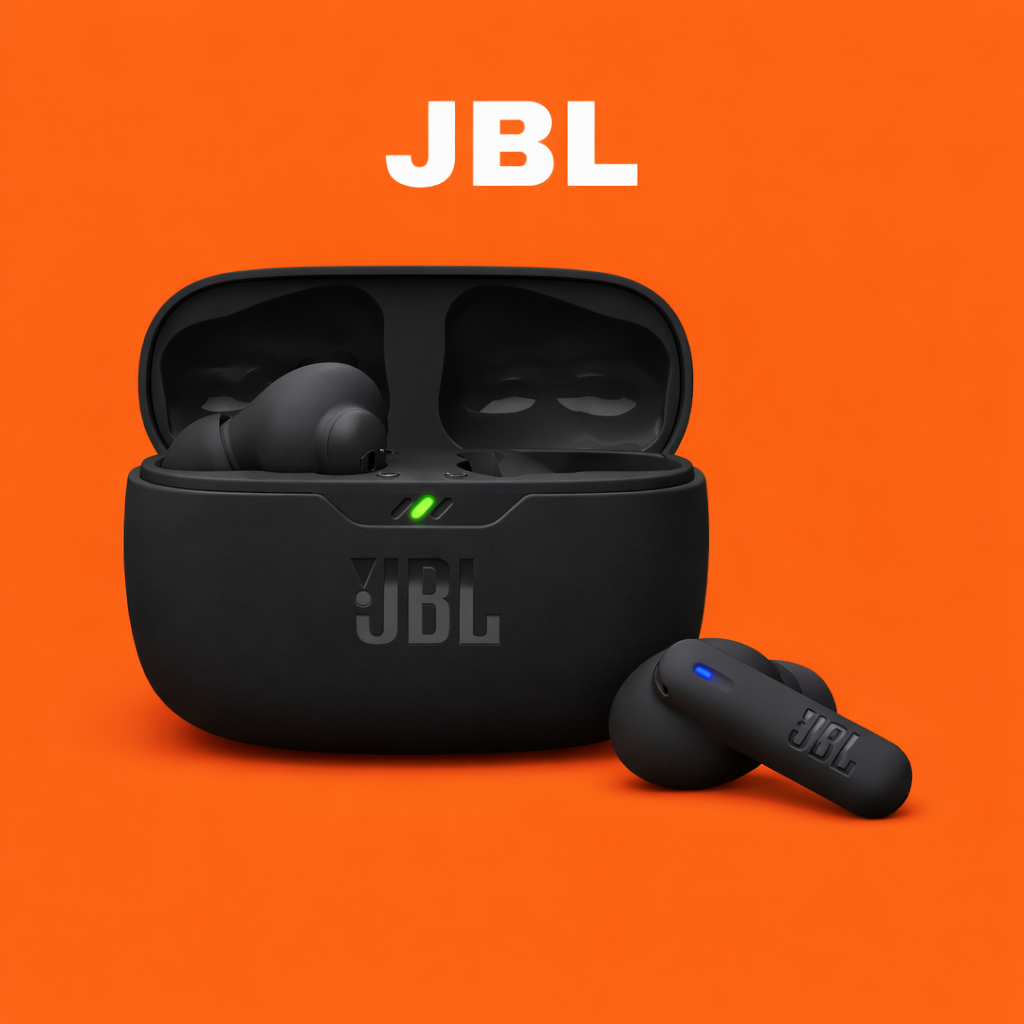
To reset JBL Vibe Beam earbuds, tap either earbud three times and hold the third tap for over five seconds.
Resetting JBL Vibe Beam earbuds can fix pairing errors, one-sided audio, touch control glitches, and repeated connection drops. The process is simple, but timing matters. This guide explains how to reset JBL Vibe Beam earbuds, remove old Bluetooth data, pair them again, and solve problems that remain after the reset.

What a Reset Does to JBL Vibe Beam Earbuds
A factory reset clears the earbuds’ stored Bluetooth connection data and returns their wireless settings to a fresh state. It does not physically repair damaged hardware, improve a worn battery, or restore deleted music files.


Resetting JBL Vibe Beam earbuds is useful when:
• Your phone cannot find the earbuds.
• Only one earbud produces sound.
• The earbuds connect to the wrong device.
• Bluetooth pairing fails again and again.
• Touch controls stop responding correctly.


• Audio cuts out even when the earbuds are close to your phone.
Think of a reset as wiping a small whiteboard clean. It removes old connection information so your phone and earbuds can start a new Bluetooth relationship.

How to Reset JBL Vibe Beam Earbuds
Before starting, charge the earbuds and charging case for a few minutes. A very low battery can make the reset fail or make the touch controls respond slowly.
Follow these steps for resetting JBL Vibe Beam earbuds:
-
Remove both earbuds from the charging case.
-
Make sure the earbuds are turned on and not actively playing audio.
-
Place a finger on the touch control area of either earbud.
-
Tap the touch area three times.
-
On the third tap, keep your finger pressed for more than five seconds.
-
Wait for the earbuds to power off or show a reset response.
-
Put both earbuds back into the charging case.
-
Close the lid for about 10 seconds.
-
Open the lid and remove the earbuds.
-
Pair them with your phone as if they were new.


The key part of how to reset JBL Vibe Beam earbuds is the third tap. The first two taps should be quick. The third tap must become a long press. If you tap three times without holding the last tap, the reset may not begin.
Some JBL Vibe Beam firmware versions may respond more consistently when the earbuds are outside the case. If the first attempt does not work, place both earbuds in the case, remove them again, and repeat the process with the lid open.

How to Reset JBL Vibe Beam Earbuds When the Touch Controls Do Not Respond
Touch controls may fail when the earbuds are wet, dirty, or not seated correctly in your ears. They can also act strangely when the battery is nearly empty.
Try these steps before repeating the reset:
• Dry the touch panels with a clean, soft cloth.
• Clean the small charging contacts on each earbud.
• Charge the case and earbuds for at least 15 minutes.
• Remove the earbuds from your phone’s Bluetooth range, then bring them close again.
• Turn off Bluetooth on nearby phones, tablets, and computers.
• Try the three taps and long third press on both earbuds.
The official reset method normally allows either earbud to begin the process. Still, testing both sides can help when one touch panel is not registering input.
In my troubleshooting experience, the most common mistake is holding the third tap too soon. The earbuds need two clear taps first. Then press and hold on the third touch. It is similar to pressing a camera shutter: two quick clicks, followed by one firm hold.

Remove the Old Bluetooth Pairing
Resetting JBL Vibe Beam earbuds may not be enough if your phone still remembers the old connection. Bluetooth devices often keep a saved profile, and that profile can contain incorrect pairing information.


Remove the saved JBL Vibe Beam entry from your phone.
On an iPhone
-
Open Settings.
-
Select Bluetooth.
-
Find JBL Vibe Beam in the device list.
-
Tap the information icon beside it.
-
Select Forget This Device.
-
Confirm the choice.
On an Android phone
-
Open Settings.
-
Select Connected devices or Connections.
-
Open Bluetooth.
-
Tap the settings icon beside JBL Vibe Beam.
-
Choose Forget, Unpair, or Remove.
-
Confirm the action.
After removing the old profile, turn Bluetooth off for a few seconds. Turn it back on only after the earbuds have completed the reset. This gives the phone a clean start.
If your phone shows several JBL entries, remove each old JBL Vibe Beam entry. Do not remove unrelated devices unless you want to pair them again later.


Pair JBL Vibe Beam Earbuds Again
After resetting JBL Vibe Beam earbuds, pairing should be treated as a new setup. Keep the phone and earbuds close together, preferably within three feet.
Use this process:
-
Open the charging case.
-
Remove both earbuds.
-
Wait several seconds for the earbuds to enter pairing mode.
-
Open your phone’s Bluetooth settings.
-
Select JBL Vibe Beam from the available devices.
-
Accept any pairing request.
-
Play audio through both earbuds.
If JBL Vibe Beam does not appear, turn Bluetooth off and on again. You can also restart the phone and repeat the pairing process.
Do not pair one earbud with your phone first unless the instructions specifically require it. The two earbuds need to connect to each other before they connect to the phone. Pairing one side alone can cause a left or right earbud problem.

What to Do If Only One Earbud Works
A reset often fixes a one-sided audio problem, but not every case is caused by software. First, check whether both earbuds are charging.
Look at the metal charging contacts on the earbuds and inside the case. Dust, pocket lint, or skin oil can stop one side from charging. Clean the contacts gently with a dry cotton swab. Do not pour liquid into the case or scrape the contacts with a sharp object.
Then try this sequence:
• Put both earbuds in the case.
• Confirm that each earbud sits firmly on its charging pins.
• Charge the case for at least 15 minutes.
• Remove both earbuds at the same time.
• Reset JBL Vibe Beam earbuds using the three-tap method.
• Forget the old Bluetooth profile.
• Pair the earbuds again.
Also check your phone’s audio balance. On an iPhone, open Accessibility settings and look for the left-right balance control. Android menus vary by brand, but sound balance is usually under Accessibility or Hearing enhancements. The slider should remain centered.
If one side still does not power on after charging and resetting JBL Vibe Beam earbuds, the issue may involve the battery, charging contact, speaker, or internal electronics.
Fix JBL Vibe Beam Connection and Audio Problems
Resetting JBL Vibe Beam earbuds can solve many connection issues, but your surroundings can also affect Bluetooth performance. Bluetooth uses short-range radio signals. Heavy interference from Wi-Fi routers, smartwatches, laptops, and other wireless devices may cause brief audio cuts.
Try these practical fixes:
• Keep the phone on the same side as the main earbud connection.
• Avoid placing the phone inside a thick bag or metal container.
• Move away from crowded wireless areas.
• Close music apps running in the background.
• Update your phone’s operating system.
• Keep the JBL Headphones app updated if you use it.
• Test the earbuds with another phone.
Testing another phone is especially helpful. If the earbuds work well with a second device, the first phone likely has a Bluetooth profile or software issue. If the same fault appears on both phones, the earbuds or case may need service.
A reset will not correct severe range loss, water damage, a failing battery, or a broken speaker. This limitation is important because repeated resets cannot repair physical damage.

Common Mistakes to Avoid When Resetting JBL Vibe Beam Earbuds
Many failed resets happen because of small setup errors. Avoid these mistakes:
• Do not tap too slowly. The first two taps should be close together.
• Do not release the third tap too soon.
• Do not reset only one earbud unless you are following a specific service instruction.
• Do not leave the earbuds connected to your phone during the setup.
• Do not try the reset with a completely dead case.
• Do not pair the earbuds before removing the old Bluetooth profile.
• Do not press random areas of the earbud. Use the touch control panel.
• Do not clean the earbuds with water, alcohol, or sharp tools.
The touch panel can be hard to use when your fingers are wet. Dry hands give you better control and help each tap register correctly.
If you are unsure whether the reset worked, forget JBL Vibe Beam from your phone and check whether the earbuds appear as a new device. A fresh pairing request is a strong sign that the old connection data was cleared.
When to Contact JBL Support
Contact JBL support or an authorized service center if resetting JBL Vibe Beam earbuds does not solve the problem after two or three careful attempts.
Professional help may be needed when:
• The earbuds will not charge.
• The case does not show any charging response.
• One earbud remains completely silent.
• The earbuds become unusually hot.
• The case or earbud has visible swelling or damage.
• Bluetooth disconnects every few seconds on several devices.
• The touch controls never respond.
Stop using the earbuds if the battery appears swollen, cracked, or unusually hot. Lithium-ion batteries require careful handling. Do not open the case yourself, as this may create a safety risk and can void warranty coverage.
Keep your purchase receipt and note the steps you already tried. Support staff can help more quickly when they know the model, phone type, operating system, and exact symptoms.
Tips to Keep JBL Vibe Beam Earbuds Working Well
Good care reduces the need to reset JBL Vibe Beam earbuds. Store them in the charging case when you are not using them. This protects the earbuds and helps prevent accidental touch commands in a pocket or bag.
Follow these simple habits:
• Keep the charging contacts clean and dry.
• Avoid leaving the case in direct sun or a hot car.
• Charge the case before it reaches zero.
• Keep firmware and phone software current.
• Do not share one earbud across many devices without removing old pairings.
• Keep the earbuds dry during workouts and outdoor use.
• Close the case lid when the earbuds are not in use.
Sweat resistance is not the same as complete waterproofing. Check the product instructions for the exact protection rating, and never submerge the earbuds or case.
With regular care, most connection problems can be handled without a reset. When a reset is needed, the process is quick and safe when you follow the correct tap timing.
Frequently Asked Questions About How to Reset JBL Vibe Beam Earbuds
How do I reset JBL Vibe Beam earbuds?
Remove the earbuds from the case, tap either touch panel three times, and hold the third tap for more than five seconds. Then forget JBL Vibe Beam from your phone’s Bluetooth settings and pair the earbuds again.
Why will my JBL Vibe Beam earbuds not reset?
The earbuds may have a low battery, dirty touch panels, or taps that are not registering. Charge them, dry the touch controls, and repeat the three-tap process with a longer hold on the third tap.
Do I need to delete JBL Vibe Beam from my phone after a reset?
Yes, forgetting the old Bluetooth profile is recommended. It prevents your phone from using outdated pairing data and gives the earbuds a clean connection.
Will resetting JBL Vibe Beam earbuds erase the sound settings?
A reset can remove stored connection settings and some personalized device settings. It does not change the physical sound quality or repair a damaged speaker.
Can I reset only one JBL Vibe Beam earbud?
The standard reset should be performed with both earbuds available. If one earbud does not respond, charge and clean it first, then repeat the reset using the working touch panel.
How long does it take to reset JBL Vibe Beam earbuds?
The reset itself takes only a few seconds. Allow extra time to forget the old Bluetooth entry and pair the earbuds again.
Conclusion
Resetting JBL Vibe Beam earbuds usually requires three taps on either earbud, with a hold on the third tap for more than five seconds. For the best result, charge the earbuds, remove the old Bluetooth pairing, and connect them again as a new device.
If the problem continues, test the earbuds with another phone and inspect the charging contacts. These steps help separate a simple pairing error from a battery, speaker, or hardware fault. Try the reset carefully, then explore JBL’s support resources or share your experience in the comments.

Everett Ashford is a tech reviewer at mytechgrid.com specializing in SSDs, cameras, TVs, earbuds, headphones, and other consumer electronics. He provides honest, data-driven reviews based on hands-on testing and real-world performance analysis. Everett simplifies complex tech details to help readers make smart, confident buying decisions.