Turn off touch controls, disable voice wake features, and improve earbud fit to stop accidental voice control.
Earbuds can trigger Siri, Google Assistant, or another voice assistant when a touch sensor reads movement as a tap. This guide explains how to stop earbuds from activating voice control on iPhone, Android, Windows, and popular wireless earbud models. You will learn the safest settings to change, how to test each fix, and what to do when the problem keeps returning.

Why earbuds activate voice control by accident
Most earbuds activate voice control through one of three actions: a touch gesture, a button press, or a voice wake word. For example, pressing and holding an AirPod stem may open Siri, while a long press on Galaxy Buds may launch Bixby or Google Assistant.
The problem often starts when the earbud mistakes normal movement for a command. Adjusting the bud, putting on a hat, lying on a pillow, or brushing away hair can press a touch panel.
Common causes include:
• Accidental taps while adjusting the earbuds
• Long-press gestures set to open a voice assistant
• A loose or poor earbud fit
• Wet fingers, sweat, rain, or condensation
• Hair, hats, or glasses touching the control area
• A wake word being detected by mistake
• A Bluetooth or firmware glitch
• A phone accessibility setting that changes press duration
• A damaged touch sensor or physical button
Voice control is useful when you need hands-free help. However, it can be frustrating when it starts during a workout, a phone call, or a quiet meeting. Learning the trigger is the first step to finding the right fix.
How to stop earbuds from activating voice control on iPhone
The fastest way to stop earbuds from activating voice control on an iPhone is to change the press or touch action assigned to Siri. The exact steps depend on whether you use AirPods, Beats, or another Bluetooth model.
Change AirPods press settings
On newer AirPods models, you can change what happens when you press or hold the stem.
- Put your AirPods in your ears and connect them to your iPhone.
- Open Settings.
- Tap your AirPods near the top of the screen.
- Choose Left or Right under the press-and-hold option.
- Select a different action instead of Siri.
Depending on the model, you may be able to choose Noise Control, Off, or another available setting. Choosing a non-Siri action prevents a long press from opening voice control.
Change older AirPods double-tap settings
Older AirPods may use double-tap gestures rather than a stem press.
- Open Settings.
- Tap Bluetooth.
- Tap the information button beside your AirPods.
- Select the left or right AirPod.
- Replace Siri with Play/Pause, Next Track, or Off if available.
If you never use gesture controls, turning them off is often the cleanest solution. This can stop earbuds from activating voice control when you place them in your ears or adjust their position.
Turn off Voice Control on the iPhone
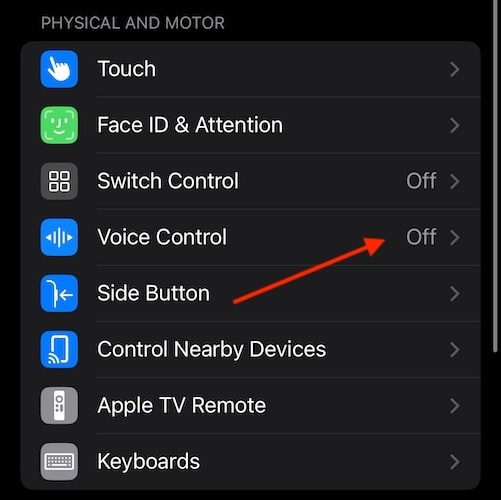
If Siri is not the only feature launching, check the iPhone’s accessibility settings.
- Open Settings.
- Tap Accessibility.
- Select Side Button or Home Button.
- Look for the option related to press and hold.
- Set it to Off or another function instead of Voice Control.
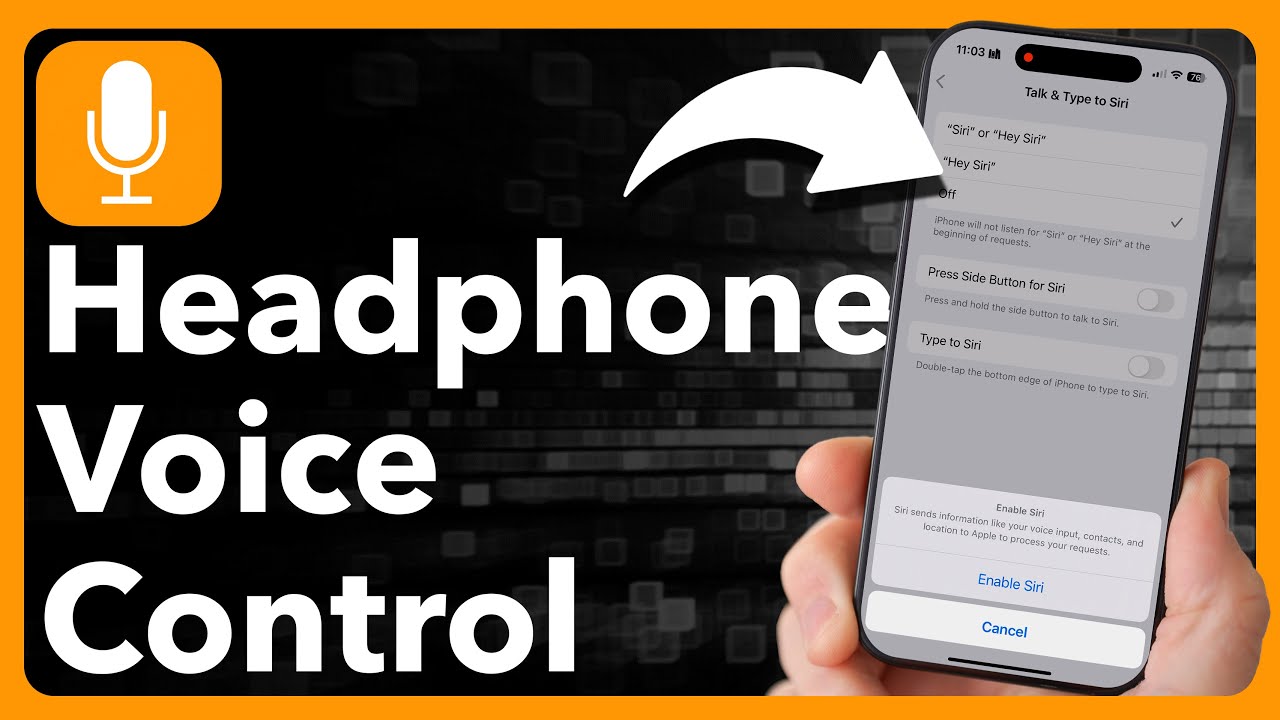
On some iPhone versions, you can also review Siri settings under Settings > Siri or Apple Intelligence & Siri. Turn off “Listen for” wake-word detection if you do not want the phone responding to spoken commands.
Apple changes menu names across iOS versions. If a setting is missing, use the Settings search bar and type Siri, Voice Control, or press and hold.
How to stop earbuds from activating voice control on Android
Android phones use different menus based on the phone maker, Android version, and earbud brand. Still, the main fix is the same: remove the assistant from the earbud’s touch or button action.
Disable the earbud assistant gesture
Open the companion app for your earbuds. Popular apps include Galaxy Wearable, Pixel Buds, Sony Sound Connect, JBL Headphones, and Nothing X.
Look for a menu called Controls, Touch controls, Gestures, Button controls, or Customize. Then change the action assigned to a long press, touch and hold, or press-and-hold gesture.
Choose an option such as:
• Noise control
• Ambient sound
• Play or pause
• Skip track
• No action
• Custom action that does not use a voice assistant
This is one of the most reliable ways to stop earbuds from activating voice control on Android.
Turn off Google Assistant or Gemini earbud access
To prevent Google’s assistant from responding through your earbuds:
- Open the Google app or your phone’s Settings app.
- Search for Assistant, Gemini, or Digital assistant.
- Review voice activation and headphone settings.
- Turn off “Hey Google” detection if you do not need it.
- Remove headphone access if your device provides that option.
Some Android phones place these controls under Apps > Default apps > Digital assistant app. Others place them under Google services. Use the Settings search field when the menu is hard to find.
Change settings for Samsung Galaxy Buds
For Galaxy Buds, open the Galaxy Wearable app and select your earbuds. Tap Touch controls or Earbud controls, then review the touch-and-hold assignment for each earbud.
If the left or right earbud is set to Bixby, Google Assistant, or another voice service, change it to noise control or turn the action off. Also check Labs or advanced settings if your model includes extra touch features.

Turn off touch controls on your earbuds
Many wireless earbuds have capacitive touch panels. These panels sense changes in electrical charge when your skin touches them. They do not always know whether you meant to tap them, so a small movement can activate voice control.
If your earbuds support this feature, disable touch controls completely. This is especially helpful if you often wear a beanie, helmet, glasses, or long hair that touches the earbud surface.
Check the companion app for settings such as:
• Touch controls
• Wear detection
• Tap gestures
• Long press
• Touch lock
• In-ear detection
• Smart pause
Some earbuds let you turn off only the long-press gesture. That may be enough because voice assistants are commonly assigned to a long press.
If the app does not offer a full touch lock, assign every gesture to a safe action. For example, use one tap for play and pause, two taps for the next track, and no action for touch and hold.
After changing the setting, test each earbud separately. A common mistake is disabling the left earbud while the right one still has voice control enabled.

Improve the fit to prevent accidental presses
A loose earbud can move inside your ear and trigger its sensor. A tight earbud can also cause trouble because you may keep pushing it back into place. The goal is a secure fit that stays put without pressure.
Try these simple adjustments:
• Test a different ear tip size
• Clean the ear tip and speaker grille
• Twist the earbud gently into its intended position
• Use wing tips if your model supports them
• Avoid pushing the bud too deep into the ear
• Keep hair, hats, and helmet straps away from touch panels
• Use a case or pocket instead of touching the controls while walking
Fit can affect more than comfort. It can also change noise cancellation, microphone performance, and wear detection. In my troubleshooting experience, many “random” activations stop after the user switches from medium to small or large ear tips.
Do not use damaged tips or force an earbud into place. If one side causes pain, falls out, or presses constantly, replace the tip or ask an audiologist for fit advice.
Clean and dry the earbuds
Moisture can make touch controls behave unpredictably. Sweat, rain, skin oil, and cleaning liquid may create false inputs or interfere with the sensor.
To clean your earbuds safely:
- Remove the ear tips.
- Wipe the earbuds with a soft, dry, lint-free cloth.
- Clean the tips with mild soap and water if the manufacturer allows it.
- Dry the tips fully before reinstalling them.
- Use a dry cotton swab around, not inside, the microphone openings.
- Never pour liquid into the charging port or speaker mesh.
Avoid sharp tools, compressed air, and strong cleaning chemicals. These can push debris deeper or damage the mesh.
If voice control starts after exercise or rain, let the earbuds dry at room temperature before using them again. Do not place them on a heater or use a hair dryer. Excess heat can damage batteries and seals.

Update the earbud firmware and phone software
Manufacturers often release firmware updates to improve Bluetooth stability, touch response, microphone behavior, and battery performance. A bug in either the earbuds or phone can cause repeated assistant activation.
Check for updates in the earbud companion app. Also install available updates for iOS or Android after backing up important data and confirming that the phone has enough battery.
Updating will not always fix a worn or damaged sensor. Still, it removes software errors from the list of possible causes. This matters because troubleshooting is easier when you change one factor at a time.
After an update, restart both the phone and earbuds. Then test voice control for several minutes before changing more settings.
Reset the Bluetooth connection
A damaged Bluetooth pairing profile can cause strange behavior, including incorrect button commands. Re-pairing the earbuds gives the phone a fresh connection.
Try these steps:
- Open your phone’s Bluetooth settings.
- Tap the information icon beside the earbuds.
- Choose Forget This Device or Unpair.
- Turn Bluetooth off for about 10 seconds.
- Restart the phone.
- Place the earbuds in their charging case.
- Pair them again using the normal setup process.
A factory reset may be useful if re-pairing does not help. The reset method differs by brand, so use the instructions for your exact model. A reset usually removes saved settings, custom gestures, and paired devices.
Before resetting, write down your preferred noise control and gesture settings. Otherwise, you may need to configure them again.

Check whether the phone or earbuds are at fault
The easiest way to find the faulty device is to test the earbuds with another phone. Use them for at least 10 to 15 minutes and move around as you normally would.
If the earbuds activate voice control on both phones, the issue likely comes from the earbuds, their settings, or a physical defect. If the problem happens only with one phone, check that phone’s assistant, accessibility, Bluetooth, and voice wake settings.
You can also test a different pair of earbuds with the original phone. This creates a simple comparison:
• One pair fails on every phone: likely an earbud issue
• Several pairs fail on one phone: likely a phone setting or software issue
• Failure happens only during movement: likely fit or touch sensitivity
• Failure happens after moisture exposure: likely dampness or sensor trouble
This process saves time and avoids changing random settings. It is the same basic method technicians use: isolate one variable, test it, and record the result.
What to do when voice control keeps turning on
If earbuds still activate voice control, use a full troubleshooting checklist rather than repeating one fix.
- Disable Siri, Google Assistant, Bixby, or another assistant gesture.
- Turn off voice wake detection.
- Disable touch and hold controls.
- Clean and dry the earbuds.
- Try another ear tip size.
- Update the phone and earbud firmware.
- Forget and reconnect the Bluetooth device.
- Test the earbuds with another phone.
- Reset the earbuds.
- Contact the manufacturer if the issue continues.
Do not ignore signs of physical damage. A cracked touch panel, loose button, swollen battery, or earbud that becomes hot needs professional attention. Stop using the device if it becomes unusually hot, smells burnt, or shows battery swelling.
Also check whether a third-party app is listening for voice commands. Some assistant, automation, headset, and accessibility apps can change button behavior without making the cause obvious.
Benefits and limits of disabling voice control
Disabling voice control can make earbuds much more predictable. It can also prevent accidental calls, messages, music changes, navigation commands, and searches.
However, you may lose useful hands-free features. Voice assistants can help when your hands are busy, such as while driving, cooking, or exercising. A balanced solution is to disable only the long-press gesture while keeping voice control available through the phone.
There is no universal setting for every earbud. Apple, Samsung, Google, Sony, Bose, JBL, and other brands use different apps and controls. Menu names may also change after software updates, so always confirm the instructions for your exact model.
Frequently Asked Questions About How to Stop Earbuds From Activating Voice Control
Why do my earbuds keep opening Siri or Google Assistant?
The long-press gesture may be assigned to a voice assistant, or the touch sensor may register accidental contact. Change the gesture in the earbud app or Bluetooth settings, then turn off voice wake detection if needed.
How do I stop AirPods from activating voice control?
Open your AirPods settings on the connected iPhone and change the press-and-hold action for each AirPod. Choose noise control, another available action, or no action instead of Siri.
Can sweat cause earbuds to activate voice control?
Yes. Moisture can affect capacitive touch controls and create false inputs. Dry the earbuds at room temperature, clean them with a dry cloth, and avoid using damaged or wet earbuds.
Will resetting my earbuds stop voice control from turning on?
A reset can fix software and pairing problems, but it will not repair a damaged touch sensor. After resetting, turn off the assistant gesture again because the default setting may return.
How do I disable voice control on Android earbuds?
Open the earbuds’ companion app and find Touch controls, Gestures, or Button controls. Change the long-press action from Google Assistant, Gemini, Bixby, or another assistant to a non-assistant action.
Why do my earbuds activate voice control when I adjust them?
Your finger, hair, hat, or glasses may be touching the sensor. Disable touch controls, use a different ear tip size, and adjust the earbuds by holding the outer edge away from the control panel.
Should I replace my earbuds if voice control activates randomly?
Replace or repair them if the issue continues after changing settings, updating software, cleaning, and testing another phone. Physical damage or a failing sensor can make the problem impossible to solve through settings alone.
Conclusion
The most effective way to stop earbuds from activating voice control is to remove Siri, Google Assistant, Bixby, or another assistant from the long-press gesture. Then improve the fit, keep the earbuds dry, update the software, and reset the Bluetooth connection if needed.
Start with the simplest fix: open your earbud settings and disable the voice assistant action on both earbuds. If the problem remains, test another phone to determine whether the issue is caused by the earbuds or your device. Share your earbud model and solution in the comments, or explore your manufacturer’s support resources for model-specific help.

Everett Ashford is a tech reviewer at mytechgrid.com specializing in SSDs, cameras, TVs, earbuds, headphones, and other consumer electronics. He provides honest, data-driven reviews based on hands-on testing and real-world performance analysis. Everett simplifies complex tech details to help readers make smart, confident buying decisions.