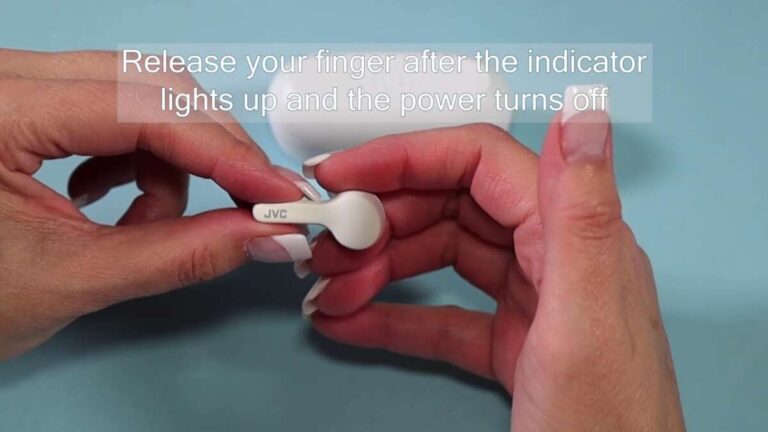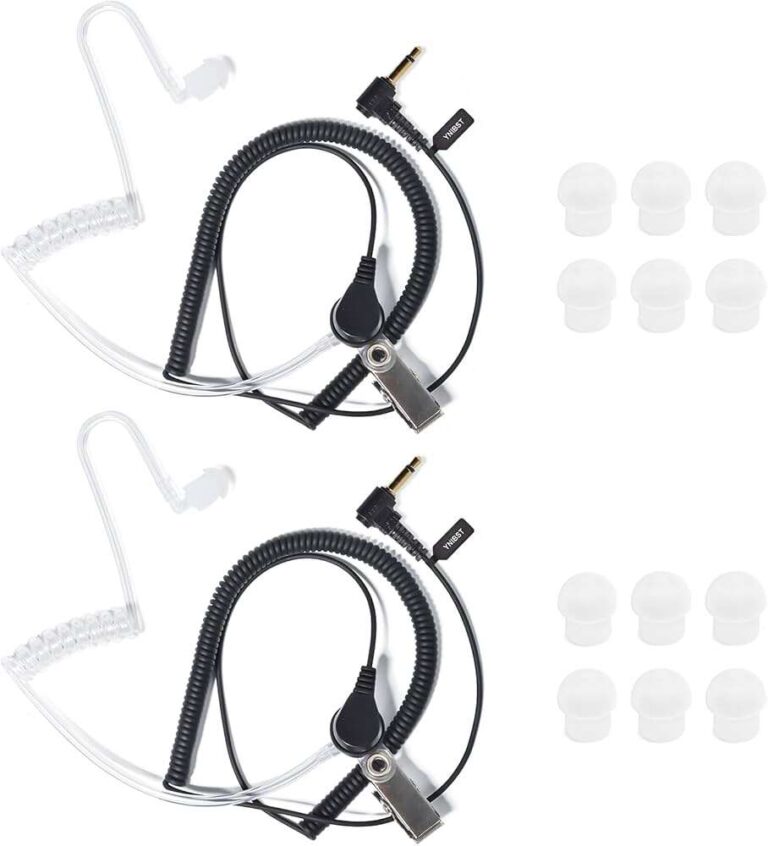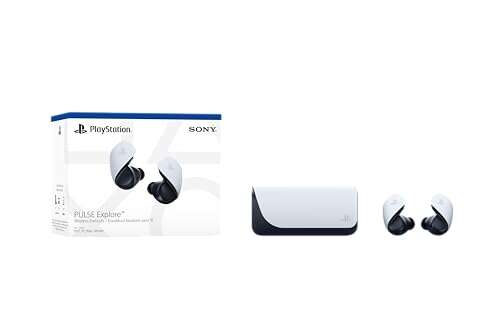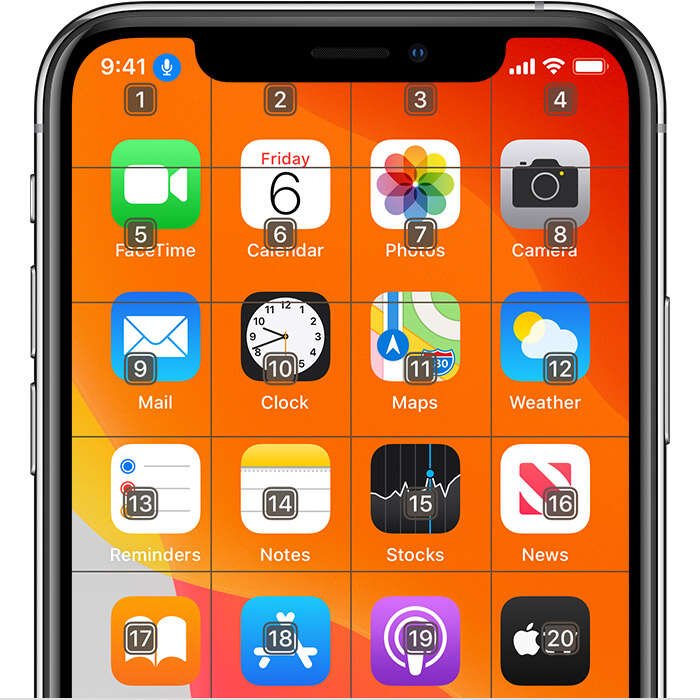
Turn off voice control on earbuds by changing the assistant, touch controls, or accessibility settings on your connected phone.
If your earbuds start calling contacts, pausing music, or opening Siri without warning, you are not alone. Learning how to turn off voice control on earbuds depends on the earbud brand, phone, and control system involved. This guide explains the safest fixes for AirPods, Galaxy Buds, Pixel Buds, and common Bluetooth earbuds, with simple steps you can test in minutes.
Why earbuds activate voice control by themselves
Earbuds usually trigger voice control through a touch, button, or voice command. A long press may open Siri, Google Assistant, Bixby, or another phone assistant. Moisture, hair, hats, or a poor fit can also cause touch sensors to respond when you do not intend to press them.
Some earbuds use “touch and hold” as the default shortcut. Others listen for wake words such as “Hey Siri” or “Hey Google.” In some cases, the issue comes from the phone’s accessibility settings rather than the earbuds.
Common causes include:
• Accidental touch while adjusting the earbuds
• A touch-and-hold gesture assigned to a voice assistant
• Voice wake detection turned on
• Wet or dirty touch sensors
• Earbuds that fit too tightly or move during exercise
• A damaged button or faulty touch panel
• Phone accessibility features that detect button presses
• Outdated earbud firmware or companion apps
In my experience testing wireless earbuds, accidental touch is the most common cause. Many people try to disable the phone assistant first, even though the real problem is a control shortcut inside the earbud app.

How to turn off voice control on earbuds: the basic method
Before changing advanced settings, use this general process. It works for many Bluetooth earbuds, even when the app names differ.
- Put both earbuds in their charging case.
- Open the companion app for your earbuds.
- Select your earbuds from the device list.
- Open Controls, Touch controls, Gestures, or Shortcuts.
- Find the action labeled Voice assistant, Assistant, Siri, or Press and hold.
- Change that action to None, Disabled, Noise control, Play/Pause, or another option.
- Save the change and test the earbuds.
If you do not use a companion app, check your phone’s Bluetooth settings. Some basic earbuds cannot change their controls. In that case, you may need to disable the phone assistant or avoid the button gesture that activates it.
This basic method is the best starting point for how to turn off voice control on earbuds because it stops the command at its source. It also lets you keep useful controls, such as volume or noise cancellation.
Turn off voice control on Apple AirPods
AirPods can activate Siri through a double tap, a press-and-hold action, or the “Hey Siri” wake phrase. The exact options depend on the AirPods model and your iPhone version.
Disable Siri from AirPods controls
- Open Settings on your iPhone.
- Tap Bluetooth.
- Tap the information button next to your AirPods.
- Under Press and Hold AirPods, choose the left or right earbud.
- Change the action from Siri to Noise Control, Off, or another available setting.
- Repeat the process for the other AirPod if needed.
On older AirPods, you may see Left and Right under Double-Tap on AirPod. Select the earbud and change the action from Siri to a different command or no action.
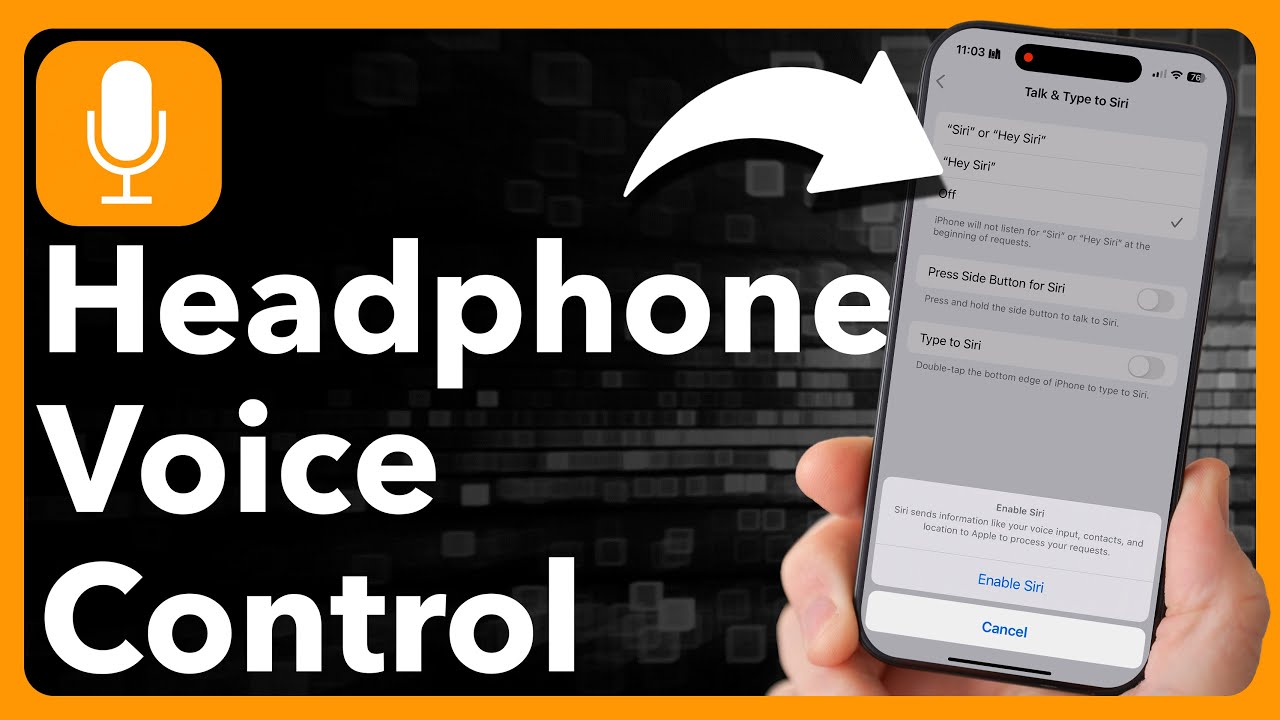
Disable “Hey Siri”
- Open Settings.
- Tap Siri & Search.
- Turn off Listen for “Hey Siri.”
- Turn off Allow Siri When Locked if you do not want Siri to respond from the lock screen.
- You can also turn off Press Side Button for Siri.
These settings affect the iPhone as a whole, not only the earbuds. If you still want Siri available on your phone, change only the AirPods press-and-hold action.
This is a key point when learning how to turn off voice control on earbuds: disabling Siri on the phone is broader than removing Siri from the earbuds.
Turn off voice control on Samsung Galaxy Buds
Samsung Galaxy Buds use the Galaxy Wearable app to manage touch controls. Menu names can vary by model, including Galaxy Buds2, Buds2 Pro, Buds FE, and newer versions.
- Open the Galaxy Wearable app.
- Select your Galaxy Buds.
- Tap Touch controls or Touch and hold.
- Select the left or right earbud.
- Change the assigned action from Voice assistant to another option.
- If available, choose Block touches to prevent accidental activation.
Some Galaxy Buds models let you assign touch and hold to noise control, volume, Spotify, or a custom command. Choose the option that best matches your daily use.
You can also check your Samsung phone’s assistant settings:
- Open Settings.
- Tap Advanced features or Apps, depending on your phone.
- Review Digital assistant, Bixby, or Default apps.
- Change the digital assistant or disable voice wake-up features.
If the earbuds still respond after you change the app settings, restart both the earbuds and phone. Then remove the Bluetooth connection and pair the earbuds again.

Turn off voice control on Google Pixel Buds
Pixel Buds often connect with Google Assistant or Gemini, depending on the phone and software version. You can manage these options through Pixel Buds settings or the Google app.
- Open Settings on your Pixel phone.
- Tap Connected devices.
- Tap the settings icon beside your Pixel Buds.
- Look for Touch controls, Assistant, or Press and hold.
- Change the press-and-hold action if the option is available.
- Open the Google app and review Assistant or Gemini settings.
- Turn off voice activation if you do not want wake-word detection.
You may also say, “Hey Google, open Assistant settings,” then review Voice Match and wake-word options. The exact menu may change as Google updates Assistant and Gemini.
For Pixel Buds, the fastest solution is often changing the press-and-hold gesture. If the earbuds respond to your voice when you are not touching them, focus on Voice Match or wake-word settings instead.

Turn off voice control on other wireless earbuds
Many brands use their own apps, but the process is similar. Look for a settings page that controls gestures, buttons, or the voice assistant.
Sony earbuds
Open the Sony | Sound Connect app, select your earbuds, and review the touch sensor or button assignments. Change the action that opens Google Assistant or another assistant. Some Sony models assign assistant access to one earbud by default.
Jabra earbuds
Open the Jabra Sound+ app and select the connected earbuds. Go to Headset settings or MyControls, then change the button action linked to the voice assistant.
Bose earbuds
Open the Bose app, choose your earbuds, and look for Shortcut or Touch controls. Remove the assistant shortcut or assign another function, such as noise cancellation.
Beats earbuds
Open the Beats app or iPhone Bluetooth settings. Select the earbuds and change the press-and-hold or button action. On Apple devices, also check Siri & Search if the earbuds continue to activate Siri.
Basic Bluetooth earbuds
If your earbuds have no companion app, try these steps:
• Open the phone’s Bluetooth settings
• Tap the settings icon beside the earbuds
• Look for a headset or button control option
• Disable voice assistant access if shown
• Avoid pressing and holding the main button
• Reset the earbuds if the button remains stuck
Brand support pages are useful when the menu is unclear. Firmware updates can also add or remove control options, so use the latest official app where possible.
Disable voice assistant settings on your phone
Sometimes the earbuds are working correctly, but the phone is listening for a wake phrase. This can happen with Siri, Google Assistant, Bixby, or accessibility features.
On an iPhone
- Open Settings.
- Tap Siri & Search.
- Turn off Listen for “Hey Siri.”
- Turn off Press Side Button for Siri if needed.
- Review Announce Notifications if Siri speaks through the earbuds.
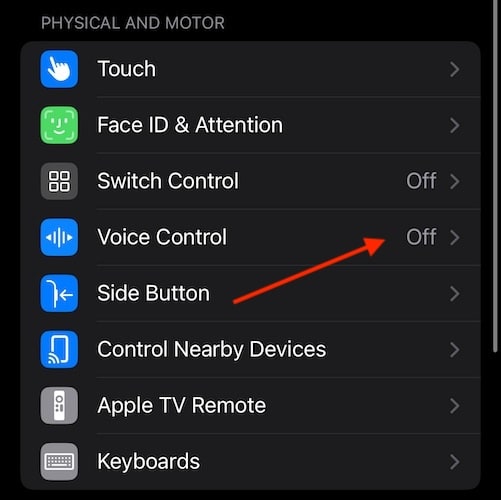
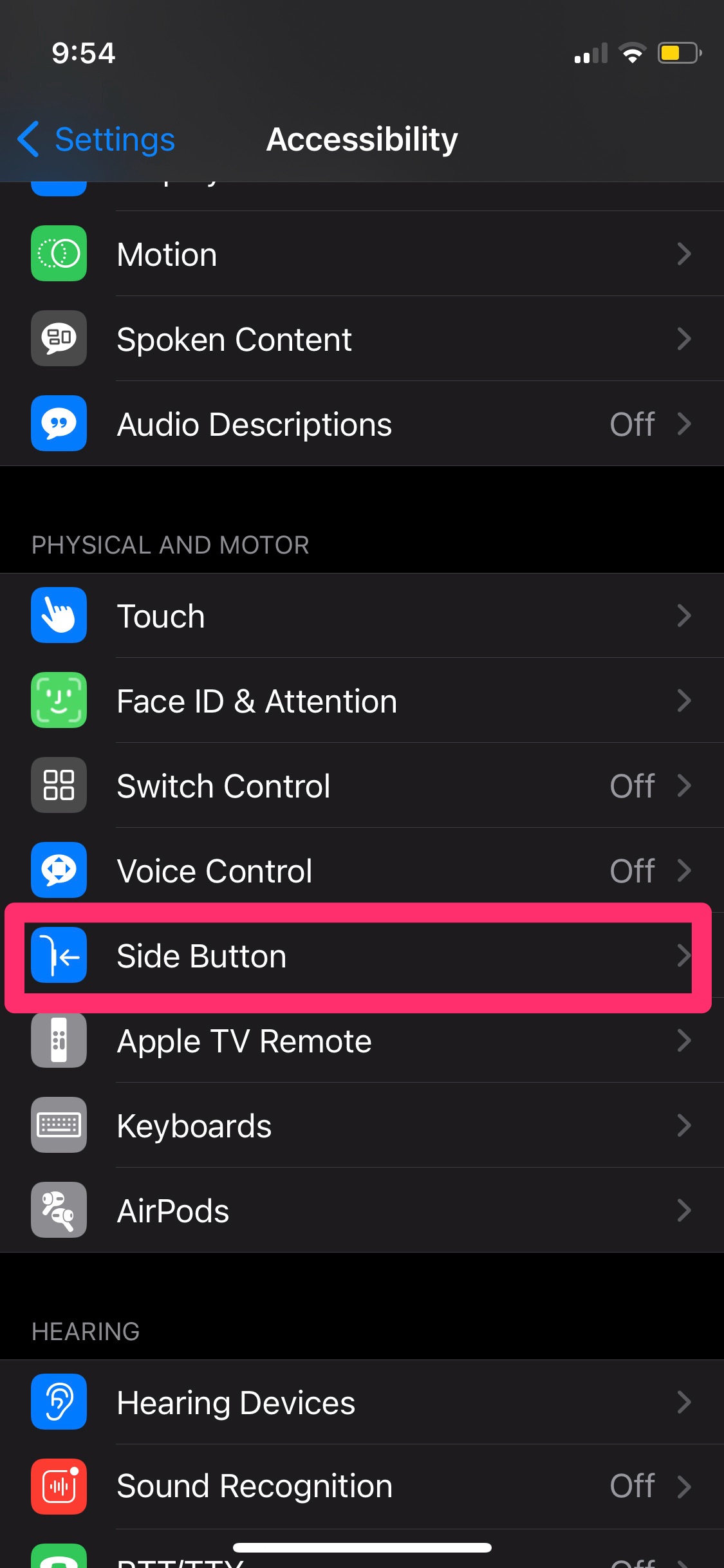
- Check Accessibility settings for Voice Control.
To disable the iPhone’s Voice Control feature:
- Open Settings.
- Tap Accessibility.
- Tap Voice Control.
- Turn Voice Control off.
Voice Control and Siri are different features. Voice Control lets you operate the iPhone with spoken commands, while Siri is Apple’s assistant. Checking both prevents confusion.
On an Android phone
Menu names vary by manufacturer, but these steps usually help:
- Open Settings.
- Tap Apps.
- Tap Default apps.
- Open Digital assistant app.
- Choose None if your phone provides that option.
- Open the Google app and review Assistant or Gemini settings.
- Turn off Voice Match or wake-word detection if needed.
On Samsung phones, also review Bixby settings. On some Android devices, pressing and holding the home, power, or earbud button can launch the assigned assistant.
This is another important part of how to turn off voice control on earbuds. The earbud may send a command, but the phone decides which assistant opens.
Stop accidental touch and button activation
Turning off voice control may not be necessary if the real issue is accidental activation. A few simple changes can prevent the problem.
• Use the correct ear tip size so the earbuds stay in place
• Dry your ears and earbuds before putting them on
• Clean touch surfaces with a soft, dry cloth
• Avoid adjusting earbuds by pressing the outer panel
• Disable touch controls while exercising
• Assign press and hold to a harmless action
• Store earbuds in the case when not in use
• Check whether a hat, hood, or helmet touches the controls
Touch sensors can act like a light switch. A brief contact may do nothing, but a long contact can trigger the assistant. This is why earbuds may open voice control while you are walking, running, or shifting them into a better position.
I have found that changing press and hold to Noise Control solves many false activations without removing all touch features. It gives you control over the earbuds while removing the most troublesome shortcut.
Reset earbuds when voice control will not turn off
A reset can help when the app shows the correct setting but the earbuds still open an assistant. Resetting removes stored pairing data and returns the earbuds to their factory state.
Before resetting, note that you will need to pair the earbuds again. You may also lose custom equalizer settings, gesture assignments, and saved connections.
Use this general reset process:
- Forget the earbuds in your phone’s Bluetooth settings.
- Place both earbuds in the charging case.
- Keep the case open.
- Press and hold the case button or touch panels for about 10 to fifteen seconds.
- Wait for the indicator light to flash.
- Close and reopen the case.
- Pair the earbuds with your phone again.
- Reconfigure the touch controls before testing them.
The exact reset method varies by brand. Check the official manual if the light pattern does not match. Do not repeatedly reset the earbuds if the button feels physically stuck, because that may point to hardware damage.
Update the earbuds and phone software
Software updates can fix problems with touch controls, Bluetooth commands, and voice assistants. They can also change menu layouts, so the steps may look different after an update.
Check these items:
• The earbud companion app
• Earbud firmware
• iOS or Android
• Google Assistant, Gemini, Siri, or Bixby
• Bluetooth system settings
Keep the earbuds charged during a firmware update. Do not close the app or place the earbuds far from the phone until the update finishes.
Updates do not always add a way to disable voice control. Some low-cost earbuds have fixed button commands. In that case, the most practical fix may be using a different control mode or choosing earbuds with customizable gestures.
Troubleshoot voice control that keeps returning
If voice control returns after you disable it, work through the issue in order. This avoids changing many settings at once.
- Test each earbud separately.
- Check whether only one side activates the assistant.
- Turn off wake-word detection on the phone.
- Remove the assistant shortcut in the earbud app.
- Clean and dry the touch controls.
- Update the app and firmware.
- Forget and reconnect the earbuds.
- Reset the earbuds if the problem continues.
- Test the earbuds with another phone.
Testing with another phone is especially useful. If the problem follows the earbuds, the earbud settings or hardware may be responsible. If it happens only with your phone, review its assistant and accessibility settings.
A stuck button is a hardware problem, not a software setting. Contact the manufacturer if the button activates voice control with no pressure or if the earbuds are still under warranty.
Benefits and limits of disabling voice control
The main benefit of learning how to turn off voice control on earbuds is fewer interruptions. Your music will not stop as often, and you are less likely to call someone by mistake.
Other benefits include:
• Better privacy in public places
• Fewer accidental commands
• More reliable controls during exercise
• Less battery use from wake-word listening
• Fewer interruptions during calls or meetings
There are trade-offs. You may lose hands-free calls, spoken directions, message dictation, and quick access to timers or smart-home controls. People with limited mobility may rely on voice commands, so disabling the feature is not always the best choice.
A good middle option is to disable only the earbud shortcut while keeping voice control available on the phone. This approach solves accidental activation without removing useful accessibility tools.
Frequently Asked Questions About How to Turn Off Voice Control on Earbuds
Why do my earbuds keep turning on voice control?
The usual causes are a press-and-hold shortcut, accidental touch, or an active wake word. Check the earbud app’s gesture settings and the assistant settings on your phone.
Can I turn off voice control without turning off Siri or Google Assistant?
Yes. Most compatible earbuds let you remove the assistant from a touch or button shortcut while keeping Siri or Google Assistant active on the phone. Look for Controls, Gestures, or Press and hold in the earbud settings.
How do I turn off voice control on earbuds without an app?
Open your phone’s Bluetooth settings and review the options beside the earbuds. If no control settings appear, disable the phone’s assistant or avoid the button gesture that launches it.
Why does voice control activate when I adjust my earbuds?
Touch sensors may mistake your fingers, hair, moisture, or clothing for a long press. Clean and dry the earbuds, improve the fit, or change the touch-and-hold action to another command.
Will resetting my earbuds disable voice control?
A reset returns the earbuds to their default settings, and the default may still include voice control. After resetting, pair the earbuds again and change the assistant shortcut in the companion app.
How do I disable Voice Control on an iPhone?
Go to Settings, tap Accessibility, tap Voice Control, and turn it off. You may also need to open Siri & Search and disable Siri options if the earbuds are launching Siri instead.
Can a firmware update turn voice control back on?
It can happen if an update restores default gesture settings or changes the control menu. After updating, check the earbud app and confirm that the voice assistant shortcut remains disabled.
Conclusion
Learning how to turn off voice control on earbuds usually takes only a few minutes. Start with the earbud app, remove the assistant from the press-and-hold gesture, and then check Siri, Google Assistant, Bixby, or accessibility settings on your phone.
If voice control still appears, clean the sensors, update the software, reconnect the earbuds, or perform a reset. Test one change at a time so you can identify the real cause. Try these steps today, and explore your earbud manufacturer’s support guide for model-specific controls or share your experience in the comments.

Everett Ashford is a tech reviewer at mytechgrid.com specializing in SSDs, cameras, TVs, earbuds, headphones, and other consumer electronics. He provides honest, data-driven reviews based on hands-on testing and real-world performance analysis. Everett simplifies complex tech details to help readers make smart, confident buying decisions.