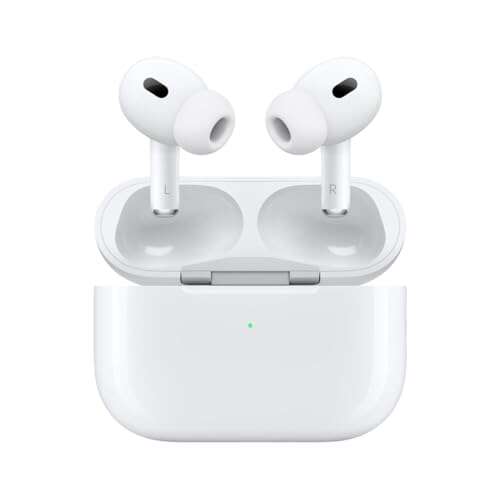
To pair JBL Tune Flex earbuds, open the case, enable Bluetooth, select “JBL Tune FLEX,” and confirm the connection.
Learning how to pair JBL Tune Flex earbuds is simple once you understand the case, Bluetooth menu, and pairing mode. This guide explains the full process for iPhone, Android, Windows, and Mac, plus practical fixes for connection problems, app setup, resets, and device switching.
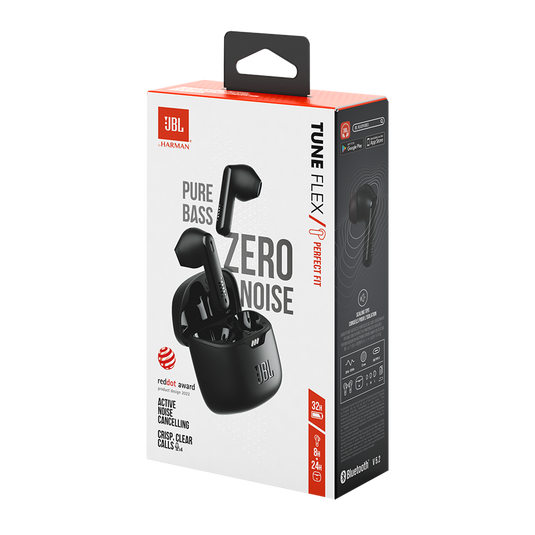
What to do before pairing JBL Tune Flex earbuds
Before you pair JBL Tune Flex earbuds, charge both earbuds and the charging case. A low battery can stop the earbuds from entering pairing mode or cause the connection to drop.
Keep the earbuds close to your phone or computer. Bluetooth usually works best within about 30 feet, though walls, metal objects, Wi-Fi devices, and crowded public areas can reduce the range.
Check that your device has Bluetooth turned on. Also, turn off Bluetooth on nearby devices that have used the earbuds before. The JBL Tune Flex may try to reconnect to the last device, which can make first-time setup confusing.
Use these simple checks:
• Place both earbuds in the case and open the lid.
• Charge the case if its light is weak or does not turn on.
• Keep your phone within a few feet of the earbuds.
• Close music apps that may already be using another audio device.
• Update your phone’s operating system if Bluetooth has not worked properly.
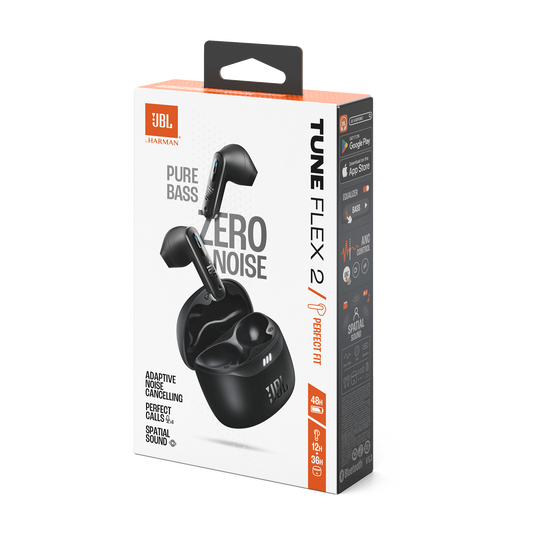
How to pair JBL Tune Flex earbuds with Android
Android phones can pair with JBL Tune Flex earbuds through the standard Bluetooth menu. The names of the menus may differ slightly by brand, but the steps are almost the same.
-
Open the charging case with both earbuds inside.
-
Remove the earbuds from the case. They should turn on and enter pairing mode automatically during the first setup.
-
Open Settings on your Android phone.
-
Tap Connected devices, Connections, or Bluetooth.
-
Turn Bluetooth on.
-
Look under Available devices.
-
Tap JBL Tune FLEX.
-
Tap Pair or Confirm if your phone asks for permission.
Once connected, the earbuds should appear under Paired devices. Play a short song to test both sides.
If you do not see JBL Tune FLEX, place the earbuds back in the case. Close the lid for about 10 seconds, open it again, and remove both earbuds. This often restarts the pairing process without a full reset.
When helping users with Bluetooth earbuds, this is one of the most common mistakes I see: people open the phone’s Bluetooth menu too late. Keep the Bluetooth screen open while removing the earbuds so you can spot JBL Tune FLEX as soon as it appears.
How to pair JBL Tune Flex earbuds with an iPhone
The iPhone pairing process is quick and does not require the JBL Headphones app. The app is useful later for controls and updates, but standard Bluetooth pairing comes first.
-
Open the JBL Tune Flex charging case.
-
Remove both earbuds.
-
Open Settings on your iPhone.
-
Tap Bluetooth.
-
Make sure Bluetooth is turned on.
-
Look under Other Devices.
-
Tap JBL Tune FLEX.
-
Wait until the status changes to Connected.
The earbuds may move from Other Devices to My Devices after pairing. You can now open a music app, video app, or call service and choose the earbuds as the audio output.
If your iPhone shows two separate JBL entries, do not quickly connect to both. JBL Tune Flex earbuds are designed to work as a stereo pair, so two entries may indicate that the earbuds lost their internal connection. Place them in the case, close the lid, reopen it, and try again.

How to pair JBL Tune Flex earbuds with a Windows PC
You can use JBL Tune Flex earbuds for music, video calls, and gaming on a Windows computer. Windows may list them as headphones, earbuds, or an audio device.
-
Put the earbuds in pairing mode by opening the case and removing them.
-
On your Windows PC, open Settings.
-
Select Bluetooth & devices.
-
Turn Bluetooth on.
-
Click Add device.
-
Choose Bluetooth.
-
Select JBL Tune FLEX from the list.
-
Click Done.
After pairing, click the speaker icon in the Windows taskbar. Select JBL Tune FLEX as the sound output.