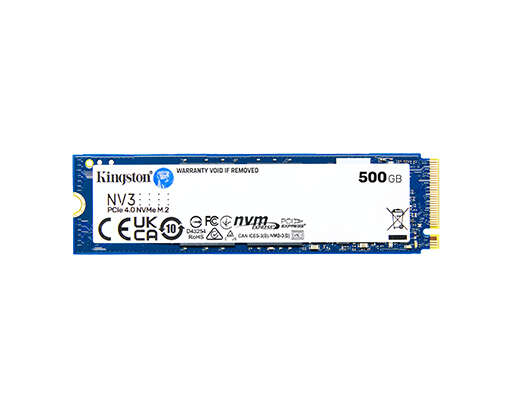
A PCIe SSD is a fast solid-state drive that uses PCI Express lanes to move data between storage and your computer.
Understanding what is a PCIe SSD helps you choose the right storage for a laptop, desktop, gaming PC, or workstation. Unlike older SATA drives, PCIe SSDs connect through the same high-speed interface used by graphics cards and other expansion devices. This design can deliver faster boot times, quicker file transfers, and smoother app performance when the rest of the system can support it.
What Is a PCIe SSD?
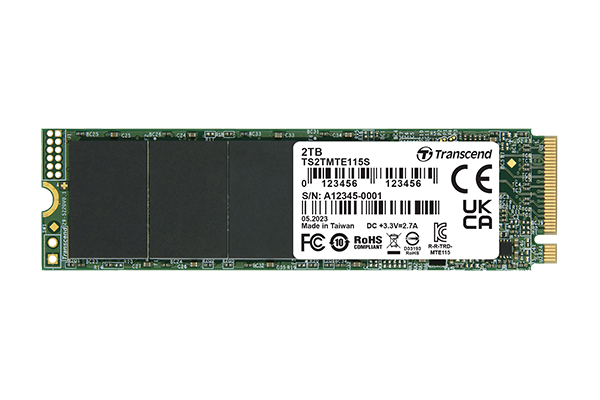
A PCIe SSD is a solid-state drive that uses the PCI Express interface to communicate with a computer. PCIe stands for Peripheral Component Interconnect Express. It is a high-speed connection built into modern motherboards.
Traditional SATA SSDs use the Serial ATA interface. SATA was first designed for hard drives, so it has a lower speed limit. A PCIe SSD uses more direct and wider data paths. Think of SATA as a two-lane road and PCIe as a multi-lane highway.
Most modern PCIe SSDs also use the NVMe protocol. NVMe, or Non-Volatile Memory Express, was designed for flash storage. It helps the drive handle many small requests with less delay than older storage protocols.
In simple terms:
• A PCIe SSD is the physical storage device.
• PCIe is the connection used to move data.
• NVMe is the protocol that helps the operating system communicate with the drive.
This distinction matters because not every PCIe SSD is the same. A drive may use PCIe but rely on a different protocol, although current consumer models almost always use NVMe.
How Does a PCIe SSD Work?
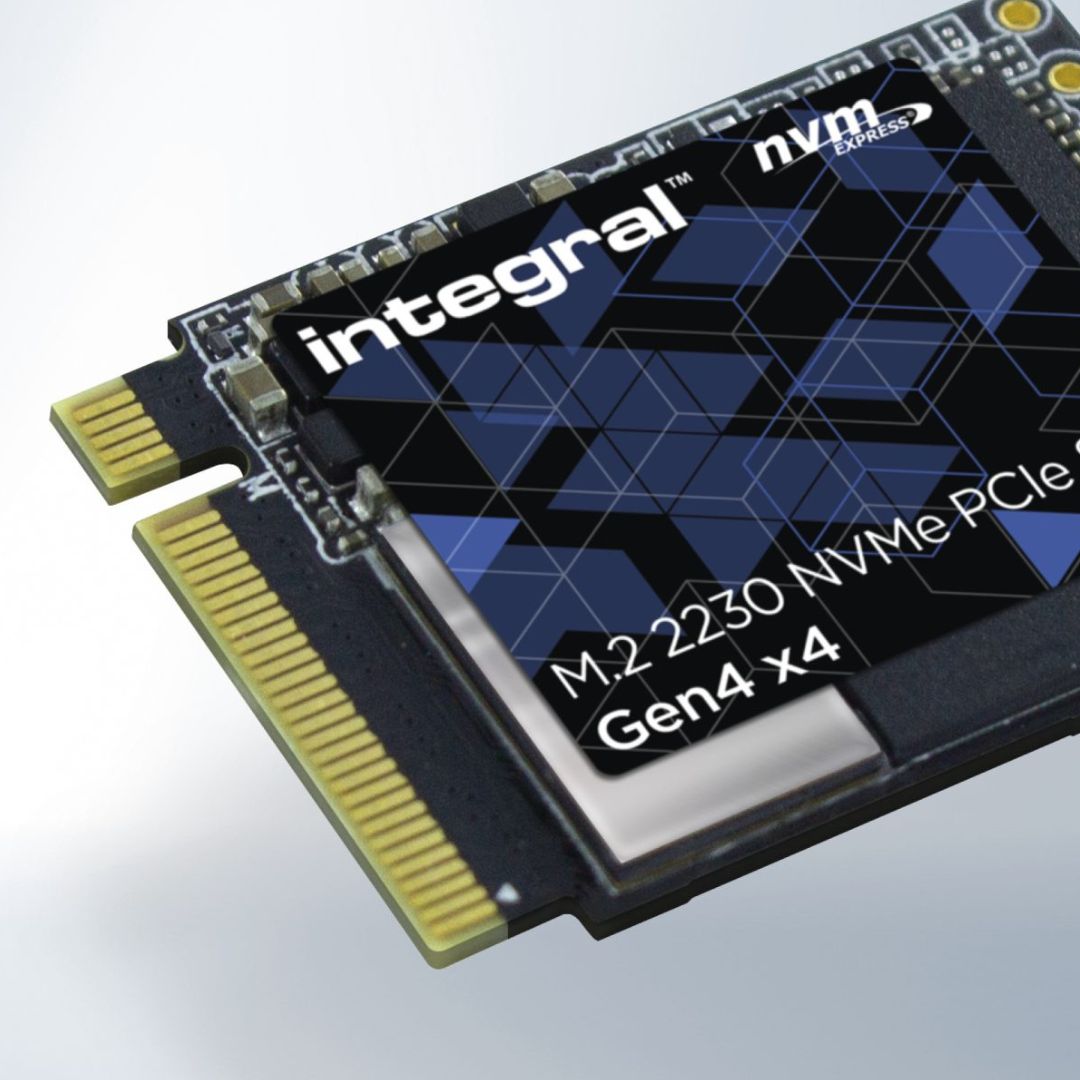
A PCIe SSD stores data in NAND flash memory. NAND memory keeps data even when the computer is turned off. The drive has no spinning platters or moving read heads, which makes it much faster and more resistant to physical shock than a hard disk drive.
When you open a file, the operating system sends a request to the SSD. The drive’s controller finds the correct data in its NAND cells and sends it through PCIe lanes to the processor or memory.
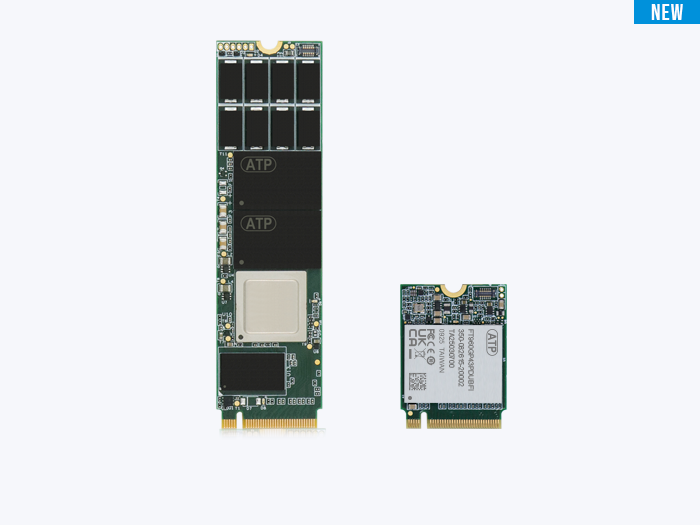
A typical PCIe SSD includes these key parts:
• NAND flash stores your files, apps, photos, and operating system.
• The controller manages data movement, error correction, and wear leveling.
• DRAM or a host memory buffer helps track data locations.
• Firmware controls how the drive works.
• The PCIe interface connects the drive to the motherboard.
The drive controller is especially important. It balances speed, heat, power use, and memory life. A high-end controller may offer excellent performance, but it can also produce more heat than a basic model.
During testing, one practical detail becomes clear: a PCIe SSD may post impressive benchmark numbers while feeling only slightly faster than a good SATA SSD during normal web browsing. The biggest gains appear during large file transfers, game loading, video editing, software builds, and other storage-heavy tasks.
PCIe SSD Form Factors
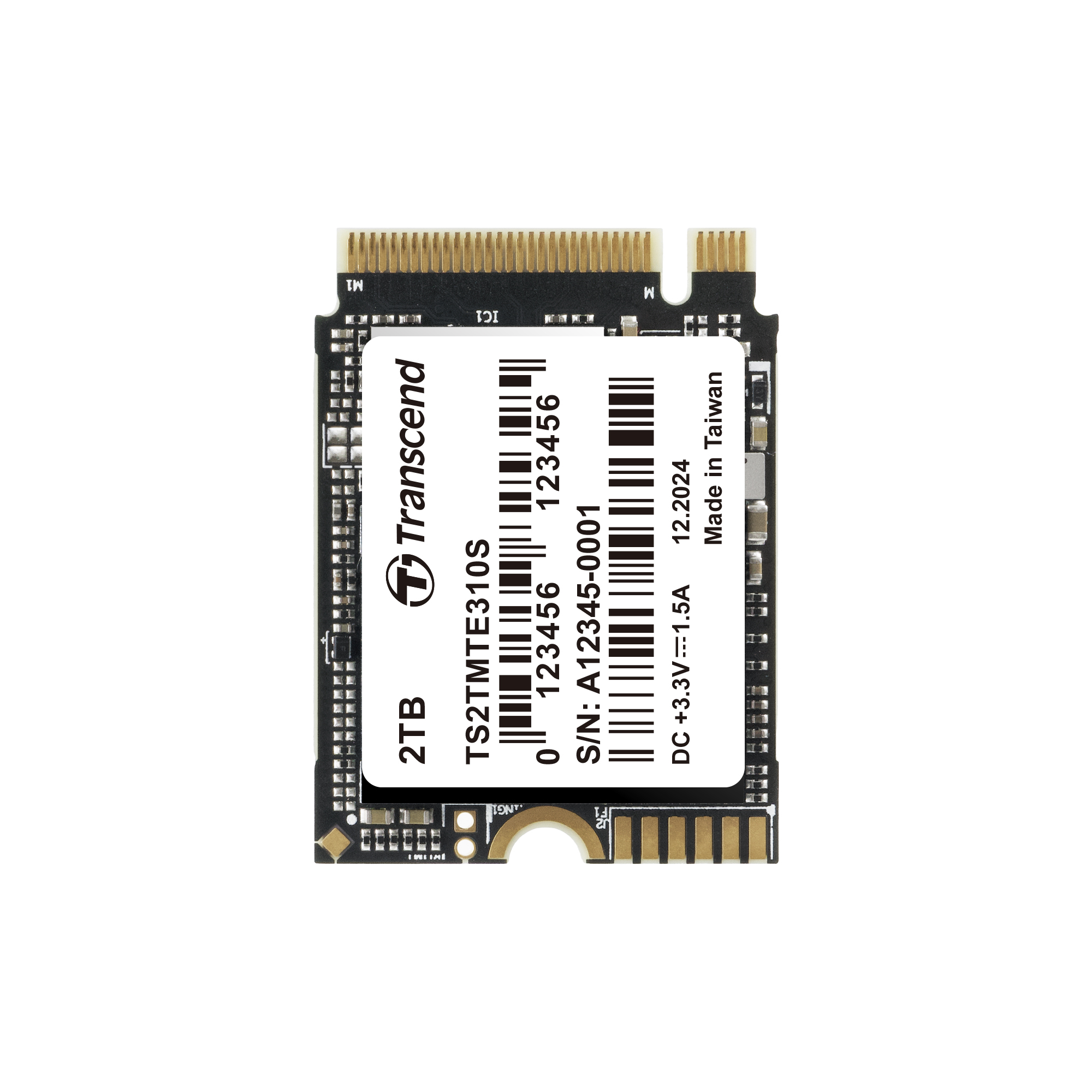
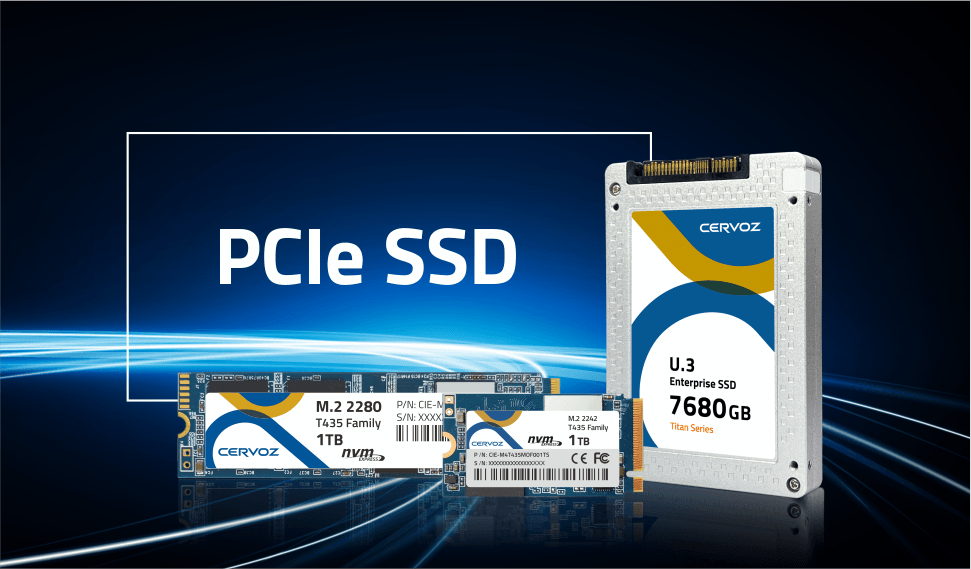
The term PCIe SSD describes the connection, not the shape of the drive. PCIe SSDs come in several physical formats.
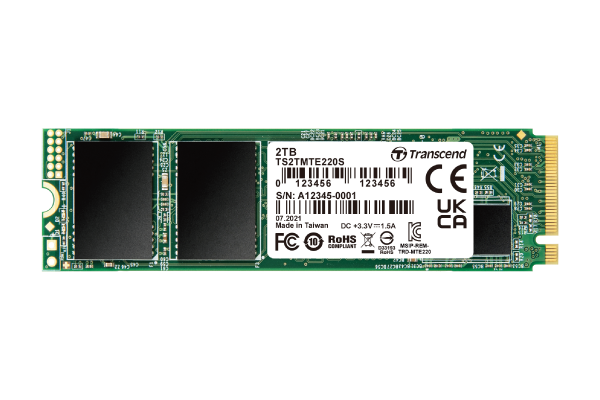
M.2 PCIe SSDs
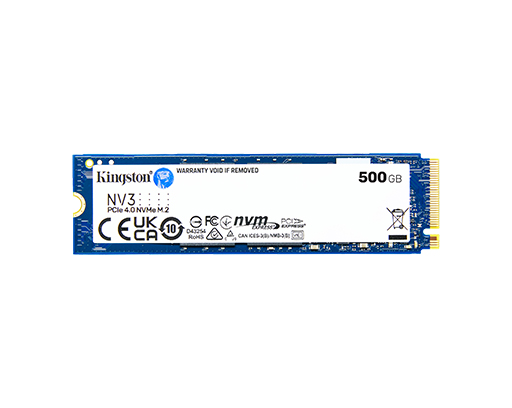
M.2 drives are small circuit boards that fit into an M.2 slot on a motherboard. Most modern consumer PCIe SSDs use the M.2 2280 size.
The numbers refer to the drive’s dimensions:
• 22 means the drive is 22 millimeters wide.
• 80 means the drive is 80 millimeters long.
Before buying one, check whether your M.2 slot supports PCIe NVMe drives. Some M.2 slots support only SATA storage, even though the drive may look the same.
PCIe add-in card SSDs
An add-in card SSD fits into a larger PCIe slot, similar to a graphics card. These drives can include stronger cooling and more controllers. They are common in workstations, servers, and high-performance desktops.
U.2 and enterprise PCIe SSDs
U.2 drives use a cable and connector rather than sitting directly in an M.2 slot. They are often used in servers because they can offer better cooling, easier replacement, and higher storage capacity.
Enterprise systems may also use EDSFF formats. These are built for data centers and are not usually needed in a home computer.

PCIe Generations and Speed
PCIe technology has several generations. Each new generation can provide more bandwidth per lane.
| PCIe generation | Approximate one-way bandwidth per lane | Common consumer use |
|---|---|---|
| PCIe 3.0 | About 1 GB/s | Older NVMe SSDs |
| PCIe 4.0 | About 2 GB/s | Current mainstream systems |
| PCIe 5.0 | About 4 GB/s | New high-performance systems |
| PCIe 6.0 | About 8 GB/s | Mainly emerging professional use |
These figures describe interface bandwidth, not guaranteed drive speed. A PCIe 4.0 SSD may advertise sequential reads near 7,000 MB/s, while a PCIe 5.0 model may reach more than 10,000 MB/s under ideal conditions.
Real performance depends on several factors:
• The PCIe generation supported by the motherboard.
• The number of PCIe lanes available.
• The SSD controller and NAND type.
• Drive temperature.
• The amount of free space.
• The size and type of the files being transferred.
PCIe versions are generally backward compatible. A PCIe 4.0 SSD can often work in a PCIe 3.0 slot, but it will operate at the slower generation’s speed. A PCIe 5.0 SSD in a PCIe 4.0 slot will also be limited by the older connection.
PCIe SSD vs. SATA SSD
The main difference between a PCIe SSD and a SATA SSD is the communication interface. A SATA SSD usually reaches around 500 to 600 MB/s in sequential transfers because of the SATA III limit. A PCIe NVMe SSD can be several times faster.
Here is a simple comparison:
| Feature | PCIe SSD | SATA SSD |
|---|---|---|
| Interface | PCI Express | SATA |
| Common protocol | NVMe | AHCI |
| Typical sequential speed | About 2,000 to 14,000+ MB/s | About 500 to 600 MB/s |
| Form factor | Often M.2 | 2.5-inch or M.2 |
| Latency | Lower | Higher |
| Installation | Requires compatible PCIe or NVMe slot | Uses SATA data and power cables |
| Best use | Gaming, editing, heavy work | General upgrades and basic storage |
A PCIe SSD is not always the best choice for every computer. If your system has an older processor, limited memory, or slow software, the extra storage speed may not change everyday use very much.
A SATA SSD can still be a smart upgrade from a hard drive. It offers fast startup, quiet operation, low power use, and strong value. The best choice depends on your system and workload, not just the largest speed number on the product box.
Benefits of a PCIe SSD
A PCIe SSD offers several practical advantages over older storage technologies.
Faster file transfers
Large video files, game installations, project folders, and backups can move much faster. This benefit is most noticeable when both the source and destination drives are fast enough.
Lower access latency
PCIe NVMe drives can respond to storage requests with less delay. This helps workloads that access many small files, such as software development, photo catalogs, and operating system tasks.
Faster game loading
A PCIe SSD can reduce game load times. New games that use Microsoft DirectStorage may also use fast storage more efficiently, although the final result depends on the game, CPU, graphics card, and system design.
Better professional performance
Video editors, 3D artists, engineers, and developers often work with large files or many files at once. For these users, the performance difference can save meaningful time each day.
Small physical size
An M.2 PCIe SSD takes little space inside a computer. It can reduce cable clutter and help manufacturers build thinner laptops and compact desktops.
Lower noise and power use than hard drives
Because a PCIe SSD has no moving parts, it runs silently. It also usually uses less power than a mechanical hard drive, though high-end PCIe 5.0 drives can use more power than lower-speed SSDs.
Limitations of a PCIe SSD
Knowing what is a PCIe SSD also means understanding its limits. More speed does not remove every storage problem.
Heat
High-performance PCIe 4.0 and PCIe 5.0 drives can become hot during long transfers. When temperatures rise, the drive may reduce its speed to protect the controller and NAND memory. This behavior is called thermal throttling.
A motherboard heatsink or a well-designed aftermarket heatsink can help. Make sure the thermal pad touches the drive correctly and remove any protective film before installation.
Higher cost
Fast PCIe SSDs often cost more per gigabyte than SATA SSDs. Prices change often, so compare cost per terabyte instead of judging only by the model name.
Limited benefit for light tasks
Web browsing, email, office work, and streaming may feel nearly the same on a good SATA SSD and a PCIe SSD. The difference becomes clearer with heavy workloads.
Write endurance
NAND flash has a finite write life. Manufacturers often list endurance as TBW, or terabytes written. A drive rated for 600 TBW is designed to handle a total amount of written data near that figure under defined conditions.
TBW is useful, but it is not a precise expiration date. Many home users will not reach the rating during the practical life of the computer.
Possible compatibility issues
Some older laptops and motherboards do not support NVMe drives. Others may support an M.2 SATA drive but not an M.2 PCIe drive. Always check the system manual before buying.
PCIe SSD NAND Types
The type of NAND flash affects price, capacity, speed, and endurance.
• SLC stores one bit per cell and offers excellent performance, but it is expensive and uncommon as the main memory in consumer drives.
• MLC stores two bits per cell and can offer strong endurance, but it is now less common in mainstream consumer products.
• TLC stores three bits per cell and provides a good balance of speed, cost, and endurance.
• QLC stores four bits per cell and allows high capacity at a lower price, but sustained write speed and endurance may be lower.
Many drives use a small SLC cache. The drive temporarily writes data at higher speed, then moves it into the slower area later. A large transfer may look very fast at first and then slow down after the cache fills.
This is why benchmark results should be read carefully. A short test may measure the cache rather than the drive’s long-term write speed. For frequent large transfers, check sustained performance reviews instead of relying only on peak sequential numbers.

How to Choose the Right PCIe SSD
Start with compatibility. Confirm the computer has an available M.2 slot that supports PCIe NVMe storage. For a desktop, check the motherboard manual. For a laptop, check the service guide and the supported drive length.
Then consider your workload.
• Choose a budget PCIe 3.0 or PCIe 4.0 model for office work, school, browsing, and general use.
• Choose a quality PCIe 4.0 TLC drive for gaming and most home content creation.
• Choose a high-end PCIe 4.0 or PCIe 5.0 drive for frequent large transfers, professional editing, and demanding work.
• Choose a larger capacity if your projects, games, or media files are growing quickly.
• Choose a model with a strong warranty and a clear endurance rating.
Look for independent tests that measure random performance, sustained writes, power use, and temperature. Manufacturer speed claims are often based on ideal conditions with a fresh, mostly empty drive.
In my own upgrade work, one common mistake is buying the fastest drive available without checking the motherboard slot. The drive may work, but it can run at a lower speed or fail to fit under a graphics card. A few minutes of compatibility research can prevent an expensive return.
How to Install a PCIe SSD
Installing an M.2 PCIe SSD is usually simple, but careful handling matters.
-
Shut down the computer and unplug its power cable.
-
Press the power button for a few seconds to discharge remaining power.
-
Open the case or the laptop’s service panel.
-
Find the M.2 slot labeled for PCIe or NVMe storage.
-
Remove the small mounting screw.
-
Insert the SSD at a slight angle.
-
Press it down gently and secure it with the screw.
-
Install the motherboard heatsink if one is included.
-
Close the system and start the computer.
-
Initialize and format the drive in the operating system if it is new.
Do not force the drive into the slot. The notch on the connector must match the slot. Also, do not touch the gold contacts with your fingers.
If you are replacing the boot drive, clone the old drive or perform a fresh operating system installation. Back up important files first. A cloning failure or wrong disk selection can cause data loss.
How to Keep a PCIe SSD Healthy
A PCIe SSD needs little maintenance, but a few habits can help it remain reliable.
• Keep at least 10% to 20% of the drive free when possible.
• Install motherboard and SSD firmware updates from trusted sources.
• Keep the drive cool, especially during long writes.
• Use the operating system’s normal shutdown process.
• Maintain current backups of important data.
• Avoid defragmenting an SSD manually.
Modern operating systems send TRIM commands to help the SSD manage unused blocks. TRIM is not the same as traditional hard drive defragmentation. The operating system usually handles it automatically.
No SSD should be treated as a backup. Even a reliable PCIe SSD can fail because of electronics, firmware, power problems, or physical damage. Keep at least one additional copy of important files.
Common PCIe SSD Mistakes to Avoid
Buying based only on advertised read speed is one of the most common mistakes. Sequential speed matters for large files, but random performance and sustained writes may matter more for daily work.
Another mistake is ignoring the heatsink. A fast PCIe 5.0 drive may need good airflow or a proper cooling solution. Without it, the drive may throttle and perform closer to a slower model.
Watch for these issues:
• Installing an NVMe drive in an M.2 SATA-only slot.
• Buying the wrong M.2 length.
• Covering the SSD with a thermal pad’s plastic film.
• Forgetting to set the new drive as the boot device.
• Filling the drive completely.
• Using a low-quality power supply in a desktop system.
• Expecting a PCIe SSD to fix a weak CPU or low system memory.
The best upgrade is balanced. A mid-range PCIe SSD with enough capacity and good cooling can be more useful than an expensive drive that your system cannot fully support.
Frequently Asked Questions About What Is a PCIe SSD
Is a PCIe SSD the same as an NVMe SSD?
Not exactly. PCIe describes the connection, while NVMe describes the storage communication protocol. Most modern NVMe SSDs use PCIe, so the terms are often used together.
Is a PCIe SSD better than a SATA SSD?
A PCIe SSD is usually faster and has lower latency than a SATA SSD. However, a SATA SSD may offer better value for basic tasks or older computers that do not support NVMe storage.
Can I use a PCIe SSD in any M.2 slot?
No. Some M.2 slots support PCIe NVMe drives, while others support only SATA drives or a specific key type. Check your motherboard or laptop manual before installation.
Does a PCIe SSD make a computer faster?
It can reduce boot times, app loading times, and file transfer times. The improvement is largest when replacing a hard drive or when running storage-heavy software.
Does a PCIe SSD need a heatsink?
Not always. Basic PCIe 3.0 drives may work without one, but faster PCIe 4.0 and PCIe 5.0 models can benefit from a heatsink and good airflow.
Are PCIe SSDs reliable?
Quality PCIe SSDs can be very reliable when used within their temperature and workload limits. Keep backups because no storage device is immune to failure.
Can a PCIe SSD work in an older PCIe slot?
Often, yes. PCIe generations are generally backward compatible, but the SSD will run at the speed supported by the older slot. The system must also support the correct storage protocol.
Conclusion
A PCIe SSD is a solid-state drive that uses the PCI Express interface to deliver fast storage performance. Most modern models use NVMe, come in a compact M.2 form, and offer much higher speeds than SATA SSDs.
The right drive depends on your motherboard, workload, budget, capacity needs, and cooling. Check compatibility first, compare real-world reviews, and keep reliable backups after installation. If you are planning an upgrade, start by checking your system manual and then choose the fastest PCIe SSD that your computer can use well.

Everett Ashford is a tech reviewer at mytechgrid.com specializing in SSDs, cameras, TVs, earbuds, headphones, and other consumer electronics. He provides honest, data-driven reviews based on hands-on testing and real-world performance analysis. Everett simplifies complex tech details to help readers make smart, confident buying decisions.