Most no-picture TV problems come from a wrong input, loose cable, frozen software, or a failed backlight.
If your TV has sound but no picture, the audio system is working, which helps narrow the fault. I have seen this issue caused by something as simple as a remote setting and as serious as a failed LED backlight. This guide explains how to fix no picture on TV but sound with safe, practical steps that work across Samsung, LG, Sony, Vizio, TCL, Hisense, and other brands.
Check Whether the TV Menu Appears
The first step in learning how to fix no picture on TV but sound is to test the TV’s own menu. Press the Menu, Home, Settings, or Volume button on the TV remote.


Look closely at the screen:
• If the menu appears, the screen works. The problem is likely the input, cable, streaming device, or channel.
• If the menu does not appear, the problem may involve the display, backlight, power board, or internal software.
This simple test prevents a common mistake: replacing a working HDMI cable when the TV itself has a display fault.
Try raising the volume as well. If the volume bar appears but the program image does not, the TV may be stuck on a blank video source. If nothing appears at all, continue with the power and flashlight tests below.


Power Cycle the TV Completely
A full power cycle often fixes a frozen picture. Turning the TV off with the remote is not always enough because many modern TVs remain in standby mode.
Follow these steps:
- Turn off the TV with the remote.
- Unplug the power cord from the wall outlet.
- Wait at least 60 seconds.
- Press and hold the TV’s physical power button for 15 to 30 seconds.
- Plug the TV directly into the wall.
- Turn it on and wait for the logo or home screen.
This process clears temporary memory and resets some power circuits. It is one of the safest first steps for how to fix no picture on TV but sound.
Avoid using a power strip during this test. A weak strip, loose connection, or overloaded circuit can cause unstable power. If the TV works when connected directly to the wall, replace the power strip or have it checked.
Select the Correct Input Source
A wrong input is one of the most common causes of sound without video. Your TV may play audio from one device while the screen is set to another HDMI port.
Press the Input, Source, or TV/Video button on the remote. Then select each active input one at a time.
Check these common sources:
• HDMI 1, HDMI 2, or HDMI 3
• Cable or antenna TV
• Composite or component video
• A streaming stick
• A game console
• A Blu ray player
Wait several seconds after selecting each input. Some devices need time to send a video signal.


If you hear sound from a cable box but see a blank screen, select the HDMI port connected to that box. If the TV menu appears on another input, the TV panel may be fine.
 cable”
style=”max-width: 100%; height: auto; border: 2px solid black; border-radius: 10px; display: block; margin: 0 auto;”
loading=”lazy”
/>
Inspect and Reseat Every cable
loose or damaged cables can carry audio while failing to carry video. HDMI cables carry both signals, but a damaged cable, bent connector, or poor connection may interrupt only the video portion.
Unplug the HDMI cable from both the TV and the source device. Check the connectors for bent pins, dust, or damage. Reconnect each end firmly, then test the device again.
For the best test, use a different HDMI cable and a different HDMI port. Do not assume that an expensive cable is always better. A certified, undamaged cable of the correct length is usually enough for normal home use.
Also check older cable types:
• Red and white RCA cables carry sound.
• Yellow RCA cables carry standard video.
• Component cables use red, green, and blue video plugs, plus separate audio plugs.
• Optical cables carry sound only and cannot send a picture.
If you use a component connection, one missing video plug can leave you with audio but no image. This is an important detail when figuring out how to fix no picture on TV but sound on an older setup.
Restart the Cable Box, Streaming Device, or Console
The TV may be working while the connected device has stopped sending a video signal. This can happen after a software update, a power outage, or a failed handshake between the device and TV.
Unplug the source device for 60 seconds. Plug it back in, allow it to start fully, and then select the matching TV input.
You can also test the source device on another TV if one is available. Alternatively, connect a different device to the same HDMI port. These tests help identify which part is faulty:
• If several devices work on the TV, the original source device is likely the problem.


• If no devices work on one HDMI port, that port may be damaged.
• If no devices work on any input but the TV menu works, reset the TV’s input settings.
• If the source works on another TV but not yours, check the TV resolution and HDMI settings.
Some streaming devices output a resolution that an older TV cannot display. Resetting the device to automatic resolution often restores the picture.
Check Brightness, Picture Mode, and Accessibility Settings
A picture can seem missing when the screen is extremely dark. This may happen after someone changes the brightness, contrast, energy-saving mode, or accessibility settings.
Open the TV menu if possible. Then check:
• Brightness
• Backlight
• Contrast
• Picture mode
• Energy saving
• Ambient light detection
• Screen off
• Audio only


Set the picture mode to Standard or Vivid for testing. Turn off energy-saving features temporarily. Some TVs have a Screen Off command that keeps sound playing while the display remains dark.
If you can see a faint image, increase the backlight setting. Do not leave the TV on its brightest setting permanently, because high brightness can increase power use and heat. The goal is to confirm the cause, then choose a comfortable setting.

Perform a Flashlight Test
A flashlight test can help determine whether the TV’s backlight has failed. This test is useful when the TV produces sound but the screen looks completely black.
Turn on the TV and play a familiar channel or video. Dim the room lights. Hold a bright flashlight close to the screen and shine it at an angle.
Look for a faint image, menu, or moving shape:
• A faint image suggests the LCD panel is working but the backlight is not.
• No image at all may point to a panel, main board, T Con board, power board, or software fault.
• A picture that appears briefly and then disappears may indicate failing LED strips or a power protection problem.
LED TVs use a backlight behind the LCD panel. When those LEDs fail, the TV may still produce clear sound because the audio circuits remain active. This is one of the most important diagnostic steps for how to fix no picture on TV but sound.
The flashlight test is not perfect. A very dark image can be difficult to see, and OLED TVs do not use a separate backlight. Do not press hard on the screen during the test.
Reset the TV’s Picture and System Settings
If the menu is visible, reset the picture settings first. Look for a menu path similar to Settings, Picture, Reset Picture, or Restore Default Picture Settings.
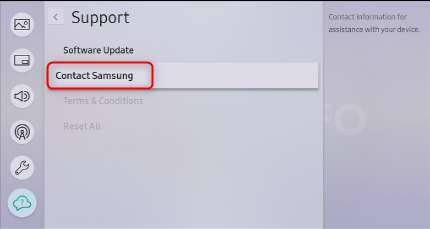
If that does not help, consider a full factory reset. The exact steps vary by brand, but the option is often under Support, System, General, or Device Preferences.
A factory reset removes:
• Saved Wi Fi networks
• Streaming app logins
• Custom picture settings
• Channel lists
• Parental controls
Write down important passwords before starting. If the screen is too dark to navigate, check the TV manufacturer’s support instructions for a button sequence or mobile app control.
A reset is useful when a software error causes a black screen. It will not repair a failed backlight, cracked panel, damaged port, or defective power board.

Update the TV Software
Smart TVs use operating systems that can develop bugs. A failed update or corrupted system process may affect video output while leaving audio active.
If you can see the menu, connect the TV to the internet and check for a software update. Use the manufacturer’s official update method. Do not turn off the TV during an update.
If the display is too dark to use, some brands allow updates through a USB drive. Only use the exact firmware for the model number and region. Installing the wrong file can make the problem worse.
Software updates can improve compatibility with HDMI devices, streaming services, and digital broadcasts. They cannot fix physical damage, but they are worth checking before paying for repair.
Test the TV Without External Devices
Disconnect every HDMI, USB, antenna, and audio cable from the TV. Leave only the power cord connected. Then turn on the TV and press Home or Menu.
This test removes outside causes. A defective HDMI device can sometimes interfere with the TV’s startup or video handshake.
If the TV menu appears after you disconnect everything, reconnect devices one at a time. The device that causes the screen to go black may need a restart, firmware update, replacement cable, or replacement altogether.
If the TV still has no picture with every external device removed, the fault is probably inside the television. This test is especially helpful when deciding how to fix no picture on TV but sound without buying unnecessary parts.
Understand Common Hardware Failures
When basic troubleshooting fails, the problem may be a hardware defect. The most common causes include the following.
Failed LED backlight
This is common in LCD and LED TVs. The TV may produce sound and a faint image during the flashlight test, but the screen will not illuminate normally.
Backlight repair requires opening the television and replacing LED strips or related parts. The panel is fragile, and repair can be difficult even for experienced technicians.
Defective power board
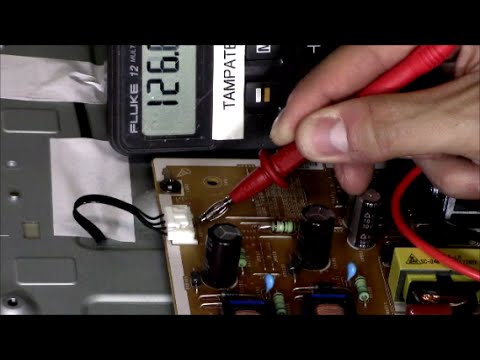
The power board supplies electricity to the TV and its backlight. A failing board may cause a black screen, repeated restarts, clicking sounds, or a TV that turns on and off.
Main board failure
The main board processes video signals and controls the inputs. A failure may cause no menu, no external picture, or unusual startup behavior.
T Con board or panel fault
The timing control board sends image data to the display panel. A panel fault can create a black screen, vertical lines, half an image, or a distorted picture.
Damaged HDMI port
A broken HDMI port may stop video from one device while other inputs continue to work. Test every HDMI port before assuming the main board has failed.
The cost of repair depends on the model, screen size, age, part availability, and labor. A backlight repair may be practical on a newer or premium TV. A failed panel is often expensive enough that replacement makes more sense.
Use Electrical Safety During TV Repair
Never open a TV unless you understand electrical safety and have the proper training. Some internal components can store dangerous voltage even after the TV has been unplugged.
Do not touch exposed circuit boards, capacitors, or power supply areas. Avoid makeshift repairs, bypassed fuses, and unapproved parts.
Contact a qualified technician when:
• The TV smells burnt.
• You see sparks or smoke.
• The power cord or outlet is damaged.
• The screen is cracked.
• The TV repeatedly clicks or shuts down.
• A reset and cable test do not help.
A technician can test voltage rails, backlight circuits, and signal boards with proper tools. This is safer and more accurate than replacing random parts.
Troubleshooting Lessons From Real TV Repairs
One mistake I often see is replacing the TV too soon. In several troubleshooting cases, the real cause was a disabled screen setting, a loose HDMI cable, or a streaming device that had frozen during startup.
Another common mistake is buying a new HDMI cable without testing another input. If the TV menu does not appear, a cable change may not solve anything. Always separate the problem into three parts: the TV, the source device, and the connection between them.
A useful habit is to change only one thing at a time. If you unplug five cables, reset the TV, and change picture settings together, you may fix the issue but never learn what caused it. Slow testing is often faster than guessing.
Also record the TV model number and the exact symptom. “Black screen” is less useful than “sound works, menu is invisible, flashlight shows a faint picture, and all HDMI devices fail.” Clear details help a repair professional diagnose the fault more quickly.
When Should You Replace the TV?
Repair may be worthwhile when the TV is fairly new, has a large screen, or is a premium model. It may also make sense when the problem is a cable, remote, software setting, or external device.
Replacement may be more practical when:
• The TV is older and has several problems.
• The panel itself is damaged.
• The repair estimate is close to the price of a new TV.
• Replacement parts are unavailable.
• The TV has poor energy performance or outdated smart features.
Ask for a written repair estimate. Include labor, parts, diagnostic fees, and warranty coverage. A reputable shop should explain the likely fault and the limits of the diagnosis.
Do not judge a repair only by the part price. A low-cost part can still require careful labor, and a poor repair can create new damage.
A Simple Order for Diagnosing the Problem
Use this sequence when you need a quick but careful approach to how to fix no picture on TV but sound:
- Press Home or Menu to see whether the TV can display its own interface.
- Power cycle the TV and the source device.
- Select the correct input.
- Reseat or replace the HDMI cable.
- Test another HDMI port.
- Disconnect all external devices.
- Check brightness, backlight, and screen-off settings.
- Perform the flashlight test.
- Reset picture or system settings.
- Contact a qualified technician if the problem remains.
This order begins with free, low-risk checks and ends with professional diagnosis. It also helps you avoid spending money before you know which part has failed.
Frequently Asked Questions About How to Fix No Picture on TV but Sound
Why does my TV have sound but no picture?
The most common causes are a wrong input, loose HDMI cable, frozen source device, disabled screen setting, or failed backlight. Check whether the TV menu appears, then test the input and cables.
How do I know if my TV backlight is broken?
Shine a flashlight at the screen while the TV plays video. If you see a faint image, the LCD is likely working and the LED backlight may have failed.
Can a bad HDMI cable cause sound but no picture?
Yes. An HDMI cable can be damaged or poorly connected in a way that interrupts video while audio still works. Test another cable and another HDMI port.
Why is my TV screen black after turning it on?
A black screen can result from a software freeze, incorrect input, power issue, failed backlight, or internal board problem. A full power cycle and menu test can help separate these causes.
Will unplugging my TV fix the black screen?
Unplugging the TV for at least 60 seconds can clear temporary software and power errors. It will not repair a failed panel, backlight, power board, or damaged HDMI port.
Should I repair or replace a TV with no picture?
Repair is often reasonable for a newer TV or a simple backlight or board issue. Replacement may be better when the panel is damaged, the TV is old, or the repair cost is close to a new television.
Conclusion
When a TV has sound but no picture, start with simple checks: confirm the menu, power cycle the TV, select the right input, and inspect the cables. Then test the source device, reset picture settings, and use a flashlight to check for a failed backlight.
These steps explain how to fix no picture on TV but sound without guessing or buying unnecessary parts. If the screen stays black after testing every input and disconnecting external devices, stop before opening the set and contact a qualified technician. Try the safe checks today, and share your results or explore more troubleshooting guides for your TV model.

Everett Ashford is a tech reviewer at mytechgrid.com specializing in SSDs, cameras, TVs, earbuds, headphones, and other consumer electronics. He provides honest, data-driven reviews based on hands-on testing and real-world performance analysis. Everett simplifies complex tech details to help readers make smart, confident buying decisions.